How to Connect iPhone to an Aux Adapter (Lightning or USB-C)
A practical guide to connecting your iPhone to an aux input using Lightning or USB-C adapters. Learn how to choose the right adapter, follow a safe setup, and troubleshoot common issues for reliable wired audio.


To connect an iPhone to an aux input, use a Lightning to 3.5 mm adapter for older iPhones or a USB-C to 3.5 mm adapter on newer models, plus a 3.5 mm aux cable. Ensure the adapter is Apple-certified or MFi-rated, then plug in and test audio. If you’re using a car stereo, you may need to set the iPhone’s audio output to the connected accessory and test volume on both devices.
Why an iPhone to Aux Adapter is Still Useful
In a world where wireless streaming is commonplace, there are still many scenarios where a wired connection via an iPhone to aux adapter is preferable. A stable wired link typically offers predictable audio latency and reliability, especially in noisy environments or where Bluetooth signals contend with interference from other devices. The simplicity of a short auxiliary cable means you don’t have to fuss with pairing codes, and you avoid potential battery drain associated with constant wireless streaming. For road trips, rental cars, or older audio systems that lack robust Bluetooth support, a wired adapter provides a straightforward, universally compatible solution. According to Phone Tips Pro, understanding which adapter matches your iPhone model and your car’s input is the first step toward reliable audio. The Phone Tips Pro Team emphasizes evaluating both device compatibility and build quality before purchasing, so your setup remains dependable over time.
Beyond basic listening, wired adapters can also benefit people who use external speakers in workshops, kitchens, or home offices where wireless signals are unreliable or where you want to ensure the highest possible audio fidelity from media players. A well-made adapter with a solid shield reduces susceptibility to hum and interference, which is especially important when the source device sits near power cables or other electronics. With the right adapter, you can enjoy consistent, clean sound without needing to upgrade your entire stereo system.
Lightning to 3.5 mm vs USB-C to 3.5 mm: What to Choose
Choosing the right adapter depends on your iPhone model and your audio destination. Older iPhones (iPhone 6s through iPhone 14) use Lightning connectors and require a Lightning to 3.5 mm adapter. Newer iPhones (iPhone 15 and later) adopt USB-C, so a USB-C to 3.5 mm adapter is the correct choice. If you own multiple devices, you might consider carrying both types in your travel kit. Phone Tips Pro analysis shows that USB-C adapters are increasingly common as newer devices transition to USB-C, making universal compatibility a practical goal. When shopping, prioritize adapters that are Apple-certified or MFi-rated to ensure stable sound and safe operation. Remember to verify compatibility with your car’s stereo and any built-in EQ settings, which can affect overall audio balance.
How to Connect Safely: Quick Start Guide
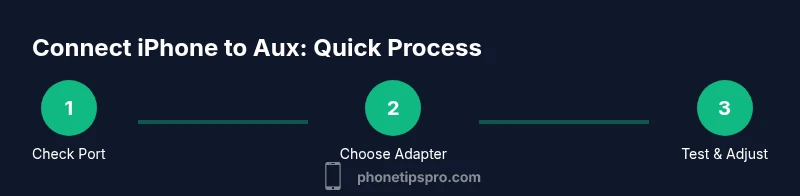
- Inspect your devices and identify the port: Lightning or USB-C. This determines which adapter you need. Keep a spare cable handy for testing.
- Select a quality adapter: Look for Apple-certified or MFi-rated adapters to avoid compatibility problems and damage.
- Connect the adapter to your iPhone: Make sure the connector is fully seated to establish a solid signal path.
- Attach the 3.5 mm aux cable: Plug the male end into the adapter and the other end into the car stereo or speaker.
- Power on and select the proper input: Choose the AUX input on your stereo, and set your iPhone’s volume to a moderate level before testing.
- Test and adjust: Play a track and verify both left and right channels. If you hear crackling or muffled sound, re-seat the connections or try a different cable. Pro tip: keep cables tangle-free to avoid intermittent connections.
tipRoleModelNamePathsRemovedReasonFlagIsNotUsedHere
Troubleshooting Common Issues
When you encounter no sound or distorted audio after connecting your iPhone to an aux adapter, start with the basics: ensure the adapter is properly connected, the 3.5 mm cable is plugged in securely, and the iPhone is outputting to the external accessory. If there is no sound, try a different aux cable, and test with another device to rule out the car’s input as the issue. Some adapters rely on a built-in DAC; if the DAC fails, the result can be low volume, crackling, or no audio at all. Check for debris in the jack and ensure the iPhone’s volume is not muted. If audio drops intermittently, re-seat the connectors and consider replacing the cable with a higher-quality shielded variant. Phone Tips Pro notes that persistent issues may indicate a mismatch between adapter type and car stereo, so it’s worth testing with a known-good device (like a dedicated portable speaker) to isolate the problem.
Tips for Best Audio Quality
- Use Apple-certified or MFi-rated adapters to guarantee compatibility and reduce risk of damage.
- Prefer shielded 3.5 mm cables to minimize interference and static.
- Keep the cable short and tidy to avoid pulling on the connector during use.
- If you notice humming, try moving the adapter away from power cables or other sources of EMI.
- Regularly check for firmware updates on your car stereo that might affect Bluetooth or auxiliary input performance.
Authority Sources and Purchasing Tips
For further guidance, consult official documentation and reputable tech outlets. See Apple’s official support resources for iPhone adapters and audio accessories. The Verge and CNET articles offer practical buying tips and comparisons for iPhone USB-C and Lightning adapters. Remember to favor adapters that are clearly labeled as Apple-certified or MFi-rated to ensure compatibility and safety. These sources can help you make an informed purchase and avoid common compatibility pitfalls.
Tools & Materials
- Lightning to 3.5 mm adapter(Essential for iPhones with Lightning ports (older models))
- USB-C to 3.5 mm adapter(Essential for iPhones with USB-C (newer models, e.g., iPhone 15/16))
- 3.5 mm auxiliary cable(Standard male-to-male cable to connect adapter to car stereo or speaker)
- iPhone (any model)(Device to be connected)
- Car stereo or external speaker with AUX input(Destination for audio output)
- Optional: extra adapter or cables(Carry a spare in case of faults)
Steps
Estimated time: Estimated total time: 8-12 minutes
- 1
Identify your iPhone port
Check whether your iPhone uses Lightning (older models) or USB-C (newer models). This determines which adapter to buy and ensures compatibility with the AUX input you plan to use.
Tip: If you’re unsure, check the official Apple support page for your model. - 2
Choose a certified adapter
Select an Apple-certified or MFi-rated Lightning to 3.5 mm or USB-C to 3.5 mm adapter depending on your port. Certified adapters reduce latency, improve sound quality, and lower the risk of damage.
Tip: Avoid generic no-name adapters to minimize audio dropouts and poor build quality. - 3
Attach the adapter to your iPhone
Firmly insert the adapter into your iPhone port. A snug fit reduces the chance of a loose connection that causes crackling or intermittent audio.
Tip: If it doesn’t click in, don’t force it—check alignment and try again. - 4
Connect the AUX cable
Plug the 3.5 mm cable into the adapter and the car stereo or speaker. Ensure both ends are fully seated for a solid signal path.
Tip: Use a short, quality cable to minimize resistance and noise. - 5
Set the output and test
Set the car stereo input to AUX and play a track at a moderate volume. Verify both left and right channels are working and adjust the iPhone’s volume accordingly.
Tip: Start with around 50% volume to avoid sudden loud bass when testing. - 6
Troubleshoot if needed
If there’s no sound or distortion, re-seat connections, try a different cable, or test with another device to isolate the issue. Consider swapping adapters if the problem persists.
Tip: Check for firmware updates on the car stereo if applicable.
FAQ
What adapter do I need to connect my iPhone to an aux input?
You need a Lightning to 3.5 mm adapter for older iPhones or a USB-C to 3.5 mm adapter for newer iPhones. Make sure the adapter is Apple-certified or MFi-rated.
Use a Lightning or USB-C to 3.5 mm adapter depending on your iPhone model, and choose an Apple-certified option for reliability.
Will cheap third-party adapters cause issues?
Low-quality adapters can produce crackling, low volume, or dropout. It’s safer to choose Apple-certified or MFi-rated adapters for consistent performance.
Cheap adapters can cause audio issues; stick with Apple-certified options for best results.
Can I use wireless instead of a wired adapter?
Yes, Bluetooth headphones or car stereo Bluetooth can work, but wired adapters typically provide more stable audio quality and less latency.
Wireless is convenient, but wired adapters usually sound more reliable and consistent.
Why do I hear no sound after connecting?
Check that the adapter is fully seated, the AUX input is selected on the stereo, and the iPhone’s output is set to external accessory. Try another aux cable to rule out a faulty cable.
If there’s no sound, re-seat the connectors and confirm the right input is chosen on the stereo.
Do newer iPhones require USB-C adapters?
Yes, iPhone 15 and later use USB-C, so you’ll need a USB-C to 3.5 mm adapter or use wireless options if you prefer.
Newer iPhones use USB-C, so pick a USB-C to 3.5 mm adapter or consider wireless options.
Watch Video
Quick Summary
- Choose the correct adapter for your iPhone port
- Prefer Apple-certified or MFi-rated adapters
- Test audio with a simple track to confirm setup
- USB-C is becoming the standard on newer iPhones—plan accordingly