What iPhone Filter for Northern Lights: A Practical Guide
Discover how to capture the aurora borealis with an iPhone. Learn why there isn’t a single filter and how to use Night mode, color filters, RAW, and post-processing for stunning Northern Lights photography.


If you’re asking what iphone filter for northern lights to use, there isn’t a dedicated filter for aurora on iPhone. The best results come from Night mode with a steady tripod, longer exposures, and mindful color adjustments in post-processing. This guide shows how to optimize these settings for vivid aurora photos.
What you’re really aiming for when photographing the northern lights on iPhone
According to Phone Tips Pro, there isn’t a dedicated 'northern lights' filter on iPhone. The aurora borealis is a dynamic, high-contrast scene that shifts rapidly in brightness and color. A one-click filter can’t reliably reproduce that range, so photographers rely on technique first and finish with careful color decisions in post-processing. In practical terms, your goal is to capture the natural greens, purples, and occasionally pinks without blowing out the brighter sections or introducing excessive noise in the darker areas. You’ll want to balance sensitivity to light with stability and composition, not expect a magical preset to do all the work. Throughout this guide you’ll see how to frame, expose, and edit to keep aurora tones accurate while maximizing detail. The keyword what iphone filter for northern lights surfaces often, but the consensus from Phone Tips Pro is that technique beats a simple filter.
Understanding low-light limits on iPhone cameras
Aurora photography tests the limits of smartphone sensors. In ultra-dark skies, the iPhone’s sensor relies on longer exposures and higher ISO to collect light. Night mode helps by extending exposure time automatically when the camera detects darkness, but handheld motion can introduce blur. When you mount the phone on a tripod, you unlock stability that makes longer exposures practical. The result is sharper star fields, better aurora structure, and less digital noise after processing. Knowing how the sensor handles noise and detail helps you decide when to push exposure versus when to keep ISO low. This foundational knowledge is essential before you start chasing color with filters or edits.
Filters vs adjustments: what actually helps with aurora
Digital filters in the Photos app are convenient, but they rarely substitute for thoughtful capture. Instead of chasing a magic aurora filter, you’re better off managing color through white balance, exposure, and selective editing. iPhone’s Color Filters (in Accessibility) can subtly affect mood, such as cooler blues or warmer tones, but they are intended for accessibility and personal preference, not image optimization. When you do edit later, you’ll typically adjust white balance, contrast, saturation, and luminance to bring out the greens and purples without creating a neon look. The key is to preserve natural color while minimizing color casts that dull the scene. The best approach is to treat filters as final polish, not the starting point for your aurora image.
Night mode and exposure controls for aurora
Night mode enables longer shutter times, which are helpful for capturing faint auroral arcs. Start with a few seconds per shot and adjust as needed to avoid overexposure in brighter patches of the sky. Keep the phone as steady as possible—a tripod or solid surface is essential. Tap to focus roughly at infinity or on a bright star for reference, then lock exposure to prevent drift as the aurora darkens or brightens. Use a timer or remote shutter to eliminate camera shake. If you’re unsure about exposure, bracket a small series of shots to compare later. Remember, darker nights tolerate longer exposures; a single shot may not capture the full spectrum of brightness in a given aurora display.
Color tuning and white balance for aurora
White balance is a powerful lever for aurora color. In most cases, you’ll want a cooler white balance to emphasize the greens and blues. Since iPhone auto white balance can drift, it’s often better to lock exposure and adjust WB by editing later. If you shoot in RAW or a compatible format, you’ll have far more latitude to tweak color without introducing banding or noise. In post-processing, aim to preserve the aurora’s natural hues and avoid a heavy, unrealistic magenta or yellow cast. A little saturation boost on cool tones can bring out emerald greens, while preserving the subtleties of magenta bands when present.
Accessibility color filters: mood and color control
iPhone includes Color Filters under Accessibility (Display & Text Size). These presets—such as Blue/Yellow and Red/Green—can shift overall color perception, which some photographers use to nudge mood in editing or to preview how a scene might look under different light conditions. They’re not a substitute for proper exposure or color editing, but they can help you decide on a desired tonal direction before you shoot. Enable these filters to preview how variations affect the scene, but plan to revert to natural tones during final edits. This feature is particularly useful for experiments in cooler versus warmer aurora interpretations during long night shoots.
Practical shooting workflow for cold nights
Cold environments drain batteries and test patience. Before you head out, fully charge the iPhone, bring a power bank, and keep the device warm in an insulated pocket. Dress for wind and cold, and bring a sturdy tripod, a remote shutter, and a comfortable stance for long sessions. Plan your night around a clear sky forecast and be prepared to move to higher viewpoints as the aurora shifts. A simple gear checklist helps you stay organized and reduces the chance of missing a fleeting display. By pairing a stable setup with deliberate timing and patient shooting, you’ll maximize your chances of a memorable aurora frame.
Post-processing to emulate aurora color after capture
Post-processing is where you can truly elevate aurora photos from basic to striking. Start with adjusting white balance toward cooler tones, reducing extra warmth introduced by light pollution. Increase clarity and dehaze selectively to recover detail in the arcs, then fine-tune saturation on the greens and violets while keeping the sky natural. If you have RAW or ProRAW files, you’ll have more latitude to recover shadow detail without clipping highlights. For consistent tones, apply a subtle split-toning approach: cool highlights and slightly warmer midtones can recreate the glow of auroral breath without oversaturation. Phone Tips Pro analysis shows that controlled editing often yields richer auroral colors than relying on on-camera filters alone.
Common pitfalls and how to avoid them
Avoid over-processing, which can create a plastic look. Never rely on a single shot for aurora because brightness changes rapidly; instead, shoot a quick sequence and edit later to choose the best frames. Battery life tends to drop quickly in cold weather—keep a warm battery pack handy and minimize the time the phone spends exposed to the cold. Lens condensation is another risk; keep a microfiber cloth handy to wipe the lens. Finally, be mindful of light pollution from nearby towns or moonlight, which can wash out aurora details. With proper planning and mindful adjustments, your aurora photos will look more natural and dynamic.
Quick-start checklist for your first aurora shot with iPhone
- Mount your iPhone on a stable tripod.
- Frame with a clear horizon and an interesting foreground if possible.
- Enable Night mode; set exposure to a few seconds and use a remote shutter.
- Lock focus and exposure, then shoot a short sequence of brackets.
- Edit later in RAW if available; adjust white balance and color sensitivity to taste.
- Check the color mood with accessibility color filters if you want quick previews, but revert for final edits.
- Bring extra batteries and a warm bag to protect your gear in cold nights.
Tools & Materials
- iPhone with current iOS and Night mode support(Night mode should be active in low-light scenes)
- Tripod or stable surface(To avoid camera shake during longer exposures)
- Remote shutter or timer(Helpful to reduce blur from pressing the shutter)
- Power bank or extra battery(Cold nights drain battery quickly)
- Editing app with RAW support(Photos, Lightroom, Pixelmator, or similar)
Steps
Estimated time: 45-75 minutes
- 1
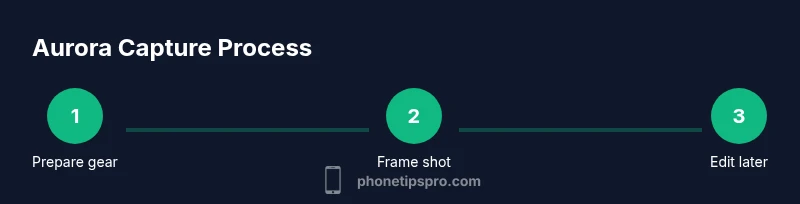
Prepare gear and location
Set up your tripod, mount the iPhone, and choose a dark location with minimal light pollution. Check the forecast and plan for a clear sky window. Bring a warm layer for yourself and the device.
Tip: Use a remote shutter to avoid jostling the phone during exposure. - 2
Frame and focus
Compose with a simple foreground and an expansive sky. Tap to focus roughly at infinity or on a distant star, then lock focus to prevent drift as light changes.
Tip: Use a low-angle horizon to maximize aurora presence in the frame. - 3
Enable Night mode and set exposure
Turn on Night mode in the Camera app and choose a short-to-moderate exposure. For aurora, a few seconds can reveal structure without blowing highlights.
Tip: Start with 2-3 seconds and adjust in brackets as needed. - 4
Bracket and shoot RAW (if available)
Capture a small bracketed sequence for brightness variation. If RAW or ProRAW is available, shoot RAW to maximize editing latitude.
Tip: Bracket by a stop or two to cover bright and dim portions of the aurora. - 5
Experiment with color mood
If desired, enable a Color Filter in Accessibility to preview mood variants; do not rely on it for final color. Plan to revert to natural tones in post.
Tip: Use color mood previews sparingly; edits will determine final look. - 6
Review and select frames
Review the sequence on a larger screen if possible. Pick shots with good aurora definition and minimal noise.
Tip: Keep a log of exposure settings for each shot to refine later. - 7
Post-process to enhance aurora
Edit in a RAW-capable app, adjust white balance toward cooler tones, amplify greens and violets modestly, and reduce noise in dark areas.
Tip: Work non-destructively with layers or curves for added control.
FAQ
Do I need a tripod to photograph the Northern Lights with an iPhone?
Yes. A tripod stabilizes long exposures essential for aurora shots; without it, the image will likely be blurry due to hand movement.
Yes. A tripod is essential for stable long exposures when shooting the aurora.
Can I capture RAW images on iPhone for aurora photography?
Many iPhones support RAW or ProRAW formats; if your model supports it, shoot RAW for more flexible editing and better color retention.
Yes, if your model supports RAW, shoot RAW for more editing latitude.
Should I enable Night mode for every aurora shot?
Night mode is helpful in dark conditions, but you should assess each scene. Sometimes shorter exposures with proper stabilization yield crisper stars and aurora details.
Night mode helps in darkness, but tailor exposure to current conditions for best results.
Are color filters beneficial for aurora photography?
Color filters can influence mood and preview tonal options, but they are not a substitute for correct exposure and white balance. Use them sparingly and edit for final color.
Filters can help preview mood, but proper exposure and editing decide the final look.
Do I need external lenses or clip-ons for iPhone aurora shots?
External lenses can widen the field of view, but they aren’t required. Start with the standard lens and master exposure and editing first.
External lenses are optional; learn exposure and editing before adding lenses.
What if there’s moonlight or clouds?
Moonlight can brighten the scene, reducing the aurora’s contrast. Clouds can obscure the display, so check forecasts and plan for clear windows.
Moonlight can wash out the aurora; check forecasts and seek clear skies.
Watch Video
Quick Summary
- Avoid relying on a single 'aurora filter'–technique matters.
- Use Night mode and a tripod for stable long exposures.
- Tune colors in post-processing for natural aurora tones.
- Capture multiple exposures to cover brightness variations.