Google Drive on iPhone vs iCloud: A Practical Comparison for iPhone Users
Explore whether you can use Google Drive on iPhone instead of iCloud, with a practical comparison of setup, syncing, privacy, and use cases for iPhone users.


Can you use Google Drive on iPhone instead of iCloud? Yes, for many workflows you can, especially for cross‑platform collaboration and file access. This comparison explains when Google Drive makes sense, how to set it up on iPhone, and where iCloud still offers advantages. Phone Tips Pro outlines practical steps and trade-offs to help you decide quickly.
Why this question matters for iPhone users
If you are wondering can you use google drive on iphone instead of icloud, you are not alone. Cloud storage decisions affect how you work, share, and protect data across devices. For many people, Google Drive offers familiar collaboration tools and strong cross‑device access, while iCloud is designed to feel seamless within the Apple ecosystem. The Phone Tips Pro team found that a growing subset of iPhone users rely on Google Drive to store documents, photos, and receipts when they work with Windows PCs or Android teammates. Understanding the tradeoffs helps you choose a setup that fits your workflow, preserves privacy, and keeps data accessible when you are offline or traveling. This article uses a practical, analytical lens to compare Google Drive against iCloud on iPhone, highlighting setup steps, limitations, security considerations, and real‑world use cases. The goal is to give you a clear decision path without forcing a single solution. Remember that your choice may change as your needs evolve, so consider this guide a framework rather than a fixed rule.
Key differences between Google Drive and iCloud on iPhone
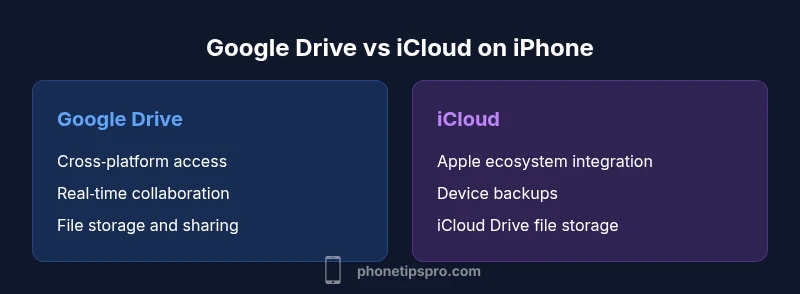
Google Drive is a cross‑platform storage and collaboration platform that lives in the cloud and integrates with Google's suite of apps. iCloud is Apple's native cloud solution that is deeply integrated with iOS, macOS, and iPadOS. The two products differ in scope, control, and ecosystem.
- Platform integration: Drive is accessible via iOS, Android, and web; iCloud Drive is optimized for Apple devices and apps like Photos, Notes, and Pages.
- Backup versus storage: Google Drive stores files and documents; iCloud handles device backups and app data outside Drive's scope.
- Sharing and collaboration: Drive excels at real‑time collaboration with Docs and Sheets; iCloud sharing works well inside Apple apps but lacks some cross‑platform collaboration features.
- Access and offline behavior: Both offer offline access with downloaded files, but the steps to enable and the file semantics differ.
- Privacy and security models: Apple emphasizes end‑to‑end ecosystem privacy with device‑level protections; Google emphasizes cross‑product security and enterprise controls.
Bottom line: if your priority is cross‑device collaboration and working with colleagues who use non‑Apple platforms, Google Drive offers clear advantages; if you want seamless iPhone integration and device backups, iCloud remains compelling. Phone Tips Pro recommends evaluating your primary workflows to decide which service to rely on most.
How to set up Google Drive on iPhone
To begin using Google Drive on your iPhone instead of iCloud for file storage, start with these steps: first, download the Google Drive app from the App Store. Next, sign in with your Google account or create one. Then grant the app access to your device storage and to the Files app so you can save and retrieve documents easily. In the Files app, you can add Google Drive as a location for quick access. Decide what to sync for offline use by downloading key files to your device. If you regularly collaborate, link Google Drive to Google Docs, Sheets, and Slides for real time editing. Finally, review app permissions and privacy settings to tailor data sharing and notifications.
Tip: If you use multiple cloud services, you can create a Home Screen shortcut or Siri Shortcuts to open Drive quickly. This setup gives you a smooth workflow while you still benefit from iOS features like Spotlight search and the Files picker.
Syncing, offline access, and cross‑device behavior
Google Drive synchronizes by default across devices when a connection exists. On iPhone, downloaded files remain accessible offline if you mark them for offline use; this is helpful when traveling or in areas with limited connectivity. Drive files appear in the Google Drive app and can be accessed via the Files app, providing a familiar file system experience on iOS. Some iOS automations and app specific data tied to iCloud won’t sync through Drive and require separate workflows. For cross‑device users, differences in how Google and Apple handle file metadata, version history, and file types can affect how you organize content. A well‑built folder structure in Drive, combined with clear naming conventions, reduces friction when collaborating with teams. The takeaway is to expect some manual setup if you want parity with iCloud features, but you gain powerful cross‑platform collaboration.
Use cases: collaboration, documents, photos, and backups
For teams and individuals who work with colleagues using different platforms, Google Drive shines in real time collaboration with Docs, Sheets, and Slides, along with robust file sharing controls. When you need to store and share documents, presentations, and forms across devices, Drive offers a straightforward workflow. For personal files such as receipts or travel documents, Drive provides accessibility from any device with internet access. Photos and videos can be stored, organized, and shared via Drive or Google Photos, giving you an alternative to iCloud Photo Library while maintaining cross‑platform access. Remember that Drive stores files rather than performing a full device backup; use iCloud or another backup solution for device level data. Phone Tips Pro notes that combining Drive with a clear data partition strategy can streamline work and reduce confusion during handoffs.
Privacy and security considerations when choosing cloud storage on iPhone
Both Google Drive and iCloud employ strong encryption for data in transit and at rest, but their privacy models differ. Google emphasizes enterprise controls, access permissions, and activity logs tailored for collaboration, while Apple focuses on device‑level security, on‑device processing, and seamless integration with iOS privacy features. When you use Drive on iPhone, ensure you enable two factor authentication for your Google account, review app permissions, and control what data you grant to Drive and to other Google services. If you rely on iCloud Keychain or iCloud backups, remember that those Apple‑specific features won t automatically transfer through Drive. Phone Tips Pro recommends balancing convenience with privacy by limiting sharing, regularly reviewing permissions, and choosing the storage location that aligns with your data governance needs.
Limitations and caveats
Google Drive is excellent for file storage and collaboration but it is not a complete substitute for all iCloud features. It cannot replace device backups or restore iPhone settings and app data in the same way as iCloud. If you rely on iCloud specific features such as iCloud Keychain, FaceTime call history syncing, or Messages via iCloud, those experiences won t be available through Drive. Another caveat is that Google Drive depends on internet connectivity for syncing; offline access requires downloading files beforehand. If you frequently switch between multiple cloud services, managing permissions, file versions, and shared links can become complex, so a disciplined folder structure and naming convention are essential. Phone Tips Pro suggests testing your essential workflows before fully migrating away from iCloud to avoid workflow disruptions.
Pricing and storage considerations
Pricing and storage vary between Google Drive and iCloud, and the right choice often depends on your current subscriptions and work style. Google Drive pricing reflects storage tiers and Workspace features designed for teams, while iCloud pricing emphasizes personal device backups and seamless integration with Apple apps. If you already use Google services, Drive can simplify billing and access across devices; if you lean heavily into Apple apps, iCloud may offer more cohesive integration. Consider your annual budget, data volumes, and whether you need collaboration tools beyond file storage. Phone Tips Pro recommends evaluating whether the value of cross‑platform access justifies any potential extra costs.
Data migration and cross‑platform usage
Migrating data from iCloud to Google Drive involves exporting files from iCloud Drive or System apps and then uploading them to Drive. The process is straightforward for documents, photos, and PDFs, but some apps store data in formats that require conversion or reorganization. When working across platforms, it helps to establish a consistent naming scheme and folder hierarchy to keep content discoverable. If you are migrating teams, communicate a transition plan, assign ownership for shared resources, and use version history to track changes during the move. Phone Tips Pro emphasizes careful planning and test runs to minimize disruption during a switch.
Real‑world workflows for teams and individuals
For students and professionals collaborating across organizations, Google Drive on iPhone enables real‑time editing in Docs, Sheets, and Slides, sharing permissions, and offline access for on‑the‑road productivity. For families and personal use, Drive offers a simple method to centralize documents, receipts, and media while keeping them accessible on any device. Individual users who frequently switch between iOS devices and other platforms can benefit from Drive as a universal storage solution, while Apple only fans might prefer iCloud for deep Apple ecosystem integration. Phone Tips Pro has observed that the best setups combine Drive for cross‑platform access with iCloud for device backups, depending on user needs.
Comparison
| Feature | Google Drive | iCloud |
|---|---|---|
| Platform integration | Cross‑platform (iOS/Android/Web) | Apple ecosystem focused (iOS/macOS) |
| File access & sharing | Strong collaboration via Docs/Sheets; offline files | Tight integration with Apple apps; sharing inside Apple ecosystem |
| Backup model | Stores files; not a device backup solution | Device & app data backups for Apple devices |
| Offline availability | Files can be downloaded for offline use | Offline files are available within iCloud Drive apps |
| Pricing & storage strategy | Free tier with Google Workspace options | Free tier plus paid iCloud storage tiers |
| Best for | Cross‑platform teams and collaboration | Apple‑centric workflows and device backups |
Positives
- Cross‑platform accessibility across iPhone, Android, and web
- Robust collaboration tools and Google Workspace ecosystem
- Flexible file storage separate from device backups
- Strong third‑party app integration and sharing controls
- Scalable storage options for individuals and teams
Weaknesses
- Not a complete replacement for device backups and iOS specific features
- Privacy models differ; user comfort varies by policy
- Offline access requires explicit file selection and management
- Managing multiple cloud services can complicate workflows
Google Drive is a solid cross‑platform alternative for iPhone users who need collaboration and universal access, but it cannot fully replace iCloud for device backups and Apple ecosystem advantages.
Choose Google Drive if your work relies on cross‑platform collaboration and flexible file access. Prefer iCloud if you want seamless device backups and deeper Apple integration. The best approach may be a hybrid setup aligned with your workflow.
FAQ
Can I use Google Drive to back up my iPhone data?
No, Google Drive is not a full device backup solution for iPhone. Use iCloud or iTunes/Finder backups for device settings, app data, and system information, while Drive can store individual files and media for easy access.
Google Drive backups are for files, not a full device restore. Use iCloud for device backups.
Does Google Drive integrate with iOS apps for opening files?
Yes, Google Drive integrates with iOS and the Files app so you can open and save Drive files from within compatible apps and navigate via the Files picker.
Drive works with iOS apps and the Files picker for easy access.
Can I store photos in Google Drive instead of iCloud Photos?
You can store photos in Google Drive or Google Photos, but this is separate from iCloud Photos. Photos stored in Drive won’t sync with the iPhone photo library unless you export or import them.
Yes, you can store photos in Drive, but it works differently from iCloud Photos.
Do I need a Google account to use Google Drive on iPhone?
Yes, you need a Google account to access Google Drive on iPhone. Some features may require workspace or paid plans.
You’ll need a Google account to use Drive on your iPhone.
What about privacy when using Google Drive on iPhone?
Google Drive uses encryption in transit and at rest, with privacy controls and permissions. Review settings to limit data sharing and consider how it fits your privacy preferences compared with iCloud.
Google Drive has encryption and privacy controls; review settings to match your preferences.
Quick Summary
- Consider Drive for cross‑device collaboration and multi‑platform access
- Use iCloud for device backups and tight Apple integration
- Plan a hybrid storage strategy to balance convenience and control
- Keep a clear folder structure to simplify cross‑service workflows
- Review privacy settings when using Drive on iPhone