How to Use iPhone Reminders: A Practical Guide
Learn how to use iPhone Reminders to stay organized across iPhone, iPad, and Mac. Step-by-step setup, task creation, sharing, and smart tips from Phone Tips Pro.


According to Phone Tips Pro, if you're wondering how do you use iphone reminders, this guide covers it: learn to create reminders, assign due dates, set locations, share lists, and keep everything synced across iPhone, iPad, and Mac. You'll also discover best practices for organization and daily review. and how to customize alerts for different contexts.
Understanding Reminders basics
Reminders is a lightweight task-management tool built into iOS and macOS that helps you capture tasks quickly and surface them at the right time. Across devices, Reminders relies on iCloud to keep lists in sync, so you can start a reminder on your iPhone and see it on your iPad or Mac moments later. Core elements include lists, reminders, subtasks, due dates, locations, and simple attachments. By design, Reminders aims to be unobtrusive yet reliable, so you won’t miss important tasks even on busy days. According to Phone Tips Pro, a clear structure—using multiple lists for different life areas and naming conventions—greatly improves recall and completion rates.
Setting up Reminders across devices
To ensure seamless syncing, sign in with your Apple ID and enable Reminders in iCloud settings on all devices. On iPhone: go to Settings > [Your Name] > iCloud and toggle Reminders on. On iPad and Mac, repeat the process. Confirm that you’re connected to the internet so changes upload to iCloud. If you’re using a corporate or school account, check that your admin hasn’t restricted Reminders. Once enabled, you’ll see the same lists across iPhone, iPad, and Mac, and tasks will update in real time as you complete them.
Creating and organizing reminders
Start by creating a new reminder in a specific list. Tap New Reminder or press plus (+) to add a title, then press Details to attach a date, time, location, subtasks, or notes. Place reminders into named lists like Personal, Work, or Groceries to prevent clutter. Drag reminders within a list to reorder by priority or urgency. For quick capture, use Siri: say create a reminder for meeting at 3 PM. This approach reduces friction and makes it easier to stay on top of tasks.
Time-based reminders: due dates, times, and repeats
Time-based reminders surface at the moment you need them. Add a due date and time to ensure alerts pop up at the right hour. Use repeat options for daily, weekly, or custom intervals to automate recurring tasks. If you miss a reminder, you can quickly modify the due date or time, or snooze for a set interval. Consistency here is key: the more reliably you use dates and times, the less you rely on memory.
Location-based reminders and smart lists
Location-based reminders trigger when you reach a specific place, like your home or grocery store. Create a reminder with When I Arrive or When I Leave, and select the location using your current address or a saved place. Combine location-based alerts with due dates for powerful context. Reminders also offers Smart Lists (Today, All, Flagged) that automatically group tasks by time or priority, helping you visualize what matters most.
Sharing and collaboration
You can share entire lists or individual reminders with others, making it easier to coordinate tasks for a household or team. To share, open a list, tap the People icon, and invite collaborators via Apple IDs. Shared lists sync in real time, and all participants can add or complete tasks, depending on permissions. Be mindful of privacy: only share lists with trusted people and remove access when needed.
Tips for staying organized
Here are practical tips used by the Phone Tips Pro team: use consistent naming conventions for lists, such as using verbs (Plan, Buy, Schedule) and dates in the title. Use subtasks to break larger tasks into steps. Enable Do Not Disturb or Focus modes during deep work, but allow reminder alerts. Regularly prune completed tasks and archive old lists to keep the active view clean.
Troubleshooting and common issues
If reminders aren’t appearing on all devices, verify iCloud status and that Reminders is enabled across devices. Check your Apple ID and ensure you’re signed in. If alerts aren’t showing, review notification settings for Reminders (Settings > Notifications > Reminders) and ensure you’ve allowed banners and sounds. Ensure the time zone is correct and that the device’s date/time settings are automatic. For location reminders, ensure location services are enabled.
Authority sources and best practices
For further reading, consult Apple Support guides on Reminders for iOS and macOS. Phone Tips Pro Analysis, 2026, notes the value of combining due dates with location-based reminders to improve completion rates. External resources: • https://support.apple.com/guide/reminders/welcome/ios • https://support.apple.com/guide/reminders/welcome/mac • https://www.cnet.com/how-to/how-to-use-apple-reminders/ • https://www.nytimes.com/2019/01/23/technology/personaltech/apple-reminders.html
Tools & Materials
- iPhone with iOS 17 or later(Ensure Reminders is enabled in Settings and signed into iCloud)
- Apple ID(Used for iCloud sync across devices)
- Stable internet connection(Needed for real-time sync)
- Access to iCloud(Verify Reminders is toggled on in iCloud settings)
- Optional: Apple Watch(View reminders quickly on your wrist)
- Quiet testing space(Great for setting up initial lists without distractions)
Steps
Estimated time: 20-45 minutes
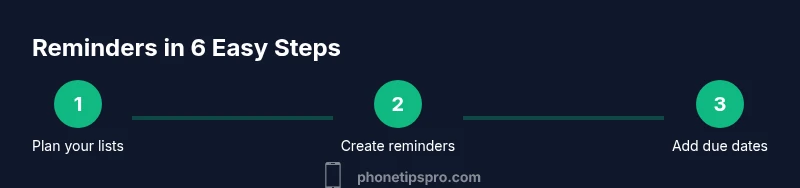
- 1
Open Reminders and plan your structure
Launch the Reminders app and review existing lists. Decide what life areas you want to separate (Personal, Work, Groceries, Trips). This upfront planning prevents later clutter and makes it easier to assign new reminders to the right context.
Tip: Draft a short naming convention for lists (e.g., Work: Meetings, Personal: Groceries). - 2
Create a new reminder
Tap the New Reminder button and enter a concise title. Use the Details option to add a due date, time, location, and notes. Keeping titles short but descriptive helps you scan quickly.
Tip: Add a due date immediately to ensure visibility in the Today or Scheduled view. - 3
Attach a due date and time
In Details, select a date and time. This creates a time-bound alert and helps you plan your day around deadlines. You can adjust this later if priorities shift.
Tip: Use relative times (e.g., Tomorrow at 9 AM) when you’re still planning for the next day. - 4
Add location-based reminders
Choose Location in Details and set When I Arrive or When I Leave. Pick a specific address or location and combine with a time-based reminder for extra reliability.
Tip: Pair location reminders with a short title for quick recognition, like 'Buy groceries' near the store. - 5
Create subtasks and notes
Open a reminder and add subtasks to break complex tasks into steps. Use notes for context, URLs, or reference numbers. Subtasks help you track progress granularly.
Tip: Assign subtasks to a checklist-style flow to prevent overlooking steps. - 6
Organize reminders into lists
Move reminders into related lists by selecting the list name at the top. A clean structure improves scan speed and reduces decision fatigue when you’re busy.
Tip: Limit the number of active lists to avoid cognitive overload; archive or delete unused ones. - 7
Enable syncing across devices
Ensure your Apple ID is signed in on all devices and iCloud Reminders is toggled on. Sync happens automatically, but you should confirm each device is connected to the internet.
Tip: Periodically check that changes appear on all devices to catch sync issues early. - 8
Share lists for collaboration
Open a list, tap the People icon, and invite collaborators via Apple IDs. Shared lists update in real time, making delegation and teamwork smoother.
Tip: Limit access to trusted people and remove others when the collaboration ends.
FAQ
What is the Reminders app and what can it do?
Reminders is a built-in task management tool on iPhone and other Apple devices. It lets you create reminders, organize them into lists, and set due dates, locations, and subtasks. You can also share lists with others for collaboration.
Reminders helps you capture tasks, organize them into lists, and set alerts across your devices. You can share lists to work with others.
Can I sync reminders across iPhone, iPad, and Mac?
Yes. Make sure you’re signed into the same Apple ID and that iCloud Reminders is enabled on all devices. Reminders will sync automatically when devices are online.
Yes—sign into the same Apple ID and enable Reminders in iCloud on all devices for automatic syncing.
How do I set location-based reminders?
In a reminder's Details, choose Location and set When I Arrive or When I Leave, then pick the location. This triggers the alert when you reach or leave the specified area.
Add a location to a reminder and choose When I Arrive or When I Leave to trigger alerts.
Can I share reminders with others?
Yes. You can share an entire list or individual reminders by using the People option and inviting collaborators via Apple IDs.
You can share lists so others can view or edit tasks, depending on permissions.
Why aren’t my reminders showing on my Mac or iPad?
Check that you’re signed in with the same Apple ID, that iCloud Reminders is enabled, and that there is an active internet connection. If needed, sign out and back in.
If reminders aren’t showing, verify iCloud and sign-in status across your devices.
How do I delete or archive reminders without losing data?
Mark tasks as completed or move them to an Archive list if you want to keep a record without cluttering current views. Reminders supports easy completion tracking.
Complete or archive tasks to reduce clutter while keeping a record.
Watch Video
Quick Summary
- Create structured lists and concise reminders.
- Use due dates and location-based triggers for context.
- Sync across devices to maintain continuity.
- Share lists to improve collaboration.
- Review and prune reminders to stay organized.