How to Call Forward in iPhone: A Practical Guide
Learn how to call forward in iPhone using Settings or carrier options. This guide covers steps, troubleshooting, use cases, and tips to forward calls smoothly across iPhone models.


Want to forward calls on your iPhone? You can set it up in Settings > Phone > Call Forwarding and enter the number to forward to. If your carrier supports it, you can also use carrier codes. For best results, ensure your SIM is active and you’re on a recent iOS version. According to Phone Tips Pro, this feature is reliable across most iPhone models.
Why you might want to forward calls
In a busy world, being reachable without juggling devices is valuable. Call forwarding on iPhone lets you redirect incoming calls to another number—perfect when you’re traveling, in a meeting, or waiting for a return call on a secondary line. With this feature, you can keep your personal line uncluttered while ensuring customers or family can reach you on a different device or network. Phone Tips Pro notes that most users adopt forwarding to manage work-life balance, reduce missed calls, and protect privacy by keeping business and personal numbers separate. When you decide to enable forwarding, start by clarifying your goals: do you want every call redirected, or only under certain conditions like when you’re busy or unreachable? The choice affects how you configure the settings and possibly how your carrier bills the service. For many iPhone owners, this feature is a simple toggle with a text field for the forwarding number; others will need carrier involvement for conditional forwarding or for forwarding while roaming. Regardless of approach, testing the setup with a quick call helps confirm that the route is working as intended. Understanding when to use forwarding—and when not to—saves you time and avoids accidental call routing.
How call forwarding works on iPhone
Apple-designed controls live in the Settings app and provide a straightforward path for most users. When you enable Call Forwarding, calls destined for your iPhone are redirected to a number you specify. The typical route is Settings > Phone > Call Forwarding; turning on the switch reveals a field labeled Forward To where you entry the destination number. Enter the number with the correct country code if you’re forwarding internationally, then return to the previous screen. The setting is stored on the device, but the actual redirection depends on cellular connectivity; if you have no network, forwarding cannot take effect. After saving your entry, perform a quick test by calling your iPhone from another line and verifying the call rings on the Forward To device. If the Forward To number is busy or unavailable, some iPhones will forward after a set number of rings, but this behavior can vary by carrier. If you travel between networks or use dual SIMs, ensure you configure the forwarding for the right line, to avoid accidentally forwarding the wrong number.
Carrier differences and limitations
Call forwarding is a joint feature between your device and your carrier. On some networks, the iPhone on-device setting does the job; on others, the carrier handles the forwarding logic, and you may not see the option in Settings. If Call Forwarding is missing, it's usually due to carrier restrictions, a locked device, or an older iOS version. In that case you may need to use a carrier code or a carrier-provided app to configure forwarding. Carriers also differ on conditional forwarding (Forward when busy, Forward when unanswered, Forward when unreachable) and roaming scenarios. Be sure to check your plan’s terms, because some operators impose charges for forwarded calls, especially when roaming. If you want to forward to a voicemail or to another country, confirm whether your plan supports it and whether there is a cost. Phone Tips Pro advises confirming the exact method with your carrier before assuming the on-device toggle will cover all cases, particularly if you want advanced rules or international forwarding.
Common scenarios and use cases
Business continuity is a common reason for forwarding. A sales representative might forward calls to a team mailbox or to a dedicated desk line when away from their primary device. Personal use includes routing calls to a home phone while you’re at work, or directing calls to a family member during emergencies. Travel is another frequent scenario: forward calls to a hotel room number or to a mobile while keeping your own device free of roaming charges. If your carrier supports conditional forwarding, you can forward only when busy or not answered. This flexibility helps maintain availability without sacrificing battery life or privacy. When planning forwarding, map out your daily routines and identify the best times to enable or disable the feature. The goal is to keep critical calls flowing while reducing interruptions from nonessential ones.
Troubleshooting call forwarding
First, verify that Call Forwarding is turned on in Settings and that the Forward To number is correct. If the option exists but forwarding doesn’t take effect, check your carrier's network status, account permissions, and whether your SIM supports forwarding. Ensure your iPhone has cellular service; forwarding cannot operate without a live connection. If you’ve recently changed SIMs or eSIM profiles, recheck the Forward To entry for the new line. For carriers that require codes or apps, contact customer support to obtain the correct procedure. If you still experience issues, try a simple reset of the network settings (Settings > General > Reset > Reset Network Settings)—note this will remove saved Wi‑Fi networks and cellular settings, so back up if needed. If after all steps forwarding still fails, contact your carrier; some have outages or feature restrictions that only they can resolve. Phone Tips Pro also recommends testing with a couple of different numbers and times of day to verify reliability.
Authority sources
For official guidance and reliable explanations, consult these resources:
- Apple Support: https://support.apple.com/HT204681
- MacWorld guide: https://www.macworld.com/article/1142174/how-to-forward-iphone-calls.html
- CNET how-to: https://www.cnet.com/how-to/how-to-forward-calls-on-iphone/
Tools & Materials
- iPhone with active SIM or eSIM(iOS 12 or later; ensure cellular service or data connection)
- Forwarding target number(Include country code if forwarding internationally)
- Access to Settings app(Must be unlocked and functional)
- Carrier guidance (optional)(Some carriers require codes or apps for advanced forwarding)
Steps
Estimated time: 10-15 minutes
- 1
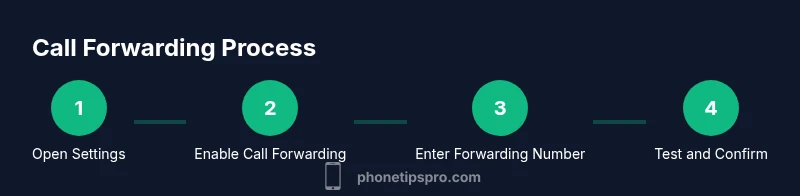
Open Settings
On your iPhone, open the Settings app to access system options related to calls. This is the entry point for forwarding settings.
Tip: If Settings isn’t visible, check for a restricted profile or search for 'Phone Forwarding'. - 2
Tap Phone
Within Settings, tap Phone to reach call-related features separated from other notifications and apps.
Tip: If you don’t see Phone, ensure you’re on the main Settings screen and not inside a different app. - 3
Select Call Forwarding
Find and select Call Forwarding to reveal the forward toggle and the destination field.
Tip: On some carriers, the label may vary; if you don’t see it, check carrier documentation. - 4
Turn On and Enter Number
Toggle Forwarding On and input the Forward To number with the correct country code if needed.
Tip: Double-check the number for accuracy to avoid misdirected calls. - 5
Test and Confirm
Call your own number from another device to confirm the forward works as expected.
Tip: Test at different times and with multiple numbers to ensure reliability. - 6
Carrier-based Forwarding (if needed)
If the on-device option isn’t available, contact your carrier or use their app to configure forwarding.
Tip: Ask about conditional forwarding options and roaming charges before enabling.
FAQ
Can I forward calls to multiple numbers at once?
Most iPhone setups forward to a single number. To reach multiple numbers, you generally need a separate service or carrier feature that supports call routing to multiple endpoints.
Forwarding to multiple numbers isn’t usually supported on the iPhone alone; you’ll need carrier services or third-party solutions.
Is call forwarding free on my plan?
Forwarding from your iPhone itself does not incur charges, but your carrier may apply per-minute or roaming fees depending on your plan and location.
Costs depend on your carrier; check your plan to avoid surprises.
What if Call Forwarding is not available in Settings?
If you don’t see Call Forwarding, your carrier may block it, or you may need a newer iOS version or a specific SIM/eSIM configuration. Contact your carrier for alternatives.
If you can’t find it, contact your carrier or check for system updates.
How do I disable forwarding?
Go back to Settings > Phone > Call Forwarding and turn off the toggle. If you used carrier codes, return to the carrier app or dial to disable.
Turn off forwarding in Settings or your carrier app.
Does forwarding work while roaming?
Forwarding can work while roaming, but roaming charges may apply depending on your carrier and plan. Verify costs before enabling in roaming conditions.
Roaming forwarding may incur extra charges; check with your carrier.
Will forwarded calls affect voicemail?
Forwarded calls are routed to the destination before voicemail on your iPhone is reached. Your voicemail on the original line won’t receive forwarded calls unless the destination is unreachable.
Voicemail behavior depends on whether the forward destination answers; check with your carrier.
Watch Video
Quick Summary
- Enable forwarding for critical workflows.
- Use on-device forwarding first; contact carrier if needed.
- Test forwarding after setup to confirm routing.
- Be aware of possible carrier charges for forwarding.