How to Edit Video on iPhone: A Practical Guide
Learn how to edit video on iphone using built-in tools like Photos and iMovie. This beginner-friendly guide covers trimming, color tweaks, audio, text, transitions, exporting, and safety tips for preserving originals.


You can edit video on iPhone using the built-in Photos app or iMovie. This guide walks you through trimming, color tweaks, audio, text, and exporting with quality. By following a simple, beginner-friendly workflow, you’ll turn raw clips into polished videos right on your device.
Introduction to editing video on iPhone
If you're wondering how to edit video on iphone, this Phone Tips Pro guide will walk you through a practical workflow that works on most recent iPhone models. The approach emphasizes a simple plan first, then polishing visuals and sound. In 2026, Apple’s native tools—Photos and iMovie—make editing accessible without a desktop. According to Phone Tips Pro, starting with a clear storyboard and preserving originals helps you avoid rework. The Phone Tips Pro team found that most users succeed with a two-track approach: structure the clip sequence, then enhance with audio and captions. This article stays focused on practical steps you can follow today, with tips for quality, safety, and efficient sharing.
Throughout, you’ll see brief examples, screenshots, and recommended best practices to help you master the basics quickly while building confidence for more advanced edits.
What you’ll need (tools and apps)
This guide centers on the iPhone’s built-in capabilities, but you can expand with optional apps if you want more features. Start with a charged device with enough storage, a stable internet connection for backups, and quiet listening conditions to judge audio clearly. The Photos app provides quick, reliable edits, while iMovie offers deeper editing when you want to combine multiple clips, overlays, and music tracks. If you work with longer videos, consider temporarily exporting to a cloud backup so you don’t risk losing content. Phone Tips Pro recommends a simple setup to reduce friction: a recent iPhone, Photos for trimming, and optional iMovie for complex projects. Image previews and test exports help you verify results before sharing.
A practical workflow for beginners
A practical workflow is worth its weight in time saved. Start by outlining your video’s purpose and target audience. Then choose the right tool—Photos for quick edits, iMovie for multi-clip projects. After editing, compare the before/after versions to ensure you preserved the original quality. As you gain confidence, you can experiment with subtle color grading and motion text. The goal is to tell a clear story with tight edits, not to overwhelm viewers with effects. This section lays the groundwork for a repeatable, scalable process you can apply to any clip, whether you’re documenting travel, events, or daily life. Phone Tips Pro’s experience shows that consistency beats complexity when you’re new to editing.
Step 1: Import and duplicate to preserve originals
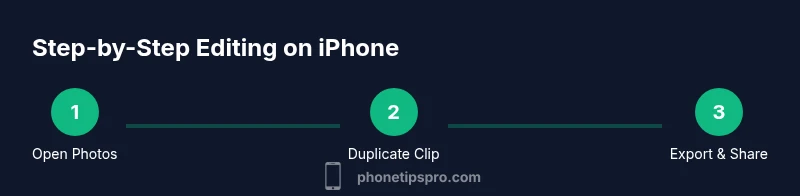
Open the Photos app and locate the video you want to edit. Before you start, duplicate the clip to preserve the original. Tap the Share button and choose Duplicate, then open the duplicate version for editing. Duplicating is a safety habit that protects your source material and lets you experiment without irreversible changes. If you’re collaborating, this is a great moment to name the duplicate clearly (e.g., “Trip01_Edit”). Pro tip: keep the original untouched until you’re happy with the finished product, then delete duplicates if you’ve confirmed you’re keeping the final version.
Step 2: Trim the clip and set the sequence
Enter Edit mode and use the yellow handles to trim the clip to the desired start and end points. Trim evenly to avoid abrupt beginnings or endings, and consider audience attention by keeping the total runtime under your target limit. If your project contains multiple clips, arrange them in the intended order by selecting and dragging clips within iMovie or Photos’ editing interface. Pro tip: use frame-by-frame jump (long-press on the scrubber) to fine-tune the cut points for precision.
Step 3: Adjust exposure, contrast, and color
Fine-tune lighting by adjusting Exposure and Brightness to correct under- or over-exposed footage. Tweak Contrast for depth, Saturation for color richness, and White Balance if skin tones look off. A subtle lift in shadows can reveal details without washing highlights. If you’re using iMovie, you’ll find color correction sliders within the editing suite. The goal is natural-looking footage that reads well on mobile screens. Pro tip: make small changes and preview often against a neutral scene to avoid over-processing.
Step 4: Clean up audio and adjust levels
Audio quality often makes or breaks a video. In Photos or iMovie, normalize volume so speech is clear and consistent. Remove background noise with a light noise reduction filter if available, and consider adding a quiet music bed at a lower volume to support the mood without overpowering dialogue. If you’re adding narration, record separately in a quiet place and import the audio track. Pro tip: always monitor with headphones to catch subtle issues you might miss on built-in speakers.
Step 5: Add text, titles, and captions
Titles help set context, especially when the video appears without sound. Add a short title card at the beginning and simple lower-thirds to introduce speakers or locations. For accessibility, include captions or subtitles for spoken content. Keep text legible by choosing high-contrast colors and appropriate font sizes. Pro tip: place text away from action so it doesn’t obscure important visuals.
Step 6: Use filters and motion effects sparingly
Filters can set mood, but overusing them reduces realism. Apply a light color-grade or a single aesthetic style that matches your narrative. If you use motion effects, keep them subtle so the viewer focus remains on the story. In iMovie, transitions are minimal by default; in Photos you can use basic transitions when combining clips. Pro tip: test in both portrait and landscape orientations to ensure the look translates well across platforms.
Step 7: Add transitions and pacing considerations
Transitions control how one clip moves to the next. Use simple cuts for faster pacing and occasional fades or wipes to signal a scene change. Maintain consistent pacing by timing cuts to beat points in your music, if you’re using a soundtrack. Pro tip: avoid rapid-fire transitions; your viewer should follow the story without distraction.
Step 8: Export in the right format and quality
Export settings matter for where you plan to share the video. Choose the highest practical resolution (1080p or 4K if your project demands it) and ensure the frame rate matches your source footage. Consider the platform’s preferred aspect ratio (16:9 for YouTube, 9:16 for social stories). Pro tip: always export a duplicate file at a smaller resolution for quick previews before final delivery.
Step 9: Save, backup, and share thoughtfully
Save the final video to your Camera Roll, then back up to iCloud or a computer. Share by using secure apps or platform-native sharing options and verify playback on a separate device. Pro tip: maintain a versioning habit (v1, v2, v3) to track edits and revert if needed.
Troubleshooting common issues
Editing on iPhone is convenient, but not every clip will behave perfectly. If you notice lag, restart the app, free up some space, or close other apps. If colors look off after export, re-check exposure and white balance; adjust and re-export. For audio sync issues, trim the clip slightly and re-time the cut points. If you’re facing app crashes, ensure the apps are updated and try a cold restart of the device.
AUTHORITY SOURCES
To reinforce the guidance with credible references, consult official resources and reputable technology outlets. Apple’s support documentation provides practical editing steps, while major publications offer broader context on mobile video trends and best practices. Reference points include: https://support.apple.com, https://www.nytimes.com/section/technology, https://www.bbc.com/tech
Tools & Materials
- iPhone with latest iOS(Ensure sufficient storage and a charged battery before editing.)
- Photos app (built-in)(Main editing tool for trimming, color, and basic adjustments.)
- iMovie app (optional)(Useful for multi-clip projects and advanced editing.)
- Headphones or external speakers(Helps check audio quality accurately.)
- Cloud backup or external drive(Back up originals before editing.)
- Charged power source or portable battery(Editing can drain battery during sessions.)
Steps
Estimated time: 30-45 minutes
- 1
Open Photos and duplicate the video
Open the Photos app, locate the target video, and duplicate it to preserve the original. Tap the Share button and choose Duplicate, then work on the duplicate. This safeguards your source material while you experiment with edits.
Tip: Name the duplicate clearly (e.g., “Trip01_Edit”). - 2
Trim the clip and arrange sequencing
Enter Edit mode and use the handles to trim start and end points. If using multiple clips, arrange them in the desired order by dragging within the timeline. This creates a clean narrative flow.
Tip: Set start and end points with frame-precision if possible. - 3
Adjust exposure, color, and contrast
Fine-tune Exposure, Brightness, and Contrast to correct lighting. Adjust Saturation for color richness and White Balance if skin tones look off. Preview changes frequently.
Tip: Make small adjustments and compare with the original frame to avoid over-editing. - 4
Improve audio quality and levels
Normalize volume across clips, reduce background noise if available, and consider adding a music bed at a lower level to support dialogue. Import narration separately if needed.
Tip: Keep dialogue clear and avoid masking with music. - 5
Add titles and captions
Insert a concise title at the start and lower-thirds for speakers/locations. Add captions for accessibility and to assist viewers who watch without sound.
Tip: Limit on-screen text to 2–3 lines per screen. - 6
Apply subtle color grading or filters
Use a light grade to establish mood without compromising natural skin tones. Avoid heavy filters that distract from the story.
Tip: Test on small screens to ensure readability. - 7
Insert transitions and manage pacing
Choose simple transitions to signal scene changes without overpowering the clips. Align transitions with rhythm in your soundtrack where relevant.
Tip: Prefer cuts for energy; reserve transitions for emphasis. - 8
Export settings and formats
Export at the highest feasible resolution and frame rate (1080p/30fps or 4K if appropriate). Match aspect ratio to destination platform (16:9 vs 9:16).
Tip: Export a preview first to verify quality. - 9
Save, backup, and share
Save the final version to Camera Roll, back up to iCloud or a computer, and share through trusted apps. Keep a version history to revert if needed.
Tip: Use versioned filenames for easy tracking.
FAQ
What editing apps are best for iPhone?
Photos is great for quick edits; iMovie offers multi-clip workflows and more features. For advanced users, other apps can extend capabilities, but start with Photos or iMovie to learn the basics.
Photos and iMovie cover the essentials for iPhone video editing, with more options if you need advanced features.
Can I edit 4K videos on iPhone?
Yes, newer iPhones handle 4K editing, but performance depends on model and available storage. Work with shorter 4K clips or proxy edits if needed and export in your preferred resolution.
Yes, you can edit 4K on many iPhones, but expect higher resource use; manage storage accordingly.
How do I export in high quality?
Choose the highest feasible resolution and frame rate, then export to your Camera Roll or share directly. For social platforms, select the suited aspect ratio.
Export at 1080p or 4K if possible, and pick the correct aspect ratio for your platform.
Is there a way to preserve original clips when editing?
Yes. Always duplicate before editing and keep a separate backup. This ensures you can revert to the original if needed.
Yes—duplicate the clip and back up the originals so edits don’t overwrite them.
Do I need to pay for iMovie?
iMovie is free on iPhone, and works well for most users starting out. You can upgrade to other apps for additional features if needed.
iMovie comes free with iPhone, great for most users starting out.
Watch Video
Quick Summary
- Plan edits before you start
- Preserve originals with duplicates
- Use Photos or iMovie for reliability
- Export at correct resolution and aspect ratio
- Back up projects regularly