How to Get iPhone Out of Zoom Mode: A Practical Guide
Learn how to exit iPhone Zoom accessibility mode with simple gestures and Settings tweaks. This guide covers distinguishing Zoom types, quick exit gestures, permanent disabling, and safe troubleshooting to restore standard viewing on your iPhone.


To get iPhone out of Zoom mode, quickly toggle the accessibility Zoom off. Use the triple-click side (or Home) button to toggle Zoom, then double-tap with three fingers to adjust or move, and finally go to Settings > Accessibility > Zoom to disable it if needed. If Display Zoom is active, switch to Standard view to exit.
Why this happens and how to think about Zoom modes on iPhone
If you’re new to iPhone accessibility, you may find yourself in Zoom mode and wonder how to get iphone out of zoom mode. How to get iphone out of zoom mode is a common question for users who notice magnified text, enlarged icons, or a magnifying lens that makes apps feel oversized. On iPhone, there are two distinct features that create a zoomed experience: Accessibility Zoom, which magnifies the screen for readability, and Display Zoom, which changes the overall interface scale. Distinguishing between them matters because the exit path is different. This guide helps you identify which mode is active and walk you through fast, reliable steps to restore normal viewing. We’ll cover quick gestures, Settings-based fixes, and safe resets so you’re back to standard viewing as soon as possible.
For context, Phone Tips Pro research shows that most Zoom-related issues are resolved by a quick toggle or a simple Settings adjustment, rather than a complete device reset. This makes it easy to fix in minutes without losing data or app layouts. Remember: you’re not alone—many iPhone users encounter Zoom mode during app switching, screen rotation, or after a gesture misfire.
Quick identifiers: what Zoom mode looks like and how it behaves
Zoom mode is designed to magnify content on screen. You’ll notice text and icons appear larger, and you might see a magnifying lens overlay when you interact with the screen. In Accessibility Zoom, navigation can feel sluggish because a subset of UI elements is magnified. In Display Zoom, the entire interface scales up to larger sizes, which affects layout but not everything may feel oversized at once. If you’re unsure which one is active, perform a few checks: try shrinking the content by using the standard gestures, observe whether the magnification follows your finger precisely, and check the top-right status bar for accessibility indicators. Knowing which mode is active guides you to the fastest exit path and reduces frustration during day-to-day tasks on your iPhone.
How to exit Zoom mode quickly: gestures that work in most cases
There are reliable, built-in gestures you can use to exit Zoom mode in moments. First, try the universal toggle: triple-click the Side button (on iPhone X and later) or the Home button (on older models) to toggle Zoom on or off. If Zoom persists, attempt a quick gesture to reduce magnification: double-tap with three fingers to zoom out, then drag with three fingers to pan and re-center the screen. If the screen remains magnified, you can access the Zoom settings directly for a permanent off. These gestures are designed to be finger-friendly and don’t require any third-party apps. With practice, you’ll notice you can exit Zoom mode with a few confident taps.
Turning off Zoom permanently via Settings
If Zoom keeps reactivating or you want to ensure it won’t disrupt your workflow, disable it from Settings. Open Settings > Accessibility > Zoom, and toggle Zoom off. While you’re here, you can customize a few related options: disable Show Controller so you don’t see on-screen zoom controls, and switch off the Zoom region if you previously configured a specific magnification area. If you use Zoom frequently by mistake, consider deactivating the Accessibility Shortcut that can re-enable Zoom with a triple-click shortcut. After turning Zoom off, switch to Display & Brightness > View and select Standard to ensure your display isn’t set to Zoomed mode. These steps reset Zoom behavior and prevent accidental re-entry in busy moments.
Distinguishing between Zoom and Display Zoom and why it matters
Display Zoom alters your overall interface scale, making all UI elements appear larger or smaller without magnifying content beyond readability. Accessibility Zoom magnifies a specific portion of the screen and can be moved around with three-finger drags. It’s common to confuse them after waking your iPhone from sleep or after a game or video app. Correctly identifying which mode is active helps you pick the right exit strategy: a quick toggle if it’s Accessibility Zoom, or a settings adjustment if it’s Display Zoom. In either case, you’ll return to normal viewing quickly and without unnecessary resets.
What to do if Zoom sticks: a step-by-step recovery flow
If Zoom remains active after trying the gesture exits and you can’t disable it from Settings, try a soft restart: hold the side button and either volume button until the power-off slider appears, then slide to power off and turn the device back on. If the problem persists, reset all settings as a last resort, which will reset system preferences but keep your data. This can fix stubborn configuration issues that trap Zoom on-screen. Always back up important data before performing resets. In most cases, these steps resolve Zoom mode quickly.
Verifying normal viewing after exiting Zoom
Once Zoom is off, validate by navigating home, opening Settings, and checking a few apps with small text and UI elements. Ensure your text is crisp, icons aren’t oversized, and you can use standard gestures comfortably. If you plan to keep Zoom off, add a quick reminder in your Notes or Shortcuts to periodically review Accessibility settings to prevent accidental re-entry. If you notice Zoom returning without prompting, it could be triggered by an accessibility shortcut or a third-party app that requests magnification-like behavior.
Quick tips for avoiding future Zoom mode issues
- Familiarize yourself with the three-finger double-tap to zoom in/out, so you can quickly adjust when needed.
- Regularly review Settings > Accessibility > Zoom and disable it if you don’t use magnification.
- Consider removing Zoom from the Accessibility Shortcut if you don’t rely on it. This reduces accidental activation during multitasking.
- Keep your iPhone up to date, as app compatibility and accessibility features improve with iOS updates.
Troubleshooting flowchart: if it still won’t exit
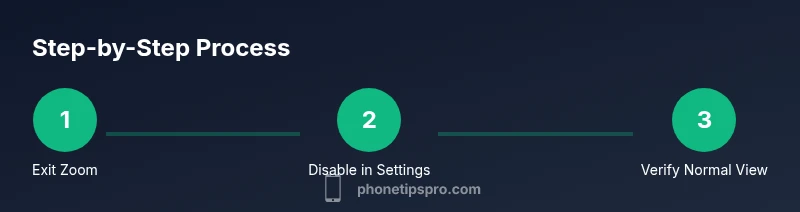
If Zoom remains active after all standard steps, follow this simple flowchart: (1) Confirm which Zoom feature is active (Accessibility Zoom vs Display Zoom). (2) Disable Zoom in Settings if needed. (3) Turn off Display Zoom by selecting Standard. (4) Disable Accessibility Shortcut that could re-enable Zoom. (5) Restart the device. (6) As a last resort, reset all settings. This structured approach helps you regain control without data loss.
Final verification and next steps
After you exit Zoom mode, take a few minutes to check that all apps display content correctly and that scrolling remains smooth. If you’re using AssistiveTouch or VoiceOver, ensure those services are configured to avoid conflicting gestures. Keep the device updated, and consider bookmarking this guide for quick reference should Zoom mode reappear in the future. With these practices, you’ll maintain a calm, efficient iPhone experience.
Tools & Materials
- iPhone (any model)(Ensure you know whether Zoom is Accessibility or Display based on current screen magnification.)
- Settings app access(You’ll navigate to Accessibility and Display settings to disable Zoom or adjust related options.)
- Stable surface (optional)(Useful if you want to perform gestures with the device resting on a flat surface.)
- Power source (optional)(Having the iPhone charged ensures you can complete the adjustment without interruption.)
Steps
Estimated time: 15-25 minutes
- 1
Attempt quick toggle
Triple-click the Side button (iPhone X and later) or the Home button (older models) to toggle Zoom on/off. If Zoom is off, you’re done; if it’s still on, proceed to the next step. This action is the fastest exit in most cases.
Tip: If you see the Zoom controller, you’re close to finishing—keep gesture confidence steady. - 2
Use three-finger gestures to exit
With Zoom on, double-tap with three fingers to zoom out or in, then drag with three fingers to recenter. This is useful when you’re partially magnified and want to reset fingering without leaving the screen.
Tip: Practice this once on a simple page to feel how the magnification responds. - 3
Check Display Zoom settings
If magnification remains, go to Settings > Display & Brightness > View and choose Standard. This ensures you’re not stuck in Display Zoom mode, which changes the entire UI scale.
Tip: Standard view improves readability without magnified elements anywhere on screen. - 4
Disable Zoom in Accessibility
Navigate to Settings > Accessibility > Zoom and toggle Zoom off. Confirm that the slider and magnification controls disappear and the screen returns to normal.
Tip: Turn off Zoom here to prevent automatic re-entry via gestures. - 5
Reconfigure the Accessibility Shortcut
Open Settings > Accessibility > Accessibility Shortcut and deselect Zoom to prevent accidental reactivation from a triple-click shortcut.
Tip: If you rely on the shortcut for other features, you can keep it but remove Zoom only. - 6
Soft restart if needed
If Zoom persists despite the above steps, perform a soft restart by holding the side button and volume button until the power-off slider appears, then turn the device back on.
Tip: A restart clears temporary UI state without affecting your data. - 7
Last resort: reset all settings
As a final option, go to Settings > General > Transfer or Reset iPhone > Reset > Reset All Settings. This preserves data but resets preferences, including wallpaper and layout.
Tip: Back up important data before performing a full reset. - 8
Verify normal viewing
After exiting Zoom, browse several apps to confirm text size and layout are back to normal. Revisit Settings to confirm Zoom is off.
Tip: If issues recur, consider updating iOS or reviewing any third-party apps influencing display behavior.
FAQ
What is the difference between Accessibility Zoom and Display Zoom on iPhone?
Accessibility Zoom magnifies portions of the screen for easier readability, while Display Zoom changes the overall UI scale. Knowing which is active helps you choose the correct exit method—toggle Zoom off for accessibility zoom or switch to Standard view for display zoom.
Accessibility Zoom magnifies part of the screen, whereas Display Zoom scales the entire UI. Turn off the correct option to restore normal viewing.
How do I quickly exit Zoom mode using gestures?
Triple-click the Side or Home button to toggle Zoom, then use a three-finger double-tap to zoom in or out and drag with three fingers to reposition. These built-in gestures are designed for fast exit.
Use the triple-click to toggle Zoom, then adjust with three-finger gestures to exit quickly.
What should I do if Zoom won’t turn off?
Try turning off Zoom in Settings > Accessibility > Zoom, check Display Zoom in Settings > Display & Brightness, and perform a soft restart if necessary. If the problem persists, reset all settings as a last resort.
If Zoom sticks, disable it in Settings, check Display Zoom, and restart or reset settings as needed.
Can I disable Zoom entirely to avoid future issues?
Yes. Turn off Zoom in Settings and remove Zoom from the Accessibility Shortcut so it cannot re-enable accidentally. Regularly reviewing Accessibility settings helps prevent future Zoom mode problems.
Disable Zoom in Settings and remove it from the shortcut to prevent accidental reactivation.
Is there a quick way to verify the fix after exiting Zoom?
Navigate to Home, open a few apps with small text, and ensure a standard UI scale is used. Confirm Zoom is off by rechecking Settings > Accessibility.
Return to Home and confirm the UI looks normal across apps to verify you’re out of Zoom mode.
Should I update iOS if Zoom issues persist?
Yes. Keeping iOS updated improves compatibility with accessibility features and can resolve persistent Zoom issues.
Update iOS to ensure better support for accessibility features and fewer Zoom problems.
Watch Video
Quick Summary
- Turn off Zoom in Settings to prevent auto-activation
- Distinguish Accessibility Zoom from Display Zoom for proper fixes
- Use triple-click and three-finger gestures for quick exits
- Restart or reset settings if Zoom remains stubborn after standard steps
- Verify normal viewing by testing across multiple apps