How to on iPhone XR: Practical Tips, Tricks & Shortcuts
Discover how to on iPhone XR with a practical, step-by-step guide. Learn essential settings, troubleshooting, and handy tricks to get the most from your device.


Learn how to master your iPhone XR with a practical, step-by-step guide. This quick answer highlights key actions—gestures, settings, battery management, storage, and privacy—so you can use, customize, and troubleshoot your device confidently. From enabling accessibility features to managing notifications and app permissions, this overview guides you toward deeper steps.
Getting started with iPhone XR basics
The iPhone XR blends a large 6.1-inch LCD display with Face ID and gesture-based navigation. Before you dive into deeper tweaks, make sure you have a clean setup and a recent backup, so you can safely adjust settings or recover data if something goes wrong. Start by charging your phone to at least 20 percent to avoid interruptions during updates or backups. If you’re new to iPhone, take advantage of the Quick Start method by placing your old iPhone near the XR; this helps transfer your essential data and preferences quickly. Once you’re ready, sign in with your Apple ID, enable iCloud backup, and verify your trusted phone number for security alerts. These initial steps set the foundation for reliable performance and easier troubleshooting down the road. The iPhone XR uses gesture-based navigation rather than a physical home button, so practice the common swipes: a swipe up from the bottom returns to the Home screen, a swipe and hold opens the App Switcher, and a swipe down from the top-right corner reveals Control Center. With these basics established, you can move on to more advanced customization, privacy, and maintenance tasks.
Mastering gestures and navigation on iPhone XR
iPhone XR relies on intuitive gestures instead of a physical home button. To get the most from your device, practice swiping up to go home, swiping up and holding for the App Switcher, and swiping down from the top-right corner for Control Center. You can switch apps with a quick left-right swipe on the bottom edge and access notifications by swiping down from the top of the screen. Face ID authentication underpins many actions, so make sure your face is properly enrolled and that you’re signed in with your Apple ID. If you ever get disoriented, use the Spotlight search (swipe down on any home screen) to jump directly to apps or settings without digging through menus. Regular practice with these gestures reduces friction and improves overall usability.
Personalization and accessibility on iPhone XR
Personalization is about tailoring the device to your needs. Start by configuring Control Center: go to Settings > Control Center and add or remove controls you use most, such as screen recording, flashlight, or low power mode. Adjust display settings (Brightness, True Tone, and Night Shift) to suit your lighting environment and reduce eye strain. Accessibility features deserve attention too: enable Voice Control, AssistiveTouch, or larger text, depending on your preferences. Notifications can be grouped by app, delivered quietly, or shown on the lock screen; experiment to find a rhythm that keeps interruptions minimal while preserving important alerts. These changes create a smoother, more enjoyable daily experience on your XR.
Battery life, storage management and performance on iPhone XR
Battery life is often a daily concern. Enable Low Power Mode during long days away from a charger, and monitor battery health in Settings > Battery > Battery Health. Storage management matters as apps, photos, and videos accumulate quickly; review Storage in Settings to identify large apps and automatically offload unused ones. For performance, keep iOS up to date and reboot periodically to clear caches. Turning off Background App Refresh for rarely used apps can save some CPU cycles and extend responsiveness. Regular maintenance like this helps your XR feel snappy even as apps evolve.
Privacy, security and data management on iPhone XR
Privacy management starts with app permissions. Review Location, Photos, Microphone, and Camera access for each app and deny unnecessary permissions. Enable Find My iPhone for security and set up regular iCloud backups to protect data. Strong screen lock (passcode plus Face ID) prevents unauthorized access, and two-factor authentication adds a layer of protection for your Apple ID. Finally, enable automatic software updates to close security gaps and keep your device protected against new threats.
Tools & Materials
- iPhone XR(Fully charged before starting; ensure the device is functional)
- Lightning to USB cable(Certified Apple cable for charging and data transfer)
- Apple USB power adapter (5W or higher)(Have a reliable charger on hand)
- Backup method (iCloud or Finder/Finder iTunes)(Back up before major changes)
- Optional: microfiber cleaning cloth(Wipe screen clean before adjusting settings)
- SIM ejector tool(Only if you plan to manage or swap SIMs)
Steps
Estimated time: 45-60 minutes
- 1
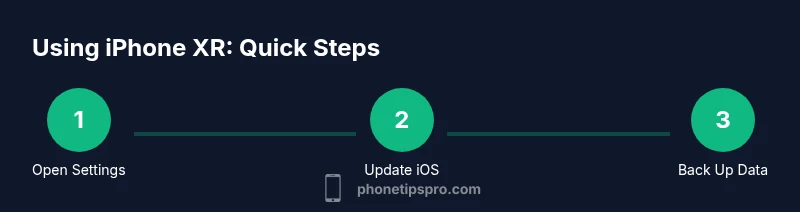
Open Settings
Unlock your iPhone XR and locate the Settings app. Open Settings to begin configuring core preferences and accessibility options. This initial action sets the stage for a smoother experience.
Tip: If you can’t find Settings, use Spotlight search by pulling down on the home screen and typing 'Settings'. - 2
Check for iOS updates
Navigate to General > Software Update to check for available updates. Keeping iOS current improves security, performance, and app compatibility.
Tip: If an update is available, plug in the device and use a reliable Wi-Fi connection to download quickly. - 3
Back up your iPhone XR
Back up using iCloud or a computer to safeguard data before making significant changes. This ensures you can recover photos, contacts, and settings if something goes wrong.
Tip: Enable iCloud Backup in Settings > [Your Name] > iCloud > iCloud Backup and run an immediate backup. - 4
Enable Find My iPhone
Turn on Find My iPhone for security and easier device recovery. Go to Settings > [Your Name] > Find My > Find My iPhone and enable it.
Tip: Also enable Find My network for offline device location when the phone is not connected to the internet. - 5
Set up Face ID and passcode
If you haven’t already, enroll Face ID and set a strong passcode. This improves device security for unlocks, purchases, and sensitive apps.
Tip: Choose a passcode that isn’t easily guessable; consider a longer numeric or alphanumeric option. - 6
Manage notifications
Review and adjust how notifications appear. Disable banners for non-essential apps and group alerts to reduce interruptions.
Tip: Use Do Not Disturb or Focus modes during work or sleep to maintain a calmer device experience. - 7
Customize Control Center
Add frequently used controls (screen recording, low power mode, flashlight) for quick access. Place the most-used items where you’ll reach them naturally.
Tip: Reorder controls by going to Settings > Control Center and dragging items into your preferred order. - 8
Adjust display and brightness
Fine-tune Brightness, True Tone, and Night Shift to reduce eye strain and optimize color balance for your environment.
Tip: Enable Dark Mode for readability in low-light situations and potential battery benefits. - 9
Enable Low Power Mode
Activate Low Power Mode when battery is running low to extend usage. It temporarily reduces background activity and visual effects.
Tip: Use sparingly; it disables some background tasks until you can charge again. - 10
Review storage usage
Check Settings > General > iPhone Storage to identify large apps, old conversations, and duplicate media. Offload unused apps if necessary.
Tip: Enable offload unused apps automatically to save space without deleting data. - 11
Check app permissions
Go to Settings > Privacy to review permissions for Location, Photos, Microphone, and Camera. Deny access where not needed to protect privacy.
Tip: Restrict location access to while using the app unless absolutely necessary. - 12
If issues persist, Reset settings
As a final step, if problems linger, reset all settings (not data). This clears network and preference caches while keeping your content intact.
Tip: Backup before performing resets; note that you may need to reconfigure Wi‑Fi and Bluetooth afterward.
FAQ
How do I reset my iPhone XR?
To reset, go to Settings > General > Transfer or Reset iPhone, then choose Reset All Settings or Erase All Content and Settings after backing up your data. This can resolve stubborn software issues without erasing your personal data if you choose Reset All Settings.
You can reset your iPhone XR by going to settings and selecting reset options; back up first in case you need to restore data.
Can I update iOS on iPhone XR?
Yes. Open Settings > General > Software Update to check for available updates. If an update is present, download and install it over a stable Wi‑Fi connection and keep your device plugged in during the process.
Yes, you can update iPhone XR in Settings under Software Update; keep a charger handy for the install.
How do I free up storage on iPhone XR?
Review large apps and media; offload unused apps, delete unnecessary photos and videos, and enable iCloud Photo Library to store full‑resolution media in the cloud while keeping thumbnails on device.
To free space, delete unnecessary files, offload apps you don’t use, or store photos in iCloud.
How to transfer data to a new iPhone XR?
Use Quick Start or iCloud/iTunes backup to move data from your old iPhone to the XR. Follow the on‑screen prompts during setup to restore apps, settings, and media efficiently.
Transfer data via Quick Start or iCloud backup during setup for a smooth move to your XR.
How to enable Find My iPhone on XR?
Go to Settings > [Your Name] > Find My > Find My iPhone and turn it on. For extra security, enable Find My network and ensure Location Services are active.
Turn on Find My iPhone in settings to help locate or protect your device.
What should I do if the iPhone XR is slow?
Restart the device, update iOS, and limit background app refresh. If issues persist, check storage usage and consider clearing caches in apps that feel sluggish.
If XR slows down, reboot, update, and manage background activity and storage.
Watch Video
Quick Summary
- Back up before making major changes
- Master basic gestures first
- Keep iOS up to date
- Review privacy settings regularly