How to Respond with Text on iPhone
Learn practical, step-by-step methods to respond with text on iPhone using Messages, shortcuts, and etiquette. This guide covers templates, timing, tone, and privacy for everyday conversations.


Here's a quick goal: learn how to respond with text on iPhone using ready-made templates, Messages features, and concise language. This quick guide outlines 5 practical steps to craft clear, timely replies while protecting your privacy and tone. You’ll discover when to reply, which tools to use, and how shortcuts save time.
Why effective texting on iPhone matters
Texting is a central habit for iPhone users, shaping how you’re perceived and how efficiently conversations move. For the topic how to respond with text iphone, mastering concise, timely replies reduces misunderstandings and keeps chats productive. According to Phone Tips Pro, clear messages save time and prevent back-and-forth that wastes attention. In fast-paced chats, your ability to send a well-formed reply quickly matters more than you might think. This section explains why quality matters and how to optimize your approach across contexts—from casual chats to professional communications. You’ll learn how to balance brevity with clarity, plus practical tips you can start using today, including how to use iPhone-native features to speed things up without sacrificing politeness.
Core principles for clear, courteous replies
Effective texting on iPhone follows a few universal principles. Always lead with clarity: state your main point up front. Pair brevity with enough context to avoid back-and-forth. Match your tone to the relationship and situation, and close with a concrete next step when possible. Use templates to preserve consistency, especially in busy moments. Protect privacy in group chats by avoiding sensitive details and clarifying what will be shared where. By internalizing these principles, you’ll quickly improve your ability to respond with text iphone that feels intentional and respectful.
Using iPhone features to speed up responses
Your iPhone is packed with tools that help you reply more efficiently. Tapback reactions let you acknowledge messages in a glance, while Dictation can convert voice to text when typing isn’t convenient. Text Replacement lets you insert long templates with a few keystrokes, and Shortcuts can automate repetitive replies. Focus modes help you avoid distractions, ensuring your replies are thoughtful. Live Text lets you copy text from images for later use in replies. By combining these features, you can craft polished replies in a fraction of the time while maintaining quality and privacy.
Ready-to-use templates for common situations
Templates are your fastest route to consistent, high-quality replies. Use them as-is or customize for tone and context. For example, in busy moments: “Hi there—I’m in a meeting right now. I’ll get back to you in about 30 minutes with a full answer.” For confirmations: “That works for me. I can confirm by 3 PM today.” If you need more time: “I’m tied up right now; can I get back to you later this afternoon?” In group chats, consider: “Let’s keep this focused on X; I’ll share a summary shortly.” Always end with a clear next step. Keep a standing library in Notes so you can paste quickly. Pro tip: store templates in your clipboard manager or a dedicated notes folder for easy access.
Crafting tone and timing across contexts
Tone matters as much as content. In casual chats with friends, you can be playful and brief. In professional texts, opt for courtesy, complete sentences, and precise language. For time-sensitive messages, acknowledge quickly and give a specific timeline for your next update. If you’re unsure about how to respond, it’s often better to buy a moment and reply with a clear next step rather than a vague answer. Also consider the group context: in group chats, address people by name when replying to multiple threads to reduce confusion.
Privacy, boundaries, and safety in texting
Respect boundaries by avoiding over-sharing in public or semi-public conversations. If you’re discussing sensitive topics, consider moving to a more secure channel or asking for permission to continue in private messages. Be mindful of screen privacy—avoid sending sensitive information when others can see your screen, and use iPhone’s Screen Time and Focus features to limit exposure when needed. When using templates, tailor content to avoid including personal data you wouldn’t want shared broadly. Healthy texting also means knowing when to unplug and respond later instead of piling up messages.
Shortcuts and automation for power users
Shortcuts can dramatically speed up texting workflows. Create a shortcut that inserts a chosen template, or a chain of actions: paste the template, add a recipient, and send after a countdown. You can also automate reminders to follow up after a set period. For accessibility, enable Dictation and Voice Control so you can compose replies hands-free. While automation saves time, always review automated messages for tone and accuracy before sending to avoid miscommunication.
Accessibility considerations and inclusive texting
Ensure your messages are accessible to all recipients. Use clear language, avoid excessive abbreviations, and consider using bullets or short paragraphs for longer replies. If a recipient uses Assistive Technologies, simple punctuation and spacing helps readability. For those with visual impairments, use larger text sizes and enable bold text where helpful. When you demonstrate empathy in writing, the impact is felt by everyone in the conversation, improving the overall texting experience.
Tools & Materials
- iPhone with iMessage enabled(Ensure you’re logged in with an Apple ID and have network access)
- Shortcuts app(Optional for creating quick replies and automations)
- Prewritten templates(Draft templates for common scenarios)
- Contact list access(Needed to pull names from Messages)
- Notes app or text editor(For storing templates and examples)
Steps
Estimated time: Estimated total time: 45-60 minutes
- 1
Define your texting goals
Identify the scenarios where you want faster or clearer responses (e.g., work messages, group chats, urgent replies). Set a tone guideline (professional, friendly, or casual) and decide target response times. This ensures your replies stay consistent with your needs and relationships.
Tip: Write down 3 core goals (clarity, brevity, politeness) to refer back to. - 2
Gather templates and craft initial messages
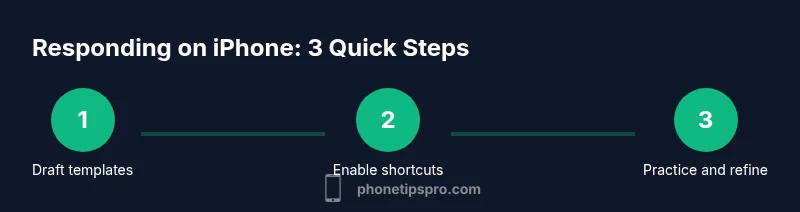
Draft templates for common scenarios (busy, need more time, confirmation, and group chats). Keep placeholders minimal and avoid over-sharing. Save templates in a Notes folder or clipboard manager for quick access.
Tip: Base templates on real conversations you have; adjust phrasing to sound natural. - 3
Enable key iPhone features
Turn on text replacements, Dictation, Tapback, and Shortcuts for quick replies. Enable Focus to minimize interruptions when crafting thoughtful responses. Test each feature to ensure it behaves as expected.
Tip: Practice a few templates with Dictation to gauge speed and accuracy. - 4
Create Shortcuts for speed
In Shortcuts, build a few templates as actions that paste into Messages and optionally send automatically after a timer. Tie shortcuts to a home screen glyph for instant access.
Tip: Name shortcuts intuitively (e.g., “OkReply”, “BusyReply”). - 5
Practice with real conversations
Role-play typical scenarios or test templates in safe chats. Adjust tone and brevity based on feedback from trusted friends. Keep refining until replies feel effortless.
Tip: Record a quick playthrough to review tone and timing. - 6
Review and adjust
After a week, review how templates performed, note where replies sounded robotic or verbose, and refine. Update templates to cover new contexts and ensure privacy is preserved.
Tip: Set a calendar reminder to revisit templates monthly.
FAQ
What is the fastest way to respond with text on iPhone?
Use ready-made templates and Shortcuts to paste and send replies quickly. Combine Tapback for quick acknowledgments with concise text for essential messages.
Use templates and shortcuts for speed, and add a quick Tapback when you just need to acknowledge.
Can I use voice-to-text to reply faster?
Yes. Dictation lets you speak your message, which can be faster than typing. Review the transcription for accuracy before sending.
Dictation can speed things up; just proofread before sending.
How do I save and reuse templates on iPhone?
Store templates in the Notes app or use Text Replacement for quick insertions. Copy/paste templates from a clipboard manager when needed.
Keep templates in Notes or use text replacements for quick inserts.
Is there a way to automate replies on iPhone?
iPhone offers automation via the Shortcuts app, which can insert or send predefined messages. Use with care to avoid miscommunication.
Shortcuts can automate replies, but verify content before sending.
How can I maintain a professional tone in group chats?
Keep messages concise, address participants by name, and summarize decisions. When in doubt, default to a respectful, neutral tone.
Be concise, respectful, and clear in group chats.
What privacy tips help when texting sensitive information?
Avoid sharing sensitive data over messages in public spaces. Use private threads or secure channels for confidential topics, and review recipients before sending.
Protect privacy by avoiding sensitive details in public chats and double-checking recipients.
Watch Video
Quick Summary
- Define your texting goals and tone upfront.
- Use templates and shortcuts to save time.
- Leverage iPhone features to speed replies without sacrificing quality.
- Tailor tone to context and audience.
- Prioritize privacy and boundaries in conversations.