How to See Blocked Numbers on iPhone
Learn where to find and how to manage blocked contacts on iPhone. This step-by-step guide covers blocking in Phone, Messages, and FaceTime, with tips to unblock safely and ensure you’re receiving the calls and texts you want.


On iPhone, you can see who you’ve blocked by opening Settings, then Phone, and tapping Blocked Contacts. For Messages and FaceTime, open their settings to view blocked lists. You can also unblock numbers from these screens. This guide walks you through checking every app that may block calls or texts.
What blocked numbers mean on iPhone
Blocking a number on iPhone prevents that contact from reaching you across the core communication apps. The behavior is app-specific: Phone blocks calls, Messages blocks SMS/iMessages, and FaceTime blocks video/audio calls. If a number is blocked in Phone, it still might appear in other apps if that contact has separate blocking settings there. Understanding these distinctions helps you troubleshoot why a legitimate caller or texter isn’t getting through. For most users, the main place to review these lists is Settings, but you should also check Messages and FaceTime if you rely on those apps for communication. This separation is by design and keeps control localized to the app you use most.
How to locate your blocked lists across iPhone apps
You don’t need a separate tool to view blocked numbers; iPhone keeps three distinct lists. Each list is located in its respective app's settings. The most common path is Settings > Phone > Blocked Contacts. If a contact still reaches you via Messages or FaceTime, you’ll want to inspect Settings > Messages > Blocked Contacts and Settings > FaceTime > Blocked Contacts as well. Keeping all three lists in check ensures you’re not missing important calls or messages from numbers you intend to allow. Remember, changes you make apply across the device and sync to other Apple devices if you use iCloud.
Step-by-step: how to view and compare your blocked lists
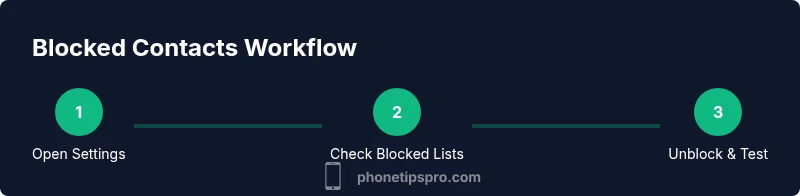
- Open the Settings app on your iPhone.
- Tap Phone, then Blocked Contacts to view blocked phone numbers.
- Go back to Settings and open Messages, then Blocked Contacts to review blocked texts.
- Return to Settings again and select FaceTime, then Blocked Contacts to verify video/audio call blocks.
- Compare the three lists to identify any overlaps or discrepancies that might be causing missed communications.
- If you find a number you didn’t intend to block in any list, unblock it from that screen by swiping left on the contact and tapping Unblock.
Why differences between lists can matter
Even when you block a number in Phone, the caller might still reach you via iMessage if they use a different account or phone line that isn’t blocked in Messages. Similarly, a blocked FaceTime contact may still be able to text you if only one app has the block enabled. Reviewing all three lists helps you understand what’s happening and confirms you’ve configured your blocks consistently across the ecosystem.
How to add or remove blocks safely
Blocking is reversible. If a number is miscategorized, you can remove it from the Blocked Contacts in the corresponding app. When adding a block, ensure you’re blocking the exact number you intend; some contacts may be saved as a name with multiple numbers, so double-check which number is associated with the contact. After updates, test by calling or texting from the block’d number to confirm the change took effect.
Common pitfalls and quick fixes
- If a blocked contact still reaches you, verify you blocked the correct number (international formats and extra digits can cause mismatches).
- Restarting the iPhone can help apply blocking changes more reliably after long blocks or updates.
- If you are using multiple devices with iCloud, ensure the Blocked Contacts lists are synchronized across devices.
Practical tips for managing blocked numbers
- Schedule a periodic review of your blocked lists to prevent accidental disruptions.
- Use Silence Unknown Callers as an extra layer to reduce spam while keeping known contacts unblocked.
- Keep a simple note of numbers you’ve blocked for quick audits during family device management or business use.
Tools & Materials
- iPhone with the latest iOS(iOS 17+ recommended; paths may vary slightly on older versions.)
- Settings app(Access to Phone, Messages, and FaceTime blocks.)
- Stable internet connection(Needed if you sync with iCloud across devices.)
- Apple ID credentials(Helpful for cross-device blocking management.)
Steps
Estimated time: 5-10 minutes
- 1
Open Settings on iPhone
Unlock your iPhone and tap the Settings app to access the system controls that govern blocking. This is the first step to locating all the blocking lists, since they exist separately for Phone, Messages, and FaceTime.
Tip: If you can’t find Settings, use the iPhone search bar at the top of the home screen and type 'Blocked Contacts'. - 2
Check Phone blocked list
In Settings, tap Phone, then Blocked Contacts. Here you’ll see all numbers you’ve blocked from making calls or sending texts via the Phone app. Make note of any entries you didn’t intend to block.
Tip: Swipe left on a blocked number to reveal the Unblock option quickly. - 3
Check Messages blocked list
Return to Settings and go to Messages, then Blocked Contacts. This list governs Messages and iMessages. Some numbers blocked in Phone may not be blocked here, and vice versa.
Tip: Blocking in Messages prevents texts from arriving, but will not necessarily block a call placed by a number blocked in Phone. - 4
Check FaceTime blocked list
Navigate to Settings > FaceTime > Blocked Contacts to review who is blocked from FaceTime calls. This ensures no video or audio calls slip through from blocked numbers.
Tip: If you rarely use FaceTime, you may not check this list as often; schedule periodic reviews. - 5
Unblock a number if needed
To unblock, open the relevant Blocked Contacts list, swipe left on the entry (iOS usually supports this gesture), and tap Unblock. Confirm the unblock to restore communication via the selected app.
Tip: If a number is blocked in multiple apps, unblock in all applicable lists to restore full access. - 6
Test the change
After unblocking, test by asking the number to call or message you. This confirms the block was removed and the contact can reach you again.
Tip: Test in a controlled way with a trusted contact to ensure the unblock works across all apps.
FAQ
How do I see blocked numbers on iPhone?
Open Settings, then Phone > Blocked Contacts to view blocked numbers. Repeat the same steps in Messages and FaceTime if you need to review all blocks. You can unblock numbers from each list as needed.
Open Settings, go to Phone, then Blocked Contacts to view blocked numbers. Check Messages and FaceTime as well, and unblock from the same screens if needed.
Will blocked calls still appear in my carrier logs?
Blocked calls do not reach your iPhone, so you won’t receive notifications. Whether they appear in carrier logs depends on the carrier; blocking on the device primarily affects delivery on your iPhone.
Blocked calls won’t come through to your iPhone, but carrier logging can vary. Your device won’t show those calls.
Can I block in Messages and Phone separately?
Yes. Each app maintains its own Blocked Contacts list. A number can be blocked in Phone but still be able to text if only blocked in Phone, not Messages.
Yes. Blocking is per app; you can control blocks separately for Phone, Messages, and FaceTime.
How do I unblock a number?
Open the appropriate Blocked Contacts list (Phone, Messages, or FaceTime), swipe on the number, and tap Unblock. The contact can then reach you again via that app.
Open the list, swipe left on the number, and choose Unblock to restore access.
Is there a way to block unknown callers automatically?
Yes. iOS offers Silence Unknown Callers, which sends calls from numbers not in Contacts straight to voicemail while you still receive known contacts.
You can enable Silence Unknown Callers in Settings to reduce spam from unknown numbers.
What happens to blocked messages after unblocking?
Unblocking allows new messages to come through. Past messages from blocked numbers remain inaccessible in the blocked thread.
Unblocking lets new messages come in, but previous blocked messages won’t appear retroactively.
Watch Video
Quick Summary
- Open Settings and review all blocked lists.
- Blocking is app-specific: Phone, Messages, and FaceTime each manage their own blocks.
- Unblock numbers across the relevant apps to restore communication.
- Test after changes to verify blocking status across calls and texts.
- Consider privacy tools like Silence Unknown Callers for ongoing spam handling.