How to Mirror iPhone Screen on TV
Learn how to mirror your iPhone screen on a TV using AirPlay or a wired adapter. This comprehensive, step-by-step guide covers requirements, setup, troubleshooting, and best practices for a smooth display experience.


Mirror your iPhone screen to a TV with AirPlay or a wired adapter. Wireless mirroring works with AirPlay‑2 TVs or Apple TV—open Control Center, tap Screen Mirroring, and choose your TV. For a wired setup, attach a Lightning/USB‑C to HDMI adapter, plug into the TV, and select the HDMI input. Ensure both devices share Wi‑Fi for AirPlay.
Understanding mirror iPhone screen on TV: the basics
Mirror iPhone screen on TV is a simple way to share photos, videos, presentations, or apps on a larger display. The core technology behind most modern setups is AirPlay, Apple's wireless streaming protocol, which works with Apple TV and many AirPlay‑2 compatible TVs. If your TV supports AirPlay 2, you can mirror wirelessly without any extra hardware. If not, you can still mirror using a wired adapter. The Phone Tips Pro team emphasizes that a stable connection and compatible devices are the two most important factors for a smooth experience. In practice, you’ll typically choose between wireless AirPlay and wired HDMI connections depending on convenience, latency tolerance, and whether you’re presenting in a professional setting. Additionally, you should consider the content you want to mirror; some apps restrict display to prevent piracy, and DRM content may not mirror in high quality. With the right setup, mirroring becomes a seamless way to share everything from photos to live demos.
Wireless mirroring prerequisites and compatibility
To mirror iPhone screen on TV wirelessly, you need an iPhone with iOS that supports Screen Mirroring and a TV or device that supports AirPlay 2. Apple TV is the most straightforward option, but many modern smart TVs have AirPlay 2 built in. Check your TV’s manual or settings to confirm AirPlay support. Both devices should be connected to the same Wi‑Fi network, preferably a stable 5 GHz band for reduced latency. If you encounter a password prompt, ensure you enter the code displayed on the TV or accept the pairing request. Phone Tips Pro recommends updating both iOS and your TV firmware to minimize compatibility issues. If you experience latency or jitter, try moving closer to the router or switching to a less congested Wi‑Fi channel.
Wired mirroring: adapters and configuration
If wireless mirroring isn’t feasible, wired mirroring provides a reliable alternative with typically lower latency. You’ll need a compatible adapter: Lightning to HDMI for iPhone models with Lightning ports or USB‑C to HDMI for newer iPhone models. Connect the adapter to your iPhone, plug an HDMI cable into the TV, and select the corresponding HDMI input. In most cases, content will mirror at the TV’s display resolution. Be aware that some apps may not mirror protected content when using certain adapters, and using third‑party adapters can introduce compatibility quirks. Phone Tips Pro advises choosing Apple’s own adapters for best reliability, especially during presentations.
Wireless mirroring: quick overview of the workflow
Wireless mirroring is typically fastest to set up but may introduce minor latency depending on network conditions. Begin by ensuring both devices are on the same network and that AirPlay is enabled on the TV or Apple TV. Open Control Center on the iPhone, tap Screen Mirroring, and select the target device. If a code appears, enter it on the iPhone to establish the connection. You can then choose whether to mirror the entire screen or merely cast a specific app if supported. Remember that some streaming apps may impose DRM protections that limit mirroring quality or prevent it entirely.
Step-by-step: wireless mirroring basics (high level)
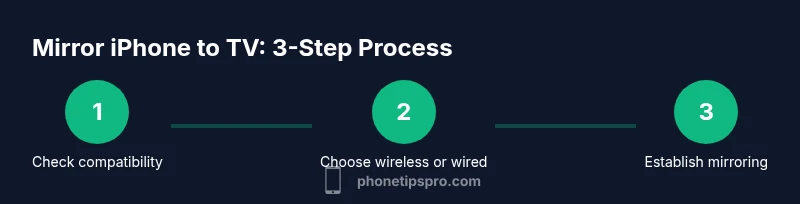
- Verify compatibility: ensure your iPhone and TV support AirPlay 2. 2) Connect to the same Wi‑Fi network. 3) Open Control Center on iPhone and tap Screen Mirroring. 4) Select your TV or Apple TV. 5) If prompted, enter the on‑screen code. 6) Begin mirroring and adjust orientation as needed. This quick overview aligns with best practices from Phone Tips Pro for a smooth wireless experience.
Step-by-step: wired mirroring basics (high level)
- Choose the correct adapter for your iPhone model (Lightning to HDMI or USB‑C to HDMI). 2) Connect the adapter to the iPhone and an HDMI cable to the TV. 3) Switch the TV input to the appropriate HDMI port. 4) Your iPhone display should mirror on the TV. 5) If the image doesn’t appear, try a different HDMI port or restart the devices. This wired path minimizes latency and avoids Wi‑Fi dependencies, a point Phone Tips Pro emphasizes for live demos.
Troubleshooting common issues and solutions
If mirroring fails, start by checking basic connectivity: both devices should be on the same network for wireless AirPlay, or all cables should be firmly connected for wired setups. Restarting the iPhone, the TV, or the router can clear stuck network states. On some TVs, you may need to re‑enable AirPlay in settings or reset the HDMI connection. Ensure that any VPNs or network firewalls aren’t blocking AirPlay traffic. For wireless mirroring, choose a less congested Wi‑Fi channel (preferably 5 GHz) and reduce interference from nearby devices. If audio is missing, check the TV’s audio output settings and ensure the audio is set to pass through or mirror with the video.
Tips for achieving the best quality and lowest latency
- Use 5 GHz Wi‑Fi when possible and keep devices within line of sight of the router. - For video, prefer 1080p over 4K if your TV or network struggles with bandwidth. - Close bandwidth-heavy apps on the iPhone during mirroring to reduce processing load. - Regularly update iOS, TV firmware, and any AirPlay‑related apps to maintain compatibility. - If presenting, connect the iPhone and TV ahead of time to avoid last‑minute delays. Phone Tips Pro notes that preparation is the key to a smooth mirror experience.
Real-world use cases: entertainment, presentations, and apps
Mirroring the iPhone screen on a TV can elevate movie nights with family photos or streaming apps, support quick photo slideshows during parties, and turn the TV into a larger display for presentations or demonstrations. In classrooms or business meetings, AirPlay allows flawless showcasing of slides, charts, and diagrams. Gaming is possible, but latency may affect fast‑paced titles; in those cases, wired HDMI generally provides the most dependable performance. Always check DRM restrictions on streaming services, as certain content may restrict or degrade mirroring quality.
Privacy, security, and best practices
When you mirror your screen, everything on your iPhone is visible to others in the room. Phone Tips Pro recommends using Screen Time controls and temporarily disabling sensitive notifications during demonstrations. If you share your iPhone with others, remember to stop mirroring when the session ends. For wireless mirroring, never enable public sharing on unfamiliar networks and consider using a guest network to protect personal data. When in doubt, use a wired connection for higher security and predictability.
Alternatives and considerations: what to choose in different scenarios
If you own an older TV without AirPlay, a wired solution is your best option. If you present from a laptop or want to display only specific content, consider using a casting app or streaming dongle that supports screen sharing. For occasional users, AirPlay provides a simple, cable-free experience; for frequent presenters, a wired configuration minimizes latency and potential interference. Finally, keep in mind content restrictions; some apps may block mirroring to protect copyrights, so be prepared with alternative display methods for those cases.
Quick-start checklist before you mirror
- Confirm AirPlay compatibility or suitable wired adapter. - Ensure both devices are on the same network (wireless) or prepare HDMI cables and adapters (wired). - Update iOS and TV firmware. - Have a fallback plan for apps with DRM restrictions. - Test the setup well before a live session to avoid last‑minute issues.
Tools & Materials
- iPhone (any model with screen mirroring support)(Ensure iOS is up to date for best AirPlay compatibility)
- AirPlay‑2 compatible TV or Apple TV(Essential for wireless mirroring)
- Wi‑Fi network (prefer 5 GHz)(Wireless mirroring relies on a stable network)
- Lightning to HDMI adapter(Required for iPhones with Lightning ports (older models))
- USB‑C to HDMI adapter(Required for newer iPhone models with USB‑C ports)
- HDMI cable(Connects the iPhone adapter to the TV)
- TV remote or smart TV controls(Useful for selecting input and adjusting settings)
Steps
Estimated time: 15-25 minutes
- 1
Prepare devices
Gather your iPhone, TV/Apple TV, and necessary adapters. Confirm firmware is up to date on both devices. If you plan to use wireless mirroring, ensure both devices are connected to the same network and that your TV supports AirPlay 2.
Tip: Have the HDMI input ready or the TV on the correct home screen to minimize delays. - 2
Choose wireless or wired
Decide between AirPlay wireless mirroring or a wired HDMI connection. Wireless is convenient, but wired offers lower latency and more stable performance for live demos or gaming.
Tip: If you’re uncertain, start with wireless and switch to wired if you notice lag. - 3
Wireless setup
On the iPhone, open Control Center, tap Screen Mirroring, and select your TV or Apple TV. If a code appears on the TV, enter it on the iPhone. The screen should begin mirroring within a few seconds.
Tip: If you don’t see the device, verify AirPlay is enabled on the TV and both devices are on the same network. - 4
Wired setup
Attach the Lightning/USB‑C to HDMI adapter to the iPhone, connect the HDMI cable to the TV, and switch the TV input to the corresponding HDMI port. The iPhone display should mirror automatically.
Tip: Use a high‑quality HDMI cable to avoid signal degradation. - 5
Adjust display options
If the image fills the TV perfectly, you’re done. If there are black bars or scaling issues, check the TV’s picture settings and iPhone display settings for aspect ratio.
Tip: Try setting the iPhone to 16:9 and ensure the TV is set to 16:9 as well for optimal results. - 6
Test and finalize
Play a video or open a presentation to confirm audio and video are synchronized. If you encounter issues, restart both devices and reattempt the connection.
Tip: Test before a live session to catch any unexpected hiccups.
FAQ
Do I need Wi‑Fi for AirPlay mirroring?
Yes. AirPlay mirroring relies on the local network to carry the video and audio stream to the TV or Apple TV. If Wi‑Fi is weak, latency and drops can occur.
AirPlay needs a solid local network to work well.
Can I mirror to any TV without Apple TV?
Only TVs with AirPlay 2 built in or an Apple TV can receive a wireless mirror. If your TV lacks AirPlay, use a wired HDMI setup instead.
AirPlay requires AirPlay 2 built‑in TV or an Apple TV.
Will audio mirror to the TV speakers?
Yes. In most cases, audio mirrors to the TV speakers automatically. If not, check the TV’s audio output settings and ensure the sound is routed through the TV.
Audio typically mirrors to the TV automatically.
Can I mirror while charging my iPhone?
Yes. Mirroring does not prevent charging. You can keep the iPhone plugged in for extended sessions.
You can charge while mirroring without issue.
What about DRM restricted content?
Some apps restrict screen mirroring to prevent piracy. If you hit this, try sharing the specific app’s playback or use a wired method for compatibility.
DRM can block mirroring for some apps.
Why is there lag or stutter?
Lag typically results from network congestion, high resolution, or weak signal. Switching to a 5 GHz network or lowering resolution can help.
Lag is usually network or resolution related.
Watch Video
Quick Summary
- Choose wireless AirPlay for simplicity when compatible
- Use wired HDMI for the lowest latency
- Keep devices on the same network and up to date
- Be mindful of DRM restrictions on some apps
- Test before important presentations