How to Get Rid of a Virus on iPhone: Practical, Safe Fixes
Learn how to spot malware on iPhone, safely remove rogue apps and profiles, and protect your device. Step-by-step guidance, best practices, and expert tips from Phone Tips Pro.


By the end of this guide, you will know how to spot signs of iPhone malware, remove suspicious apps and profiles, and restore device health without erasing your data. You’ll learn safe steps like updating iOS, reviewing device management, and performing a targeted reset—so your iPhone stays secure and fast again.
What counts as an
Why this matters
Device security on
Practical takeaway
Treat any unexpected change as a potential red flag and verify before acting. Malware on
Tools & Materials
- iPhone with latest iOS update(Update to the latest version before starting malware checks)
- Apple ID credentials(Used to review account activity and revoke access if needed)
- Backup solution (iCloud or computer)(Back up data before major changes)
- Trusted computer (Finder/iTunes connection)(Helpful for backups or restoring from a clean state)
- Stable internet connection(Required for updates and profile checks)
Steps
Estimated time: Estimated total time: 60-90 minutes
- 1
Assess symptoms and gather evidence
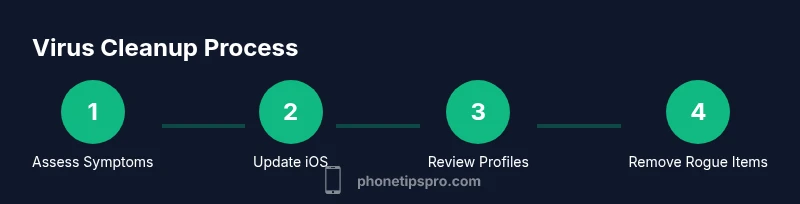
Start with a calm inventory of what feels off: slowdowns, new icons, or odd pop-ups. Check Settings for unfamiliar profiles under General > VPN & Device Management and note any suspicious items. Take screenshots for reference and avoid tapping unknown prompts.
Tip: Document dates and behaviors to help determine if actions are device-wide or app-specific. - 2
Update iOS to the latest version
Go to Settings > General > Software Update and install any available updates. Updates repair security holes and improve system integrity, reducing the chance that exploit code runs in the background.
Tip: If an update is pending, perform it over a strong Wi-Fi connection to ensure a stable install. - 3
Review and revoke unfamiliar profiles
Open Settings > General > VPN & Device Management (or Profiles & Device Management) and remove any profiles you don’t recognize. Malicious profiles can alter network settings or install payloads without your knowledge.
Tip: If you’re unsure about a profile, disable or remove it and research its name before reinstalling anything legitimate. - 4
Audit installed apps and remove rogue ones
Go through your home screen and Settings > General > iPhone Storage to identify apps you don’t remember installing or that behave oddly. Delete suspicious apps, then monitor for changes.
Tip: When in doubt, delete first and reinstall from the App Store rather than trusting side-loaded software. - 5
Check account security and credentials
Review Apple ID security, change your password if you suspect credential compromise, and enable two-factor authentication. Check trusted devices and recent activity for anything unfamiliar.
Tip: Consider signing out of suspicious sessions on other devices from the Apple ID account page. - 6
Reset network settings if network anomalies persist
In Settings > General > Transfer or Reset iPhone > Reset > Reset Network Settings, reset Wi‑Fi passwords and network configurations. This helps remove malicious DNS or proxy settings installed by an app or profile.
Tip: Resetting network settings will forget saved networks—have your Wi‑Fi password handy. - 7
Perform a targeted data backup before major changes
Back up essential data to iCloud or your computer, excluding sensitive contents you don’t want stored off-device. This ensures you can restore your personal data if you need to reset.
Tip: Use encrypted backups to protect app data and credentials. - 8
If issues persist, consider a factory reset as last resort
A factory reset erases content and settings, reinstalling a clean system image. Backup first, then choose Settings > General > Transfer or Reset iPhone > Erase All Content and Settings.
Tip: This step should be taken only after confirming that the problem is not caused by legitimate apps or settings. - 9
Restore essential apps and monitor behavior
After a reset, reinstall only trusted apps from the App Store and re-enroll services gradually. Watch for any reappearance of the suspicious behavior to identify the root cause.
Tip: Add apps back one at a time and test the device between installations.
FAQ
Can an iPhone really get a virus?
iPhones can be affected by malware, but it typically comes from rogue profiles, suspicious apps, or phishing rather than traditional viruses. Safari or app prompts may try to trick users into granting access. The key is to verify sources and keep iOS updated.
Yes, iPhones can get malware mainly through profiles or dubious apps. Keep iOS updated and verify what’s installed on your device.
Should I install antivirus software on iPhone?
Most iPhone protections come from Apple’s security model and regular updates. Extra antivirus apps offer limited detection and may access data; rely on trusted sources and avoid questionable tools.
Extra antivirus apps aren’t usually necessary; focus on updates, profiles, and trusted apps instead.
What is the first action if I suspect malware?
Start by updating iOS, review profiles, and remove anything unfamiliar. Then back up data and consider resetting network settings before moving to a full factory reset if issues persist.
Update iOS, check profiles, remove unknown items, and back up before taking bigger steps.
Will resetting my iPhone erase my data?
A settings reset preserves data, but a factory reset erases all content. Use backups to protect data and only perform a factory reset if symptoms persist after other checks.
A normal reset keeps data; a full factory reset wipes everything. Back up first.
How can I prevent future infections?
Keep iOS updated, avoid installing unknown profiles, limit app permissions, enable two-factor authentication, and back up regularly. Monitor device behavior and act quickly on any odd signs.
Stay updated, verify sources, and back up often to prevent future infections.
What should I do if I can’t remove a profile?
If a profile won’t delete, reboot, try again, and remove via Settings. If it persists, contact Apple Support for guided removal to avoid bricking device settings.
If a profile won’t delete, seek help from Apple Support to remove it safely.
Quick Summary
- Update iPhone regularly to close security gaps
- Remove unknown profiles and rogue apps promptly
- Back up before major changes
- Factory reset only when necessary and safe
- Monitor device behavior after cleanup