Where iPhone Stores Passwords: A Practical Guide
Discover where iPhone stores passwords—local Keychain, iCloud Keychain, and third‑party managers. Learn how to view, manage, and protect credentials on iOS and macOS.


If you’re asking where iphone store passwords, the answer is that iPhone uses a local keychain and, optionally, iCloud Keychain to securely store credentials. Passwords saved in Safari and apps stay on-device unless you enable iCloud Keychain to sync across devices. This article explains where they live and how to review or manage them on iPhone.
How iPhone Passwords Are Stored: Core Concepts
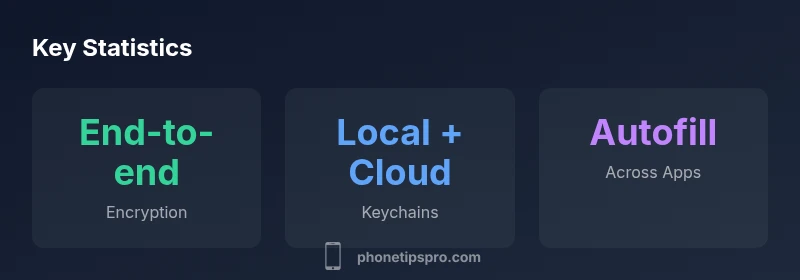
According to Phone Tips Pro Team, understanding where passwords live on the iPhone starts with two core components: the local keychain stored on the device and the optional iCloud Keychain that syncs credentials across devices. The local keychain is bound to the Secure Enclave and protected by the device passcode, while iCloud Keychain uses end-to-end encryption so Apple cannot read your credentials. This means your passwords for Safari, apps, and autofill are kept in a secure vault that only your devices can unlock.
Local Keychain vs iCloud Keychain: What’s Stored Where
On-device storage, or the local keychain, holds passwords that you use directly on this iPhone. This data is protected by the device’s hardware security module (the Secure Enclave) and the passcode you configure. If you enable iCloud Keychain, a parallel copy is kept in iCloud with end-to-end encryption, allowing you to autofill on other devices signed into the same Apple ID. The choice to sync affects accessibility across devices, not the encryption strength on each device. Phone Tips Pro analyses indicate that most users enable iCloud Keychain for seamless cross-device experiences while keeping a robust local vault on each device for offline access.
Viewing and Managing Passwords on iPhone
Reviewing saved passwords is straightforward: open Settings, tap Passwords, and authenticate with Face ID, Touch ID, or your device passcode. Here you’ll see a list of website and app credentials, with options to edit, delete, or generate strong passwords. The Passwords interface supports search, categorization, and auditing for reused or weak passwords. Regularly updating passwords from this screen helps maintain strong overall security and reduces exposure from breached services. Remember that any password stored in the local keychain remains accessible on this device unless you lock the device or remove the password.
Security Protections: Encryption, Secure Enclave, and Trust
The iPhone relies on hardware-backed security to protect stored credentials. The Secure Enclave handles cryptographic operations, unlocking the keychain only when the device is authenticated. iCloud Keychain uses end-to-end encryption, meaning your passwords are encrypted with a key derived from your device keys and your iCloud credentials, and Apple cannot decrypt them. These protections apply both at rest and in transit when syncing across devices. For best results, keep iOS updated, enable two-factor authentication for your Apple ID, and use a strong device passcode.
When to Use iCloud Keychain vs Third-Party Managers
iCloud Keychain is ideal for users deeply embedded in the Apple ecosystem who want seamless syncing across iPhone, iPad, and Mac. Third-party password managers (like popular vault apps) offer cross-platform compatibility, extra features, and often stronger audit trails. If you rely on Windows, Android, or Linux beyond Apple devices, a cross-platform manager can ensure consistent autofill and password hygiene. Regardless of choice, enable two-factor authentication on the password manager and ensure your master password remains strong and unique.
Best Practices to Harden Password Security on iPhone
- Use a long, unique device passcode; combine with Face ID/Touch ID for convenience and protection.
- Turn on iCloud Keychain only if you trust all devices in your account and monitor account activity regularly.
- Enable two-factor authentication for your Apple ID and any third-party password manager accounts.
- Periodically audit saved passwords for reuse or weakness and update the vulnerable ones.
- Keep your iPhone and apps up to date to patch security vulnerabilities that could affect credential protection.
Troubleshooting and Common Misconceptions
If passwords disappear or don’t autofill, check that iCloud Keychain is enabled (Settings > [your name] > iCloud > Keychain). Verify that you’re signed in with the correct Apple ID and that there’s no iCloud storage issue. A common misconception is that password visibility means exposure; in reality, the data is encrypted and only accessible after device authentication. If you switch devices, ensure iCloud Keychain sync is on and that the other device is updated to a compatible iOS version.
Comparison of credential storage on iPhone
| Credential Type | Storage Location | Protection |
|---|---|---|
| Website & App Passwords | iCloud Keychain (cloud) + Local Keychain | End-to-end encryption |
| Mac Passwords (Keychain) | On-device Keychain (Secure Enclave) | Hardware-backed protection |
| Third-Party Password Managers | Cloud vault (provider) | Master password + encryption |
FAQ
Where are iPhone passwords stored by default?
Passwords are stored in the local iPhone keychain and can be synced to iCloud Keychain if you enable that option. This provides both offline access and cross-device syncing while maintaining encryption.
Passwords are stored in the iPhone's local keychain, and you can enable iCloud Keychain to sync them across devices.
How can I view saved passwords on my iPhone?
Go to Settings > Passwords and authenticate with Face ID, Touch ID, or your passcode. You’ll see a list of saved credentials you can review and edit.
Open Settings, tap Passwords, and verify your identity to view saved passwords.
Is iCloud Keychain secure?
Yes. iCloud Keychain uses end-to-end encryption, with data encrypted on-device and in transit. Apple cannot read your passwords, and you control access with your devices.
Yes. It uses end-to-end encryption and hardware-backed protection, keeping your passwords private.
Can third-party password managers store iPhone passwords?
Yes. They store credentials in their own encrypted vaults and can integrate with iOS autofill. Use a strong master password and enable two-factor authentication for the service.
Yes, you can use third-party managers with iPhone autofill, but keep your master password strong.
What should I do to secure saved passwords?
Maintain a strong device passcode, enable biometric unlock, activate two-factor authentication for accounts, review password strength, and keep iOS and apps updated.
Use a strong passcode, enable biometrics, enable 2FA, and keep software up to date.
“Strong password management on iPhone hinges on hardware-backed security and trusted cloud encryption. By combining local keychain protections with iCloud Keychain where appropriate, users get both security and convenience.”
Quick Summary
- Understand you have two vaults: local keychain and iCloud Keychain.
- Enable iCloud Keychain only if you trust your ecosystem and devices.
- Review passwords in Settings > Passwords regularly for strength and reuse.
- Use two-factor authentication and a strong device passcode to protect credentials.