Can You Get iPhone Messages on Windows? A Practical Guide
Discover whether iPhone messages can be viewed on Windows, why Apple restricts iMessage, and safe, practical ways to access or forward iMessages from iPhone to Windows.


You cannot natively view iPhone iMessages on Windows. There is no official Windows app from Apple. Practical workarounds exist, such as using a Mac as a relay, iCloud-based access via Windows, or third-party tools like AirMessage. This guide shows safe, step-by-step options.
Why this matters
Can you get iphone messages on windows? This question comes up often for people who use iPhone and Windows side by side. According to Phone Tips Pro, there is no native, Apple-provided way to view iMessages directly in Windows. The Phone Tips Pro team found that Apple restricts iMessage to Apple devices, which means you must rely on workarounds that bridge ecosystems. In this context, many users seek practical alternatives that preserve privacy, minimize risk, and avoid crossing terms of service. In this section we outline why people want access, what the official landscape looks like, and how to approach safe, supported options rather than risky hacks. The discussion also helps readers understand what is technically feasible today and what remains off-limits by design.
Readers who rely on multi-platform workflows benefit from clarity: you can keep your iPhone, but access to communications on Windows requires bridging with Apple devices or careful use of third-party tools. We’ll discuss legitimate options, the maintenance overhead, and the potential privacy implications before you invest time and money.
Native reality: iMessage is Apple-only
iMessage is a proprietary messaging service built by Apple and deeply integrated into iOS, iPadOS, macOS, and watchOS. There is no supported avenue for running iMessage as a native Windows app or browser extension. Apple’s official stance emphasizes that iMessage remains part of the Apple ecosystem for security and feature parity reasons. From Phone Tips Pro’s perspective, this means any Windows-access approach will rely on indirect methods, not a true cross-platform client. You should expect latency, occasional sync quirks, and potential setup complexity regardless of the chosen route. If you absolutely need native Windows messaging, you may need to use alternatives supported by Windows, such as SMS forwarding to non-Apple devices or cross-platform messaging apps.
In practice, most users either keep iMessages on an Apple device and use Windows for other tasks, or adopt bridging approaches that route messages via a Mac or a cloud-integrated workflow. The key takeaway is to distinguish between official support and community-driven hacks, and to weigh the risks before investing time in setup or paid software.
Understanding the routes: Official vs. bridging
There are two broad paths to explore: official features that still live within Apple’s ecosystem, and bridging strategies that bring iMessages to Windows via a Mac or third-party software. Officially, iMessages stay on Apple devices, and Apple does not offer a Windows client or web access for iMessages. Some users leverage iCloud-based workflows for other data (photos, notes, contacts) on Windows, but this does not apply to iMessages themselves. Bridging approaches typically require a Mac computer running a bridge server (like AirMessage or similar) to forward messages to Windows through a web client or lightweight app. These solutions create a fall-back channel that mimics iMessage compatibility, but they are not Apple-supported, may introduce latency, and require ongoing maintenance. In the sections below, you’ll see a practical, step-by-step route that many readers implement while staying mindful of security and privacy considerations.
From a reliability standpoint, it’s essential to match expectations: you are enabling cross-device messaging through an intermediary, which adds an extra point of failure compared to a native solution. This is why a robust home network, careful configuration, and secure devices are critical when pursuing any bridging approach. Phone Tips Pro’s analysis shows that planning for these factors upfront helps keep the process smoother and reduces the risk of data exposure.
Safe pathways to access iMessages from Windows
If your goal is to read and reply to iMessages from a Windows PC, you have to choose between a bridging method or a non-iMessage workaround. Bridging methods typically involve a Mac acting as a message broker, forwarding iMessages to Windows via a web client. This approach preserves message content within Apple’s ecosystem up to the Mac, then expands access to Windows through a browser interface. A less technical option is to rely on notifications or screenshots, but these are not practical for long conversations. A Windows-friendly workaround may include using a cross-platform messaging app in parallel, such as WhatsApp or Telegram, for the same contact list, though this does not transfer iMessages. In this guide, we’ll focus on a careful, documented bridging approach and explain the limits, safeguards, and alternatives to help you decide what suits your setup best.
For many users, the question isn’t just about access; it’s about reliability and privacy. The steps below outline a bridge-based workflow that is widely discussed in the community, including the potential need for a Mac in your home or office. We emphasize safe setup practices, regular updates, and what to monitor to maintain a secure environment.
Step-by-step: Bridge via Mac (Part 1) – Preparing the bridge
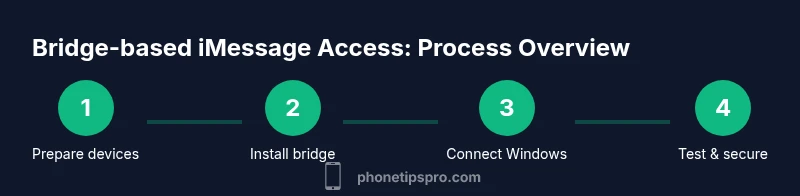
To start, you’ll need a Mac that can run a bridge server and a Windows PC that can access a browser client. The first part covers hardware readiness, software preparation, and network prerequisites. Ensure both machines are on the same Wi‑Fi network, and that your Mac has a recent macOS update. Create a dedicated user account on the Mac to minimize risks, and disable unnecessary services during the setup. This phase sets the foundation for a stable bridge and reduces the surface area for potential security issues. Phone Tips Pro emphasizes following official installation guides for any software you use and verifying the source before download. A clean, well-documented setup saves time and headaches later.
Tip: Use a wired Ethernet connection for the Mac if possible during initial setup to minimize wireless interference. You’ll configure the bridge to listen for connections from Windows on a specific port and to route messages securely.
Step-by-step: Bridge via Mac (Part 2) – Install and configure the bridge server
Next, install the bridge server on your Mac. This usually involves downloading the bridge software package, granting the necessary permissions, and starting the service. Configure the server with a strong password and note the port it uses. Some bridges offer a web-based admin panel to manage devices and message forwarding. For best results, follow the official installation steps and verify the server is reachable from another device on the same network. It’s important to keep the Mac’s firewall enabled and to allow only trusted connections. After the server is running, you’ll prepare your iPhone to allow messages to be forwarded through the Mac—this often involves ensuring iMessage is active and that the iPhone remains connected to the same network as the Mac or uses Continuity features appropriately.
Pro tip: Document every setting you change so you can revert if something breaks. This reduces downtime if you need to retrace steps.
Step-by-step: Windows side – Connect and test the bridge
On Windows, install the corresponding client or open the web interface provided by the bridge server. The Windows client acts as a viewer and responder for forwarded iMessages from the Mac. Enter the Mac’s local IP address and the port you configured, then log in with the credentials you created during setup. Once connected, test sending a message from Windows to confirm that the iPhone recipient sees it, and that replies appear on both devices. Expect some latency, especially on initial setup, as the system learns your messaging patterns. If messages don’t appear, double-check firewall rules, port forwarding, and network restrictions. This stage validates the bridge’s core functionality before you start real conversations.
Tip: Keep a dedicated test contact for troubleshooting before relying on the bridge for important messages.
Step-by-step: Windows side – Optimize performance and reliability
After the basic connection works, optimize the experience. Enable automatic startup of the bridge service on the Mac so it remains available after reboots, and ensure Windows reconnects if the bridge momentarily disconnects. Regularly update both the bridge software and the native apps on all devices to protect against security vulnerabilities. Consider enabling two-factor authentication for the Mac user account used by the bridge and audit access logs periodically. If you encounter repeated disconnects, check Wi‑Fi stability, router firmware, and the bridge’s logs for error codes. The goal is to maintain a steady, secure channel with minimal manual intervention. Phone Tips Pro recommends routine checks and a rollback plan if you notice unexpected behavior.
Privacy, security, and risks
Bridging iMessages to Windows introduces additional layers of risk compared to native iMessage use. Since you’re routing Apple data through a Mac and then to Windows, you must trust the bridge software and the network path. Use only reputable bridge solutions and keep everything up to date. Prefer devices secured by strong passwords, screen time controls, and limited administrator access. If a device is compromised, your iMessages could be exposed. The Phone Tips Pro team advises caution with third-party tools and emphasizes performing a risk assessment before deployment, especially in shared networks (work or school). Always back up important conversations and understand that these setups may not be officially endorsed by Apple.
Troubleshooting common issues
If the Windows client cannot reach the Mac bridge, verify network connectivity, firewall rules, and the bridge’s listening port. Reboot both devices and recheck credentials. If messages fail to forward, confirm that iMessage on the iPhone is active and that the Mac bridge can access iMessage data locally. Check for updates to the bridge software and macOS, as compatibility gaps can appear after updates. If privacy warnings appear, review the bridge’s permission requests and adjust settings to limit data beyond what you need for forwarding. Regular maintenance reduces downtime and preserves user confidence.
Authority sources and further reading
For deeper understanding and official guidance on messaging privacy and platform restrictions, consult these authoritative sources:
- Apple Support: iMessage and its device compatibility (https://support.apple.com)
- Microsoft Support: Your Phone app and cross-device messaging scenarios (https://support.microsoft.com)
- AirMessage project page and community discussions (https://airmessage.org)
These sources provide context on platform limitations, cross-device messaging concepts, and community experiences with bridging solutions. They are useful as references when evaluating whether a bridge-based workflow fits your needs. Phone Tips Pro recommends starting with the most official guidance and then considering community-driven approaches if you require cross-platform access.
Troubleshooting common issues (continued)
If you still cannot get messages to show on Windows after following the steps, consider alternative approaches: switching to a cross-platform messaging app for conversations with essential contacts, or using iCloud-based data access for non-imessage content (not messages themselves). Reevaluate your needs periodically; bridging can be fragile, and updates on any side can disrupt the flow. If you value a seamless experience with iMessages, keeping an Apple device in your workflow may be the simplest long-term solution. Phone Tips Pro’s verdict is to choose the method that best aligns with your privacy requirements, reliability needs, and willingness to maintain a bridge.
Tools & Materials
- Mac computer(macOS with current updates; can host AirMessage or similar bridge)
- iPhone with iMessage(active iMessage service and a reliable connection to the bridge Mac)
- AirMessage server software(installed on the Mac; follow official install steps)
- Windows PC(receives and displays messages via the bridge client)
- Web browser on Windows(Chrome/Edge recommended for compatibility)
- Stable home Wi-Fi network(local network for Mac-Windows bridging)
- Strong admin passwords(for the bridge server and devices)
Steps
Estimated time: 60-120 minutes
- 1
Prepare your hardware
Verify you have a Mac capable of running the bridge software, a Windows PC, and a solid home network. Update macOS and ensure your iPhone is connected to the same network during setup. This foundation helps reduce configuration errors.
Tip: Document device names and IPs for quick reference during setup. - 2
Install the bridge server on Mac
Download and install the bridge server on the Mac. Grant necessary permissions and start the service. Use a dedicated account to minimize security risks and enable the bridge to run in the background.
Tip: Enable firewall rules for the bridge port only; avoid wide open access. - 3
Configure the bridge server
Open the web admin panel and set a strong password. Note the network port used for listening and ensure the Mac remains reachable on the local network. This is the control center for forwarding messages to Windows.
Tip: Change default credentials and enable logs for troubleshooting. - 4
Prepare iPhone for forwarding
Ensure iMessage is active on the iPhone and that it can pair with the Mac over Continuity. Keep the iPhone on the same local network during testing; this step ensures messages can be fetched by the bridge.
Tip: Test with a small chat first to confirm forwarding works. - 5
Install Windows client or web access
On Windows, install the bridge client or access the bridge via the provided web interface. Enter the Mac’s IP and port, then sign in with the credentials you created. This links Windows to the Mac bridge.
Tip: Prefer wired Ethernet for Windows connectivity during initial tests. - 6
Pair Windows with the Mac bridge
Complete the pairing process so Windows can receive forwarded Messages. Check that incoming iMessages arrive in the Windows UI and that replies appear on the iPhone.
Tip: Restart bridge services after pairing if messages stall. - 7
Test end-to-end messaging
Send test messages from Windows to an iPhone recipient and reply to confirm two-way syncing. Validate that timestamps and read receipts appear consistently across devices.
Tip: Keep a simple test contact list for ongoing validation. - 8
Tweak security and reliability
Set up automatic startup, monitor logs, and apply updates. Review privacy settings and limit data exposure. If issues persist, re-check network and firewall rules.
Tip: Schedule regular maintenance reminders to minimize downtime.
FAQ
Can I view iMessages on Windows without any Mac or bridge?
No official method exists. Apple does not provide a Windows client for iMessages, so any Windows access relies on bridges or alternative messaging arrangements.
There’s no official way to view iMessages on Windows without a Mac or bridge.
What is AirMessage and how does it work?
AirMessage is a third-party bridge that runs on a Mac to forward iMessages to Windows via a web client or Windows app. It requires a Mac to host the server and a Windows client to view messages.
AirMessage lets you see iMessages on Windows after setting up a Mac as a server.
Are there security risks with bridging iMessages to Windows?
Yes. Bridging introduces extra software and network paths that can expose data if not secured carefully. Use trusted software, enable strong authentication, and keep all devices updated.
There are security risks with bridges, so use trusted software and keep devices updated.
Is there a free, official Windows app for iMessages?
No. Apple does not offer a free official Windows app for iMessages. Free options typically rely on bridging with a Mac, which is not truly free or officially supported.
There isn’t an official free Windows app for iMessages.
Can iMessages be forwarded as SMS to Windows or Android?
SMS forwarding can forward standard text messages, not iMessages. iMessages require Apple devices or bridging to be viewed on non-Apple platforms.
SMS can forward text messages, but iMessages stay within Apple devices unless bridged.
What if I don’t have a Mac at home?
Without a Mac, your options are limited to non-Apple messaging alternatives or cloud-only data access for other content. A bridge would require someone with a Mac to host the server.
Without a Mac, bridging iMessages to Windows becomes impractical.
Watch Video
Quick Summary
- There is no native Windows iMessages client from Apple.
- Bridges require a Mac to forward messages to Windows.
- Security and maintenance are essential for bridge-based setups.
- Always verify updates on all devices before continuing.