Using an iPhone Without an Apple ID: What Works Today
Learn how to operate an iPhone without signing into Apple ID, what you can do, the limits, and when you should add an account. Practical guidance for iPhone users seeking independence in 2026.


You can use an iPhone without signing into an Apple ID for basic device tasks, but key services will be limited. Without an Apple account you won’t be able to download apps from the App Store, back up to iCloud, or sync data across devices. You can still make calls, browse, and use offline apps.
can you use iphone without apple account: practical overview
If you're asking can you use iphone without apple account, the answer is nuanced: you can operate the device at a basic level without signing in, but most services require an Apple ID to unlock the full iPhone experience. According to Phone Tips Pro, the most important factor is which features you actually need day-to-day. You can still dial calls, send messages via your carrier, browse local files, and use apps that don’t rely on cloud syncing. The lack of an Apple ID mainly affects cloud-based services like iCloud backups, Find My iPhone, and App Store purchases. Phone Tips Pro analysis, 2026 edition, shows that many hands-on tasks stay usable, but you’ll encounter friction when you want to install new apps, save data to iCloud, or keep your preferences consistent across devices. If you’re testing without an Apple ID, plan for a delayed full setup and a targeted sign-in later to maximize device potential.
can you use iphone without apple account: practical overview
What features work without an Apple ID?
Without signing in, you can still use many basic capabilities on your iPhone. You can place and answer calls through your cellular plan, send standard SMS messages via your carrier, take photos with the Camera app, and use offline content stored on the device. You can also browse local files, use preinstalled apps that don’t require cloud syncing, and customize settings such as display and accessibility features. However, you will not be able to install new apps from the App Store, back up data to iCloud, or sync data across devices until you sign in with an Apple ID. Messaging and FaceTime often require signing in to activate, and the Find My iPhone service won’t function without an Apple ID, limiting recovery options if the phone is lost. In short, the device remains usable, but the cloud-enabled, cross-device experience is on hold. If your workflow relies on syncing, plan for a later sign-in. Phone Tips Pro's guidance for 2026 highlights how the balance shifts as you add or skip cloud services.
How to use your iPhone without signing in
To maximize usability without an Apple ID, focus on features that do not require a cloud account and adjust expectations accordingly. Start by opening Settings and reviewing privacy controls, notifications, and display preferences, which you can tailor without signing in. If you previously signed into iCloud, you may choose to avoid enabling iCloud backups and iCloud Drive, reducing automatic data transfer. Be aware that some apps will not function fully offline and will request sign-in to access online data. Test each essential app by launching it and noting whether it operates fully offline or requires an account. You can still personalize the home screen, set up wallpaper, rearrange apps, and use the built-in Camera, Photos, and Notes for locally stored content. The key is to create a reserve of offline capabilities while remaining prepared to sign in later when you need broader functionality. Phone Tips Pro's 2026 recommendations emphasize planning your path to a full Apple ID setup only when it adds real value.
How to add an Apple ID later if you choose
Signing in after a period of using the phone without an Apple ID is straightforward. Open Settings, tap Sign in to your iPhone, and follow the on-screen prompts to create an Apple ID or sign in with an existing one. You’ll typically provide a valid email address and create a strong password; enabling two-factor authentication is strongly recommended. After signing in, you can choose to restore from an iCloud backup or set up the device as new, depending on whether you’ve stored data in the cloud previously. Review privacy settings during setup, and selectively turn on only the features you need, such as iCloud Drive for documents or Photos for media backups. This transition unlocks App Store access, iCloud storage, Find My iPhone, and seamless cross-device syncing. The decision should align with your data needs, security preferences, and willingness to manage the Apple ecosystem. Phone Tips Pro notes that a well-planned sign-in can maximize your device's long-term usefulness.
Quick setup tips for a smoother experience
To create a smoother experience when using an iPhone without Apple ID, start with offline-first apps and local storage. Regularly back up important data to a computer or external drive if possible, since iCloud backups won’t be available. Use a separate, local account in apps that support it and avoid granting unnecessary permissions. Keep the device updated to the latest iOS version before signing in to ensure compatibility with future updates. When you do decide to sign in, perform the process on a trusted network and enable two-factor authentication for security. Review each app’s privacy settings and limit location access for apps that don’t need it. These practices help you preserve privacy and control while maintaining productivity. Phone Tips Pro’s 2026 guidance emphasizes deliberate sign-in timing to balance privacy, convenience, and capability.
AUTHORITY SOURCES
- https://support.apple.com/ – Apple Support page about signing in and Apple ID use.
- https://www.ftc.gov/ – U.S. Federal Trade Commission consumer privacy and online information.
- https://www.nist.gov/ – National Institute of Standards and Technology security and privacy guidelines.
Tools & Materials
- iPhone (any model)(Ensure it's charged and updated)
- Stable Wi-Fi or cellular data(Needed for online features when you sign in later)
- Apple ID(Only needed to access iCloud, App Store, and synced services)
- SIM card or eSIM(For voice/text if no Wi-Fi)
Steps
Estimated time: 20-40 minutes
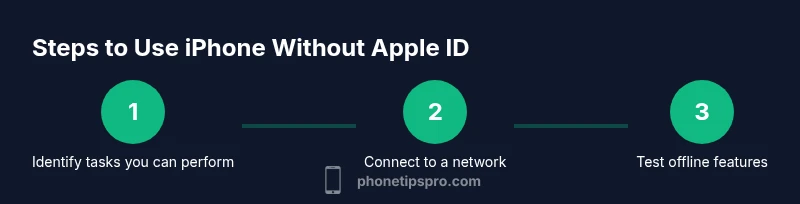
- 1
Identify tasks you’ll perform without signing in
List which activities you want to use on the iPhone (calls, browsing, offline apps) that don’t require an Apple ID. This clarifies expectations and helps plan setup time.
Tip: Write down 3 core tasks you’ll test first. - 2
Connect to a network
Join a reliable Wi-Fi network or enable cellular data to access online features when you later sign in.
Tip: A stable connection prevents partial downloads and sign-in hiccups. - 3
Test core device functions
Make a call, send a text via your carrier, and open a local app that does not require sign-in to verify working baseline.
Tip: If calls or texts fail, check your carrier plan or SIM status. - 4
Explore non-signed-in apps
Open preinstalled apps (Books, Notes) that operate offline or without an Apple ID to gauge capability.
Tip: Some apps still need an account; note which ones do. - 5
Review limitations and plan next steps
Summarize features you can access now and list services that will require Apple ID when you choose to sign in later.
Tip: Plan to create an Apple ID securely if you need access to App Store later.
FAQ
Can I activate an iPhone without an Apple ID?
Activation can proceed without signing in, but some features remain unavailable until you sign in with an Apple ID.
You can start using the device, but many services require signing in with Apple ID to unlock full functionality.
What happens to iCloud if I don’t sign in?
iCloud backups and syncing won’t occur without an Apple ID, reducing cloud storage and cross-device syncing.
Without signing in, iCloud features stay disabled, and backups don’t run automatically.
Can I download apps without an Apple ID?
No. App downloads and app updates require signing in with an Apple ID.
Apps can’t be installed from the App Store without signing in.
Is Find My iPhone usable without an Apple ID?
Find My iPhone requires signing in to locate and protect a device, so it won’t work without an Apple ID.
Location services and remote locking depend on signing in.
How do I sign in later if I want to?
Open Settings, tap Sign in to your iPhone, and follow the prompts to create or sign in with an Apple ID.
Go to Settings and sign in when you’re ready.
What is the best use case for a device without Apple ID?
Temporary borrowing, offline tasks, or privacy-focused setups where cloud features aren’t needed.
Great for offline work or learning about device basics before signing in.
Watch Video
Quick Summary
- You can operate at baseline without Apple ID
- Many services require Apple ID; plan if you need them
- You can test features before signing in
- Signing in later is possible and should be done securely