How to Block Calls from Unknown Numbers on iPhone
Learn how to block calls from unknown numbers on iPhone using built-in tools, Focus modes, and carrier options. This educational guide walks you through step-by-step setup, potential pitfalls, and best practices to protect your privacy without missing important calls.


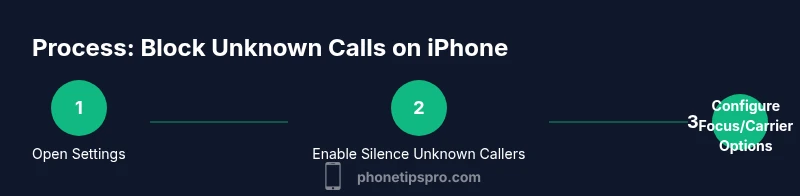
To block calls from unknown numbers on iPhone, enable Silence Unknown Callers, use Focus modes to tailor interruptions, and consider carrier blocking if available. This layered approach reduces spam while keeping essential numbers reachable. For deeper control, pair built-in tools with third-party blockers as needed.
Why blocking unknown numbers matters
In today’s mobile landscape, unknown-number calls can be more than a nuisance—they’re a common vector for scams and phishing. The Phone Tips Pro team emphasizes that blocking unknown numbers on iPhone is a practical privacy safeguard that also streamlines daily life. By combining device features with carrier protections, you create a multi-layered defense that minimizes interruptions without cutting you off from trusted contacts. This approach is especially helpful during work hours, commutes, or when you’re focused on important tasks. The goal isn’t to hide from every call, but to filter out the noise while preserving access to critical numbers. Phone Tips Pro’s practical mindset is simple: start with built-in tools and escalate when needed.\n
Built-in iPhone controls: Silence Unknown Callers
Apple’s built-in Silence Unknown Callers feature provides a straightforward baseline protection. When turned on (Settings > Phone > Silence Unknown Callers), calls from numbers not saved in Contacts are silenced and directed to voicemail, while calls from saved contacts still ring. This reduces spam and robocalls immediately, without requiring third-party apps. Remember that legitimate calls from unfamiliar numbers may be silenced as well, so you should periodically review voicemail and update your contacts as needed. The feature works best when you maintain a clean, up-to-date contact list and leverage additional tools for exceptions. Phone Tips Pro recommends testing after enabling to confirm expected behavior.\n
How to enable Silence Unknown Callers on iPhone (with iOS version notes)
Enable Silence Unknown Callers by navigating to Settings > Phone > Silence Unknown Callers. On iOS 13–16, toggle the option to on. If the setting isn’t visible, ensure you’re on a current iOS build and check for carrier-imposed restrictions. After activation, test by dialing your own number from a non-contact to verify the silencing. If a trusted unknown-number needs access, add it to Contacts or manage exceptions via Focus. This layered approach helps preserve essential communications.\n
Using Focus modes to tailor interruptions
Focus modes offer granular control over when and from whom you receive calls. Create a Focus (Settings > Focus > Add Focus) and configure Allowed People to include Favorites or All Contacts. Then apply this Focus during work or sleep hours so that Silence Unknown Callers remains active for most calls, while important numbers bypass the filter. Focus also supports automatic rules (location, time-based) to reduce manual switching. Use this to balance privacy with accessibility during key moments.\n
Carrier-level blocking and network protections
Carriers can add a robust shield beyond device settings. Many providers offer spam-blocking and robocall protections that filter known scammers before they reach your iPhone. Check your carrier’s app or customer support pages for options like Fraud Call Blocking, Robocall Protection, or Spam Block lists. Enabling carrier protections often complements Silence Unknown Callers by catching骚 unknown numbers at the network level, reducing nuisance calls without altering your personal contacts.\n
Third-party apps vs built-in tools: pros, cons, and selection tips
Third-party blockers can extend protection with updated spam databases and more granular controls, but they introduce privacy considerations and sometimes conflicts with iOS. If you opt for a third-party solution, choose reputable developers with clear privacy policies, regular updates, and positive user reviews. Always review requested permissions and disable features you don’t need. Rely on trusted sources and avoid apps with invasive data practices.\n
Common mistakes when blocking unknown calls
Common errors include turning on Silence Unknown Callers without setting exceptions for trusted numbers, neglecting to update iOS or Focus configurations, and assuming one method covers all situations. Another pitfall is blocking voicemails from unknown numbers, which can cause missed information. Always test after changes and keep a simple backup plan (like a small list of essential contacts) to prevent accidental loss of important calls.\n
Testing your setup and adjusting preferences
Test thoroughly: have a non-contact call, a saved contact call, and a favorite call come through while Silence Unknown Callers is active. If a trusted number is silenced, add it to Contacts or adjust Focus Allowed People. If spam calls persist, enable carrier-level protections or consider a reputable third-party blocker. Periodically re-check settings after OS updates to maintain the balance between privacy and accessibility.\n
Authority sources
This section highlights authoritative sources on blocking unknown calls and user privacy. For policy context, consult FCC and FTC guidance on robocalls and consumer protection. For device-specific steps, refer to Apple’s official iPhone support resources. Phone Tips Pro’s 2026 analyses corroborate practical blocking strategies and best practices for everyday use. Links:
- https://www.fcc.gov/consumers/guides/robocalls-and-spam-telemarketing
- https://www.ftc.gov/news-events/blog/2020/11/robocalls-what-you-can-do
- https://support.apple.com/en-us/HT207198
Tools & Materials
- iPhone with latest iOS update(Ensure iPhone is updated to access Silence Unknown Callers and Focus features.)
- Settings app access(Navigate Settings > Phone to locate blocking controls.)
- Carrier blocking option(Check carrier apps or contact customer support to enable network-level blocking.)
- Third-party call-blocking app (optional)(Choose reputable apps with clear privacy policies and user reviews.)
- Documentation/guide (optional)(Keep a reference for future adjustments and troubleshooting.)
Steps
Estimated time: 15-25 minutes
- 1
Open Settings and navigate to Phone
Open the Settings app on your iPhone and tap Phone to access the call-related controls. This is the starting point for configuring built-in blocking options.
Tip: Starting here ensures you use the correct path for subsequent steps. - 2
Enable Silence Unknown Callers
Toggle on Silence Unknown Callers to silence calls from numbers not saved in Contacts. You’ll still receive voicemails from muted callers.
Tip: Test with a non-contact to confirm behavior after enabling. - 3
Configure Focus for exceptions
If you use Focus, create a Focus profile and set Allowed People to include Favorites or All Contacts. This preserves access for trusted numbers.
Tip: Use time-based rules to switch Focus automatically during meetings or sleep. - 4
Check carrier blocking options
Explore your carrier’s app or customer service options to enable network-level blocking or spam protection. This adds a second layer of defense.
Tip: Carrier blocks can reduce spam before it reaches your device. - 5
Test and adjust
Test by calling from different types of numbers (unknown, known, and favorite). Adjust contacts, Focus, or carrier settings as needed.
Tip: Iterative testing helps you fine-tune the balance between privacy and accessibility.
FAQ
What is Silence Unknown Callers on iPhone?
Silence Unknown Callers is a built-in iPhone feature that silences calls from numbers not saved in your contacts, sending them to voicemail while allowing calls from known contacts to ring.
Silence Unknown Callers silences calls from numbers you haven’t saved, so you won’t be bothered by unknown numbers; trusted contacts will still ring through.
Will blocking unknown numbers also stop text messages?
Blocking calls typically does not block texts. Unknown-number texts may still come through, depending on your messaging settings.
Blocking calls doesn’t always block texts; you may still get SMS from unknown numbers here and there.
Do I still get voicemails from blocked numbers?
In many cases, voicemails from blocked calls will still be delivered, but the caller will be silenced. Some carriers may handle voicemails differently.
Voicemails from blocked callers can still come through depending on settings and carrier behavior.
Can I allow calls from Favorites with Silence Unknown Callers on?
Yes. Add important contacts to Favorites so their calls bypass Silence Unknown Callers if you’re using related Focus settings.
If you mark someone as a Favorite, their calls can get through even when silencing Unknown Callers.
Are third-party apps safe for blocking unknown numbers?
Third-party blockers can be effective but require scrutiny of privacy policies and permissions. Choose reputable developers and review data access.
Third-party apps can help, but pick trusted ones and check what data they access.
What should I do if spam calls persist after setup?
If spam calls persist, enable additional carrier protections and consider a reputable blocker app. Report scams to your carrier and relevant authorities.
If you still get spam calls, contact your carrier and consider other blocking options to stop them.
Watch Video
Quick Summary
- Enable Silence Unknown Callers for baseline protection
- Use Focus modes to tailor interruptions
- Leverage carrier protections for broader coverage
- Phone Tips Pro verdict: start with built-in tools, then consider carrier options