How to Get TikTok Back on iPhone: A Practical Guide
A practical, step-by-step guide to restore TikTok on your iPhone, troubleshoot installation issues, recover your account, and prevent future interruptions.


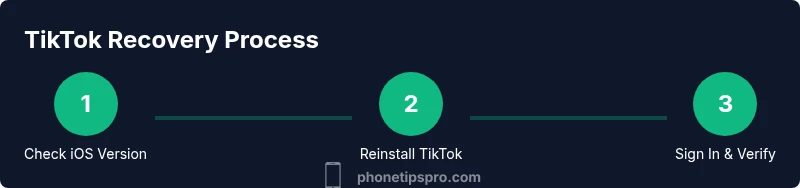
If you're wondering how to get tiktok back on iphone, this quick guide highlights the essential steps: reinstall TikTok from the App Store, sign in with your TikTok or Apple ID, verify that Screen Time or content restrictions aren’t blocking the app, and ensure your iPhone software is up to date. Following these steps will help restore access quickly and safely.
Why TikTok Might Have Disappeared from Your iPhone
If you’re facing an unexpected absence of TikTok on your home screen or in search results, there are several common culprits. First, the app may have been removed to save storage, or an iOS update could have changed app permissions. Screen Time or Content & Privacy Restrictions can also hide or block apps, especially if a device is shared or managed. In addition, regional App Store availability, temporary outages, or account security actions (like a password change) can prevent you from re-installing or signing in. According to Phone Tips Pro, the most frequent causes are outdated iOS versions, restrictive settings, or accidental removal. Understanding these factors helps you target the right fixes quickly and reduces wasted time. The goal here is simple: re-establish access while keeping your data safe and your device stable.
Next, verify your device’s setup and readiness before attempting a reinstall, so you don’t run into preventable roadblocks.
Verify Device Requirements and App Store Availability
Your iPhone must meet TikTok’s minimum requirements, including a supported iOS version and adequate storage. Check Settings > General > Software Update to confirm you’re on a compatible release. Then open the App Store and search for TikTok. If the app shows as installed but won’t open, try updating or re-downloading. If you receive a regional restriction notice, you may need to adjust your App Store region or wait for the app to become available again. Phone Tips Pro analysis shows that many reinstall issues stem from out-of-date software or restricted app access, so starting with a clean compatibility check saves time and prevents new errors from cropping up.
Reinstall TikTok from the App Store
To reinstall, open the App Store, search for TikTok, and tap the download/ reinstall button. If you previously offloaded the app, you can re-download at no extra cost. Ensure you have a stable internet connection and sufficient storage. After the download completes, launch the app. If prompted, grant necessary permissions (camera, microphone, notifications) so TikTok can function correctly. If you run into a message about your Apple ID, sign out and sign back in to refresh session data.
Sign In, Sync Data, and Account Recovery
Launch TikTok and sign in using the same account you used before. If you don’t remember your password, use the standard password recovery flow from the login screen. If you signed in with an Apple ID, you may also see a sign-in with Apple option—this can simplify the process if you’ve enabled it previously. Once signed in, verify your favorite creators, saved videos, and any in-app purchases. Ensure your TikTok data is syncing correctly by checking the profile tab and settings for backup options or linked accounts.
Troubleshoot Common Issues After Reinstall
If TikTok still won’t open after reinstall, try a few targeted steps. First, restart the iPhone to clear temporary glitches. Then check for app updates or reinstall again if required. Disable VPNs or network blockers temporarily to test your connection. Review camera and microphone permissions in Settings > TikTok to ensure the app can access necessary features. If the app crashes on launch, clearing app data isn’t possible on iOS, but a fresh login after a reinstall often resolves this. If issues persist, visit TikTok Support or the Apple Support site for device-specific guidance.
Security and Privacy Considerations When TikTok Returns
Security is important whenever you restore any app. Make sure your iPhone is using a strong passcode and two-factor authentication for your Apple ID. Review TikTok’s in-app permissions and limit data collection where feasible. If you suspect malware or phishing attempts, run a malware check and avoid third-party installers. Keeping TikTok up to date also reduces security risks and improves performance. Remember to periodically review account security settings and connected apps to minimize future disruptions.
Prevent Future Disruptions: Tips and Best Practices
Proactively managing your device helps prevent future problems with TikTok. Ensure iOS and apps update automatically so you’re always on a compatible version. Maintain adequate free storage and regularly back up important data. Use trusted networks (avoid unknown public Wi-Fi) and monitor app permissions. If you use Screen Time, review allowed apps after each major update. The Phone Tips Pro team recommends documenting your login methods and recovery options in a secure password manager for quick access later.
Next Steps and Additional Resources
With TikTok restored, keep monitoring performance and security. Save a quick reference of steps for future issues, and bookmark official TikTok help pages and Apple support resources. If problems reappear, a systematic approach—check updates, permissions, and connectivity—will typically resolve most cases. For deeper help, we’ve included related external resources in the FAQ section and the video guide linked below.
Tools & Materials
- Apple ID credentials(Used to sign in and verify account data)
- Stable internet connection(Preferred Wi-Fi; mobile data acceptable)
- Access to App Store(To reinstall TikTok)
- TikTok account information(Username/email for login and recovery)
- Device with sufficient storage(At least a few hundred MB free recommended)
Steps
Estimated time: 20-40 minutes
- 1
Check iPhone compatibility and software
Confirm your iPhone is on a supported iOS version and has enough storage. Go to Settings > General > Software Update to verify the OS is current. This prevents install or performance issues that can block TikTok from working properly.
Tip: If an update is available, install it before proceeding to avoid compatibility problems. - 2
Verify restrictions and App Store status
Open Settings > Screen Time or Content & Privacy Restrictions and ensure TikTok is allowed. Also check that the App Store is accessible in your region. These settings can silently block app downloads or updates.
Tip: Temporarily disable restrictions if you’re unsure whether they’re affecting TikTok. - 3
Reinstall TikTok from the App Store
From the home screen, open the App Store, search for TikTok, and install or re-download. Ensure you have a stable internet connection and sufficient storage. After installation, launch TikTok and grant required permissions (camera, microphone, notifications).
Tip: Consider offloading the app first if storage is tight, then re-download to preserve data. - 4
Sign in and verify data
Open TikTok and sign in with the same account you used previously. If prompted, complete password recovery. Verify that saved videos, likes, and followers appear as expected, and re-link any essential accounts if needed.
Tip: If you use Sign in with Apple, try that option for a smoother login. - 5
Test functionality and permissions
Navigate through the feed, post a test video, and try recording; confirm camera and microphone access work. Check push notifications and basic features like search and profile editing. If something fails, note the exact error to search for a targeted fix.
Tip: Reset app permissions under Settings > TikTok if features appear disabled. - 6
Troubleshoot persistent crashes
If TikTok crashes on launch, restart your iPhone and try again. Clear cache is not possible on iOS, so a fresh reinstall often helps. Ensure no VPNs or network blockers interfere with app initialization.
Tip: Temporarily disable VPNs and test on a different network to isolate the issue. - 7
Review security settings
Check Apple ID two-factor authentication, TikTok account recovery options, and any connected devices. Run a quick malware check if you notice suspicious activity or unexpected prompts.
Tip: Use a password manager to maintain strong, unique credentials for TikTok and Apple ID. - 8
Seek official support when needed
If issues persist after all steps, contact TikTok Support or Apple Support with details about your device, iOS version, and steps tried. Provide screenshots or error messages to speed up diagnosis.
Tip: Document your troubleshooting steps so support can reproduce the issue quickly.
FAQ
Why is TikTok missing after a recent iPhone update?
An iOS update can reset app permissions or block older app versions. Start by updating iOS, re-downloading TikTok, and ensuring permissions are granted. If problems persist, check Screen Time restrictions and regional App Store status.
An iPhone update can affect apps. Update iOS, reinstall TikTok, and verify permissions; if needed, check Screen Time settings.
Will reinstalling TikTok delete my saved videos or data?
Reinstalling generally does not delete your account data stored on TikTok servers. You may need to sign back in and re-sync favorites or saved videos. Local data like caches may be cleared by the system during reinstallation, but your account data remains intact.
Reinstalling won’t erase your TikTok account data, but some local cache data may be cleared.
I forgot my TikTok password. How do I recover access on iPhone?
Use the TikTok login screen’s password reset option. You’ll typically receive a password reset link via email or phone number. If you use Sign in with Apple, you can access the account without entering a password.
Use the reset option on TikTok, or sign in with Apple if you enabled it.
Can Screen Time block TikTok even after reinstall?
Yes, Screen Time can prevent TikTok from functioning if the app isn’t allowed. Review Settings > Screen Time restrictions and ensure TikTok is permitted. Temporarily turning off Screen Time can help identify if it’s the cause.
Screen Time can block TikTok; check restrictions and try disabling Screen Time briefly to test.
What should I do if TikTok still crashes after all steps?
If crashes persist, collect error details, restart the device, and consider contacting support. Sometimes a temporary server issue affects login or feed loading, so checking official TikTok status pages can help.
If it still crashes, gather details and contact support; server issues can also cause problems.
How can I contact TikTok or Apple support for account recovery?
Use the official TikTok Help Center for account recovery options or reach Apple Support for device-related issues. Having your device model, iOS version, and steps tried will speed up the process.
Visit TikTok Help Center or Apple Support with your device details and steps you tried.
Is there a security risk when TikTok returns after being blocked?
Return processes should not introduce new risks if you download TikTok from the official App Store and keep your iPhone updated. Be wary of phishing attempts asking for your credentials. Enable two-factor authentication for added security.
Stick to official sources, keep software updated, and use two-factor authentication.
Should I reset my iPhone to fix TikTok issues?
A factory reset is usually unnecessary for app issues and should be a last resort. Back up data and try targeted troubleshooting first. If the problem remains, seek official support before performing a reset.
A full reset is overkill; try targeted fixes and contact support if needed.
Watch Video
Quick Summary
- Reinstall TikTok from App Store and sign in with the correct account
- Check iPhone restrictions and storage before troubleshooting
- Test permissions and network connectivity to ensure smooth operation
- Review security settings and recovery options to prevent lockouts
- If issues persist, use official support channels for resolution