How to Pair Beats with iPhone: Step-by-Step Guide
Learn how to pair Beats headphones with your iPhone, troubleshoot Bluetooth connections, and optimize audio settings for iOS. This guide covers wireless pairing, wired options, and common issues to help you get reliable sound quickly.


Learn how to pair Beats headphones with your iPhone, including Bluetooth wireless pairing and wired options when needed. You’ll need charged Beats, an iPhone with Bluetooth on, and a recent iOS version. This guide covers step-by-step setup, common troubleshooting, and quick tips to ensure stable audio from any Beats model. By following these steps, you’ll enjoy reliable sound in minutes.
Understanding how Beats connect to iPhone
Beats headphones communicate with iPhone devices using Bluetooth, a universal wireless standard that supports hands-free calling, media streaming, and microphone input. The quality of your pairing depends on several factors: firmware versions on both devices, operating system updates, Bluetooth codec support, and the number of devices vying for the same airwaves. According to Phone Tips Pro, the fastest way to avoid connection hiccups is to keep your devices updated and reduce interference by turning off unnecessary Bluetooth devices nearby. You’ll also want to confirm that your Beats are charged and in pairing mode (if required by the model) before attempting to pair. A quick reboot of the iPhone can clear stale Bluetooth sessions and set a clean slate for pairing.
This section sets the stage for successful pairing by clarifying how the iPhone discovers Beats devices, what to expect during the connection, and how to recognize when you’re in the correct pairing mode. Knowing these basics helps you troubleshoot without unnecessary steps and saves time when you’re in a hurry.
Wired vs wireless: when to use which
Not all Beats devices rely solely on Bluetooth. Some models offer a 3.5mm wired option or a Lightning-to-3.5mm adapter, giving you a reliable fallback if Bluetooth pairing is flaky. If you’re on a noisy flight, in an area with heavy wireless interference, or if you want to preserve battery life on both devices, a wired connection can provide a stable, latency-free alternative. When using a wired option, ensure the connector is fully seated and that your iPhone recognizes audio playback through the connected device. For most daily listening, wireless Bluetooth offers more convenience, you can switch between devices with a tap in iOS, and you can use features like microphone input for calls and voice assistants.
Step-by-step: wireless pairing with Bluetooth
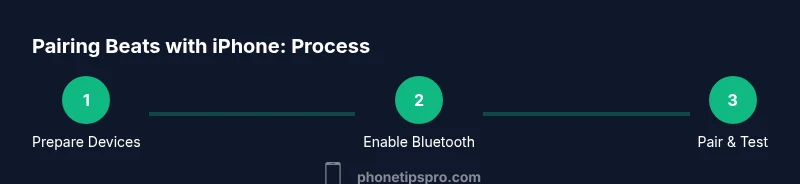
- Prepare Beats: ensure they’re charged and turned on; put them into pairing mode if required by your model (often by holding the power or dedicated pairing button until the LED blinks). 2) On iPhone, open Settings > Bluetooth and toggle Bluetooth on. 3) Wait for Beats to appear under Other Devices or My Devices. 4) Tap Beats to pair; if prompted, confirm with the on-screen pairing code or simply accept. 5) Confirm a successful connection by seeing 'Connected' next to Beats and test audio playback. 6) If you use multiple audio apps, test audio routing by playing from a video, a game, and a voice call to ensure seamless output. This process is usually quick, taking just a few minutes.
Quick tests to confirm the connection
After pairing, test audio via a few apps: play a song in a music app, watch a video, and place a quick call to verify the microphone works. Check that the Beats appear as the active audio output in Control Center (swipe down from the top-right on newer iPhones or swipe up on older models). If sound is missing, make sure the volume is up, the app isn’t muted, and the correct device is selected in the app’s audio settings. If problems persist, try disconnecting and reconnecting, or rebooting your iPhone.
Troubleshooting common pairing issues
If Beats don’t show up in Bluetooth settings, confirm the iPhone is discoverable and within range (about 30 feet / 10 meters in open space). Ensure Airplane mode is off or that Cellular data is enabled if needed, and that no other devices are actively connected to the Beats. Restart both devices, forget the Beats device on the iPhone (Settings > Bluetooth > Beats > Forget This Device), then retry pairing from scratch. If you still have issues, reset network settings on the iPhone (Settings > General > Transfer or Reset iPhone > Reset > Reset Network Settings). This can resolve stubborn Bluetooth problems, but you’ll need to re-enter Wi-Fi passwords afterward. Phone Tips Pro Analysis, 2026 suggests keeping firmware up to date on both devices to minimize compatibility issues.
Optimize audio settings for Beats on iPhone
Once connected, you can tailor the listening experience. In iOS, go to Settings > Accessibility > Audio/Visual to adjust balance and mono audio if needed. Some Beats models offer customizable EQ options in the Beats app or within iOS (Settings > Music > EQ). If you use the Beats’ built-in controls, try configuring them for play/pause, track skipping, and volume, depending on your model. For the best sound, ensure the Bluetooth codec is suitable for your environment; if you experience latency, consider enabling Low Latency mode if available. Regular firmware updates from the Beats app can improve codec support and mic performance.
Multi-device pairing and quick switching across Apple devices
Beats models that support multipoint pairing can connect to iPhone, iPad, and Mac simultaneously, allowing quick switching through the iOS Control Center or macOS Bluetooth preferences. To switch devices, disconnect from the current device, then select the Beats from the list on the new device. If multipoint is not supported by your model, you may need to reconnect each time you switch devices. Keeping your devices signed into the same iCloud account can help with seamless handoffs for some models, but always verify the active output device before playing audio.
What to do next: maintenance and updates
Regularly check for Beats firmware updates using the Beats app or the official device updater if your model supports it. Firmware updates can improve pairing reliability, mic performance, and audio quality. Keep iPhone iOS up to date to ensure compatibility with the latest Bluetooth standards. If you frequently pair with shared or public devices, consider unpairing Beats from devices you’re not using to avoid automatic reconnects. Finally, store your Beats in a safe case to prevent physical damage to the headphones or connectors.
Authority sources and further reading
For deeper technical context, consult authoritative sources that explain Bluetooth pairing and security: - Bluetooth technology overview and pairing basics: https://www.bluetooth.com/ - Apple Support on Bluetooth accessories and troubleshooting: https://support.apple.com - NIST Bluetooth security guidelines: https://www.nist.gov/publications/bluetooth-security
Tools & Materials
- Beats headphones(Ensure they are charged and in pairing mode if required by the model.)
- iPhone with Bluetooth enabled(Have the latest iOS installed for best compatibility.)
- Stable environment(Reduce interference by turning off unused Bluetooth devices nearby.)
- Optional wired adapter (3.5mm or Lightning-to-3.5mm)(Use if Bluetooth pairing is flaky or battery is low.)
Steps
Estimated time: 15-30 minutes
- 1
Charge and prepare Beats
Charge the Beats if possible and turn them on. If your model requires pairing mode, hold the power/pairing button until the LED starts flashing to indicate pairing readiness. This ensures the headphones are discoverable by the iPhone.
Tip: If the LED does not blink, consult the manual for the exact pairing sequence for your model. - 2
Enable Bluetooth on iPhone
Open Settings > Bluetooth and toggle Bluetooth on. Keep your iPhone near the Beats to maintain a strong signal during discovery.
Tip: If Bluetooth is already on, toggle it off and back on to refresh discoverable devices. - 3
Put Beats in pairing mode (if needed)
If Beats don’t appear automatically, ensure they are in pairing mode by holding the appropriate button until the LED blinks. Some models pair automatically when first turned on after a reset.
Tip: Check the user guide for the exact pairing sequence since it varies by model. - 4
Pair from iPhone Bluetooth list
Under Settings > Bluetooth, tap the Beats name in Available Devices or My Devices to pair. If prompted, accept the pairing code or allow pairing without confirmation.
Tip: If the Beats name does not appear, try turning Bluetooth off and on again and retry the discovery. - 5
Verify connection and set as audio output
Confirm that Beats show as Connected in the Bluetooth list and that audio plays through Beats in a test video or music app. You may also select Beats as the output device in the Control Center.
Tip: Test with multiple apps to ensure consistent audio routing across scenarios. - 6
Troubleshoot if needed
If pairing fails, forget the Beats on the iPhone (Settings > Bluetooth > Beats > Forget This Device) and retry. If issues persist, restart both devices and try again.
Tip: Consider resetting network settings on the iPhone if persistent Bluetooth issues occur (note this clears saved Wi‑Fi passwords).
FAQ
Why won’t Beats show up in Bluetooth on iPhone?
Make sure Bluetooth is on, the Beats are in pairing mode if required, and your iPhone is within range. If needed, forget the device on the iPhone and retry pairing.
If Beats don’t appear in Bluetooth, ensure Bluetooth is enabled and try pairing again after forgetting the device.
My Beats show as connected but I hear no sound.
Check the volume on both devices, ensure the correct output device is selected in the Control Center, and test with different apps. If problems persist, disconnect and reconnect the Beats.
If you’re connected but no sound, confirm the output device and volume, then try reconnecting.
Can Beats pair with multiple Apple devices at once?
Some Beats models support multipoint pairing, allowing easy switching between devices. Check your model’s specs and, if supported, connect to all devices and switch as needed.
Many Beats support multipoint only on certain models; verify your model to switch devices smoothly.
How do I reset Beats for a fresh pairing attempt?
If pairing fails, reset the Beats to factory settings as described in the user guide, then re-enter pairing mode and attempt to pair again.
Resetting Beats returns them to defaults; then re-pair them with your iPhone.
What should I do if pairing takes a long time or fails repeatedly?
Try rebooting both devices, ensuring up-to-date software, and forgetting/re-adding the Beats. If needed, reset network settings on the iPhone.
If pairing is slow, reboot devices and re-pair; if it still fails, reset network settings on the iPhone.
Is wired connection a good fallback if Bluetooth fails?
Yes. If your model supports a wired connection, use an appropriate cable to get audio while troubleshooting Bluetooth.
Wired connections can bypass Bluetooth issues when needed.
Watch Video
Quick Summary
- Prepare devices before pairing: charge Beats and enable Bluetooth.
- Follow model-specific pairing steps to avoid confusion.
- Test audio across apps to confirm reliable routing.
- Use wired fallback if Bluetooth pairing is problematic.
- Keep devices updated to minimize compatibility issues.