How to Stop iPhone Mirroring on Mac
Learn how to stop iPhone mirroring on Mac with clear steps for both devices. This expert guide covers Control Center actions, AirPlay settings, and safe troubleshooting.


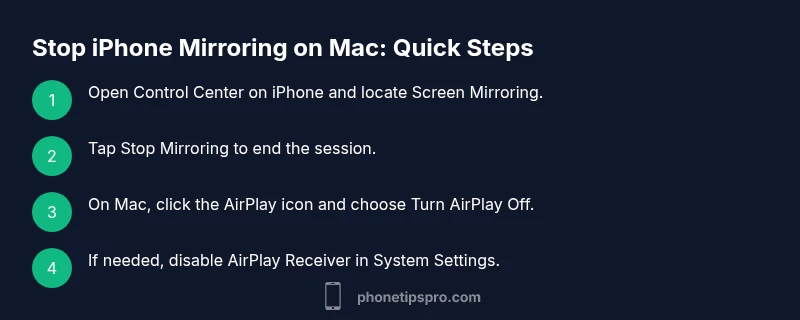
Stop iPhone mirroring on Mac by disabling AirPlay mirroring on iPhone via Control Center and turning off AirPlay Receiver on Mac. Start from iPhone: open Control Center > Screen Mirroring > Stop Mirroring. Then on Mac: click the AirPlay/Screen Mirroring menu in the menu bar and choose Off. Ensure AirPlay Receiver is disabled if you want to prevent future mirroring.
What is AirPlay Mirroring and Why It Appears
AirPlay Mirroring is a built-in feature that lets you display your iPhone screen on a Mac (or other AirPlay-enabled devices) wirelessly. In many setups, people unintentionally start mirroring when they next use a presentation app, video, or game that triggers the AirPlay menu. According to Phone Tips Pro, understanding when and how AirPlay Mirroring engages helps you reclaim control of your workspace. Mirroring is generally convenient for demonstrations, but it can become distracting or insecure if left on unintentionally. In the following sections, we’ll explain the core concepts, common triggers, and why you might want to disable mirroring in everyday use.
How AirPlay Mirroring Works Between iPhone and Mac
AirPlay creates a wireless link between your iPhone and Mac, allowing content like your screen, videos, or apps to be displayed on the Mac. The link relies on your local Wi‑Fi network and device compatibility. When you start mirroring, a private session is established, and your iPhone acts as the source while the Mac acts as the receiver. The Phone Tips Pro team notes that in most homes and offices this works smoothly, but it also means you should be mindful of when and where you enable it, especially for sensitive content. If you’re unsure about the status of your connections, inspect both devices for active AirPlay indicators and confirm in the Mac’s menu bar that mirroring is not active.
Quick Checks Before You Stop Mirroring
Before taking action, confirm you’re addressing the right device pairing. Look for the AirPlay icon in the Mac’s menu bar and the Screen Mirroring option in the iPhone’s Control Center. Verify both devices are on the same network, as mirroring will typically fail or behave unexpectedly if they are on different networks. If you see a lingering AirPlay session on your Mac, be sure you’re not sharing your screen with someone else’s device or a guest account. As Phone Tips Pro highlights, small network glitches can sometimes appear to keep mirroring active, so a quick recheck is worth the effort.
Stopping Mirroring on iPhone (Control Center)
To stop mirroring from iPhone, access the Control Center (swipe down from the top-right on newer iPhones or swipe up from the bottom on older models) and locate the Screen Mirroring option. Tap it to reveal a list of devices, then select Stop Mirroring or Turn Off AirPlay. This is the quickest way to end the session and is the recommended first step for most users. If you regularly use AirPlay for other devices, consider labeling your devices in the menu to avoid confusion in busy environments.
Stopping Mirroring on Mac (AirPlay Receiver settings)
On a Mac, mirroring can be stopped through the AirPlay menu in the menu bar or via System Settings, depending on your macOS version. Click the AirPlay icon in the menu bar and choose Turn AirPlay Off to disable the receiver. If AirPlay Receiver is enabled, your Mac may appear as a target for other devices. Disabling this feature prevents future mirroring unless you re-enable it. In macOS Ventura and later, you can also go to System Settings > General > AirPlay & Handoff and toggle off AirPlay Receiver. Always verify the status after making changes by attempting to mirror again from your iPhone.
When to Disable AirPlay Receiver vs Turning Mirroring Off
Turning mirroring off on the iPhone ends the current session but does not prevent future attempts if AirPlay Receiver on the Mac remains active. If you share devices in a classroom or shared workspace, disabling AirPlay Receiver on the Mac is often best practice to prevent accidental connections. Conversely, if you want to use AirPlay later, you can re-enable Receiver when needed. The goal is to balance convenience with security and privacy, especially on shared devices.
Troubleshooting: Mirroring Persists After Turning Off
If mirroring persists after you’ve turned it off, restart both devices and recheck the settings. Verify you are not connected to a guest network that auto-connects to AirPlay devices, and ensure there are no third‑party apps that re‑enable AirPlay in the background. If issues persist, reset network settings on the iPhone and verify macOS updates haven’t altered AirPlay behavior. In rare cases, security software or firewall rules could interfere with AirPlay negotiation; review these settings if your devices are on a managed network.
Privacy and Security Considerations
Mirroring can reveal sensitive information displayed on your iPhone, so it’s smart to disable mirroring when not in use or in public spaces. Consider enabling Screen Time or device-management controls if you’re using corporate devices. Regularly check that your devices use strong passwords, and review AirPlay access lists if available in your environment. Phone Tips Pro emphasizes maintaining privacy by keeping AirPlay features off when not needed and reviewing your sharing settings after major iOS or macOS updates.
Best Practices for Future Display Sharing on macOS
If you frequently share content, standardize a quick toggle workflow: keep AirPlay Receiver OFF when not needed, prioritize Control Center checks, and consider creating a short reminder for yourself to review AirPlay settings at the start or end of each work session. Document your preferred steps for colleagues so everyone follows the same safe protocol. A consistent approach reduces accidental mirroring, saves time, and protects sensitive information. For advanced users, consider scripting or automations to toggle AirPlay features based on network profiles.
Tools & Materials
- iPhone with current iOS(Ensure recent updates are installed)
- Mac with macOS updated(Check for latest security updates)
- Stable Wi‑Fi network(Both devices must be on the same network)
- Access to Control Center on iPhone(Swipe to open Screen Mirroring options)
- Admin access on Mac (if changing system settings)(Needed to adjust AirPlay Receiver in some macOS versions)
Steps
Estimated time: 15-25 minutes
- 1
Prepare devices and network
Verify both iPhone and Mac are on the same Wi‑Fi network and within reasonable range for AirPlay. This ensures you can control mirroring without connection issues. Have both devices unlocked and ready to adjust settings.
Tip: If you’ve just updated either device, run a quick network check to confirm AirPlay still works as expected. - 2
Open Control Center on iPhone
Access the Control Center on the iPhone. On newer models, swipe down from the top-right corner; on older models, swipe up from the bottom edge. This is where Screen Mirroring is listed when active.
Tip: Keep your iPhone in landscape orientation if you’re about to mirror a presentation; this makes the explicit mirror option easier to see. - 3
Stop mirroring from iPhone
Tap Screen Mirroring, then choose Stop Mirroring or Turn Off AirPlay to end the current session. Confirm the iPhone is no longer connected to the Mac as a display.
Tip: If you don’t see Stop Mirroring, switch away from the Screen Mirroring menu and re-open it to refresh the state. - 4
Check Mac for active AirPlay session
On the Mac, look for the AirPlay icon in the menu bar. If present, click it and select Turn AirPlay Off to disable the receiver for the moment.
Tip: If you don’t see an AirPlay icon, open System Settings > Displays or System Preferences > Displays to locate AirPlay-related options. - 5
Disable AirPlay Receiver (optional but recommended)
For longer-term control, disable AirPlay Receiver from macOS settings. In newer macOS versions, go to System Settings > General > AirPlay & Handoff and toggle off AirPlay Receiver.
Tip: Disabling Receiver prevents other devices from mirroring to your Mac until you re-enable it. - 6
Test the setup
Attempt to mirror again from the iPhone to ensure mirroring is fully stopped. If the iPhone sees the Mac but fails to mirror, the change is effective.
Tip: If it mirroring again, repeat from step 2 and ensure you’re not using any other apps that re-enable AirPlay in the background. - 7
Review security settings
Check if any firewall or third-party apps could re-enable mirroring or block AirPlay connections. Adjust as needed to match your privacy preferences.
Tip: Keep a note of your changes for future reference and consider periodic audits after system updates. - 8
Document your new workflow
Create a simple checklist for your setup that specifies when to mirror and when to keep AirPlay off. This helps if you share devices with others.
Tip: Share the checklist with team members to reduce accidental mirroring during meetings or demonstrations.
FAQ
What is AirPlay Mirroring and how does it differ from casting?
AirPlay Mirroring streams your iPhone’s screen to a Mac or Apple TV wirelessly. It differs from casting in that mirroring duplicates all on-screen content in real time, while casting typically streams specific content, like a video, from an app. Understanding this helps you decide when to disable mirroring.
AirPlay mirrors your whole screen; casting usually streams one app or video. It’s good to know so you can control what’s shown.
How can I tell if my Mac is receiving AirPlay from my iPhone?
Look for the AirPlay icon in the Mac’s menu bar. If it’s highlighted, mirroring is active. You can also check the Displays section in System Settings to confirm if the Mac is currently acting as a display receiver.
Check the AirPlay icon in the menu bar; if it’s active, your Mac is receiving AirPlay.
Will turning off AirPlay Receiver affect AirPlay from other devices?
Turning off AirPlay Receiver on the Mac will prevent other devices from mirroring to that Mac until you re-enable it. It does not affect AirPlay from devices that are not trying to connect to the Mac.
Disabling the receiver stops other devices from mirroring to that Mac for now.
If mirroring persists after turning off, what should I do?
Restart both devices and recheck the AirPlay controls. Ensure you’re on the same network and look for any apps that may re-enable AirPlay. If needed, reset network settings on the iPhone.
Restart devices and verify AirPlay settings again; a fresh start often resolves persistence.
Is it safe to disable AirPlay Receiver permanently?
Disabling AirPlay Receiver is safe if you don’t need AirPlay on that Mac. You can re-enable it anytime. If you frequently share devices, consider setting network profiles or reminders to toggle it as needed.
Yes, you can disable it now and re-enable later when you need AirPlay.
What should I do if AirPlay options disappear after an update?
Updates can relocate AirPlay settings. Check System Settings > General or Displays, and search for AirPlay or Mirroring. If needed, consult Apple’s support pages for the latest path on your macOS version.
If AirPlay options vanish, check updated menus or help pages for the new path.
Can third-party apps override AirPlay settings?
Some apps may request AirPlay access, but they cannot override system-wide AirPlay Receiver settings. If mirroring persists, review app permissions and any active screensharing features within apps.
Apps can request access, but they can’t force system AirPlay settings.
Watch Video
Quick Summary
- Stop mirroring from both devices to ensure it remains off.
- Disable AirPlay Receiver for long-term control on Mac.
- Verify settings with a quick test after each change.
- Always consider privacy and security when mirroring is not in use.