How to Tell if Your iPhone Has Water Damage
Learn practical methods to determine if your iPhone has water damage, using moisture indicators, safe inspection steps, and pro guidance for next steps and repairs.


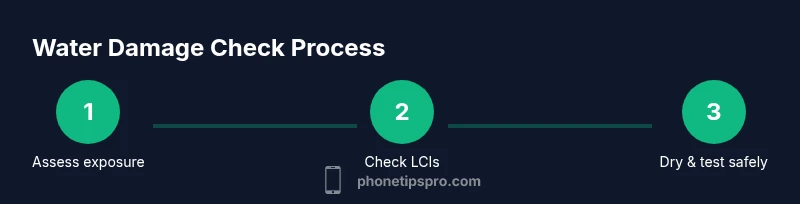
To determine how to tell if iphone has water damage, start with safe checks and simple tests. Look for corrosion, foggy camera lenses, or non-working speakers. Check the Liquid Contact Indicator in the SIM tray and inspect the charging port for moisture. If any sign appears or a test fails, power down and seek professional evaluation.
What water damage is and why it matters
According to Phone Tips Pro, water exposure can affect iPhone hardware in ways that aren’t always visible. Even small amounts of moisture can corrode connectors, degrade insulation, and trigger moisture-sensing indicators. Understanding what qualifies as water damage helps you respond quickly to minimize data loss and the risk of a short circuit. In practical terms, most symptoms fall into three categories: immediate device unresponsiveness, delayed or intermittent behavior, and hidden indicators that only appear after disassembly or moisture exposure. This knowledge supports better decision-making about drying, backup, and when to seek professional repair. By learning how water interacts with electronics, you improve your chances of preserving data and extending device life. Phone Tips Pro Team emphasizes careful steps and clear next actions when moisture is detected.
Signs Your iPhone Might Have Water Damage
Water damage often announces itself with a mix of visible and functional signs. Start by scanning for physical cues like moisture around the ports, speakers, or the button areas. Note any fogging in the camera lens, screen distortions, or touch anomalies. Power behavior matters too: unexpected shutdowns, touch jitter, or unusual battery drain can indicate moisture intrusion. Odors near vent grilles may also warn of moisture inside the chassis. Remember that signs can be subtle and model-dependent; some devices show moisture indicators without obvious external symptoms. If multiple signs appear, treat the situation as potential water exposure and plan a careful check sequence.
Moisture indicators and where to find them
Many iPhone models include a Liquid Contact Indicator (LCI) or similar moisture sensors located in the SIM tray area or near internal connectors. The SIM tray LCI is designed to change color when moisture reaches the indicator pad, serving as a quick alert. While LCIs are helpful, they’re not foolproof—some devices may show moisture internally without external signs. Inspecting the SIM tray area can reveal changes, but avoid prying or removing components beyond what you’re trained to do. If you’re unsure, consult professional service. For a conclusive assessment, technicians often rely on diagnostic tools and model-specific service manuals.
Steps to safely inspect without turning on the device
Always power down the iPhone first and disconnect any accessories. Remove the SIM card using a proper ejector tool to access the SIM tray area and its moisture indicators. Dry the exterior with a soft microfiber cloth, paying special attention to ports and grills. Do a careful external port inspection for moisture or discoloration, avoiding metal objects that could damage seals. If you see moisture indicators or visible moisture, do not turn the device on or charge it; moisture can create a short circuit. Store the device in a dry environment and wait a full drying period before any further testing.
Lightweight diagnostics you can perform without powering on
- Visual port check: inspect charging port and headphone jack (if present) for moisture or residue.
- Exterior test: ensure buttons are intact and bezels look intact.
- Environment check: ensure you’re in a dry, low-humidity area before any attempt to power on.
- Documentation: note times, model, and any indicator color changes to aid later testing.
What to do if you see moisture indicator
If the moisture indicator shows moisture or if you observe any moisture in the SIM tray area, pause further testing and avoid powering on or charging the device. Remove any removable components, place the iPhone in a dry area, and consider drying with desiccants in a sealed container for a controlled period. After drying, recheck indicators and only attempt power-on tests if you are confident in the device’s dry condition. If indicators persist or corrosion is suspected, seek professional service promptly.
How water exposure affects internal components
Water intrusion can affect several critical assemblies in an iPhone. Metal connectors may corrode, insulating coatings can degrade, and the battery may swell under certain conditions. The logic board and connectors are particularly sensitive to moisture, and corrosion can create intermittent faults that are difficult to diagnose without professional equipment. Even if the device appears to work after a brief exposure, lingering moisture can cause long-term reliability issues. This is why many experts recommend a cautious approach and data backup as soon as practical, in case performance degrades over time.
Documentation and reporting for repairs or insurance
Collect thorough documentation to support any warranty, repair, or insurance claims. Photograph all visible signs of moisture and corrosion, capture the LCIs’ status if possible, and record the times of exposure and testing. Note the model number, serial number, and any accessories involved. Document the steps you took, the results of each check, and the date. If you plan to file a claim, keep copies of receipts and notices from the service provider. Clear records help communications with support teams and improve the reliability of service outcomes.
When to seek professional help
When moisture is detected, or when essential functions fail, professional diagnostics are recommended. A tech with model-specific service tooling can perform precise checks, perform board-level diagnostics, and safely dry the device using controlled environments. If the device is under warranty or AppleCare, contact official support to understand repair coverage and options. In many cases, a professional repair is the best option to avoid further damage and preserve data integrity. The decision to seek help early can save data and extend device life.
Aftercare: drying and preventing further damage
After exposure, keep the device in a dry, cool area with good air circulation and avoid sources of direct heat. Desiccants or silica gel packets can help absorb residual moisture in a closed, ventilated container. Do not use hair dryers, ovens, or other heat-based drying methods, as rapid heating can warp components or push moisture into seals. If you plan to reuse the device, run controlled tests after a thorough drying period and back up data immediately if the device responds reliably. Regular maintenance and careful handling can reduce future risk.
Common mistakes to avoid
- Do not power on or charge a device that may be wet.
- Avoid using heat sources like hair dryers or ovens.
- Do not shake the phone to remove moisture; this can force liquid deeper.
- Do not attempt improvised repairs or disassembly beyond safe, basic checks.
- Do not delay data backup if there’s any sign of moisture or malfunction.
- Do not ignore subtle symptoms; moisture can progress over time and damage hidden components.
Authority sources and further reading
For authoritative guidance, consult Apple Support for iPhone moisture and water exposure information, and professional repair resources. Useful links include: https://support.apple.com/iphone and https://www.ifixit.com/Guide. These sources provide model-specific maintenance tips and repair perspectives to help you make informed decisions after water exposure.
Tools & Materials
- SIM ejector tool(To remove the SIM tray and access LCIs.)
- Soft microfiber cloth(Gently dry exterior surfaces and ports.)
- Flashlight(Improve visibility inside ports and speaker grills.)
- Desiccant (silica gel) packets(Can help absorb residual moisture in a sealed, dry environment.)
- Non-metal tool (plastic pick) or toothpick(Use only with extreme care to avoid prying or damaging seals.)
- Isopropyl alcohol 70-90%(Only for cleaning exterior surfaces; never apply to internal circuitry.)
Steps
Estimated time: 30-60 minutes
- 1
Power down the device
Shut down the iPhone and disconnect any chargers or accessories. This minimizes the risk of a short circuit during inspection.
Tip: Do not press any buttons repeatedly; just power off cleanly. - 2
Remove the SIM card
Use the SIM ejector tool to remove the SIM tray and gain access to the tray area where LCIs are often located.
Tip: Keep the SIM and tray in a safe, dry place during inspection. - 3
Dry the exterior
Wipe the phone’s surfaces with a microfiber cloth, focusing on ports, speakers, and seams.
Tip: Pat dry rather than rubbing vigorously to avoid pushing moisture inward. - 4
Check for visible moisture and LCIs
Inspect the SIM tray area for any color change on the indicator and look around ports for dampness.
Tip: If you see moisture, do not power on the device. - 5
Inspect the charging port and speakers
Look for discoloration, residue, or moisture in the charging port and speaker grilles.
Tip: Do not insert objects into ports; use gentle visual checks only. - 6
Assess potential internal exposure
If the indicator suggests moisture or you notice any signs of corrosion, stop here and seek professional help.
Tip: Document what you observed for the service appointment. - 7
Prepare for drying
Place the device in a dry environment with good airflow and avoid heat sources.
Tip: If available, use desiccants in a sealed container for controlled drying. - 8
Wait before power-on testing
Wait at least 24 hours in a dry environment before attempting to power on the device.
Tip: Patience reduces the risk of short circuits and further damage. - 9
Reassemble and perform controlled tests
After drying, reinsert the SIM and test core functions incrementally (touch, display, sound).
Tip: Run tests in a sequence to isolate failing components. - 10
Back up data if the device responds
If your iPhone powers on, back up important data promptly to prevent data loss in case of future issues.
Tip: Consider enabling iCloud or local backup schedules. - 11
Seek professional repair if issues persist
If any function remains unreliable or LCIs still show moisture, contact an authorized service provider.
Tip: Official diagnostics often include moisture checks and recommerce options. - 12
Document findings for reference
Record indicator colors, observed issues, and steps taken to support future service or insurance claims.
Tip: Photos and timestamps can streamline follow-up.
FAQ
Can I still use my iPhone after water exposure?
If water exposure is suspected or moisture indicators are triggered, avoid using or charging the device until it’s inspected by a professional. Even if it seems to work, latent damage can appear later.
If moisture is detected or if you’re unsure, don’t use it until a professional checks it.
Are moisture indicators reliable for all iPhone models?
LCIs are a helpful early warning but are not perfect. Some models may show moisture only in internal components, so a full diagnostic is sometimes required.
LCIs help, but they aren’t definitive for every model.
How long should I wait before turning the iPhone back on after exposure?
A cautious drying period of at least 24 hours in a dry environment is typically advised before powering on, especially if indicators showed moisture.
Wait at least a day before turning it back on if moisture was present.
Will water damage always cause permanent hardware failure?
Not always. Some devices recover after careful drying and service, while others may suffer lasting issues depending on exposure extent and component impact.
It doesn’t always mean permanent failure, but it can.
Should I back up data if the phone has water exposure?
Yes. If the device seems operable after drying, back up critical data promptly to prevent loss in case issues reappear.
Definitely back up your data if possible after exposure.
Does warranty cover water damage on iPhones?
Warranty terms vary by model and region. Liquid damage is typically not covered under standard warranties, but service options may be available.
Warranty often excludes liquid damage; check your plan for specifics.
Watch Video
Quick Summary
- Power down before inspecting
- LCIs and moisture signs guide next steps
- Avoid powering on with visible moisture
- Back up data early to protect information
- Seek professional help when unsure