How to tell when iPhone was last updated
Learn how to determine the last iPhone software update date by inspecting version and build numbers, then cross-checking official release notes with practical, step-by-step guidance.


You're going to determine when your iPhone last updated by checking the current iOS version and build, then cross-checking Apple's release notes for that version. You’ll need your iPhone, internet access to view official release dates, and a notebook or notes app to record dates and build numbers. This quick, evidence-based approach minimizes guesswork.
Why this matters for troubleshooting and security
Knowing how to tell when your iPhone was last updated helps you assess security posture, app compatibility, and performance expectations. When you understand the last update date, you can distinguish between issues caused by outdated software and those arising from other sources like hardware aging or misconfigured settings. Phone Tips Pro emphasizes a practical approach: verify version details first, then verify with official release notes. By tracing the update date, you gain a clear timeline of changes that affect security patches and feature availability. This clarity is especially important for users who rely on critical apps or need to meet compliance requirements.
- Protects against known vulnerabilities by confirming installed versions.
- Helps diagnose app compatibility problems introduced by newer builds.
- Aids in planning future updates to balance features and stability.
If you regularly check for updates, you’ll reduce surprises when your device prompts you for a security upgrade or new features. The goal here is not to memorize dates but to build a reliable method for confirming updates using authoritative sources.
What counts as 'last updated' on iPhone
For most users, the phrase how to tell when iphone was last updated boils down to two things: the current iOS version and the specific build number. Apple distributes updates with a version like 17.0 and a build code such as 21A5261f. The last updated date is not always shown in Settings, so you must rely on release notes and build mappings to pin down the approximate date. This section clarifies what to look for and why build data matters for precise tracking.
- Version: the public iOS version installed.
- Build: the internal iteration code that Apple assigns to each release.
- Release notes: official documentation that lists features, fixes, and the date of release.
Phone Tips Pro recommends recording both fields when you check your device, then using release notes to triangulate the update date. This practice is especially useful if you’re troubleshooting security concerns or planning a firmware upgrade.
Finding your current iOS version and build
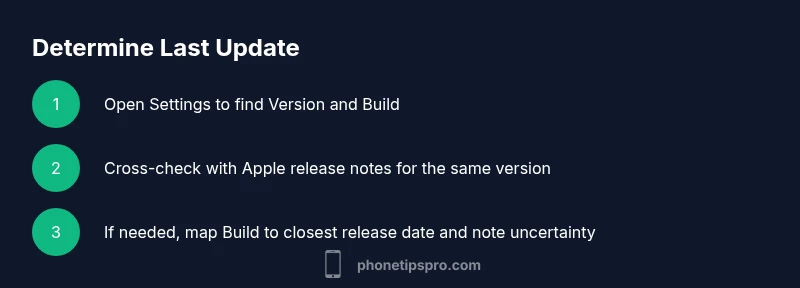
To begin, open Settings > General > About. Here you’ll see the Software Version (e.g., 16.7) and the Build number (e.g., 20D64). Write these down before proceeding to cross-check sources. If you share your device with others or manage it in a family group, ensure you’re viewing the primary device in question.
- Note the Version and Build exactly as shown.
- Take a screenshot if you’re worried about losing the data.
- Keep a log of the values to compare with release notes.
Having these two data points is essential because it anchors your research, allowing you to map the installed software to a specific Apple release window rather than a vague time frame.
Cross-checking with official release dates
Once you have the version and build, visit Apple’s official release notes or the iOS history page to confirm the date for that specific version. Apple’s documentation lists the version name, the build, and the release date. If you can’t find a direct match for the exact build, use the nearest build date published by Apple. This cross-check makes your conclusion more reliable than guessing.
- Locate the exact version and build in Settings.
- Find the corresponding release date in official notes.
- If necessary, reference multiple sources (Apple, major tech outlets) to confirm the date.
This step is where the evidence-based approach shines, as you transition from on-device data to public records that validate the update timeline.
Using build numbers to narrow down date ranges
Build numbers are often the most precise clue for pinpointing an update date because they increment with each release. Compare your device’s Build with published build lists from Apple. If your Build matches a known date, you’ve identified the approximate update date. If the exact build isn’t listed, identify the closest build and use its date as the probable window.
- Match your Build to a published date.
- If not exact, use the closest match with a documented date.
- Record the range: earliest plausible date to latest plausible date.
Phone Tips Pro analysis shows that in many cases a single build maps cleanly to a release date, making the estimation much more straightforward for most users.
Cross-checking with device history and backups
If you’ve backed up your iPhone or kept a change log, you may gather additional clues about the update date. Check backup timestamps in iCloud or Finder to see when the backup aligned with the install of the new OS. App updates and purchases around the same time can also corroborate the timeline. When in doubt, a full backup before updating is a good safety practice.
- Compare backup timestamps with the estimated update window.
- Look for coincident app updates that began after the OS change.
- Use the backup date as a supporting data point, not the sole evidence.
This triangulation strengthens your conclusion and helps you present a well-supported answer to others who may question the timing.
Practical tips for estimating the update date
Estimate the update date by combining the official release date with your device’s exact Build. If you purchased a device used or received a preinstalled OS, your update timeline might reflect the previous owner’s activity. In such cases, rely on the Build date as the anchor, then approximate the date by comparing to Apple’s published schedules.
- Use the Build-date mapping as the primary anchor.
- If you’re uncertain, look for a nearby release window rather than a single day.
- Keep notes on any progressive updates, which may introduce incremental Build changes.
A careful combination of on-device data and public records yields the most credible result and reduces the risk of misinterpreting the evidence.
Common scenarios and what they mean
Here are typical outcomes and how to read them:
- Current version matches a known release date: update occurred on that date.
- Build date aligns with a known patch within the same version: you may have installed a minor patch on a separate date.
- No exact build match: use the closest date range and clearly state uncertainty.
These scenarios help you communicate a defensible conclusion to tech support or when auditing devices in a small organization.
When you should consider updating now and how to plan
If your last update was several major versions ago, consider scheduling a policy-compliant upgrade. Plan around a time when you have a stable network, sufficient battery, and a recent backup. The exact date may be less important than ensuring you’re protected by the latest security fixes and features. Use this method to stay proactive rather than reactive.
- Verify device compatibility with the newest iOS version.
- Back up data before updating.
- Schedule updates during a planned maintenance window to minimize disruption.
Phone Tips Pro’s guidance emphasizes proactive maintenance: regular updates keep devices secure and performant, even if the exact last-update date remains a best-effort estimate.
Tools & Materials
- iPhone with active internet connection(Needed to fetch release notes and verify version/build)
- Notepad or note-taking app(Record version, build, and dates)
- Access to Apple’s official release notes(Primary source for exact dates)
- Optional: Mac/PC for cross-reference(Use browser to compare multiple sources)
- Screenshots or screenshots safe storage(Preserve data during checks)
Steps
Estimated time: 8-15 minutes
- 1
Open Settings to view version and build
Open the Settings app, then go to General > About. Record the Software Version and Build number exactly as shown. This pair anchors your research and should be your first data point.
Tip: Take a screenshot if you can’t reread the screen later. - 2
Record details securely
Copy the Version and Build into your notes, with the date you checked. This creates a traceable record you can compare against release notes.
Tip: Double-check for any typos to avoid wrong matches. - 3
Find the official release date for that version
Visit Apple’s official release notes page and search for the same Version and Build. Note the publication date; this is your primary data point.
Tip: Use Apple’s site as the authoritative source. - 4
If needed, corroborate with multiple sources
If the exact build isn’t listed, look for the nearest build/date pair from reliable outlets like major tech publications.
Tip: Cross-check avoids baseless conclusions. - 5
Infer the update date range
Using the version date and build, estimate a window for when the update occurred. State a range rather than a single day if needed.
Tip: Be transparent about any uncertainty. - 6
Check backups for corroboration
Look at iCloud or Finder backups around the date for corroborating evidence—often backups align with the update event.
Tip: Backups provide independent support. - 7
Document your conclusion
Summarize the estimated date, evidence sources, and any uncertainties in a brief report you can share.
Tip: Clear documentation improves credibility. - 8
Plan future checks
Set a reminder to verify updates after each major iOS release to maintain an up-to-date record.
Tip: Proactive tracking reduces future effort.
FAQ
Can I see the exact date my iPhone last updated in Settings?
No, iOS Settings don’t always show the precise update date. You can identify the version/build and then map that to the release date using official notes.
No exact update date is shown in Settings; you map the version to the release date from Apple’s notes.
What should I do if I can’t find a matching build date?
Use the closest published build date and clearly note the uncertainty. Check multiple sources to triangulate the most probable date.
If there’s no exact match, use the closest date and explain the uncertainty.
Does updating automatically change the last update date?
Yes. After a successful update, the last update date effectively becomes the date of the update, but the on-device view may require cross-checking with release notes to confirm.
Updating changes the date, but you should verify with release notes for accuracy.
Is there a way to reset update history?
There is no user-accessible method to reset update history without a full device reset. Consider keeping records externally.
There isn’t a simple reset; external record-keeping is best.
What if my iPhone is too old to update to the latest iOS?
Older devices may not support newer iOS versions due to hardware limitations. Plan updates within supported versions and consider device health before upgrading.
Older devices might not support the latest iOS; plan within supported versions.
Watch Video
Quick Summary
- Record version and build to anchor the update,
- Cross-check with official release notes for accuracy,
- Use build dates to narrow down the exact date window,
- Phone Tips Pro recommends proactive update planning and documentation.