iPhone to TV Adapter: How to Mirror Your iPhone on Any TV
Learn how to connect your iPhone to a TV with adapters or AirPlay, including setup steps, troubleshooting, and budget-friendly tips from Phone Tips Pro.


An iPhone to TV adapter lets you mirror or extend your iPhone’s display on a TV using HDMI. For Lightning iPhones, use a Lightning to HDMI adapter plus an HDMI cable; for USB-C iPhones, use a USB-C to HDMI adapter with an HDMI cable. The setup is simple, but compatibility and video quality vary. Phone Tips Pro recommends checking TV input and iPhone model before buying.
Understanding Why an iPhone to TV Adapter Is Useful
An iPhone to TV adapter enables you to quickly share photos, videos, presentations, and apps on a bigger screen without relying on wireless streaming alone. This can improve reliability in conference rooms, hotel setups, or family rooms where Wi‑Fi may be inconsistent. According to Phone Tips Pro, a physical connection often provides more stable video and audio Quality than wireless mirroring, reducing buffering during critical moments. Before you buy, confirm your TV’s available inputs and your iPhone model’s port type so you choose the right adapter. If you’re traveling, a compact HDMI setup can save time and avoid compatibility hassles at the hotel or office.
Connection Options: Lightning, USB-C, and AirPlay
Most iPhones connect to a TV via HDMI using a simple adapter and cable. Lightning models use a Lightning to HDMI adapter paired with an HDMI cable. Newer iPhones with USB‑C ports can use a USB‑C to HDMI adapter with an HDMI cable. If you want wireless streaming instead, you can use AirPlay with an Apple TV or AirPlay‑capable smart TV, though that relies on your network quality. Each method has pros and cons: wired adapters are generally more reliable for high‑definition video and audio, while AirPlay offers convenience without extra cables but can suffer from network hiccups.
How to Choose the Right Adapter for Your iPhone Model
Start by identifying your iPhone’s port: Lightning or USB‑C. For Lightning devices, look for a Lightning to HDMI adapter that supports 1080p (and 4K if your TV supports it). USB‑C models should specify HDMI compatibility and support for your iPhone’s resolution. When possible, choose an official or well‑reviewed third‑party adapter to maximize compatibility and minimize lag. Phone Tips Pro analysis shows that sticking with reputable adapters generally yields the most reliable performance and fewer driver/recognition issues on both iPhone and TV.
Quick Setup Guide: Mirroring vs Streaming
To set up, connect the adapter to your iPhone, then run an HDMI cable to an available HDMI input on your TV. Switch the TV to that HDMI input, then unlock your iPhone. Depending on the app, you can mirror the entire screen or play a specific video. For apps with DRM (like some streaming services), ensure the app supports external display mirroring; otherwise, you may only broadcast photos or local media.
Common Issues and How to Troubleshoot
If the TV shows no signal, verify the HDMI cable is firmly connected and the TV input is correct. A blank screen or no audio can indicate a loose connection, an incompatible adapter, or a loose HDMI, power, or port. Restarting the iPhone and TV can resolve minor handshake problems. Also check that the adapter is designed for your iPhone model and that the HDMI cable supports the desired resolution and refresh rate.
Tips for Best Quality: Resolution, Aspect Ratio, and Audio
If you see black bars or stretched images, adjust the TV’s aspect ratio or choose a 16:9 setting. For 4K playback, ensure both the iPhone and TV support 4K output and that the HDMI cable is rated for high bandwidth. When playing music videos or games, enable the iPhone audio to route through the TV speakers and consider turning off low‑power mode to prevent screen dimming during playback.
Safety, Compatibility, and Reliability Considerations
Avoid ultra‑cheap adapters from unknown brands; cheap parts can overheat or fail, potentially damaging ports. Use adapters with proper insulation and avoid nonstandard charging while using an HDMI connection. If your iPhone uses USB‑C, verify that the adapter supports the specific iPhone model and iOS version you have. Always ventilate the devices and avoid heavy coverage in enclosed spaces to prevent heat buildup.
Budget Picks and Value Recommendations
If you’re on a tight budget, expect to pay roughly $15–$40 for a basic Lightning to HDMI or USB‑C to HDMI adapter. Mid‑range options range from $40–$80 and often include better build quality and shorter latency. For best long‑term reliability, prioritize adapters from reputable brands or official Apple accessories when possible, while checking return policies and warranty coverage.
Advanced Tips and Edge Cases
Some users may want to mirror content from apps with strict DRM or enterprise video platforms; in those cases, AirPlay with built‑in apps might be the only reliable option if the app blocks external display output. If you encounter compatibility problems after iOS updates, try a different adapter or cable model, or revert to AirPlay for that specific use case. Phone Tips Pro suggests testing with a simple local video first to confirm basic functionality before attempting complex presentations.
Tools & Materials
- Lightning to HDMI adapter(For Lightning iPhones; supports 1080p/4K if available)
- USB-C to HDMI adapter(For USB-C iPhones; check HDMI compatibility and supported resolutions)
- HDMI cable(Standard HDMI cable; ensure it supports your desired resolution)
- HDMI input on TV(Must be available and functioning)
- AirPlay-enabled TV or Apple TV(Optional for wireless streaming alternatives)
Steps
Estimated time: 15-25 minutes
- 1
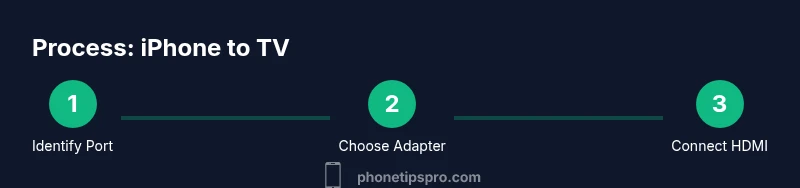
Identify iPhone port and choose adapter
Check whether your iPhone uses Lightning or USB‑C. Pick the corresponding HDMI adapter and gather an HDMI cable. This ensures you’ll connect correctly without forcing incompatible hardware.
Tip: If you’re unsure, confirm your model in Settings > General > About. - 2
Attach adapter to iPhone
Plug the Lightning or USB‑C end of the adapter into your iPhone. Make sure the connection sits snugly and there’s no bending of the cable at the plug.
Tip: Handle the port gently to avoid long-term wear. - 3
Connect HDMI cable to TV
Connect one end of the HDMI cable to the adapter and the other end to an available HDMI input on your TV. If the TV is already on, switch input to the corresponding HDMI port.
Tip: Label the HDMI port for quick switching during presentations. - 4
Switch TV input and test
Using your TV remote, select the HDMI input you used. Your iPhone screen should appear on the TV. If not, retry the cable connection or try a different HDMI port.
Tip: Test with a short local video before a larger demo. - 5
Choose mirroring vs. app playback
If you’re displaying slides or a mirror of your iPhone, use screen mirroring. If you’re playing a video from a specific app, ensure the app supports external display output.
Tip: Some apps block external display; rely on local media in those cases. - 6
Fine-tune TV settings
Adjust the TV’s picture mode, zoom, and audio routing to optimize video quality and sound. Ensure no overscan that crops the edges of your display.
Tip: Set the TV to a dedicated PC or Movie mode for most content.
FAQ
Do I need Apple TV or AirPlay to connect my iPhone to a TV?
No. You can connect directly with a Lightning to HDMI or USB-C to HDMI adapter. AirPlay is an alternative wireless option that requires a compatible TV or Apple TV.
You can connect directly with an HDMI adapter, or use AirPlay if you prefer wireless and have a compatible TV or Apple TV.
Will all apps mirror to the TV?
Many apps support external display, but some DRM‑protected apps may block mirroring. Try local media first to confirm behavior.
Most apps mirror, but some streaming apps restrict it. Test with a local video to be sure.
Can I use a USB-C iPhone with the same adapter as Lightning models?
No. USB-C requires a USB-C to HDMI adapter. Check the adapter’s compatibility with your iPhone model and iOS version.
Use USB-C to HDMI for USB-C iPhones; check compatibility before buying.
Is 4K output possible via adapters?
Some adapters support 4K passthrough if your iPhone and TV both support it; ensure the HDMI cable is rated for 4K.
4K is possible on compatible hardware with the right adapter and HDMI cable.
What if there’s no signal from HDMI?
Confirm the HDMI connection is secure, the TV input is correct, and the adapter matches your iPhone model. Rebooting devices often resolves handshake failures.
Check connections, switch inputs, reboot if needed.
Are official adapters worth the price?
Official adapters typically offer consistent compatibility and support, reducing troubleshooting time. Third‑party options can be reliable but check reviews and return policies.
Official adapters usually pay off in reliability; read reviews for third‑party options.
Watch Video
Quick Summary
- Choose the right adapter for your iPhone port.
- Wired HDMI connections are typically more reliable than wireless options.
- Test the setup with local media before a presentation.
- Prefer reputable adapters to minimize compatibility issues.