Why Can’t iPhone Find Printer: Urgent Troubleshooting Guide
Struggling to print from your iPhone? This urgent guide covers the common causes and step-by-step fixes to resolve no-printer discovery issues quickly and reliably.


The most likely reason your iPhone can't find a printer is a network or AirPrint compatibility issue. Start by ensuring the printer is powered on, connected to the same Wi‑Fi as your iPhone, and that it supports AirPrint. If still unavailable, update firmware, restart devices, and temporarily disable any VPNs or strong firewalls.
Why this happens: common culprits behind why can't iphone find printer
According to Phone Tips Pro, the most common reasons are network issues and AirPrint compatibility. When your iPhone can't locate a printer, it's typically because the devices are not on the same network, AirPrint is disabled, or the printer is offline. In older printers, AirPrint support may be missing. Wireless interference and busy networks can also hide the printer from discovery. For iPhone users, this is a frequent frustration in 2026 due to router configurations and VPNs.
Phone Tips Pro analysis emphasizes a practical mindset: start with the simplest checks, then move to targeted fixes. By understanding whether the issue is network-related or device-specific, you can save time and avoid unnecessary resets. The goal is to restore discovery so that printing becomes reliable again for everyday tasks like emailing receipts, printing photos, or sending documents to a home office printer.
Check basics: power, connections, and AirPrint support
Begin with the simplest checks:
- Make sure the printer is powered on and has no warning lights.
- Confirm the printer is connected to the same Wi‑Fi network as your iPhone and that AirPrint is enabled in the printer's settings (some brands require a separate toggle).
- Check the printer model's AirPrint compatibility on the manufacturer's site and ensure your iPhone is running a supported iOS version.
- If the printer recently changed networks or firmware, restart both the printer and iPhone to reset discovery. These steps address the majority of quick-fix scenarios for why can't iphone find printer.
Network issues and AirPrint discovery: Wi-Fi, VPNs, and router settings
Discovery relies on Bonjour/mDNS and local network visibility. If your router isolates devices or uses guest networks, the iPhone may not see the printer. Ensure both devices are on the 2.4 GHz or 5 GHz network but avoid networks that segment devices. Temporarily disable VPNs, firewalls, or network security features that block mDNS or SSDP broadcasts. If the printer is on a different network segment, temporarily connect an iPhone to the same guest network or use a direct USB-to-AirPrint adapter (where applicable) as a test. After changes, perform a fresh discovery by printing from a supported app's AirPrint option, not from random third-party apps.
Printer readiness: Firmware, default printer, and queue status
A printer with outdated firmware can fail to appear in iPhone's print menu. Check for available firmware updates and apply them, then restart the printer. Clear any stuck print jobs in the printer queue and reset the printer's network settings if needed. On iPhone, remove the printer from the list under Settings > Printers (or equivalent) and re-add it. If a second device can print to the same printer, the issue likely lies with the original iPhone configuration rather than the hardware.
Advanced fixes: reset network settings, re-add printer, and test with another device
If the issue persists, perform more advanced steps:
- Reset network settings on the iPhone (Settings > General > Transfer or Reset iPhone > Reset > Reset Network Settings). This will erase saved networks and passwords, so have Wi‑Fi credentials handy.
- Re-add the printer by going to Settings > Printers and selecting Add Printer. Re-enter credentials if required.
- Test printing from another Apple device or a friend’s iPhone to determine if the problem is device-specific.
- As a last resort, contact the printer manufacturer or Apple Support for guidance, especially if the printer is newer or uses a nonstandard protocol.
Note: Avoid mass resets unless necessary and back up your device settings when possible.
What to do if none of the above works: when to seek professional help and prevention tips
If you still can't find the printer after these steps, professional help may be needed, especially in business environments with managed devices or corporate networks. The Phone Tips Pro team recommends documenting each step you took to show support staff exactly what you’ve tried. To prevent future problems, keep firmware updated, maintain the same network for all devices, and periodically reset and re‑pair printers after firmware updates. Regular checks reduce downtime and improve reliability for everyday printing tasks.
Steps
Estimated time: 30-45 minutes
- 1
Check printer power and AirPrint compatibility
Verify the printer is on, not in sleep mode, and that it supports AirPrint for iPhone printing. If you’re unsure, consult the printer model’s documentation or manufacturer's site. | Why this matters: AirPrint discovery relies on compatible firmware and the printer's ability to announce itself on the network.
Tip: Confirm you’re testing with a known AirPrint-enabled model. - 2
Verify network alignment
Make sure your iPhone and printer are on the same home network. If your router has multiple bands or guest networks, try placing both devices on the primary network or temporarily connect the iPhone to the printer’s direct network (if supported).
Tip: Restart router if you suspect a broadcast issue. - 3
Test with a known good app
Use a native or widely supported app (like Photos or Notes) to trigger AirPrint. If the print dialog lists the printer, the issue is app-specific; if not, continue with deeper network checks.
Tip: Avoid third-party apps that may not support AirPrint properly. - 4
Update firmware and iOS
Check for and apply any available firmware updates for the printer and iPhone iOS updates. After updating, restart both devices to re‑establish discovery.
Tip: Firmware updates can fix compatibility gaps that block printing. - 5
Re-add the printer
On iPhone, remove the printer from Settings > Printers (or equivalent) and re-add it. Enter credentials if prompted and run a test print again.
Tip: Sometimes the order of devices matters; re-adding forces a refreshed discovery. - 6
Advanced reset steps
If needed, reset iPhone network settings (note this clears saved networks) and then reconnect to Wi-Fi. Re-add the printer and test again. If the issue persists, contact support.
Tip: Back up credentials before resetting networks.
Diagnosis: iPhone can't find printer
Possible Causes
- highPrinter not on or offline
- highPrinter not on same Wi-Fi network as iPhone
- mediumPrinter not AirPrint-compatible or AirPrint disabled
- lowVPN or guest network isolation preventing discovery
- lowOutdated firmware on printer or iPhone
Fixes
- easyPower cycle printer and iPhone to reset discovery
- easyConfirm both devices are on the same network and AirPrint is enabled
- easyUpdate printer firmware and iPhone iOS, then restart devices
- mediumReset iPhone network settings and rejoin Wi‑Fi
- mediumRemove and re-add the printer in iPhone settings, test with another device
FAQ
Why can't my iPhone find the printer even when AirPrint is enabled?
AirPrint discovery can fail if devices are on different networks, if the printer is offline, or if the firmware is outdated. Start by ensuring both devices are on the same network and that the printer supports AirPrint. Then update firmware, restart devices, and re‑attempt discovery.
AirPrint failure usually means the devices aren’t seeing each other on the same network or the printer needs an update. Start by syncing networks, updating firmware, and retrying printing.
How do I reset network settings on iPhone safely?
Go to Settings > General > Transfer or Reset iPhone > Reset > Reset Network Settings. This clears saved Wi‑Fi passwords and networks, so have credentials handy. After the reset, reconnect to Wi‑Fi and re-add the printer.
Resetting network settings clears saved networks. Make sure you have your Wi‑Fi password before you proceed, then reconnect and try printing again.
Can VPNs cause printing issues on iPhone?
Yes. VPNs or network isolation can block local network discovery like AirPrint. Temporarily disable VPNs and test printing. If printing works on a non‑VPN network, the VPN configuration is the likely culprit.
VPNs can block AirPrint broadcasts. Try disabling the VPN briefly to see if printing works.
What if my printer still shows offline after all steps?
Check printer status lights, confirm it’s connected to power and network, and ensure queue isn’t stuck with a print job. Restart the printer and clear any stuck jobs before trying again.
If the printer is offline, start by verifying power and network connections, then restart and clear the print queue.
Does updating firmware help with AirPrint issues?
Yes. Firmware updates fix compatibility issues and improve device discovery on AirPrint. Check both printer and iPhone for updates, install, then test printing again.
Firmware updates often fix AirPrint communication problems, so it’s a good first step after basic checks.
When should I seek professional help?
If multiple devices still can’t print after all troubleshooting steps, especially in business environments, contact the printer manufacturer or Apple Support. They can check device logs and network policies that home troubleshooting can’t access.
If nothing works after trying everything, it’s time to contact experts for a deeper look.
Watch Video
Quick Summary
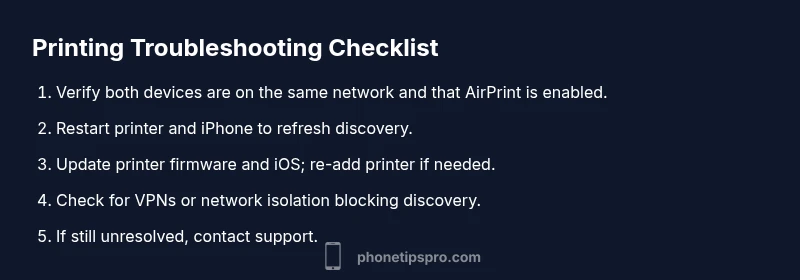
- Verify both devices are on the same network and AirPrint is enabled
- Update printer firmware and iPhone iOS before deeper resets
- Re-add the printer in iPhone settings if discovery fails
- If issues persist, consult manufacturer/Apple Support for guidance