Why Does My iPhone Have a Green Line? A Troubleshooting Guide
Learn why your iPhone displays a green line and how to troubleshoot quickly, with software checks, hardware considerations, and when to seek Apple Support or authorized service.


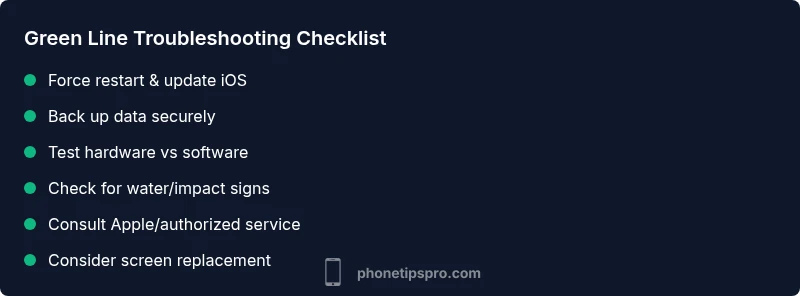
If you see a solid green line across the screen, the most common cause is a hardware display fault or a loose connector. Start with a soft restart and install any available iOS update. If the line remains, back up your data, then contact Apple Support or an authorized service provider for diagnostics and possible screen replacement.
Why the Green Line Appears on iPhone Screens
If you’re asking why iphone have green line, the short answer is that this symptom usually points to a display fault, either hardware or rendering software hiccup. In most cases a green line indicates a damaged OLED panel or a loose display connector, rather than a random app error. Start with a quick software check, then escalate to professional repair if the line persists. This is a stressful issue for many users, but a structured approach helps you protect data and decide on the best repair path.
Common Causes of a Green Line on iPhone Displays
Green lines can stem from several root causes. Hardware faults typically involve the display panel or the internal cables that connect it to the motherboard. Software issues can also render the screen abnormally, especially after a failed update or a persistent app glitch. Water exposure, drops, or heat can damage the OLED/LCD layer, while manufacturing tolerances or aging components may contribute over time. Recognizing the difference between hardware and software origins guides the next steps.
Basic Software Checks You Can Do
Begin with safe, low-effort steps to rule out software problems. Ensure your iPhone is on the latest iOS version and that apps are up to date. Perform a forced restart to clear temporary graphics glitches. If the line disappears after these steps, monitor for recurrence. Consider a temporary screen test by opening a simple app or a blank note to see if the line persists across contexts. Remember: software fixes don’t fix a physical panel or loose cable.
How to Test If the Line Is Hardware or Software
To determine whether the green line is hardware-related or software-driven, run a basic diagnostic in a controlled way. Observe if the line appears in all apps and on the home screen, and check whether it changes with screen orientation. If the line remains in every app and on all backgrounds, hardware is the likeliest cause. If it only appears in certain apps or after specific actions, a software issue may be involved. These tests help you decide between software remediation and hardware service.
Data Safety First: Backup Before Any Repair
Protecting your data is crucial before attempting fixes or handing the phone to a technician. Use iCloud or a local computer to back up your photos, messages, contacts, and app data. If you must reset the device, ensure you have a verified backup. A failure to back up can complicate recovery after a repair. Regular backups also simplify reinstallation of apps if a reset becomes necessary later.
When to Seek Professional Help Early
If the line persists after software updates and a forced restart, or if you notice any flicker, discoloration, or touch responsiveness changes near the line, hardware inspection is warranted. Contact Apple Support or an authorized service provider to schedule a diagnostic. Do not attempt to open the device yourself—risk of further damage and warranty voiding increases when poking under the glass. A professional evaluation will confirm whether a screen replacement is needed.
What Apple and Authorized Service Do About Green Lines
Authorized technicians assess whether the issue is a display fault or a motherboard-related problem. A screen replacement is common for severe, persistent lines, especially on OLED panels. Service time can vary based on parts availability and your location. If the device is under warranty or AppleCare, the repair path may differ in cost and coverage. Always obtain an official diagnosis before consenting to any service.
Prevention: Minimizing Display Issues in the Future
Protection starts with a sturdy case, a tempered screen protector, and careful handling to avoid drops. Avoid exposing the phone to extreme heat or moisture, and keep it away from devices that discharge static electricity. Regular software updates help reduce glitches, and routine backups keep you safe if a repair becomes necessary. If you rely on your device daily, consider AppleCare or an equivalent service plan for quicker access to authorized repairs.
Quick Recap: What to Do Next
- Rule out software issues with updates, restarts, and app checks.
- If the line persists, back up data and consult Apple or an authorized repair shop.
- Avoid DIY internal repairs; professional service is recommended for display faults.
diagnosticFlow_type_associated_with_bodyBlocks_compatibility_note_only_for_JSON_validation_purposes_to_be_referenced_elsewhere_in_the_article_if_needed_please_ignore_for_readers: null
Steps
Estimated time: 60-90 minutes
- 1
Force restart and update
Perform a forced restart to clear any temporary graphics glitches and then check for an available iOS update. After updating, restart again and observe if the line reappears in different environments.
Tip: If your iPhone is unresponsive, connect to a charger before force restarting. - 2
Back up your data
Back up all data to iCloud or a computer before attempting any deeper software fixes or repairs. This ensures you won’t lose photos, messages, or app data during a potential restore.
Tip: Double-check your latest backups by doing a quick restore from the backup to another device or a test restore. - 3
Consider a DFU restore if comfortable
If you’re comfortable with more advanced steps, a DFU restore can determine if the problem is software-related. This erases all content and reinstalls iOS from scratch.
Tip: Follow a trusted guide precisely; a misstep can brick the device. - 4
Rule out environment and physical factors
Inspect for signs of water exposure, heat, or drops. While you can assess external damage, avoid opening the device yourself unless you’re trained.
Tip: Keep device away from moisture and avoid attempting screen panel disassembly. - 5
Schedule professional inspection
If the line persists after software steps, book a diagnostic with Apple Support or an authorized service provider to confirm hardware fault and discuss replacement options.
Tip: Ask about service timelines and warranty coverage. - 6
Follow service recommendations
If replacement is advised, proceed with the official screen replacement through Apple or an authorized shop to maximize warranty protection and device reliability.
Tip: Keep proof of service and diagnostic results for future reference.
Diagnosis: Green line persists across iPhone screen
Possible Causes
- highHardware display fault (defective OLED/LCD panel or loose connector)
- mediumSoftware glitch causing display rendering error
- lowWater exposure or physical impact damaging the display
Fixes
- easyForce restart and update iOS to rule out software issues
- hardBack up data and perform a DFU restore if comfortable, to test deep software integrity
- easyConsult Apple Support or an authorized service provider for display inspection and possible replacement
FAQ
What causes a green line on an iPhone screen?
A green line is usually a hardware fault on the display panel or a rendering issue caused by software problems. It can also result from moisture or physical impact. Determining the cause guides whether you should try software fixes or pursue hardware repair.
A green line typically means a hardware display fault or software glitch with potential moisture or impact involvement.
Can software updates fix the green line?
Software updates can fix rendering glitches but rarely repair a damaged display. If the line disappears after updates, monitor to confirm stability. If it persists, plan hardware inspection.
Software updates might fix glitches, but persistent lines usually require hardware checks.
Should I reset or perform DFU restore?
Resetting settings can fix some software issues, but a DFU restore is a deeper step that completely reinstalls iOS. Only proceed if you’re comfortable and have a full backup, as it erases all data.
A full DFU restore is a last-resort software step that erases everything, so back up first.
Is this repair covered under warranty?
Warranty or AppleCare coverage depends on model age and damage cause. Display issues often qualify under hardware coverage, but accidental damage or water exposure may vary by policy. Check with Apple for a definitive assessment.
Warranty depends on your plan and whether the fault qualifies as hardware coverage.
How long does a screen repair take?
Repair timelines vary by location and parts availability. In many cases, service can take a few days to a week. Ask for an estimate at the diagnostic to plan around downtime.
Turnaround times differ; expect a few days to a week depending on parts and service queue.
What should I do before visiting a service center?
Back up data, note when you first noticed the line, and avoid further exposure to moisture or heat. Bring your proof of purchase or warranty details if available.
Back up your data and document the issue before you visit a service center.
Watch Video
Quick Summary
- Back up data before troubleshooting or repairs
- Most green lines are hardware-related and require professional service
- Software steps can rule out glitches but rarely fix a damaged panel
- Avoid DIY screen repairs to protect warranty and safety
- Apple or authorized repair is the safest path for replacement and warranty support