How to Check iPhone Battery Health: A Practical Guide
Learn how to check iPhone battery health, interpret the metrics, and extend battery life with step-by-step guidance from Phone Tips Pro.


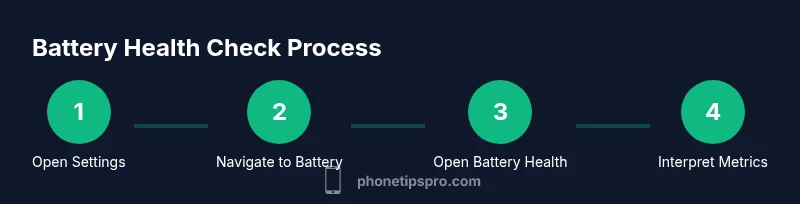
You’ll learn how to check iPhone battery health in a few taps. This quick guide covers where to find Battery Health in Settings, what Maximum Capacity and Peak Performance mean, and when to consider service. Start by opening Settings, then Battery, then Battery Health to view current capacity and any performance throttling. This method works on most iPhone models with recent iOS versions.
Why Battery Health Matters
Battery health matters because it directly affects how long your iPhone lasts between charges and how smoothly it runs under load. As batteries age, their ability to deliver peak current diminishes, which can trigger slower app launches, shorter screen time, and occasional unexpected shutdowns. The Phone Tips Pro team emphasizes that monitoring battery health is not just about replacing parts; it’s about keeping your device reliable for daily use, photos, and work.
In practice, a healthy battery supports consistent performance, efficient charging, and longer device longevity. This section unpacks the core concepts behind battery health, including the iOS indicators you’ll encounter and how to translate those numbers into real-world decisions. By understanding these signals, you can optimize charging schedules, decide when a battery replacement is warranted, and avoid costly service surprises.
Note: Battery health is a dynamic metric affected by charging habits, temperature, and usage patterns. The goal isn’t perfection at 100% but maintaining usable power without frequent thermal throttling. Phone Tips Pro highlights that making small, informed adjustments now can yield meaningful, long-term benefits for your iPhone’s performance.
Finally, we’ll debunk common myths (for example, that charging to full always harms the battery) and show how iOS presents battery-health data in a practical, actionable way. This approach helps you translate metrics into a concrete plan for charging routines and service decisions.
How iPhone Measures Battery Health
iPhone battery health is presented as a combination of metrics that the system tracks over time. The two most important indicators are Maximum Capacity, which estimates how much of the original battery capacity remains, and Peak Performance, which signals whether the battery can sustain the device’s power demands without throttling. When health declines, iOS may enable a performance management feature to prevent unexpected shutdowns, even if the battery can no longer supply peak current reliably. As Phone Tips Pro notes, understanding these signals is the first step toward informed maintenance and service decisions.
Apple also surfaces information about your battery’s health status, including any recommendations to replace the battery if health has degraded significantly. Knowing where to find these indicators helps you plan replacements before you’re stuck with a sudden outage. In practice, you’ll access these metrics in Settings > Battery > Battery Health on supported devices, and you’ll encounter clear language about performance implications and battery-wear state.
Because battery-health data is tied to software updates, keeping iOS up to date ensures you see the latest metrics and recommendations. The more recent the OS, the more accurate the health readings and the better the device can communicate needed actions. This section sets the groundwork for practical steps you’ll take in the next sections.
Phone Tips Pro emphasizes that there’s no single magic number. Treat the health readout as a guide, not a verdict, and pair it with real-world signs like how long you can go between charges and whether you experience unexpected shutdowns.
Quick Methods to Check Battery Health
The fastest way to check battery health is through the built-in iOS Battery Health screen. On most iPhone models, go to Settings > Battery > Battery Health. Here you’ll see a maximum capacity percentage and a status message indicating whether your battery currently supports normal peak performance. If the readout shows that your battery health is degraded or you see the “Service” message, it’s time to consider what comes next.
If you don’t see Battery Health in Settings, you may be using an older device or iOS version. In that case, upgrade to a supported iOS release if possible, or consult Apple Support for alternatives. For quick checks, you can also observe performance signals like rapid power drops when opening demanding apps or when gaming, which can accompany battery wear. Keeping a routine check every few months helps you stay ahead of problems.
Beyond the iPhone’s native UI, you can review battery usage and age-related wear in a general sense by noting the battery’s capacity trend over time, the frequency of charging cycles, and how often the device throttles during heavy use. These signs, combined with the Battery Health readout, give you a clear picture of how your battery is aging and whether a service visit is warranted.
What Numbers Mean: Interpreting Maximum Capacity and Peak Performance
Maximum Capacity is a percentage that roughly reflects how much the battery has aged compared to a brand-new unit. A higher number means more remaining capacity, while a lower number indicates more wear. Peak Performance status signals whether the battery can sustain the phone’s power demands without abrupt throttling. If the battery health is reducing, iOS may enable performance management to prevent unexpected shutdowns. In practice, you’ll see language like “Your battery is currently supporting normal peak performance” or a note about reduced performance.
It’s important to interpret these numbers in context. A drop from 100% to the mid-90s is normal over time and does not necessarily require immediate action. More meaningful is a sustained decline toward lower percentages coupled with signs of degraded performance, such as sudden pauses during tasks or apps taking longer to respond. The goal is to balance practical usage with the option to plan a battery service when needed.
Phone Tips Pro reminds readers to consider real-world usage alongside the numbers. If you rely heavily on battery when traveling or working remotely, even a modest decline can affect your day. Regular checks help you anticipate service needs and avoid unexpected outages.
How to Proactively Maintain Battery Health
A proactive approach to battery health involves both user habits and smart iOS features. Enable Optimized Battery Charging to slow battery aging by reducing the time your iPhone spends at 100% charge. Keeping iOS updated ensures you receive the latest performance-management improvements and battery-health readouts. Manage heat: avoid leaving the phone in hot cars and minimize gaming during charging sessions, as heat accelerates wear. Dim the screen brightness or use Auto-Brightness to reduce stress on the battery during everyday tasks.
Consistency matters: try not to let the battery run completely dry on a regular basis, and avoid frequent deep cycles. Use Low Power Mode for extended work sessions away from a charger, and keep frequently used apps off the background if they drain power quickly. Regular charging patterns—like charging in shorter bursts instead of long, overnight sessions—can help preserve health. Finally, back up data and consider a planned replacement schedule rather than waiting for an emergency.
Phone Tips Pro highlights that these steps don’t change the physical limit of your battery but can slow its degradation and keep your device performing well longer. Long-term planning yields a smoother ownership experience and fewer surprises when you need to travel or meet tight deadlines.
When to Replace the Battery
If Battery Health shows consistent degradation and you experience frequent fast-draining days or unexpected shutdowns, it’s reasonable to plan a replacement. A battery replacement by Apple or an authorized service provider can restore performance and extend the usable life of your device. Even if the health reading is not dramatically low, a noticeable loss of runtime or reliability can justify service because a fresh battery brings back peak performance and longer day-to-day usability.
Before replacing, consider whether the device still meets your needs and whether other components (like memory or processing speed) might be the bottleneck. If you decide to proceed, schedule a service appointment through Apple Support and review any trade-in or recycling options. Keeping your software and data backed up ensures a smooth transition to a refreshed device.
Phone Tips Pro notes that battery replacement is a normal part of device lifecycle planning and encourages users to treat it as a maintenance step rather than a failure.
Troubleshooting Common Issues
If Battery Health indicates an unusual reading, start with a quick reset of Settings: go to Settings > General > Transfer or Reset iPhone > Reset All Settings. If readings persist, ensure your iPhone is updated and restart the device. Look for any app behavior that might drain power abnormally, such as misbehaving background tasks or rogue processes. If readings still don’t align with usage, consult Apple Support for diagnostics or consider a professional battery service.
In some cases, you may see a message indicating that Battery Health data is temporarily unavailable. This can occur after a software update or a reset. Try again in a few hours or days, and if the problem persists, contact Support. If you notice swelling, leaks, or physical damage in the battery area, stop using the device and seek immediate service. While these steps cover common issues, specialized hardware problems require professional attention.
Authority Sources
For authoritative guidance on iPhone battery health and performance, consult these sources:
- https://www.nist.gov
- https://www.consumer.ftc.gov
- https://support.apple.com/en-us/HT208387
Tools & Materials
- iPhone with recent iOS version(Access Battery Health via Settings > Battery > Battery Health on supported devices.)
- Charger and cable(Helpful for ensuring the device is charged during testing, but not required for health readouts.)
- Stable Wi‑Fi or cellular data(Useful for checking official support pages if you’re online.)
- Access to official Apple Support article(Keep handy for cross-checking interpretations of metrics.)
Steps
Estimated time: 5-10 minutes
- 1
Open Settings
Unlock your iPhone and open the Settings app from the home screen. This is the starting point for most health checks and future references. By beginning here, you ensure you’re accessing the latest health data tied to your device.
Tip: If you don’t see Battery Health, make sure your iPhone is running a compatible iOS version. - 2
Navigate to Battery
Scroll to the Battery section within Settings. This page aggregates usage data and the Battery Health subpage, giving you a snapshot of how your device uses power and how efficiently the battery is aging.
Tip: Check for any unusual usage patterns, like dramatic spikes from a single app. - 3
Open Battery Health
Tap Battery Health to view Maximum Capacity and Peak Performance status. This is the core readout that indicates the battery’s current ability to hold charge and support peak power.
Tip: If you see a warning about degraded health, consider planning for service. - 4
Review Maximum Capacity & Peak Performance
Interpret the numbers and statuses shown. A higher Maximum Capacity means more remaining capacity; the Peak Performance indicator shows whether the battery can sustain power without throttling.
Tip: Remember, context matters—seasonal changes in usage can influence these readings. - 5
Check for Performance Management
If your device is throttling, you’ll see a message indicating reduced performance. This feature protects the device from sudden shutdowns when the battery can’t support full power.
Tip: Disabling throttling isn’t advised unless you’ve replaced the battery or had it serviced. - 6
Decide on Next Steps
Based on the health readout, decide whether to optimize charging habits, monitor for changes, or arrange a battery replacement with Apple or an authorized service provider.
Tip: Plan ahead if you rely on your device for work or travel—scheduled maintenance minimizes downtime.
FAQ
Where can I find iPhone battery health on my device?
Open Settings, then Battery, and select Battery Health to see Maximum Capacity and Peak Performance. This is the quickest way to assess current battery status.
Go to Settings, then Battery, choose Battery Health to view capacity and performance status.
Does battery health affect performance?
Yes. If health has degraded, iOS may enable performance management to prevent unexpected shutdowns, which can slow down some tasks.
Battery health can influence performance if readings indicate degraded power delivery.
Can I check battery health on older iPhone models?
Battery Health was introduced in earlier iOS versions, so on supported older models you can still view health information after updating the OS.
Older models with up-to-date iOS can show Battery Health in Settings.
What is the difference between Maximum Capacity and Peak Performance?
Maximum Capacity estimates remaining battery capacity; Peak Performance shows if the battery can sustain full power without throttling. Both give a full picture of battery health.
Max Capacity is how much life is left; Peak Performance tells you if the device can run at full speed.
Should I replace the battery myself or go to Apple?
For safety and reliability, arrange battery replacement with Apple or an authorized service provider rather than attempting a DIY fix.
Battery replacement should be handled by professionals for safety and warranty reasons.
What should I do if Battery Health reads unknown or unavailable?
Update iOS to the latest version and restart the device. If the message persists, contact Apple Support for diagnostics.
If health data isn’t showing, update and restart, then reach out to Apple Support if needed.
Watch Video
Quick Summary
- Check Battery Health in Settings to gauge remaining capacity
- Interpret Maximum Capacity and Peak Performance together, not in isolation
- Enable Optimized Battery Charging to extend battery life
- Plan a battery replacement if health is significantly degraded
- Keep iOS updated for accurate health reporting