What to Check on iPhone: A Practical Troubleshooting Guide
Discover essential checks to keep your iPhone healthy: battery health, storage, software, and connectivity. Follow a clear, step-by-step guide from Phone Tips Pro to diagnose and fix common issues without guesswork.


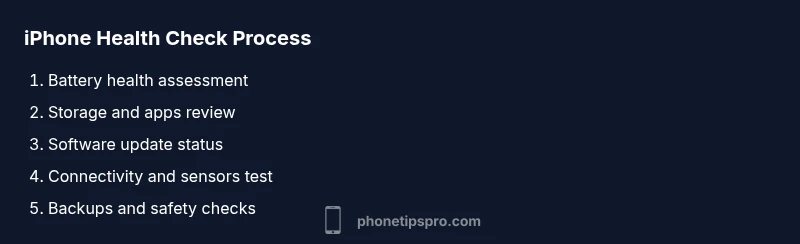
Goal: You will perform a thorough, repeatable check on your iPhone to verify battery health, storage, software, and connectivity. Start with a quick hardware test, then inspect sensors and cameras, confirm backups, and run built-in diagnostics. By following these steps, you’ll identify common culprits and keep your device running smoothly.
Why this matters when you check your iPhone
In our daily use, a small issue on your iPhone can cascade into bigger problems if left unchecked. By knowing what to check on iPhone, you can spot glitches early, reduce downtime, and protect your data. The Phone Tips Pro team found that routine checks dramatically improve device reliability, especially after major iOS updates or feature changes. This guide walks you through a methodical, repeatable process to diagnose issues, from battery health to backup safety, without guessing. If you search for quick fixes, remember that sustained performance comes from a disciplined routine of hardware, software, and data checks. Start with the most impactful areas, then expand to peripheral items as needed.
Before you begin: gather your tools and set expectations
Preparation matters. Before you dive into checks, ensure your iPhone is charged and connected to a stable Wi-Fi network; have a quiet workspace so you can test touch sensitivity and sound clearly. Create a backup of your data (iCloud or computer) in case you need to reset settings. If you’re testing battery health, set Low Power Mode off, and note the current battery percentage history. Having a calm environment reduces misreads and helps you interpret results. Remember to stay within your comfort level; if you’re unsure about performing resets, skip to the official diagnostics section.
Core hardware checks: screen, buttons, cameras, and audio
Start with a visual and tactile scan: inspect the display for dead pixels, color shifts, or screen burn. Test touch responsiveness across the entire screen by dragging and typing in multiple apps. Confirm hardware buttons (side button, home button if present, volume buttons) respond with consistent feedback. Open the Camera app and take photos to check autofocus and exposure. Record a quick audio clip with Voice Memos to verify mic clarity. If any hardware feels sluggish or unresponsive, note the exact scenario and app to reproduce the issue later.
Battery health and charging sanity checks
Open Settings > Battery > Battery Health to view Maximum Capacity and Peak Performance Capability. If Maximum Capacity sits noticeably low (for your usage) or you see performance management features active, plan for a battery replacement. Test charging with a known-good charger and cable; observe charging speed and the behavior when the device reaches full charge. If the device gets unusually warm during charging, pause testing and review ventilation and charging accessories. Always avoid third-party cables that lack Apple-certified branding.
Software health: updates, storage, and app behavior
Check Settings > General > Software Update to ensure you’re on the latest iOS version compatible with your model. Review Settings > General > iPhone Storage to identify large apps or unused data; consider offloading or deleting apps you no longer use. Monitor app behavior— do apps crash often, freeze, or show unusual permissions requests? If so, update apps via the App Store and consider reinstalling problematic ones. Small software glitches are common after updates and are often resolved with a fresh update or a quick reset of settings.
Connectivity and sensors: network, Bluetooth, GPS, Find My iPhone
Test Wi‑Fi and cellular data by loading media and streaming a short video. Pair a Bluetooth device and verify audio output; test AirDrop transfers and location services to ensure GPS accuracy. Ensure Find My iPhone is enabled in Settings > [your name] > Find My iPhone for data protection and remote locate. If any connection proves unstable, reset network settings (Settings > General > Reset > Reset Network Settings) and rejoin networks. GPS drift or Bluetooth drops are frequently resolved by a software update or reset.
Diagnostics and safe resets you can perform
You can run built-in diagnostics by restarting the iPhone and holding the D key to enter Apple Diagnostics, then follow on-screen prompts. If issues persist after diagnostics, consider safer options like Reset All Settings (Settings > General > Transfer or Reset iPhone > Reset > Reset All Settings) or, as a last resort, Erase All Content and Settings after a complete backup. Always back up before major resets to prevent data loss. For stubborn issues, pursue an official diagnostic appointment.
Data safety and backups
Regular backups prevent data loss when you need to reset or repair your device. Use iCloud or a computer-based backup and verify the backup date and size. Enable Find My iPhone and encrypt local backups if available. Periodically review your backup settings to ensure automatic backups are active and space isn’t unexpectedly full. This proactive habit protects photos, messages, and app data from unexpected device failures.
When issues persist: escalate to Apple Support
If you still notice problems after following the steps above, schedule a Genius Bar appointment or contact Apple Support for a deeper assessment. Bring relevant details about when the issue occurs, the steps you took, and any diagnostics results. The goal is a precise diagnosis rather than guesswork. The process you followed will help both you and the support technician reproduce the issue quickly.
Tools & Materials
- iPhone (any model)(Ensure it’s charged and functional before testing.)
- Charging cable and charger(Use Apple-certified accessories for accurate testing.)
- Stable Wi-Fi connection(Needed for backups and updates.)
- Backup method (iCloud or computer)(Back up before resets to prevent data loss.)
- Soft microfiber cloth(For screen cleaning and tactile testing.)
- Apple Support app or diagnostic tools(Guided checks and official diagnostics.)
Steps
Estimated time: 60-90 minutes
- 1
Prepare your device and environment
Charge the iPhone to at least 50%, connect to a stable Wi‑Fi, and set up a quiet workspace to test screen, touch, and audio clearly. Having a backup ready minimizes risk if a reset is needed.
Tip: Have a backup process ready (iCloud or computer) before starting. - 2
Check battery health and charging
Open Settings > Battery > Battery Health and note Maximum Capacity and Peak Performance. Test charging with a known-good charger and observe any abnormal heat or slow charging.
Tip: If health is declining quickly, plan for a replacement rather than chasing fixes. - 3
Inspect display, buttons, and cameras
Scan for dead pixels, color shifts, and screen brightness consistency. Test all physical buttons and open Camera to verify autofocus and exposure. Record a short audio clip to test the mic.
Tip: Document any irregular responses with screenshots or video. - 4
Review storage and app behavior
Check Settings > General > iPhone Storage. Remove or offload unused apps and offload media to reclaim space. Monitor apps for crashes and update as needed.
Tip: Avoid filling storage beyond 85% to maintain performance. - 5
Verify software and updates
Go to Settings > General > Software Update; install any pending updates. Review App Store for pending updates. Consider restarting after updates to finalize changes.
Tip: Back up before major updates in case of compatibility issues. - 6
Test connectivity and sensors
Test Wi‑Fi, cellular data, Bluetooth, and GPS. Ensure Find My iPhone is enabled. If the network is flaky, reset network settings and rejoin networks.
Tip: If GPS drifts, toggle location services off and on again. - 7
Run built-in diagnostics safely
Restart and run Apple Diagnostics (hold D during boot). Follow prompts and note any error codes. If issues persist, attempt Safe Mode-like steps by resetting settings.
Tip: Do not ignore diagnostic codes; they point to specific problems. - 8
Back up and consider resets
Ensure backups are current. If needed, reset All Settings first, then full erase only after confirming data is backed up. Restore from backup after the process.
Tip: Never erase unless you have a verified backup.
FAQ
What should I check first when diagnosing iPhone issues?
Start with battery health, storage, and software. Then test hardware (screen, buttons, cameras) and confirm backups. This order helps identify the most impactful causes quickly.
Start with battery health, storage, and software, then test hardware and backups.
How can I check battery health on iPhone?
Go to Settings > Battery > Battery Health to view Maximum Capacity and Peak Performance. If you see a message about degraded battery, plan for a replacement.
Check the Battery Health section in Settings to gauge capacity and performance.
What if my iPhone storage is almost full?
Identify large apps and media in Settings > General > iPhone Storage, delete or offload what you don’t need, and consider moving photos to cloud storage to free space.
If storage is too full, offload unused apps and move photos to the cloud.
How do I run diagnostics on iPhone?
Use Apple Diagnostics by restarting and holding D during boot. Follow on-screen prompts for concrete steps and codes.
Run Apple Diagnostics by booting with the D key and following prompts.
Is it safe to reset all settings on iPhone?
Resetting all settings is generally safe and won’t erase your data, but it will reset preferences. Back up before making broad changes.
Resetting settings is usually safe, but back up first.
How often should I perform these checks?
Aim for a quarterly health check, or after major iOS updates and if you notice performance changes or new features.
Do a quick check every few months, especially after updates.
Watch Video
Quick Summary
- Test battery health early to prevent unexpected shutdowns
- Back up before any major reset to protect data
- Regularly check storage and update software for best performance
- Verify connectivity and sensor performance after updates
- If issues persist, use official diagnostics and consult Apple Support