How to Fix iPhone Not Charging: A Practical Guide
Learn proven steps to diagnose and fix an iPhone that won't charge. From cable checks to software fixes and safe advanced options, this guide helps you restore reliable charging at home.


This guide helps you diagnose and fix an iPhone not charging. You’ll learn how to test cables and power sources, inspect the charging port for debris, check software settings, and safely perform advanced steps if needed. Follow the steps in order to protect your device and avoid unnecessary repairs at home.
Quick diagnosis: hardware vs software
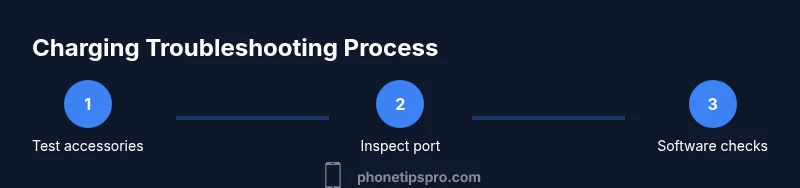
Charging issues usually fall into two buckets: hardware faults (port damage, cable wear, defective charger) or software glitches (charging controller issues, iOS bugs). If your iPhone shows a charging symbol when plugged in, but the battery doesn't increase, that points to a software or calibration issue rather than a dead port. According to Phone Tips Pro, starting with simple, repeatable checks helps you identify the likely cause without unnecessary tinkering. First, try a different cable and adapter known to work. If another device charges normally with the same power source, your original cable or adapter is likely the culprit. Next, test charging with a different power source, such as a wall outlet, USB port on a computer, or a different power strip, to rule out a faulty outlet. If you still see no charging indicator after using multiple verified accessories, it's time to inspect the port and iPhone internals for debris or damage. Keep track of what you test and in what order so you can reproduce the results if you need professional support.
This approach helps you quickly distinguish between a simple accessory problem and a deeper hardware or software fault. By documenting each test result, you gain clarity and reduce unnecessary repairs.
Basics first: verify the essentials
Before diving into internal checks, confirm the basics: you’re using an Apple-certified charging cable and a compatible power adapter, the outlet is delivering power, and the iPhone isn’t in a protective case that blocks the charger. If you’re on USB-C, ensure the port and cable are compatible with your model. Try charging with a known-good charger from another device to validate whether the issue lies with the iPhone or the accessory. If the device charges at all with a different setup, the original cable or brick is likely the source of the problem. If none of the tested configurations work, proceed to port inspection and software checks. Keeping a log of successful and unsuccessful configurations helps you diagnose patterns and share precise details with Apple Support if needed.
Tip: Use a surge-protected power strip to reduce the risk of voltage dips that could affect charging.
Inspect the port and accessories: cleaning and care
A common cause of charging failures is debris, lint, or moisture in the Lightning or USB-C port. Power off the iPhone before inspecting. Use a bright light and a non-metal tool (like a wooden toothpick or a soft brush) to clear obstructions gently. Do not insert metal objects—these can scratch or short the contacts. If moisture is present, dry the port thoroughly and allow it to air-dry for several hours before attempting to charge again. If you notice corrosion or bent pins, stop and seek professional service. After cleaning, reconnect the charger and observe whether your iPhone begins to show the charging indicator or increases battery level. If it does, you likely cleared a port obstruction; if not, the issue may be deeper (port damage or internal failure).
Pro tip: Clean in small bursts to avoid pushing debris further inside the port.
Software checks: iOS, charging settings, and restart
Software problems can prevent charging from being detected or properly managed by the system. Ensure your iPhone is running the latest iOS version, as updates frequently fix charging-related bugs. Check Settings > General > Software Update and install any available updates. Review charging-related settings—Settings > Face ID & Passcode (or Touch ID & Passcode) > USB Accessories allows or restricts USB access when the device is locked; toggle as needed. A simple restart can resolve transient software glitches: power off, wait 30 seconds, then turn back on. If charging still fails, try resetting all settings (Settings > General > Transfer or Reset iPhone > Reset > Reset All Settings) to revert to default configurations without erasing content. If the phone charges after a reset, you narrowed the cause to a software setting or profile.
Why this matters: software corruption or misconfigurations can block charging signals even with a healthy cable.
Battery health and charging limits: understand the health meter
iPhones show Battery Health in Settings > Battery > Battery Health & Charging. If the Maximum Capacity dips significantly, or if Optimized Battery Charging is enabled, charging behavior can change (though not typically block charging entirely). Check whether Battery Health indicates service recommended. If the battery is degraded, charging may still occur, but overall performance will suffer. In some cases, recalibration—fully charging to 100% and then letting it drain to 0%—helps recalibrate the battery indicator, but should be done only if the brand recommends it and the device is not showing other hardware faults. If the device shows a healthy battery but refuses to charge, proceed to advanced steps or professional service. Always back up before making deeper system changes.
Keep an eye on charging indicators: a gradual battery level increase is normal; a stubborn flat battery after a full charge is a red flag.
Advanced steps: when to try more involved fixes
If basic checks fail, you may consider deeper measures, but proceed with caution. Back up your data first. One advanced option is to reset all content and settings (a full factory reset) after ensuring you have a current backup. If you’re comfortable and your device is out of warranty, you could attempt a DFU (Device Firmware Update) restore following official steps from Apple Support. This is a deeper recovery mode that reinstalls iOS and can fix deeply corrupted charging logic, but it also erases data and may require reconfiguration afterward. If you choose this route, ensure you have your iCloud or local backup, and follow manufacturer instructions exactly to avoid bricking the device. For many users, professional service is a safer alternative before attempting firmware-level restores.
Why DFU: it reinstalls the entire iOS stack, eliminating software-level faults that prevent charging. Risk: data loss if not backed up and potential hardware missteps.
Preventive care and best practices: keep it healthy
Adopt routine care to minimize future charging problems. Use only certified cables and adapters, avoid bending cables at the connector, and store accessories in a dry, cool place. Clean the port periodically with gentle methods and inspect for wear or damage. Enable features like Optimized Battery Charging to extend battery life, and keep iOS updated for ongoing bug fixes. Consider scheduling battery health checks, especially for devices older than two years. By building these habits, you reduce the chance of sudden charging failures and improve the overall longevity of your iPhone.
Bottom line: proactive maintenance reduces surprise charging issues and helps you plan service earlier if needed.
When to seek repair: warranty and service options
If charging issues persist after following the steps above, it’s time to contact Apple Support or visit an authorized service provider. Check your warranty status and whether AppleCare is active, as these programs can cover battery or port issues that affect charging. If the device is out of warranty, request a diagnostic assessment to determine whether the problem is port-related, battery-related, or due to a software fault that requires service. Remember that attempting non-official repairs can void coverage. Document your test steps and results to help the technician reproduce the issue. A professional assessment can confirm whether a port replacement, battery replacement, or logic-board repair is needed, and provide you with a clear cost and timeline estimate.
FAQ start
Tools & Materials
- Apple-certified charging cable (Lightning or USB-C, depending on model)(Ensure compatibility with your iPhone generation.)
- Apple-certified power adapter(Use the official wattage for best results (e.g., 20W+ for newer iPhones).)
- Power outlet or USB port with verified power(Test multiple outlets if charging seems inconsistent.)
- Soft brush or wooden toothpick(For gentle port debris removal; avoid metal tools.)
- Isopropyl alcohol wipes (70%)(For cleaning accessories only; do not use on the port while powered.)
- Microfiber cloth(Dry the port area after cleaning and wipe surfaces.)
Steps
Estimated time: 45-90 minutes
- 1
Test with different cables and power sources
Plug the iPhone into a known-good charger and cable. If the battery starts to rise, the issue was with the accessory. Repeat with a different wall outlet or USB port to rule out power source faults. This step helps you separate accessory faults from device faults.
Tip: Keep a log of which combination finally charges the device. - 2
Inspect and clean the charging port
Power off the device and use a bright light to inspect the port. Gently remove lint or debris with a non-metal tool. Do not insert metal objects that could bend pins or cause a short. Let the port dry if you suspect moisture before attempting to charge again.
Tip: Take your time; even a small speck can block charging. - 3
Check software settings and update iOS
Go to Settings > General > Software Update to install any available updates. Review USB Accessories restrictions under Settings > Face ID & Passcode (or Touch ID & Passcode). Restart the iPhone after updates to ensure changes take effect.
Tip: Software updates often fix charging bugs in a single release. - 4
Test battery health and optional recalibration
Open Settings > Battery > Battery Health to check Maximum Capacity. If the device is old or health shows degradation, consider a battery replacement. A full charge/discharge cycle can recalibrate the indicator if advised by Apple support.
Tip: Document Battery Health values to monitor progression. - 5
Try a safe DFU restore (advanced)
If software fixes fail, back up data and consider a DFU restore following official Apple guidance. This reinstalls iOS and can resolve stubborn charging logic issues but carries data loss risk if not backed up.
Tip: Only attempt DFU if you’re comfortable with potential data loss and device reconfiguration. - 6
Consult a technician or Apple Support
If none of the above steps resolve the issue, plan a professional diagnostic. Port damage or battery failure often requires service. Provide the technician with a summary of steps you’ve taken.
Tip: Warranty and AppleCare can cover many charging-related repairs.
FAQ
What should I do first if my iPhone won't charge?
Start by testing with a different cable and charger, then try another power outlet. If it still won’t charge, inspect the port for debris and ensure iOS is up to date. This sequence helps identify whether the issue is with accessories, software, or the device itself.
Test different accessories, then inspect the port and update iOS to narrow down the cause.
Can a dirty charging port cause charging to fail?
Yes. Debris can block the charging contacts. Gently clean the port with a non-metal tool and power off the phone before attempting to charge again. If debris persists, seek professional help.
Debris in the port can block charging; clean carefully or get help if it continues.
Is it safe to reset all settings to fix charging issues?
Resetting all settings can resolve misconfigured options without erasing data. Back up first, then navigate to Settings > General > Transfer or Reset iPhone > Reset > Reset All Settings and follow the prompts.
You can reset settings after backing up to fix software glitches.
When should I replace the battery?
If Battery Health shows low Maximum Capacity or service is recommended, replacement may be needed. Battery replacement often restores charging reliability and overall performance.
Low battery capacity or a service recommended message usually means a replacement is wise.
Will a DFU restore erase my data?
A DFU restore can erase all data; back up before proceeding. It reinstalls the entire iOS stack and is a last-resort option for deep software issues.
DFU can wipe your data, so back up first and consider it a last resort.
Watch Video
Quick Summary
- Test multiple accessories and outlets to isolate the cause
- Clean the port carefully and dry it before retrying
- Update iOS and verify USB Accessories settings
- Check Battery Health and consider recalibration if advised
- Seek professional repair when in-doubt or hardware is suspected