Is It Okay to Charge iPhone to 100%? A Practical Guide
Learn whether charging your iPhone to 100% is safe for battery health, how Optimized Battery Charging works, and practical tips to balance convenience with longevity.


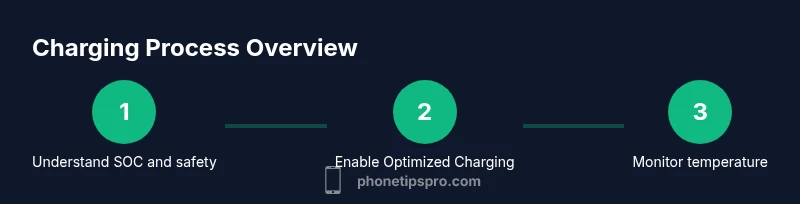
Charging an iPhone to 100% is generally fine with modern lithium-ion batteries. Apple and battery researchers note that daily charging from 20% to 80% is gentler, but full 100% charges won’t dramatically shorten battery life if done occasionally. For longevity, avoid staying at 100% for long periods and use Optimized Battery Charging.
What charging to 100% means for modern iPhones
In today’s iPhones, the battery is a lithium-ion cell managed by a sophisticated battery management system (BMS). When you connect to power, the device monitors temperature, current, and battery health to optimize how fast energy is stored. According to Phone Tips Pro, charging to 100% is not inherently dangerous; the BMS will throttle current near full to minimize stress. The practical takeaway is simple: you can reach a full 100% when you need it, but keep an eye on heat and how long the device sits at full charge. If you routinely charge to 100% and then remove it quickly, you’re not likely to cause noticeable harm. The key is avoiding sustained heat and constant high SOC (state of charge).
How Optimized Battery Charging works
iOS includes Optimized Battery Charging to curb aging by learning your daily charging routine. When enabled, the iPhone may pause charging at around 80% and only finish to 100% just before your typical usage window. This behavior relies on on-device processing and can sync with iCloud if you opt in. The goal is to reduce wear by limiting time spent at 100% while still ensuring you wake up to a ready device. For many users, turning on Optimized Battery Charging is the simplest way to balance convenience with longevity.
Does charging to 100% harm battery health?
Charging to 100% occasionally does not dramatically degrade battery health in modern devices. Chronic exposure to high SOC combined with heat is more harmful than a rare full charge. The battery will naturally lose capacity over time due to calendar aging and cycling; how you manage heat, charging speed, and idle temperature matters more than hitting 100% every so often. Phone Tips Pro emphasizes focusing on temperature control and avoiding chassis warmth during charging.
100% charging vs. partial charging: what matters
Battery wear is driven by charge cycles and temperature. Keeping SOC between roughly 20% and 80% most of the time can reduce stress, but daily life often requires full charges. The difference lies in time at 100% and heat exposure. If you need to charge to 100% for a long day, you’re fine; just avoid leaving the device plugged in at 100% while it sits in a hot environment. Modern iPhones are designed to handle occasional full charges without long-term damage when temperatures stay reasonable.
Scenarios when charging to 100% is convenient
There are practical times to rely on a full charge: a long travel day, an all-day conference, or when you know you’ll be away from a power source. In such cases, topping up to 100% is useful to ensure you won’t run out of juice. If you can, use Optimized Battery Charging so the phone still protects battery health while meeting your schedule.
Daily charging best practices
For everyday charging, rely on Optimized Battery Charging and keep your device in a cool, ventilated area while plugged in. Use Apple-certified accessories and avoid high-heat environments like direct sun or heated car interiors. If you’re away from your charger overnight, there’s no need to stress about hitting 100% every time; modern iPhones preserve battery health through smart charging logic.
Myths vs facts
Myth: 100% charging damages batteries permanently. Fact: It can cause a little wear over many cycles, but not catastrophic harm when temperature is controlled. Myth: You must stay between 20% and 80% for best longevity. Fact: While this range reduces stress, real-world usage often requires full charges; the impact is minimized with optimized charging and sensible temperatures. Myth: Calibrating the battery is necessary. Fact: iOS manages calibration automatically; manual calibrations aren’t required.
Monitoring battery health
Check Settings > Battery > Battery Health to see Maximum Capacity and Peak Performance. If the health reading declines noticeably, you can adapt charging habits and consider replacing the battery when needed. Regularly updating iOS also helps ensure the latest charging optimizations are active, making full charges less harmful when required.
Tools & Materials
- iPhone charger and cable (Lightning or USB-C, depending on model)(Use Apple-certified accessories for best results)
- A cool, well-ventilated charging area(Avoid enclosed spaces where heat can build up)
- Settings access to Battery(You’ll use this to enable Optimized Battery Charging)
Steps
Estimated time: 10-15 minutes
- 1
Open Battery settings
Navigate to Settings > Battery and inspect Battery Health and the status of performance features. This gives you a baseline for health and enables you to adjust future charging behavior.
Tip: Take a quick screenshot of Battery Health for reference. - 2
Enable Optimized Battery Charging
Turn on Optimized Battery Charging to reduce wear by delaying the final portion of charging until you’re about to use the phone.
Tip: If you travel frequently, keep it enabled to gain long-term benefits. - 3
Plug in with a reputable charger
Always use a certified charger and cable to ensure safe charging current and avoid overheating.
Tip: Avoid third-party bricks that overheat or fail the device’s safety protections. - 4
Monitor temperature while charging
If the device heats up noticeably, pause charging and move to a cooler environment.
Tip: A hot phone can accelerate wear regardless of charge level. - 5
Plan your charging around routine
If your day requires a long usage window, you may charge to 100% right before you expect to use it.
Tip: Consistency helps the learning algorithm optimize timing. - 6
Check Battery Health periodically
Review Maximum Capacity and Peak Performance to decide if you should adjust your charging habits or consider a battery replacement in the future.
Tip: Set a monthly reminder to review health before busy periods. - 7
Keep software updated
Install the latest iOS updates to ensure the most effective charging optimizations are active.
Tip: Enable automatic updates when possible.
FAQ
Is it safe to charge iPhone to 100% overnight?
Yes, in most cases it is safe thanks to smart charging and heat management. However, if your device gets unusually warm overnight, unplug it and ensure ventilation.
Charging overnight is usually safe with smart charging, but if it gets hot, unplug and give it airflow.
Does Optimized Battery Charging prevent a 100% charge?
Optimized Battery Charging may hold the last portion of charging and finish to 100% just before you typically disconnect. If you need a full battery for a trip, you can disable it temporarily.
It can delay the final charge, but you can disable it if you need a full load for a trip.
Will charging to 100% ruin battery health?
Occasional full charges don’t dramatically harm battery health. The main factors are heat and how long the battery spends at 100%.
Occasional full charges aren’t catastrophic; avoid heat and long stays at 100%.
Should I calibrate my iPhone battery?
iOS manages calibration automatically; you don’t need to perform manual calibrations.
No manual calibration is required; iOS handles it.
How can I monitor battery health easily?
Go to Settings > Battery > Battery Health to view Maximum Capacity and Peak Performance. Regular checks help you adjust charging habits as needed.
Check Battery Health in Settings to stay on top of capacity and performance.
Watch Video
Quick Summary
- Charge to 100% when needed, not as a daily rule.
- Enable Optimized Battery Charging to protect longevity.
- Keep charging temperatures cool to reduce wear.
- Check Battery Health regularly to track capacity.
- Use Apple-certified accessories for safe charging.