What to Do When Your iPhone Won’t Charge: A Troubleshooting Guide
Urgent, practical guide to diagnose and fix why your iPhone won’t charge. Learn quick checks, safe step-by-step fixes, and when to seek service. Brought to you by Phone Tips Pro.


Most iPhone charging failures come from worn cables, dirty ports, or software glitches. Start with simple fixes: inspect/replace cables and adapters, clean the port, and force restart. If it still won’t charge, test another charger or method (wired vs wireless) and ensure iOS is up to date. Persistent problems may require service.
Why iPhone Won’t Charge: What If Iphone Is Not Charging?
If you’re asking what if iphone is not charging, you’re confronting a common, solvable issue. Most failures fall into two camps: hardware and software. Hardware failures usually boil down to a tired cable, a faulty adapter, or debris in the charging port. Software glitches can temporarily stall charging indicators or disrupt power management. Phone Tips Pro’s approach is to start with the simplest fixes and work toward more thorough checks. In 2026, our analysis shows that the majority of cases are resolved by basic inspections and safe cleaning, not expensive repairs. By following a logical sequence, you can quickly determine whether the problem is something you can fix at home or if it’s time to seek professional help.
Hardware Health: Cables, Adapters, and Ports
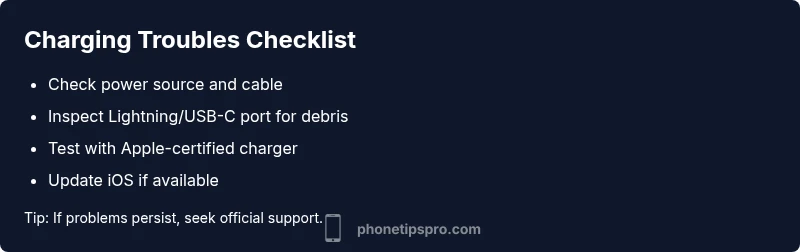
Charging cables and adapters take the most abuse. A frayed Lightning cable or a degraded USB-C brick can fail intermittently or stop charging altogether. Inspect both ends for wear, kinks, or exposed wires. If you’re using an aftermarket or third-party charger, switch to an Apple-certified accessory to rule out compatibility issues. Also inspect the iPhone’s charging port for lint, dust, or pocket debris. A clogged port can block contact and prevent charging even with a good cable. Use a soft brush or compressed air—gently—and avoid metal objects that could damage the contacts. If the port looks damaged or bent, professional inspection is advised.
Software and Settings: Keeping Your iPhone Awake While Charging
Software issues can mimic hardware problems. Be sure your iPhone is running the latest iOS version, as updates include fixes for known charging quirks. Check Settings > General > Software Update and install any available updates. Inspect battery settings and health (Settings > Battery > Battery Health) to see if the battery needs service. Close power-intensive apps running in the background that could cause the device to stay awake without charging efficiently. If AirDrop, iCloud syncing, or background app refresh is chewing power while plugged in, temporarily disable them to test charging stability.
Quick Diagnostic Checks You Can Do Now
Before you dive into fixes, run a quick diagnostic sweep:
- Try a different power outlet and remove any power strips or surge protectors from the chain.
- Swap the charging cable and adapter with known-good, Apple-certified gear.
- If you have a wireless charger, place the iPhone on it to see if wireless charging works.
- Inspect for any visible moisture or condensation and dry the device if needed.
- Reboot the iPhone to clear transient software issues. This quick triage helps you decide whether the problem is likely hardware, software, or a mix of both.
Common Scenarios: What Works and What Doesn’t
There are a few typical patterns you’ll encounter. If charging fails only at night or in certain outlets, it’s often a power source issue. If the device charges slowly but eventually reaches 100%, this may indicate battery health concerns or a strain on power management. If wireless charging works but wired charging does not, there’s likely a port or cable problem. When charging indicators flicker or disappear, it’s frequently a software or battery-management issue. Document when the problem occurs and what steps bear fruit; this helps you troubleshoot more efficiently or explain the issue to a technician.
Safe Practices and Common Pitfalls
Avoid using damaged cables or third-party adapters that aren’t Apple-certified; these can cause device damage or pose safety risks. Do not attempt to disassemble the iPhone or probe the Lightning port with metal tools. If there is any heat, strange smells, or buzzing while charging, stop charging immediately and seek professional help. Keeping your device out of extreme temperatures and avoiding low battery states for long periods can extend overall health and reduce the likelihood of charging anomalies.
When to Seek Professional Help
If you have tried all basic fixes and the iPhone still won’t charge, it’s time to reach out to Apple Support or visit an Apple Store or authorized service provider. Charging issues can stem from a failing battery, damaged port, or internal hardware fault that requires diagnostic tools. Document your attempted steps and the symptoms to speed up the service process. Regular maintenance and battery replacements may be needed for aging devices.
Steps
Estimated time: 25-40 minutes
- 1
Check power source and cables
Begin by ensuring the wall outlet is live. Try another outlet if possible. Inspect the cable for any cracks or fraying, and replace if you see damage. Confirm you are using an Apple-certified charger.
Tip: Use a fresh, undamaged cable and avoid cheap knockoffs. - 2
Inspect and clean the charging port
Power down the iPhone, then inspect the Lightning/USB-C port for lint or debris. Use a soft brush or compressed air to dislodge particles. Do not insert metal objects.
Tip: A quick clean can restore contact without expensive repairs. - 3
Test with a different charger
Connect a known-good charger and cable. If charging starts, the original accessory was likely the issue. If not, the problem is likely in the device or port.
Tip: Keep a spare Apple-certified cable handy for quick tests. - 4
Try wired and wireless charging
If wired charging fails but wireless charging works, the port is likely the culprit. If neither works, software or battery health may be at fault.
Tip: Wireless charging is a helpful backup during troubleshooting. - 5
Force restart
Perform a force restart to clear temporary software glitches that may block charging. After the device reboots, check charging behavior again.
Tip: If your iPhone has a home button, press and hold the Home and Power buttons together; for Face ID models, press Volume Down and Side button together until the Apple logo appears. - 6
Update iOS and check for battery updates
Go to Settings > General > Software Update and install any available updates. Updates often include fixes for charging glitches and battery performance.
Tip: Back up first if a major update is involved. - 7
Reset settings or reset iPhone (backup first)
If the issue persists, reset all settings to clear misconfigurations without erasing data. If that fails, consider a full backup and a factory reset.
Tip: Back up your data to iCloud or a computer before a reset. - 8
Check battery health and performance
Open Settings > Battery > Battery Health to assess maximum capacity and peak performance. A degraded battery can cause charging irregularities and may require service.
Tip: If battery health is significantly reduced, plan a replacement. - 9
Backup and service if necessary
If all home steps fail, back up your data and contact Apple Support or visit an authorized service provider for deeper diagnostics.
Tip: Professional service can diagnose port, battery, and motherboard issues.
Diagnosis: iPhone won't charge or charges very slowly
Possible Causes
- highPower issue (outlet, surge protector, USB port)
- highDamaged or worn charging cable or adapter
- highLint, dust, or debris in the Lightning/USB-C port
- mediumSoftware glitch affecting charging indicators or battery management
- lowSeverely degraded battery affecting charging rate
Fixes
- easyTest a different outlet and unplug power strips; plug directly into a wall outlet
- easyReplace the charging cable and/or adapter with an Apple-certified accessory
- easyClean the charging port with a soft brush or compressed air; avoid metal tools
- easyForce restart the iPhone to clear temporary software glitches
- easyUpdate iOS to the latest version and check for battery-related fixes
- mediumIf none of the above work, schedule service or visit Apple Support
FAQ
Why won’t my iPhone charge even with a good cable?
Common causes include port debris, a faulty cable, or a software glitch. Start with a port cleaning and test with a known-good cable. If the issue persists, check for iOS updates or seek professional help.
Most charging issues come from debris, a bad cable, or software problems. Start with cleaning the port and testing with a good cable, then update iOS if needed.
Can software updates fix charging issues?
Yes. Updates can resolve bugs in power management and charging indicators. Always ensure your iPhone runs the latest iOS version before deeper troubleshooting.
Yes. Updates often fix charging bugs, so make sure your iPhone is up to date.
Is wireless charging a reliable test for wired charging problems?
Wireless charging testing helps isolate port or cable problems. If wireless works but wired doesn’t, the issue is likely the cable or port.
Using wireless charging to test helps you tell if the port or cable is the culprit.
Should I reset all settings if charging fails?
Resetting settings can clear misconfigurations but won’t erase data. If that doesn’t help, a full backup and factory reset may be considered with caution.
Resetting can fix misconfigurations, but back up first if you plan a reset.
When is it time to visit a store?
If you’ve tried safe home fixes and the device still won’t charge, or the port is physically damaged, seek professional service at an Apple Store or authorized provider.
Visit a store if home fixes fail or the port looks damaged.
Can battery health cause charging to fail?
Poor battery health can affect charging efficiency. If maximum capacity is significantly reduced, battery replacement may be needed for reliable charging.
Battery health matters; a degraded battery can cause charging issues requiring replacement.
Watch Video
Quick Summary
- Inspect hardware first: cable, adapter, and port cleanliness.
- Rule out software glitches with updates and a restart.
- Wireless charging is a helpful test and backup method.
- If problems persist, seek official support to avoid further damage.