Why Does iPhone Stop Charging at 80% and How to Fix It
Discover why iPhone charging stops at 80%, understand the role of Optimized Battery Charging, and learn safe, proven steps to fix the issue with practical tips and warnings.


Most likely causes include Optimized Battery Charging, temperature protection, or a faulty charger. Quick fix: use a known-good charger, keep the iPhone cool, and try a different cable and wall adapter. Temporarily disable Optimized Battery Charging in Settings > Battery > Battery Health > Optimized Battery Charging if you can, then update iOS. If it still stops at 80%, contact Apple Support.
What it means when the iPhone stops charging at 80%
When you notice your iPhone pausing at around 80% while plugged in, it’s natural to worry. However, there’s a good chance this isn’t a failing battery but a protective feature called Optimized Battery Charging, complemented by environmental checks. According to Phone Tips Pro, this behavior is common and often intentional to extend overall battery health. In practical terms, the device may hold at about 80% until it senses a favorable charging window or temperature, then resume charging to full. The goal is to minimize chemical aging and maximize long-term longevity. Understanding this helps you distinguish between a minor settings issue and a true hardware fault. Keep in mind that occasional pauses are not a sign of imminent failure but a safeguard built into iOS to balance convenience with battery life.
If you’re troubleshooting, start by verifying whether Optimized Battery Charging is enabled and whether your charging environment is stable and cool. This context matters because heat and heavy use while charging can trigger pauses even on devices with healthy batteries. The Phone Tips Pro team notes that a calm environment and standard chargers reduce unnecessary pauses, especially during daily usage patterns.
Lastly, remember that the 80% threshold isn’t a hard ceiling for all cases; if you’re using a newer iPhone with iOS updates, the exact behavior may shift slightly as software evolves in 2026.
Common causes explained
There are several reasons your iPhone might stop charging at 80%. The most common is Optimized Battery Charging, a feature designed to prolong battery lifespan by slowing charging at high battery levels until you need a full charge. Temperature is another critical factor; iPhones pause charging if the device or charger becomes too hot, protecting internal cells. A faulty or non-certified charger, cable, or charging port can also create intermittent pauses or incomplete charging cycles. Finally, battery health matters: if the maximum capacity of the battery has significantly degraded, the system may cap charging to protect the battery. Each cause has a different diagnostic path, so a methodical approach helps isolate the culprit quickly.
How Optimized Battery Charging works
Optimized Battery Charging uses machine learning to understand your daily charging routine. It learns when you normally disconnect the charger and adjusts the charging rate accordingly, aiming to keep the battery at around 80% most of the time until you need it fully charged. This reduces the time the battery spends at higher voltages, which can accelerate wear. Newer iPhones and iOS versions refine this process by considering temperature, usage patterns, and the battery’s health status. If you frequently use your phone late at night or overnight, you might notice the 80% cap more often. For humans, this is a precaution, not a defect, but it can be frustrating when you want a full charge on demand.
Temperature and charging speed
Charging speed is highly sensitive to temperature. If your iPhone or charger sits in direct sun, on a hot surface, or in a warm pocket, the device may slow or pause charging to prevent heat damage. Cold conditions can also impede charging efficiency. The best practice is to charge in a cool, well-ventilated area and remove bulky cases that trap heat during charging. If you’re charging in a car, ensure the car port isn’t delivering unstable power, which can cause intermittent stops. Keeping the device under typical room temperatures (roughly 20–25°C or 68–77°F) supports steadier charging.
How to diagnose yourself
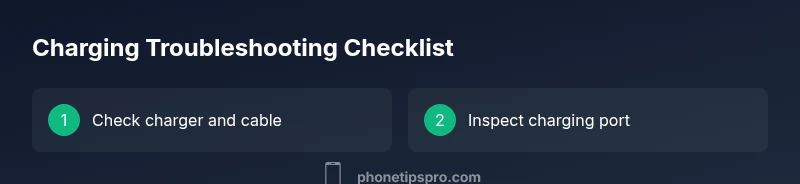
A structured self-check can reveal the cause without immediately reaching for support. Start by inspecting the charger, cable, and port for signs of wear or debris. Try a different Apple-certified charger and a shielded USB-C/Lightning cable, and clean the charging port gently with a dry brush if needed (power off). Check Settings > Battery > Battery Health to see the Maximum Capacity and whether your device recommends service. Update to the latest iOS version, as software improvements can adjust charging behavior. If the device only pauses on certain power sources, your charger or outlet might be the root issue.
Step-by-step fixes you can try
The following fixes address the most common culprits behind iPhone charging pausing at 80%. Each fix is designed to be performed safely and incrementally so you can identify what works for your setup. Start with the simplest, then escalate as needed. Keep in mind that if you notice swelling, overheating, or audible buzzing from the charger, stop and seek professional help immediately. Also, if the issue persists after backups and software updates, contact Apple Support.
Safety and warnings
Never use damaged chargers or third-party accessories that lack MFi certification. Exposed wires or bent connectors can shock you or damage your device. Avoid charging in extreme temperatures or on soft surfaces that trap heat. If you notice rapid battery drain, swelling, or heat buildup, discontinue use and have a professional assess the battery health. Always back up important data before performing resets or OS restores.
Prevention and best practices
To minimize future charging pauses, keep your iPhone in a cool environment during charging, use Apple-certified accessories, and keep iOS up to date. Regularly check Battery Health to monitor maximum capacity and calibrate the battery by charging to 100% and letting the device drain to near 0% once every few months. Consider enabling Low Power Mode when you expect long periods between charges. These steps reduce wear and help maintain reliable charging behavior over time.
When to seek professional help
If you’ve tried the above steps and the device still stops charging at 80% consistently, a professional diagnostic may be warranted. Schedule an Apple Store appointment or contact Apple Support for a battery health assessment. Battery replacements can restore charging behavior when the maximum capacity has declined significantly. Persistent symptoms after software updates and a clean charger test often indicate a hardware issue beyond simple troubleshooting.
Steps
Estimated time: 30-45 minutes
- 1
Check battery health
Open Settings > Battery > Battery Health. Note the Maximum Capacity and whether Your Battery Suggests Service. If capacity is significantly reduced, plan for potential replacement. This helps you decide if the 80% cap is a health-related safeguard or a software feature.
Tip: Take a screenshot of Battery Health for future reference. - 2
Inspect charging accessories
Closely inspect the cable, adapter, and port for visible damage or debris. Try a certified Apple charger and another cable to see if the issue persists. A damaged or uncertified accessory can trigger charging pauses.
Tip: Clean the charging port with a dry, soft brush while the device is powered off. - 3
Test different power sources
Plug into another outlet or a different USB-C/Lightning port. If you’re charging from a computer or a car adapter, try a wall outlet instead. Inconsistent power can cause the charger to halt at 80%.
Tip: Avoid high-power USB hubs that may not deliver stable current. - 4
Update iOS and reset settings (if needed)
Update to the latest iOS version. If problems continue, reset Network Settings or All Settings as a last resort before a full restore. Back up data first.
Tip: Backups ensure you don’t lose data during resets. - 5
Monitor temperature during charging
Charge in a cool room and remove bulky cases if they trap heat. If the device overheats, pause charging and allow it to cool before reconnecting.
Tip: Avoid charging on soft surfaces like a bed or pillow. - 6
Seek professional help if needed
If the above steps don’t resolve the issue, schedule a diagnostic with Apple Support or an authorized service provider. A professional battery health assessment can determine if replacement is needed.
Tip: Document symptoms and steps you’ve attempted for faster service.
Diagnosis: iPhone stops charging at 80% while plugged in
Possible Causes
- highOptimized Battery Charging is limiting charge to 80% to preserve longevity
- mediumDevice or charger is overheating during charging
- lowUsing non-certified or damaged charging accessories
Fixes
- easyTest with a certified charger and different cable
- easyDisable Optimized Battery Charging temporarily in Settings if feasible
- easyCharge in a cool environment and ensure the device isn’t overheating
- easyUpdate iOS and check Battery Health for degradation; seek service if necessary
FAQ
Why does my iPhone stop charging at 80%?
Most often this is due to Optimized Battery Charging or temperature safeguards. The feature aims to extend battery life by delaying full charging until you typically use the device. Check Battery Health and your charging environment to diagnose.
This is usually Optimized Battery Charging or temperature protection. Check Battery Health and your charging setup to diagnose.
How can I disable Optimized Battery Charging?
Go to Settings > Battery > Battery Health and toggle Optimized Battery Charging off. Remember to re-enable it later if you want to protect long-term battery life.
Go to Settings, Battery Health, and toggle off Optimized Battery Charging. Re-enable later to protect long-term health.
Does battery health affect charging behavior?
Yes. Deterioration reduces maximum capacity and can influence charging behavior. If Maximum Capacity is significantly lower, a service check may be needed.
Battery health can affect charging behavior; if capacity is low, consider a service check.
Will updating iOS fix charging pauses?
Software updates often address charging bugs and improve battery management. Ensure your iPhone runs the latest iOS version for best results.
Updating iOS can fix charging issues by improving battery management.
Should I use third-party chargers?
Stick to Apple-certified accessories. Uncertified or damaged cables can cause charging pauses or harm the device.
Use only Apple-certified chargers to avoid charging problems.
When is professional help necessary?
If charging still stops at 80% after testing, contact Apple Support for a battery health assessment or a potential replacement.
If it persists, see Apple Support for a battery health check.
Watch Video
Quick Summary
- Check Battery Health before assuming hardware failure
- Use Apple-certified accessories for reliable charging
- Keep the device cool during charging and update iOS
- Temporary Opt-Out: disable Optimized Battery Charging to test
- Seek professional help when symptoms persist