Picture editing for iPhone: A complete how-to guide
Master picture editing for iPhone with native tools and popular apps. This comprehensive, educational guide covers exposure, color, cropping, and exporting, plus practical tips, a repeatable workflow, and privacy considerations.


In this guide you’ll learn how to edit pictures on iPhone using built-in tools and popular apps. Start from RAW or JPEG, assess the image, adjust exposure and color, crop and straighten, apply non-destructive edits, and export a high-quality result. By following this repeatable workflow, you’ll improve every photo on your iPhone, and Phone Tips Pro suggests keeping originals intact whenever possible.
Why picture editing for iPhone matters\n\nPicture editing for iPhone is a powerful way to elevate everyday shots into polished memories. The iPhone’s built-in editing tools are non-destructive, meaning you can revert to the original image at any time, which is especially valuable for experimentation. In this section, the Phone Tips Pro team explains how smart edits can improve exposure, color balance, and composition without requiring a desktop workstation. According to Phone Tips Pro analysis, mastering a few core controls can dramatically improve perceived image quality across devices and platforms.\n\n- The ability to adjust light and color directly on the device enables rapid storytelling.\n- Consistent editing habits lead to a recognizable personal style.\n- Non-destructive editing preserves the original file for future revisions.\n
Native tools vs. third-party apps\n\nThe iPhone offers robust built-in editing features within the Photos app that cover essential tasks like exposure, contrast, saturation, and cropping. For more advanced work, third-party apps such as Lightroom, Snapseed, and Pixelmator bring non-destructive editing, detailed color grading, selective adjustments, and RAW workflows to the palm of your hand. This section compares trade-offs: built-in tools are quick and privacy-friendly, while third-party apps unlock professional capabilities. Phone Tips Pro notes that combining both approaches often yields the best results: start with the Photos editor for quick tweaks, then move to a dedicated app for deeper work.\n\n- Non-destructive editing is possible in many apps.\n- RAW workflows require compatible capture and app support.\n- App ecosystems vary in privacy and performance.\n
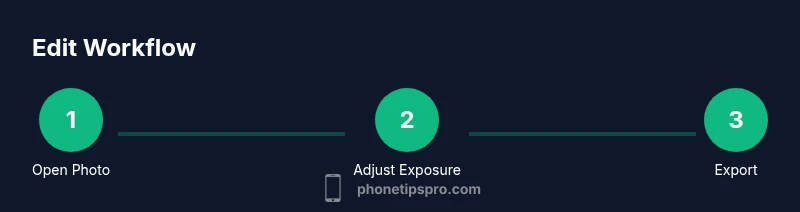
Step-by-step workflow: from RAW to polished\n\nEditing on iPhone can be a straightforward, repeatable process. Start by selecting a strong base edit, then refine tone, color, and detail with non-destructive adjustments. The steps below outline a practical workflow that works for most photos, whether you shot in RAW or JPEG. The goal is to create a consistent look across your gallery while preserving image quality.\n\n- Base adjustments establish exposure and white balance.\n- Non-destructive edits preserve the original and allow experimentation.\n- Export settings determine final quality and file size.\n
Color, exposure, and composition: practical tips\n\nColor and exposure are the foundation of a good edit. In iOS editors, adjustments to highlights, shadows, and contrast should be subtle to avoid blowing out detail. Color grading with a controlled method—choose a small range of hues and stick to it—creates a cohesive look. Composition improvements come from precise cropping and straightening, which can dramatically affect how a viewer experiences the image. Phone Tips Pro recommends testing edits on multiple screens to confirm consistency.\n\n- Use a soft, controlled hand with sliders.\n- Preview edits at 100% and toggle before/after frequently.\n- Check skin tones in portraits under neutral lighting.\n
Workflow that saves time on iPhone\n\nEfficiency matters when editing many photos. Create a repeatable workflow and leverage batch editing where available. A typical time-saving approach: start with a quick brightness and color pass in Photos, then batch-apply non-destructive adjustments in a preferred app, and finally export a small gallery for sharing. Keeping edits non-destructive enables easy updates without losing the original capture.\n\n- Create presets or allow auto-settings as a starting point.\n- Use keyboard tips and gestures to speed up editing on iPhone 14 and later.\n- Regularly back up originals to ensure safety.\n
Common pitfalls and privacy considerations\n\nOver-editing can lead to unnatural results and clip details. When sharing images online, consider privacy and consent if people appear in the photo. Some apps request broad photo access; review permissions to minimize data leakage. The Phone Tips Pro team emphasizes practicing restraint and reviewing edits on-device before exporting or sharing to protect privacy and reduce the temptation to overshare.\n\n- Avoid over-saturation and heavy sharpening.\n- Be mindful of metadata exposure in exported files.\n- Back up originals before experimenting with new apps.\n
Tools & Materials
- iPhone (latest iOS)(Ensure your device is up to date for best app compatibility)
- Photos app (built-in)(Non-destructive editing and easy sharing)
- Third-party editing apps(Lightroom, Snapseed, Pixelmator, etc.)
- Good lighting and a quiet environment(Helps with previews and color judgment)
- Charged battery or power bank(Editing can drain battery)
- Backup storage (iCloud or local)(Keep originals secure)
Steps
Estimated time: 25-60 minutes for a thorough edit of a batch of photos
- 1
Open the photo and enter Edit mode
In the Photos app, select your photo and tap Edit to enter the non-destructive editing interface. This high-contrast view shows you the before and after as you adjust exposure, color, and composition.
Tip: Use the Compare view to judge changes against the original. - 2
Adjust exposure and white balance
Use the Light or Exposure tools to balance highlights and shadows. White balance neutralizes color cast; aim for natural skin tones and accurate whites.
Tip: Make small, iterative tweaks rather than a single large shift. - 3
Tweak color and contrast
Refine saturation, vibrancy, and contrast to add depth without oversaturation. If editing in a separate app, use selective color to protect skin tones.
Tip: Avoid clipping in the brightest and darkest areas by watching the histogram if available. - 4
Crop, straighten, and align
Crop to improve composition and straighten horizons. Use the grid guides to align geometry with the Rule of Thirds.
Tip: Keep essential elements away from the edges; consider subtle vertical balance. - 5
Apply selective adjustments or presets
Non-destructive selective edits allow you to adjust only parts of the image (brush, radial, or luminance masks). Presets can speed up workflows but should be adjusted for each photo.
Tip: Start with a baseline preset and tweak per-image nuances. - 6
Export and save copies
When satisfied, export at high quality; keep a non-destructive version in the cloud or device. If you edited in a separate app, save a copy to the Photos library for easy sharing.
Tip: Always keep the original image so you can re-edit later.
FAQ
What is the best iPhone app for picture editing?
The best app depends on your needs: Photos offers quick, non-destructive edits, while apps like Lightroom or Snapseed add deeper color grading and selective adjustments. Try a combination to find your preferred workflow.
Try the built-in Photos editor for quick tweaks, then a dedicated app for advanced color control.
Can I edit RAW photos on iPhone?
Yes. iPhone supports RAW editing in compatible apps; capture in RAW if possible, then use apps with RAW support to preserve detail.
Yes, use RAW-capable apps to keep detail during edits.
Will editing reduce image quality?
Non-destructive editing in modern iOS apps preserves the original; exported files can be adjusted to maintain quality by choosing high-quality exports.
Editing doesn't harm the original if you use non-destructive tools; export at high quality.
How can I keep edits consistent across shots?
Create a personal preset or development style and apply it as a starting point; tweak per image for realism, especially skin tones.
Use presets as a starting point and adjust per photo.
Should I crop to the rule of thirds?
Cropping with the Rule of Thirds is a proven approach; use alignment guides and consider subject placement for balance.
Yes—use the rule of thirds to guide composition.
Watch Video
Quick Summary
- Edit non-destructively to keep the original
- Balance exposure before color grading
- Crop for composition, not just size
- Save high-quality exports for sharing
- Develop a repeatable workflow