Do You Need to Swap SIM Cards When Upgrading iPhone? A Practical Guide
Learn whether you must swap SIM cards when upgrading your iPhone, including eSIM options, carrier transfer steps, and practical tips to minimize downtime. Phone Tips Pro breaks down what to check before you upgrade.


do you need to swap sim cards when upgrading iphone? In most cases, no. Modern iPhones support eSIM and let you move your cellular plan to the new device, keeping your number intact. According to Phone Tips Pro, verify eSIM support with your carrier and your model before upgrading to avoid downtime.
Do you need to swap SIM cards when upgrading iPhone? What changes with SIMs in modern iPhones
In today's iPhone ecosystem, the hardware you carry into a new model is less about swapping physical cards and more about how your service is provisioned. The short answer is that you often won't need to touch a SIM card at all. The majority of recent iPhone models support eSIM, a digital SIM that handles your cellular plan without a plastic card. This shift reduces downtime when moving to a new iPhone and makes switching between carriers or plans much smoother. According to Phone Tips Pro, the best practice is to confirm whether your new device and carrier can support eSIM, and to prepare by updating carrier settings before you upgrade. If you must use a physical SIM, your old SIM can be moved to the new phone in minutes with the right tray tool and a quiet setup, but many users will bypass this step entirely.
Understanding SIM types: physical SIM vs eSIM
SIM cards come in two main formats on iPhone: physical nano-SIM and eSIM. The nano-SIM is a small plastic card inserted into the tray, used by older iPhones and some current models. eSIM is a digital profile that you download to the phone, and it can store multiple cellular plans. With eSIM, you can switch carriers or plans without swapping cards. In many regions and with most carriers, you can activate an eSIM before you activate the new phone, which speeds up the upgrade process. Phone Tips Pro recommends confirming whether your new model supports eSIM and whether your carrier can provision the eSIM remotely. If you still need a physical SIM, ensure you have your old SIM card or a compatible replacement on hand.
When you might still swap a SIM card
There are scenarios where a SIM swap is unavoidable: if your new iPhone is locked to a carrier that does not support eSIM, if you are moving to a different country with a carrier that requires a local physical SIM, or if your old device uses a SIM profile that cannot be transferred. Some regional models differ in eSIM support. If you are uncertain, contact your carrier for compatibility and provisioning steps before you upgrade. Phone Tips Pro emphasizes planning ahead and keeping a fallback method in case digital provisioning fails.
How to prepare before upgrading
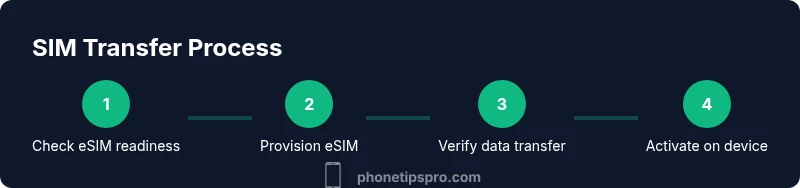
Before pulling the trigger on a new iPhone, verify model compatibility, availability of eSIM provisioning, and your carrier’s steps. Back up your data to iCloud or a computer. Gather essential information: your account number, PIN or password, and a list of devices to be transferred. Check for any pending carrier software updates, then update iOS and carrier settings on the old device. Having a plan helps minimize downtime and ensures you can react quickly if eSIM provisioning needs a carrier callback.
Day-of-upgrade steps
Power down the old phone if your carrier requires it, then power on the new iPhone and start setup. If using a physical SIM, insert the SIM tray with the correct orientation. If using eSIM, scan the QR code provided by your carrier or use the carrier app to provision the eSIM. Follow on-screen prompts to complete activation and set up mobile data. Keep both devices nearby, and use a stable Wi‑Fi connection during activation to speed everything along.
Post-upgrade checks and troubleshooting
Test calling, texting, and data to confirm connectivity. Verify that voicemail, MMS, and APN settings function correctly. If data or voice fails, toggle Airplane mode, reset network settings, or re-run the eSIM provisioning from Settings > Cellular > Add Cellular Plan. If issues persist, contact your carrier with the new device’s IMEI and model details for expedited help. This reduces downtime and frustration.
Practical tips to avoid downtime and common mistakes
Plan ahead by confirming eSIM availability for the exact iPhone model and region you’re upgrading to. Have a backup plan (a physical SIM or another carrier) in case provisioning fails. Keep your old device charged and backed up until you’ve confirmed the new one is fully functional. Phone Tips Pro’s guidance emphasizes testing all services immediately after setup to catch any issues early.
Tools & Materials
- SIM ejector tool(Used to eject the SIM tray on iPhone models with a physical SIM.)
- Physical SIM card (if applicable)(Have your current SIM handy if your upgrade uses a physical SIM.)
- iPhone charger and cable(Needed for device setup and charging during transfer.)
- Carrier eSIM provisioning info(Have your account number, PIN, and plan details for eSIM provisioning.)
- Backup for old iPhone(Back up to iCloud or computer before transferring data.)
- Stable Wi‑Fi connection(Ensure a reliable internet connection during eSIM activation.)
Steps
Estimated time: 20-40 minutes
- 1
Check compatibility and readiness
Confirm that your new iPhone model supports eSIM and that your region/carrier can provision the eSIM. This minimizes surprises during setup.
Tip: Call your carrier or check their online portal to confirm eSIM support before purchase. - 2
Back up your old iPhone
Back up photos, messages, apps, and settings to iCloud or your computer so you can restore seamlessly on the new device.
Tip: Backups prevent data loss if you need to reset the new phone during setup. - 3
Gather carrier details
Have your account number, PIN, and current plan details ready. These help with eSIM provisioning or any SIM swap if required.
Tip: Double-check plan eligibility for multi-line or family plans to avoid interruptions. - 4
Prepare the new iPhone
Power on the new iPhone, connect to Wi-Fi, and start the setup flow. If you’re using eSIM, there is typically a prompt to transfer or add a cellular plan.
Tip: Keep the old device nearby in case you need to compare settings during setup. - 5
Provision eSIM or insert physical SIM
Scan the QR code provided by your carrier or use the carrier app to provision the eSIM. If using physical SIM, insert it into the tray with the correct orientation.
Tip: If the device prompts you for a carrier activation step, proceed and complete it before continuing. - 6
Complete activation and test
Finish setup, activate services, and test calls, texts, and data. Ensure roaming, hotspot, and voicemail behave as expected.
Tip: Run a quick data test and place a test call to verify connectivity. - 7
Troubleshoot if needed
If something doesn’t work, reset network settings, re-run eSIM provisioning, or contact the carrier for assistance.
Tip: Document any error codes or prompts to speed up support. - 8
Finalize and secure your setup
Delete unused profiles, update passwords, and review app permissions to ensure your new iPhone is both secure and functional.
Tip: Keep a record of the activation steps in case you need to replicate later.
FAQ
Do I need to swap a physical SIM card when upgrading to a newer iPhone?
Usually not. If your new iPhone and carrier support eSIM, you can transfer the line digitally with minimal downtime. If a physical SIM is required, your old SIM can be moved to the new device with the tray tool.
Most upgrades don’t require a physical SIM swap; check eSIM support and provisioning with your carrier.
What if my new iPhone doesn’t support eSIM?
While most newer iPhones support eSIM, some regional models might not. In those cases you’ll use a physical SIM or a carrier-specific transfer method.
If there’s no eSIM, you’ll rely on a physical SIM transfer.
Can I keep my old number when upgrading?
Yes. In most cases your existing mobile number transfers to the new iPhone via eSIM or SIM swap without changing your plan.
Your number can usually be moved to the new device.
How long does eSIM provisioning take?
Provisioning is typically quick, often minutes, but occasional carrier delays can extend this. Have your carrier details ready.
Provisioning can be almost instant or take a few minutes.
What should I do if I experience downtime after upgrading?
Test connectivity right away, re-run provisioning if needed, and contact your carrier if issues persist.
If there’s downtime, re-provision and reach out to your carrier.
Do all iPhone models support eSIM?
Most iPhone models since the iPhone XS support eSIM, but always confirm for your specific model and region.
Check your exact model’s eSIM capability with Apple and your carrier.
Watch Video
Quick Summary
- Most upgrades don’t require a physical SIM swap.
- eSIM provisioning is the preferred path when supported.
- Always verify carrier compatibility before upgrading.
- Back up data before starting the upgrade.
- Test all cellular services after setup to avoid downtime.