Do You Need to Remove SIM Card When Trading In iPhone? A Practical Guide
Learn whether you need to remove the SIM card when trading in your iPhone. This guide covers steps, safety tips, and best practices from Phone Tips Pro for a smooth trade-in.


Do you need to remove sim card when trading in iphone? In most cases, the SIM card can stay in place during a trade-in. Trade-in programs focus on erasing data and returning the phone in good condition, not inspecting the SIM tray. If your device uses an eSIM, there is typically nothing physical to remove. Always back up data and perform a factory reset before handing over the device.
SIM card basics for trade-in
For many iPhone trade-ins, the physical SIM card is not the focal point. The key concerns are data protection, device condition, and whether the phone is properly reset. According to Phone Tips Pro, most programs don’t require removing the SIM tray to process a trade-in. If you rely on an eSIM, there is no physical card to remove, which simplifies preparation. This distinction helps you plan your steps without unnecessary fiddling with the SIM tray. The overarching goal is to protect your data while ensuring the device is ready for resale or reuse.
Understanding SIM vs eSIM on modern iPhones
iPhones today often support both physical SIMs and eSIMs. If your model uses a physical SIM, you’ll see a SIM tray that can be opened with a SIM eject tool. If your iPhone relies on an eSIM, there is no removable card at all. For trade-ins, the critical factor is that the device is reset and any carrier settings are handled per policy. Knowing whether your phone uses SIM, eSIM, or a combination helps determine whether you ever need to touch the tray.
Do you need to remove the physical SIM card? What to know
Do you need to remove sim card when trading in iphone? In most cases, you do not need to remove the SIM card before handing in your device. Leaving the SIM in place will not affect the data wipe, and the trade-in process will still erase your data. If you plan to reuse the SIM in a new device, you may remove it to avoid leaving your number in an old tray. Always review the specific trade-in terms to be certain.
How trade-in programs view SIM status and data protection
Different programs vary in their requirements. Some may request removal of the SIM for their own auditing or testing, while others won’t mind it left in. The real priority is data protection: ensure you’ve backed up, signed out of iCloud, and erased all content before you submit the device. A SIM left in place generally does not provide access to data if the phone has already been wiped.
Why data erase and account sign-out matter more than SIM status
The core protection for your information is a factory reset and removing your iCloud association. Sign out of iCloud, disable Find My iPhone, and wipe the device clean. The SIM tray does not store apps or personal data—it's the data on the device that matters for your privacy and for the final resale value. Focus on proper erasure and account removal as the primary steps.
Data backup and reset checklist
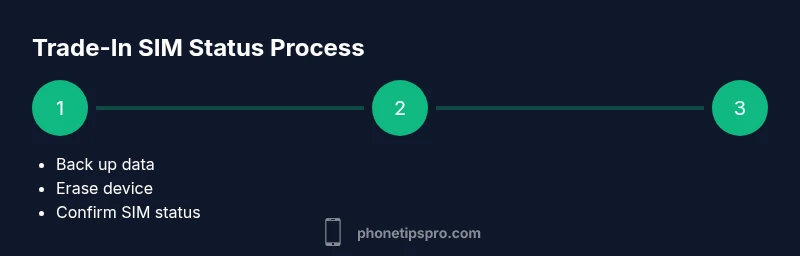
Before you hand over your iPhone, back up everything you care about. Use iCloud or a computer to create a thorough backup. Then sign out of iCloud, turn off Find My iPhone, and perform a full erase (Settings > General > Transfer or Reset iPhone > Erase All Content and Settings). If you plan to reuse the SIM, remove it beforehand; otherwise, you can leave it in place and let the reset handle data removal.
Data backup and reset continued: step-by-step reminders
- Ensure your backup includes photos, contacts, and app data. - Verify you know your Apple ID password before erasing. - If your phone uses an eSIM, confirm you’ve saved any necessary eSIM details. - After erasing, do a quick check that the device boots to setup screen and asks for language/settings rather than showing personal data. - Reinsert the SIM only if you intend to keep the same number in a new device; otherwise, you can leave it as is for the trade-in.
International considerations and carrier unlocks
If you’re trading in abroad or through a carrier with strict unlock rules, check whether unlocking is required prior to trade-in. An unlocked iPhone can avoid future carrier restrictions, but this is separate from SIM removal. If the device is carrier-locked, the trade-in center may provide unlock directions or require a reset once unlocked. Always confirm with the trade-in provider about any region-specific steps.
Common mistakes to avoid during trade-in
Avoid forgetting to back up, failing to sign out of iCloud, or skipping the Find My iPhone step. Don’t assume the SIM must be removed—many programs don’t require it, especially if you’re using an eSIM. Double-check the trade-in terms to ensure you meet all criteria and avoid last-minute surprises at drop-off.
Next steps if you’re unsure about SIM removal
If you’re unsure whether to remove the SIM, contact the specific trade-in program for guidance. They can tell you whether the SIM tray needs to be accessed, and they’ll explain any implications for your data or service. By following the general data-protection steps outlined above, you’ll have a smooth trade-in regardless of the SIM decision.
Tools & Materials
- iPhone(All models supported; ensure it's in lending condition for trade-in)
- SIM eject tool(Only if you plan to remove the SIM yourself; optional if untouched)
- Backup method (iCloud or computer)(Back up all data before erasing)
- Access to Apple ID credentials(Required to sign out from iCloud during reset)
Steps
Estimated time: 30-60 minutes
- 1
Back up your iPhone data
Create a complete backup via iCloud or Finder/iTunes to preserve photos, messages, and app data. Confirm the backup completed successfully before proceeding.
Tip: Use a second backup method if your primary method shows any errors. - 2
Sign out of services
Sign out of iCloud, iTunes, and the App Store to ensure your accounts aren’t linked to the device after reset.
Tip: Have your Apple ID password handy for a smooth sign-out. - 3
Disable Find My iPhone
Go to Settings > [Your Name] > Find My > Find My iPhone and turn it off. This helps the device be ready for the next owner.
Tip: You can re-enable Find My iPhone on your new device later if needed. - 4
Erase all content and settings
Reset the device to factory settings via Settings > General > Transfer or Reset iPhone > Erase All Content and Settings.
Tip: If asked, enter your passcode and Apple ID password to deactivate Activation Lock. - 5
Decide on SIM removal
If you plan to reuse the SIM in another device, remove it now; otherwise, you can leave it in place. The reset will not harm the SIM tray.
Tip: Take a photo of the SIM tray layout if you’re reusing it later. - 6
Inspect the device condition
Check for visible damage, clean the screen, and ensure buttons work. Document any flaws for the trade-in assessment.
Tip: Small cosmetic issues typically won’t derail the trade-in if the device is functional.
FAQ
Do I need to remove the SIM card when trading in my iPhone?
Most trade-in programs do not require removing the physical SIM card. The priority is data erasure and device condition. If you plan to reuse the SIM, you can remove it, but it’s not usually a requirement for the trade-in.
Most trade-ins don’t require removing the SIM card; just make sure you erase data and follow the program’s terms.
What about eSIM devices?
For iPhones that rely on an eSIM, there is no physical SIM to remove. Focus on backing up data and performing a factory reset. This makes the process simpler when you trade in.
If your iPhone uses eSIM, you don’t have a physical SIM to remove, so just reset and wipe the device.
Should I unlock my iPhone before trading in?
Unlocking depends on the carrier and the trade-in policy. Many programs accept carrier-locked devices, but unlocking can improve future usability. Check with the trade-in provider for any unlock requirements.
Unlocking can help later on, but check the trade-in program’s policy first.
What steps ensure my data is safe after trade-in?
Back up, sign out of iCloud, turn off Find My iPhone, and erase all content and settings. These steps minimize privacy risks and help ensure a smooth transfer to the next owner.
Back up, sign out, disable Find My iPhone, and erase all data for safety.
Do I need to remove the SIM tray if I’m not reusing the SIM?
If you’re not reusing the SIM, it’s optional to remove the tray. Some users do this to avoid leaving the SIM in the old phone, but most programs won’t require it.
Not required, but you can remove the tray if you won’t reuse the SIM.
Watch Video
Quick Summary
- Back up data before trade-in
- Understand if your device uses SIM, eSIM, or both
- Factory reset and sign out of accounts attentively
- Check trade-in terms for SIM-related requirements