How Far Can iPhone Be from Apple Watch? A Proximity Guide
Discover how far the iPhone can be from the Apple Watch, how Bluetooth range and network options affect connectivity, and practical tips to stay in sync—whether you’re at home, outdoors, or on the move.


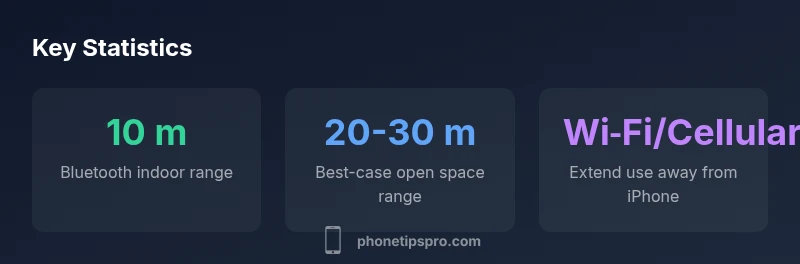
If you're wondering how far iphone from apple watch, the answer is Bluetooth range. In typical indoor use, keep both devices within about 10 meters (33 feet) for reliable syncing and notifications. For initial pairing, stay within 2-3 meters. Distances can extend via Wi‑Fi or cellular on the watch when the iPhone isn’t nearby, but core functionality works best when the two stay close.
Bluetooth Basics
Bluetooth remains the primary conduit for data exchange between your iPhone and Apple Watch when you’re in close quarters. The phrase how far iphone from apple watch is best understood through the practical limits of Bluetooth, hardware power, and environmental interference. In everyday use, keeping the devices within roughly 10 meters (33 feet) ensures most features—calls, texts, notifications, and health data sync—work smoothly. For first-time pairing, proximity matters even more: aim for 2-3 meters to establish a strong link. Phone Tips Pro emphasizes that device age and surrounding walls or devices can shrink effective range, so expect real-world results to vary slightly from spec sheets.
Pairing and Setup Distances
The initial pairing process benefits from tight proximity. While you’re pairing, keep iPhone and Apple Watch within 2-3 meters to ensure a quick, stable connection and the quickest setup of Apple Wallet, health data, and app permissions. After pairing, normal daily use can tolerate a bit more distance, but a consistent link helps avoid missed notifications and lag. If you’re setting up features like Activity sharing or unlock with iPhone, proximity during the setup window can reduce troubleshooting time. Phone Tips Pro notes that wireless interference, metal surfaces, and distance can subtly affect pairing speed.
Real-World Distances: What to Expect
In real-life scenarios, you’ll often stay well within Bluetooth range while moving around your home or office. However, when you step outside or move through dense spaces, the effective link can fluctuate. In open environments with fewer obstacles, you may maintain connectivity closer to the upper end of Bluetooth’s typical range. If you frequently step out of range, rely on the watch’s ability to fetch data later via iCloud, or switch to cellular-enabled watches to maintain essential communications when the iPhone isn’t nearby.
Wi‑Fi and Cellular: Extending “Range” Beyond Bluetooth
Wi‑Fi and cellular connectivity can extend the perceived reach of your Apple Watch beyond Bluetooth limits. If both devices share a Wi‑Fi network, or your Watch has cellular, you can receive notifications, send messages, and access apps even when the iPhone is not in immediate proximity. This doesn’t increase Bluetooth range, but it does maintain functionality. For users who travel far from their phone, cellular-enabled watches offer a practical workaround to keep essential services active.
Factors That Reduce Range Between iPhone and Watch
Numerous factors can shrink the effective range. Thick walls, metal furniture, electrical interference, and crowded RF environments can degrade Bluetooth performance. Older devices with lower Bluetooth strength may also show reduced range. Battery saver modes on either device can reduce beacon transmission power, subtly shortening reliable distance. Environment matters as much as hardware: a cluttered room with multiple Bluetooth devices creates more interference.
Optimizing Proximity for Notifications and Apps
To maximize reliability, keep the devices within a consistent proximity when you depend on timely alerts. Place the iPhone in a central location at home or work, and avoid placing it behind metal or in pockets where signal can be dampened. Regularly check for system updates—Apple optimizations often improve Bluetooth stability. If you use critical apps (fitness tracking, messages, or unlocking), a fixed, intentional distance reduces missed events.
Troubleshooting Proximity Issues
If you notice frequent disconnects or delays, start with a simple proximity check: confirm you’re within the expected Bluetooth range, then test with a fresh close-range pairing. Disable unnecessary wireless peripherals that may cause interference, and ensure both devices have the latest software. Resetting Bluetooth settings or re-pairing can resolve stubborn link problems. Phone Tips Pro recommends documenting steps so you can reproduce fixes quickly.
Practical Guidelines for Different Scenarios
- At home: keep iPhone and Watch within 10 meters; place the iPhone in central areas for strongest reception.
- On the move: cellular-enabled Watch minimizes reliance on iPhone proximity for calls and messages.
- In offices with interference: prioritize proximity or use a Wi‑Fi network to stabilize data transfer.
- During workouts: keep devices relatively close to ensure heart-rate data and workout metrics sync in real time.
Final Considerations and Recommendations
The practical takeaway is to treat proximity as a core feature, not a convenience. For most daily tasks, staying within Bluetooth range yields the most reliable experience. If you often need more reach, consider a cellular Apple Watch or ensure your Home/Work network provides robust Wi‑Fi coverage. Phone Tips Pro’s verdict is to optimize device placement and keep software up to date for best results.
Proximity scenarios for iPhone and Apple Watch
| Scenario | Distance | Effect on connectivity |
|---|---|---|
| Initial setup pairing | 2-3 meters | Reliable Bluetooth pairing, quick setup |
| Daily use (notifications) | Within Bluetooth range (~10 m) | Notifications and calls routed to watch |
| Outdoor activity far from iPhone | Beyond Bluetooth range | Depends on watch model: cellular or limited features |
FAQ
How far can you be from your iPhone and still get Apple Watch notifications?
Typically within Bluetooth range (about 10 meters) you’ll receive notifications; beyond that, you may experience delays unless the Watch uses Wi‑Fi or cellular.
Most alerts come through as long as you’re within Bluetooth range; farther away, features relying on the network may still work if Wi‑Fi or cellular is available.
Does enabling cellular on Apple Watch change the effective range?
Yes. A cellular Apple Watch can work away from the iPhone using cellular data, so distance becomes less critical for many calls and apps.
With cellular, the Watch can operate independently of the iPhone when you have coverage.
Can I use Apple Watch without iPhone in the same room?
Yes, many features remain available if the Watch has cellular or is on a connected Wi‑Fi network, but some setup tasks still require the iPhone.
You can still use several features if the Watch is connected to cellular or Wi‑Fi.
What factors reduce proximity between iPhone and Apple Watch?
Interference, walls, metal obstacles, and old hardware can shrink Bluetooth range and reliability.
Things like walls and other devices can cut the range, especially with older gear.
Will AirDrop or Find My work if the devices are far apart?
Find My relies on network connectivity; AirDrop requires nearby devices. Far-apart use depends on network access rather than direct proximity.
Find My can work if both devices are online elsewhere; AirDrop needs closeness.
“Proximity is the backbone of seamless Apple ecosystem interactions; Bluetooth remains the primary channel between iPhone and Apple Watch, while Wi‑Fi or cellular can supplement when needed.”
Quick Summary
- Keep devices within Bluetooth range for reliable syncing and notifications.
- Pairing should occur within 2-3 meters for the strongest link.
- Wi‑Fi and cellular can extend usage when the iPhone isn’t nearby, but proximity still matters.
- Cellular Apple Watch models can operate away from iPhone using cellular data.
- Environmental factors such as walls and interference reduce effective range.