How to Connect iPhone with Apple Watch: Pairing Guide
Learn how to connect iPhone with Apple Watch with step-by-step pairing, troubleshooting tips, and expert recommendations from Phone Tips Pro.


To connect your iPhone with Apple Watch, start by ensuring both devices are charged and updated. Open the Apple Watch app on iPhone, then choose 'Pair New Watch' and follow on-screen prompts. Keep devices close and connected to Wi‑Fi or cellular as needed. This pairing enables notifications, health data sync, and continuity features.
Why Pairing iPhone with Apple Watch Enhances Everyday Use
Pairing your iPhone with Apple Watch unlocks a tightly integrated experience across communications, health, and productivity. According to Phone Tips Pro, the two devices work best when they communicate in real time, reducing the need to pull out your phone for quick actions. With a connected watch, you get instant notifications, health metrics sync, Watch face complications, and Handoff features that let you start tasks on one device and continue on the other. When you wear both devices, you gain a more seamless day, from replying to messages with a glance to starting a workout without reaching for your pocket. This guide walks you through the practical steps to connect them, what to expect during setup, and proven troubleshooting strategies to avoid common pitfalls.
Compatibility and Requirements
To connect iPhone and Apple Watch, you need a compatible iPhone with the latest iOS and an Apple Watch that runs a watchOS version supported by your iPhone. Make sure both devices are signed into the same Apple ID, Bluetooth is enabled on the iPhone, and you have a stable Internet connection when prompted. Keeping both devices charged and within close proximity during setup reduces pairing delays. Phone Tips Pro recommends performing the pairing in a quiet, well-lit area to help the iPhone camera recognize the Watch pairing animation quickly.
What Happens During Pairing
During pairing, the iPhone displays a pairing animation while the Watch shows a matching animation. The devices exchange cryptographic data to establish a secure link, then you’re prompted to sign in with your Apple ID and enable basic settings such as notifications, activity tracking, and Siri. This process creates a data bridge so your health metrics, calendars, reminders, and apps sync across both devices. If you use iCloud, your preferences and backup options can also sync, ensuring a smoother migration if you ever switch devices.
The Pairing Flow in Practice
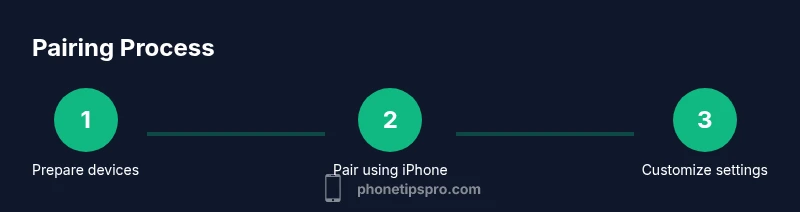
In real-world use, pairing begins with preparing the devices, then initiating pairing in the Watch app on iPhone. You’ll see prompts to confirm your Apple ID, accept terms, and tailor settings like which notifications to mirror on the Watch. The initial pairing can take several minutes, depending on device performance and network speed. After pairing, you’ll be guided through optional settings, including wrist detection, App Layout, and Siri preferences. The goal is to create a frictionless experience where most actions can be done from your Watch or iPhone without switching devices.
Troubleshooting Common Pairing Problems
If the iPhone can’t find the Watch, bring the devices within a few inches of each other, toggle Bluetooth off and on, and make sure the Watch is not already paired with another iPhone. If pairing fails at the camera stage, restart both devices and retry. For connection drops after pairing, check for software updates on both devices, reset network settings if needed, and ensure the Watch is on your wrist with a stable connection. Persistent issues may require unpairing and re-pairing from scratch or consulting Apple Support for deeper diagnostics.
Tips for Optimizing Notifications and Health Data Sync
Customize which apps mirror notifications on your Watch to avoid duplicates and battery drain. Enable Wrist Detection and ensure your Health data is syncing with iCloud if you use multiple devices. Keep your Watch faces updated to reflect quick-access complications that matter most to you, such as Activity rings or calendar reminders. Regular software updates help prevent compatibility glitches and improve general performance of the pairing bridge.
Privacy and Security When Your Watch Is Paired
Pairing introduces access to certain personal data—notifications, health metrics, and location history—so review privacy settings. Use a strong passcode on both devices and enable wrist-detection for automatic locking when the Watch isn’t worn. Consider enabling Find My to locate either device if misplaced. Regularly review which apps have permission to access health data and adjust as needed to maintain privacy.
After Pairing: Maintenance and Re-pairing Scenarios
Keep your devices up to date, and perform periodic checks to ensure the Watch remains in sync with iPhone. If you ever reset either device, you’ll likely need to re-pair from scratch; having an up-to-date backup of health and activity data makes this smoother. When upgrading to a new iPhone, unpairing from the old iPhone first is recommended to preserve data integrity and minimize setup time on the new device.
Tools & Materials
- iPhone with latest iOS version(Ensure iPhone is updated for best compatibility.)
- Apple Watch with latest watchOS version(Keep watch charged and ready.)
- Apple ID signed in on iPhone(Needed to enable pairing and iCloud features.)
- Bluetooth and Wi‑Fi enabled on iPhone(Bluetooth must be on; Wi‑Fi improves setup if prompted.)
- Stable power during setup(Charge levels above 50% recommended for both devices.)
Steps
Estimated time: 5-15 minutes
- 1
Open the Apple Watch app on iPhone
Unlock your iPhone and launch the Apple Watch app. Bring the devices close together to ensure the camera on the iPhone can scan the pairing animation. This step initializes the pairing environment and prepares the devices for the next prompts.
Tip: Keep phones and watch within a few inches during the scan to avoid a failed setup. - 2
Tap Pair New Watch
In the Watch app, tap 'Pair New Watch' to start the pairing flow. If you don’t see the option, confirm you’re signed into the correct Apple ID and that Bluetooth is enabled on the iPhone.
Tip: If you see a message about restoring from backup, choose a fresh setup or use your most recent backup. - 3
Position Watch for pairing
Hold the Watch up to the iPhone so the pairing animation aligns with the on-screen cue. Once the camera recognizes the Watch, the devices will connect.
Tip: Tilt the Watch so the screen is clearly visible to the iPhone camera. Any tilt helps the scan succeed. - 4
Follow on-screen prompts to sign in
Enter your Apple ID if prompted and verify any two-factor authentication steps. You may need to enter the Watch’s passcode and permit data sharing during setup.
Tip: If you forgot your Apple ID password, use Apple’s account recovery flow instead of guessing. - 5
Configure essential settings
Choose which notifications to mirror, set preferences for Activity, Siri, and app availability. You can adjust these later in the Watch app if you change your needs.
Tip: Start with a minimal notification set and add more apps later to avoid overload. - 6
Complete pairing and sync
Wait for the pairing to finish and for data to sync between devices. You’ll see a welcome screen once the setup is complete, then you can customize faces and complications.
Tip: If sync stalls, restart both devices and try again.
FAQ
Do I need an iPhone to pair an Apple Watch?
Yes. An iPhone is required to pair and manage an Apple Watch. The initial setup is done through the iPhone’s Apple Watch app, and future changes sync via iCloud.
An iPhone is required to pair Apple Watch, and you’ll manage settings from the iPhone.
What should I do if my iPhone can’t find my Apple Watch?
Move the devices closer, enable Bluetooth, and retry pairing. If it still fails, make sure both devices are on the latest software and try unpairing and re-pairing.
Make sure Bluetooth is on and the devices are close; retry pairing, and update software if needed.
Can I pair the Apple Watch with a non-Apple phone?
No. Apple Watch pairing requires an iPhone. Some features require an iPhone to configure and manage the watch.
Apple Watch pairs with iPhone only; you’ll need an iPhone to pair and use it fully.
How long does the pairing usually take?
Most users complete the pairing within a few minutes, depending on device readiness and network conditions.
Pairing typically takes a few minutes, depending on devices and network.
What if I’m upgrading to a new iPhone?
Unpair the Watch from the old iPhone first to preserve data backups, then pair it with the new iPhone and restore from backup if available.
Unpair first from the old iPhone, then pair with the new one and restore data if possible.
I forgot my Apple ID password during setup—what now?
Use Apple’s account recovery flow to reset your password, then continue the pairing process. If needed, contact Apple Support for help.
Reset your Apple ID password and continue pairing, or contact support if you’re stuck.
Watch Video
Quick Summary
- Prepare both devices and keep them charged.
- Follow on-screen steps precisely for quick pairing.
- Customize notifications after pairing for efficiency.
- Regularly update iPhone and Watch for best compatibility.
- If issues arise, restart devices or re-pair as needed.