How to Mirror iPhone to TV: A Practical Guide
Learn how to mirror your iPhone to a TV using AirPlay, HDMI adapters, or smart TVs. This Phone Tips Pro guide covers wired and wireless methods, setup steps, and troubleshooting.


This guide helps you mirror your iPhone to a TV in minutes using either wireless AirPlay or a wired HDMI setup. Start by choosing AirPlay for an easy wireless path if your TV supports it, or pick a Lightning Digital AV Adapter or USB-C to HDMI adapter for a reliable wired connection. Ensure devices are on the same network for wireless, then follow the connection steps and adjust the TV display for optimal clarity.
Why mirroring iPhone to TV matters
If you want to turn a small screen into a shared viewing experience, mirroring your iPhone to a TV is a simple and effective solution. When you learn how mirror iphone to tv, you will discover the practical tradeoffs between wireless AirPlay and wired HDMI and how to choose the right approach for your space. Wireless AirPlay is fast to set up and clutter free, making it ideal for casual streaming, slideshows and sharing content with family. Wired HDMI using an adapter offers rock solid latency and image fidelity which matters for gaming, live demonstrations or classrooms with bright lighting. This section also explains device compatibility, network requirements and basic privacy considerations so you can mirror confidently in your living room, bedroom or office. By the end you will know which method to pick and how to optimize settings for crisp stable output on your TV.
Quick comparison of methods AirPlay, HDMI and USB-C to HDMI
AirPlay is the simplest if your TV or Apple TV supports it because you can start mirroring with a couple taps and a code prompt in some cases. HDMI with a Lightning Digital AV Adapter or USB-C to HDMI adapter gives you a direct low latency connection that behaves like a wired monitor. USB-C to HDMI adapters can support high resolutions and HDR depending on your iPhone and TV. If you are comparing cost throughput and convenience this section helps you map out the expected results before you buy extra hardware. Consider your room usability if you frequently move between rooms; wireless AirPlay reduces clutter, but if you require uninterrupted operation a wired HDMI setup is usually more reliable.
Wireless setup basics AirPlay
To mirror wirelessly ensure your iPhone and TV or Apple TV are on the same Wi Fi network. On the iPhone open Control Center and tap Screen Mirroring then choose the target TV or Apple TV. If a code appears on screen enter it on the iPhone. For best results keep the iPhone within a few meters of the TV and minimize network congestion by turning off other high bandwidth tasks while mirroring. If AirPlay fails reset your router or toggle Wi Fi off and back on and check for software updates on both devices. In short AirPlay is fast simple and well suited to most living rooms and bedrooms.
Wired setup basics HDMI
For a stable wired connection connect a USB-C to HDMI adapter to the iPhone or a Lightning to HDMI adapter for older devices. Attach an HDMI cable from the adapter to the TV then switch the TV input to the corresponding HDMI port. Your iPhone screen should appear on the TV immediately. If you do not see anything retry the cable connection and restart the iPhone. This method minimizes latency and buffering making it ideal for formal presentations or classrooms with strong Wi Fi interference.
Troubleshooting common issues
When mirroring does not behave as expected start with the basics verify cables are firmly connected the correct TV input is chosen and the iPhone is not in Low Power Mode affecting AirPlay. For wireless AirPlay confirm both devices share a stable Wi Fi network and that AirPlay is enabled on the TV. If there is screen jitter or color issues adjust the TV picture mode and disable any HDR setting that the TV might struggle with. If latency remains reduce video quality or turn off background apps on the iPhone to free up resources. Finally ensure the iPhone ios is up to date and that the TV firmware supports AirPlay 2 or HDMI CEC as appropriate.
Tips for a smoother experience
Plan ahead with a dedicated setup station a labeled HDMI port for wired mirroring and a ready AirPlay target on standby for wireless. Keep the iPhone within line of sight of the TV to minimize connection drops and close bandwidth heavy apps during mirroring sessions. If you are sharing content with others consider privacy by disabling screen mirroring when not needed and use Face ID or a passcode to lock your device. These practices help ensure smooth fast and secure mirroring with minimal hassle.
Tools & Materials
- Wi-Fi network (2.4GHz or 5GHz)(Stable home network, ideally 5 GHz for AirPlay)
- AirPlay-enabled TV or Apple TV device(Essential for wireless mirroring)
- Lightning Digital AV Adapter or USB-C to HDMI adapter(Choose based on iPhone model; used for wired mirroring)
- HDMI cable(Needed to connect adapter to TV)
- TV with HDMI input(Most modern TVs support HDMI input)
- Optional HDMI switch(Use if sharing among multiple displays)
Steps
Estimated time: 15-25 minutes
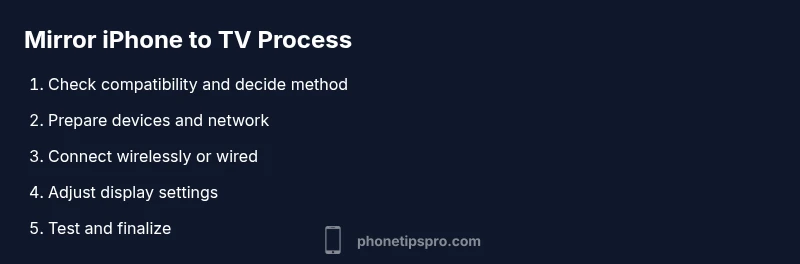
- 1
Check compatibility and select method
Before you start verify that your iPhone model and TV support AirPlay or USB-C to HDMI. If you have an AirPlay enabled TV or Apple TV AirPlay is usually the simplest option. If not plan to use a wired HDMI connection with an appropriate adapter.
Tip: If you are unsure about compatibility verify the TV manual or manufacturer support page - 2
Prepare devices and network
Power on both devices connect to the same Wi Fi network for wireless mirroring and enable AirPlay on the TV. Have the HDMI cable and adapters handy for wired setup.
Tip: Turn off any VPNs that could block local network discovery - 3
Connect wirelessly (AirPlay)
On iPhone swipe to Control Center tap Screen Mirroring select the TV or Apple TV. If prompted enter the on screen code. Keep devices within a few meters to reduce dropouts.
Tip: Place devices within line of sight to minimize interference - 4
Connect with HDMI (wired)
Attach the appropriate adapter to the iPhone and connect the HDMI cable to the TV. Switch the TV input to the HDMI port. The display should mirror automatically; if not restart or reattach the cable.
Tip: Use a high quality HDMI cable to prevent handshake issues - 5
Fine tune display settings
Adjust resolution and aspect ratio on the TV and iPhone. If the app does not fill the screen use the TV zoom or picture mode settings.
Tip: Set the TV to Just Scan or Full to avoid letterboxing - 6
Test and finalize
Test with a video and a presentation to ensure quality. Save the connection as a favorite on the TV if you mirror often.
Tip: Have a backup plan such as a spare HDMI port - 7
End mirroring
To stop mirroring open Control Center on the iPhone and tap Stop Mirroring or unplug the adapter for wired setups.
Tip: Disable AirPlay when not needed to preserve battery
FAQ
Can I mirror my iPhone to a non smart TV without a streaming device?
Yes. Use an HDMI adapter and cable with a suitable HDMI input on the TV. This wired method works with most non smart TVs.
Yes you can, with an HDMI adapter and a cable to a non smart TV.
Do I need Wi Fi for AirPlay mirroring?
AirPlay relies on a local network. You need a working Wi Fi network or a direct wireless setup between devices.
AirPlay needs a local network to work.
Will AirPlay mirroring support 4K HDR content?
AirPlay can support high quality streams when both devices and the TV support it, but outcomes vary by hardware and content.
4K HDR depends on the devices and TV.
Why does AirPlay ask for a passcode?
The on screen code helps prevent unauthorized mirroring on your network. Enter it when prompted.
Enter the code shown on screen to proceed.
There is noticeable lag when mirroring games. What can I do?
Lag is common with wireless AirPlay. Use wired HDMI for lower latency and ensure no heavy network traffic during mirroring.
Wired HDMI usually fixes lag; ensure no heavy network traffic.
Can I mirror to non Apple TVs or cast mirroring to other brands?
Some non Apple TVs support AirPlay 2 or screen mirroring features. Check your TV model in the manual for compatibility.
Some TVs support AirPlay 2; check your model.
Watch Video
Quick Summary
- Choose wireless AirPlay for quick setup
- Opt for wired HDMI to minimize latency
- Check compatibility before buying adapters
- Keep devices on the same network and updated