What iPhone Got Rid of the Home Button: Timeline Overview
Explore when Apple removed the home button, how navigation shifted to gestures, and which models still use a physical button. Phone Tips Pro provides a clear, data-driven timeline and practical tips for adapting to gesture-based iPhone interfaces.


The turning point: when the home button disappeared
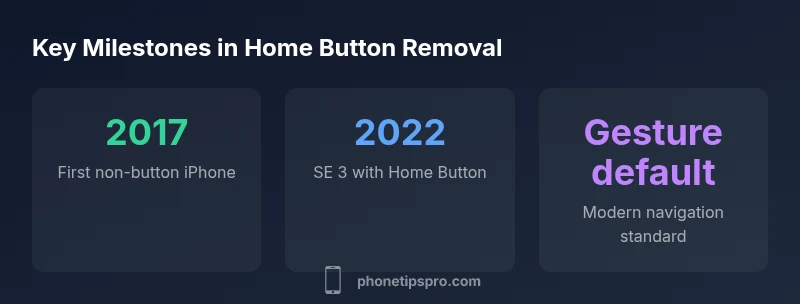
According to Phone Tips Pro, Apple’s shift away from the physical home button began with the iPhone X in 2017, driven by a need for a larger display and more secure authentication via Face ID. The decision changed how users interact with iOS, moving navigation from a hardware control to gesture-based interactions. In practice, you swipe to go home, swipe from the bottom to switch apps, and you summon Control Center with a simple gesture on some models. Over the years, Apple refined these gestures, adding new multitasking capabilities, rearranging how app switching and reachability work, and removing the home button from almost every flagship. This transition also encouraged developers to adapt their apps to edge-to-edge screens and to rely more on on-screen hints and haptics for feedback. The Phone Tips Pro team notes that moving away from a home button was not just about aesthetics; it was a全面 redesign of input paradigms, accessibility options, and on-device security. By tracing the sequence of releases, you can see a clear pattern: secure, faster authentication paired with gesture navigation, culminating in modern iPhone models that emphasize full-screen experiences and dynamic gestures.
A concise chronology of gesture-only iPhones
The core milestone is the iPhone X in 2017, which eliminated the Home button in favor of Face ID and edge-to-edge display. The immediate years that followed—the Xs, XR, 11, 12, 13, and 14 families—continued this design language, embedding gesture navigation into iOS. Later models, including the iPhone 15 and 16 series, kept the same approach. Meanwhile, the iPhone SE line persisted with a physical home button, with the 2nd generation (2020) and the 3rd generation (2022) returning to Touch ID. This contrast underscores Apple’s balancing act between cutting-edge design and budget-conscious accessibility options. As a result, most users adopt a swiping-first workflow, with a long-press to access contextual controls and dedicated hardware buttons left only for power and volume in some contexts. The nuance is important: the absence of a home button doesn’t mean the end of tactile feedback; it just shifts feedback to haptics and software cues, which many users find intuitive after a brief adjustment.
The iPhone SE: a rare exception with a physical home button
In 2020, Apple released the iPhone SE (2nd gen), which reintroduced the familiar Home button with Touch ID inside a classic chassis. The 3rd gen SE (2022) kept that design, offering a more affordable option while preserving the legacy of physical user input. This split means you can choose models that rely on physical home button for ease of use, or opt for gesture-driven devices with larger screens. For users transitioning from older iPhones, the SE represents a gentler path back to familiarity, especially when multitasking or navigating via the home button is a priority. Phone Tips Pro highlights that the SE line remains a valuable option for those who prefer a tactile home button, the precise click, and the confidence of a physical sensor. The broader ecosystem continues to evolve, with iOS emphasizing gestures but still supporting the home button in certain budget iterations. In practice, this means a mix of devices for different preferences within a single ecosystem. This dual path is deliberate, giving users and families options that align with their budgets and comfort levels.
Gesture navigation: how to use it effectively
Learning to navigate with gestures is a skill that grows with time. On iPhone X and later, you swipe up from the bottom edge to go home, swipe up and hold for the multitasking view, and use left-right swipes at the bottom to switch apps on some models. You can also pull down from the bottom edge to access app-specific quick actions in certain contexts. For newcomers, start with the most common actions: swipe up to go home, long-press to reveal multitasking, and a short swipe along the bottom edge to switch apps. With practice, gestures become second nature, reducing reliance on a single physical control. If you ever miss a tactile home button, you can enable AssistiveTouch to simulate it; this is a universal option across iPhone models and is especially helpful for accessibility or comfort during long sessions.
Accessibility considerations and workarounds
Accessibility features are central to the home-button era shift. For users who prefer a hardware button or need aids for navigation, AssistiveTouch provides a software-based home button, customizable gestures, and on-screen controls. VoiceOver and Zoom remain essential tools for people with visual or motor-impaired capabilities, ensuring that navigation remains accessible even without a physical home button. In practice, turning on these tools takes only a moment in Settings > Accessibility. The broader takeaway is that gesture-based navigation does not mean the end of accessibility; it expands options for users who require alternative input methods. Phone Tips Pro emphasizes that learning to tailor gestures and accessibility features can yield a more comfortable daily experience, especially when switching between devices with and without a home button.
Developer and app design implications
When designing apps for iPhone models without a home button, developers should respect the Safe Area and the home indicator area at the bottom of the screen. Navigation should rely on intuitive edge gestures, and critical actions should avoid being placed behind the home indicator. Apple’s Human Interface Guidelines encourage clear visual affordances and accessible hit targets. Apps should gracefully adapt to both gesture-based navigation and, where relevant, AssistiveTouch shortcuts. This requires consistent testing across models and screen sizes, as well as clear onboarding for new users who are transitioning from button-based devices. The shift to edge gestures also means developers can leverage full-screen content and dynamic UI transitions that respond to user input in real time.
Myths vs. reality about the home button era
Myth: The home button was completely removed from all iPhones. Reality: While flagship models use gestures, the iPhone SE line retains a physical button. Myth: Gesture navigation is slower. Reality: After a short acclimation period, most users report quicker, more fluid navigation and quicker access to multitasking. Myth: AssistiveTouch is a last resort. Reality: AssistiveTouch is a powerful accessibility option that can mimic the home button and support broader usage scenarios.
2026 outlook: future of iPhone navigation
As Apple continues to iterate on display tech, biometric authentication, and haptic feedback, the emphasis remains on immersive screens and gesture-based control. Expect incremental refinements that improve reachability, feedback, and accessibility without reintroducing a physical home button. For power users and developers, the ongoing focus will be on smoothing transitions between devices with and without a home button, while expanding customization options for gestures and controls. Phone Tips Pro foresees a future where the home button is remembered as a transitional feature that sparked a broader shift toward fluid, gesture-driven interfaces.