Block iPhone Calls: Built-in Tools and Top Apps
Learn to block unwanted calls on iPhone using built-in features or trusted apps. This 2026 guide covers setup, testing, privacy, and practical tips to reduce interruptions while keeping key numbers reachable.


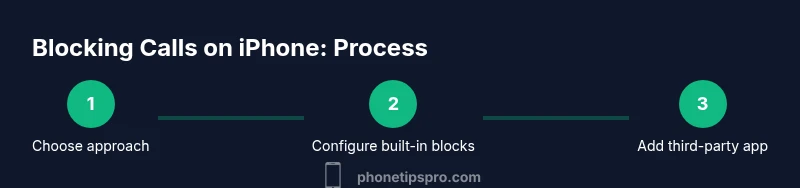
Block iPhone calls efficiently by using native iOS controls first, then add trusted third-party apps if you need stronger spam protection. This approach balances privacy, usability, and emergency accessibility. Start with Silence Unknown Callers, Blocked Contacts, and Focus modes, then test with known numbers to ensure you don’t miss important calls.
Understanding blocking on iPhone and why it matters
Blocking calls on iPhone isn't just about stopping spam; it's about tailoring accessibility to your daily routine. The iPhone provides layered controls that let you decide who may reach you and when. According to Phone Tips Pro, a practical strategy combines native iOS features with optional third‑party apps to maximize both convenience and protection. Start by identifying your priorities: Do you want to silence all unknown numbers, or only known irritants? How often do you need exceptions for work or family? Answering these questions upfront helps shape a durable blocking setup that you won’t abandon after a week.
From the perspective of user experience, a layered approach typically yields the best balance between reducing interruptions and preserving access to essential calls. The goal is not to block every call—it's to minimize nuisance while keeping essential lines open. Phone Tips Pro Analysis, 2026 notes a rising prevalence of nuisance calls, which makes a robust setup more valuable than ever. Regular checks after OS updates ensure your blocks adapt to new calling patterns and app permissions.
Successful blocking is iterative. Start simple, test, then refine. This mindset—small, verifiable adjustments—keeps your phone both quiet and reliable.
Built-in blocking features: core options and how to use them
iPhone’s built-in tools cover most use cases without needing extra software. Silence Unknown Callers (or a Focus mode with similar rules) can dramatically cut down spam calls by default, while still allowing important contacts from your favorites list to ring through. You can also add specific numbers to a blocked list, ensuring they never reach you again. For emergencies, remember that some calls may still break through if they’re from numbers you haven’t saved; always test with a trusted line.
A practical plan is to enable Silence Unknown Callers during non-work hours and to maintain an allowlist for critical numbers (family, boss, emergency services). If you’re in a high‑volume calling environment, you can create a Focus profile that automates these rules at specific times or locations. The built-in options are privacy‑friendly and require no third‑party data sharing, making them a solid first step.
From Phone Tips Pro’s lens, the built‑in tools usually cover 70–85% of blocking needs for many users. They’re quick to set up, easy to audit, and don’t depend on external servers for filtering. As with any automation, regular review is key to catch false positives and missed legitimate calls.
When to consider third‑party call blocking apps
Third‑party apps add advanced features like crowd-sourced spam detection, real‑time caller IDs, and extended blacklists. They can be helpful if you still see spam after using built‑in controls or if you want more granular control over block rules. Popular options typically offer a free tier with optional paid plans for premium features such as enhanced spam reporting or priority customer support. When selecting an app, review permissions carefully and check privacy policies to understand what data may be collected.
A word of caution: install apps only from reputable developers and keep an eye on requested permissions. Some apps require access to your call history, contacts, or location to function effectively. Always balance convenience with privacy. Phone Tips Pro Analysis, 2026 emphasizes choosing apps that minimize data sharing while delivering reliable blocking.
If you try a third‑party app, begin with a limited rule set, test for accuracy over a few days, and adjust as needed. This cautious approach helps prevent accidental blocking of legitimate callers, such as your employer or doctors.
Privacy, permissions, and safety when using blocking tools
Blocking calls involves handling sensitive contact data. Built‑in iPhone features already protect your privacy, but third‑party apps can extend protection at a risk to data sharing. Always review each app’s privacy policy, request scope, and retention practices. Prefer apps that process data locally on the device or minimize data collection. If an app asks for broad access (contacts, location, microphone), question necessity and look for alternatives if possible.
Keep your OS updated to ensure you have the latest security patches for blocking features. Regularly audit your blocked list and app permissions; revoke access if an app becomes inactive or changes its data practices. The core idea is to maintain control over who can contact you while limiting third‑party access to personal information. Phone Tips Pro’s guidance in 2026 underscores that privacy should be a primary criterion when expanding beyond native controls.
Testing, validation, and ongoing maintenance
Testing is essential to verify that your blocking configuration works as intended. Start with a set of known numbers (family, coworkers) to confirm they ring through when you want them to, and that unknowns/ spam calls are blocked. Do a scheduled check after OS updates, app updates, or changes to Focus profiles. If you’re using a third‑party app, test its spam detection accuracy by attempting reports via the app or its built‑in test numbers.
A proactive maintenance plan helps you stay effective. Schedule a monthly review of your blocked list, allowlists, and Focus rules. Replace any whitelisted numbers you no longer rely on and prune blocked numbers that no longer apply. This ongoing discipline reduces the risk of misclassifications and ensures your blocking setup remains aligned with your communication needs.
Common pitfalls and practical workarounds
Blocking settings are powerful but can be misconfigured. A common pitfall is adding too many numbers to the block list, which can accidentally prevent important calls. Another issue is relying solely on Silence Unknown Callers, which may still let some non‑saved numbers through. Regularly test across different times of day and by simulating situations where legitimate calls come from unfamiliar numbers (clients who call from different numbers, doctors, etc.).
If you notice missed urgent calls, temporarily disable aggressive blocking during critical periods and use a whitelist instead. When adopting third‑party apps, verify that the app’s filters don’t conflict with iPhone’s native rules. The goal is a consistent, predictable experience where nonessential callers stay out and essential ones get through.
Best practices for long-term success with call blocking on iPhone
Make blocking a routine part of device maintenance, not a one-off setup. Start with built‑in tools, then layer in a trusted app if needed. Document your rules so you can reproduce the same behavior across days or after updates. Create a short emergency contact list that can override blocks when necessary, and keep your preferred contact methods up to date. By combining thoughtful rules with ongoing checks, you’ll enjoy a calmer calling experience without sacrificing important connections.
Tools & Materials
- iPhone with current iOS version(Ensure essential blocking features are available on your device.)
- Stable internet connection(Needed for app updates and configuration syncing when applicable.)
- Blocked numbers list or favorite contacts(Helps manage exceptions and verify rules during testing.)
- Trusted third‑party blocking app (optional)(Download from the App Store if you need advanced spam protection.)
- Test numbers (family or colleague)(Use real numbers you control to verify blocking behavior.)
- Backup method (iCloud or computer)(Backup settings before major changes.)
Steps
Estimated time: 45-60 minutes
- 1
Choose blocking strategy
Decide whether you want to block all unknown numbers, focus on known spam numbers, or create a nuanced rule set with an allowlist for essential contacts. This choice will guide the rest of the configuration.
Tip: Document your strategy so you can replicate it after OS updates. - 2
Enable built-in iPhone blocking features
Open Settings and locate Phone, Messages, or Focus. Turn on Silence Unknown Callers and configure Focus to allow messages/calls from favorites or repeated callers. Test basic behavior to confirm correct routing.
Tip: Schedule Focus to switch modes automatically during work hours for consistency. - 3
Add critical numbers to allowlist
Save trusted numbers in Contacts and/or add them to your Focus exceptions. This ensures important calls still ring through even when blocking is active.
Tip: Review allowlist weekly to remove outdated contacts. - 4
Test with known numbers
Place test calls from saved contacts and from a non‑saved number to confirm both blocking and allowances work as intended.
Tip: Keep a small test log for reference after changes. - 5
Consider third‑party app if needed
If built‑in tools aren’t enough, install a reputable blocking app and configure its filters. Review permissions and privacy terms before enabling.
Tip: Start with a limited feature set to gauge accuracy. - 6
Configure app-specific rules
Set spam reports to improve accuracy, enable caller ID where offered, and disable overly aggressive blocks that may capture legitimate calls.
Tip: Regularly update your rule base as new spam patterns emerge. - 7
Test again and validate
Run new tests after any app update, OS change, or rule adjustment to ensure consistent results across devices.
Tip: Keep notes on what works to streamline future changes. - 8
Document maintenance routine
Create a simple checklist for monthly review: blocked list, allowlist, and Focus schedules. This keeps blockers effective over time.
Tip: Set a reminder so you don’t skip reviews.
FAQ
What is the difference between blocking and silencing calls on iPhone?
Blocking a number prevents it from contacting you entirely, while silencing simply routes the call to voicemail or hides the notification. Blocking is more definitive but can be too aggressive if you don’t whitelist important numbers. Silencing offers a softer approach that may still require users to check voicemails.
Blocking stops a number entirely; silencing just hides the call and sends it to voicemail.
Will blocking calls also block texts?
If you block a number on iPhone, most blocking options also prevent texts from that number. Some apps may offer separate controls for blocking SMS; check each app’s settings to ensure consistent behavior across calls and texts.
Blocking generally covers calls and texts from blocked numbers.
Can I still receive emergency calls after blocking others?
Emergency calls typically bypass blocking rules, depending on carrier and iOS version. It’s wise to test with a known emergency-contact workflow and keep critical numbers whitelisted for reliability.
Emergencies usually get through blocking rules, but verify with your carrier and device settings.
Do third‑party blocking apps respect my privacy?
Privacy depends on the app. Read the privacy policy and permissions; choose apps that minimize data collection and process data on-device when possible. If unsure, rely on built‑in tools first.
Check permissions and privacy terms before enabling any third‑party app.
How do I unblock a number?
Open Settings > Phone > Blocked Contacts (and similar sections for Messages or Focus). Tap the minus or remove option next to the number you want to unblock, then confirm. If using a third‑party app, reverse the block in the app’s own settings.
Go to blocked lists and remove the number you want to unblock.
Will blocking be the same on all my Apple devices?
Blocking behavior is generally per‑device. Some third‑party apps offer cloud syncing across devices, but built‑in iOS blocking rules stay local to each iPhone. Check cross‑device app settings if you use multiple iPhones or iPads.
Blocking may vary by device unless you use a syncing app that supports it.
Watch Video
Quick Summary
- Start with built-in tools before adding apps.
- Use a cautious allowlist for essential contacts.
- Test regularly after updates to keep blocks accurate.
- Prioritize privacy when installing third‑party apps.