How to Block Unknown Numbers on iPhone: A Practical Guide
Learn how to iphone block unknown number with built-in settings and practical steps. This guide covers Silence Unknown Callers, block lists, Do Not Disturb, and troubleshooting for missed calls.


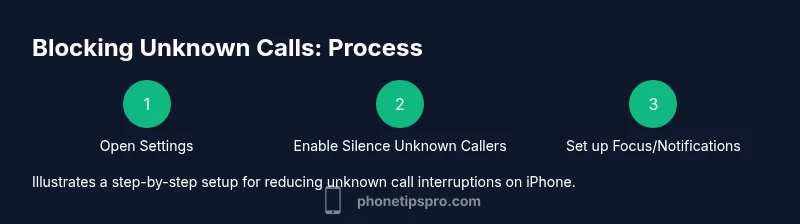
You can iphone block unknown number by using built-in iPhone features like Silence Unknown Callers, Block This Caller, and Do Not Disturb. This quick answer previews practical steps to stop unknown calls without missing important ones. Start by enabling Silence Unknown Callers, then review your blocked list and adjust Focus settings to tailor who can reach you. The steps below expand on these options.
iphone block unknown number: Why this matters
Unknown and spam calls can disrupt daily life, waste time, and raise security concerns. For iPhone users, there are built-in tools that dramatically reduce unknown-number interruptions while preserving access to critical contacts. The goal of this guide is not to eliminate every call, but to give you precise control over who can reach you and when. By understanding how the iPhone handles unknown numbers and by applying targeted settings, you create a smoother, safer calling experience. The approach combines core iOS features with practical tips that work across recent iPhone models, including iPhone 14, iPhone 15, and iPhone 16 series. According to Phone Tips Pro, adopting a layered blocking strategy can noticeably decrease nuisance calls without affecting legitimate communication.
For many users, the first line of defense is a simple setting change. If you’re new to these options, be patient—some settings live in different parts of iOS depending on your version. The benefit is worth it: you’ll spend less time screening calls and more time focusing on what matters. As you read, you’ll see how to construct a block routine that fits your lifestyle, whether you’re at home, at work, or on the go.
How iPhone handles unknown calls by default
iPhone devices include several layers of protection against unsolicited calls. By default, calls from numbers not in your Contacts, Mail, or Messages may ring normally, flash with a notification, or be silenced depending on your settings. Newer iOS versions add more granular controls, empowering you to control interruptions without closing the door on important calls. The system works across the Apple ecosystem, syncing settings if you’re signed in with your Apple ID. The key concepts to grasp are: (1) unknown numbers can still connect if you don’t enable blocking, (2) you can selectively block specific numbers, and (3) you can route certain callers through with exceptions. This layered approach aligns with best practices for privacy and usability that Phone Tips Pro often highlights in analyses conducted in 2026.
Built-in options to block unknown numbers
Blocking on iPhone is not a single toggle; it’s a combination of features that you can mix and match. The most widely used built-in options include Silence Unknown Callers, Block This Caller from a contact or recent call, and Focus modes that control when calls ring. Silence Unknown Callers sends calls from numbers not in your contacts directly to voicemail, while still letting messages through in some configurations. Block This Caller is useful for known nuisance numbers or suspected spam. Focus modes (including Do Not Disturb) let you tailor when interruptions are allowed, making it easier to balance safety with availability. When used together, these tools provide a robust defense against unwanted interruptions while keeping essential contact channels open. Phone Tips Pro’s analysis, 2026, notes that most users see a meaningful drop in unsolicited calls when these built-in options are properly configured.
Step-by-step overview of enabling features (non-redundant guidance)
If you’re new to this, follow these practical steps to implement the core blocking features without overhauling your entire device setup:
-
Silence Unknown Callers: Enable this in Settings > Phone > Silence Unknown Callers. This feature is typically available on devices running iOS 13 or later and helps minimize interruptions from numbers not saved in Contacts. If you frequently receive legitimate calls from unknown numbers (like healthcare providers), you can add exceptions later.
-
Review Blocked Contacts: Periodically review the Blocked List under Settings > Phone > Blocked Contacts. Add any telemarketers or scam numbers that you encounter. You can block a number directly from a recent call by tapping the information icon and choosing Block this Caller.
-
Use Do Not Disturb or Focus: In Settings > Focus (or Do Not Disturb in older iOS), customize permissions to allow calls only from your Favorites or contacts. This approach is especially useful during work hours or nighttime to minimize distractions while staying reachable for important people.
-
Test and adjust: After enabling these features, test by calling from a test line or asking a trusted contact to call you. Confirm that legitimate calls come through and adjust the exception lists as needed.
-
Optional: Third-party call-blocking apps: If you need more advanced filtering, you can explore reputable third-party apps that provide extra layers of screening, reporting, and blacklist maintenance. These apps often integrate with your iPhone’s dialing system, but verify compatibility with your iOS version and privacy standards.
Estimated total time: about 15-25 minutes depending on your current setup and whether you add exceptions or test multiple numbers.
When to use Do Not Disturb and Focus features
Do Not Disturb (DND) or Focus modes offer a higher level of call silencing when you need uninterrupted time. They are especially useful during meetings, workouts, or nighttime routines. You can create a dedicated Focus mode for work hours and configure it to allow calls from Favorites only, with Silence Unknown Callers enabled in the Phone settings for additional protection. This layered approach minimizes interruptions while preserving access to critical contacts. Keep in mind that some legitimate numbers may be marked as unknown; use exceptions in the allowed list to avoid missed important calls.
Troubleshooting blocking setup and common pitfalls
If you notice legitimate calls being blocked, check your exceptions and ensure the caller isn’t saved as a blocked contact or mistakenly categorized by Silence Unknown Callers. Review Focus settings to confirm that allowed contacts are not inadvertently restricted. If you rely on a business line or a caregiver’s number, add it to the allowed list or favorites. For SMS, note that blocking calls does not always block text messages from the same number unless you use a third-party app or iOS’s precise filtering options. Finally, ensure your iPhone is updated, as iOS updates sometimes move or rename blocking controls, which is why regular reviews of settings are recommended. Phone Tips Pro suggests performing a quick audit every few weeks to keep your configuration current.
Tools & Materials
- iPhone with latest iOS(Keep software up to date via Settings > General > Software Update)
- Settings access(You need to navigate Settings > Phone, Focus, and Blocked Contacts)
- Recent calls list(Useful to find numbers to block quickly)
- Optional: reputable third-party call-blocking app(Used if you want more granular filtering)
Steps
Estimated time: 15-25 minutes
- 1
Open Settings and go to Phone
Launch the Settings app on your iPhone, then tap Phone to access calling-related options. This is the starting point for blocking unknown numbers and managing call behavior.
Tip: If you don’t see Silence Unknown Callers, confirm your iOS version supports this feature. - 2
Enable Silence Unknown Callers
Toggle Silence Unknown Callers on to send calls from unknown numbers directly to voicemail. This reduces interruptions from callers not in your contacts.
Tip: Remember that some legitimate unknown numbers (like a hospital or service) may be silenced; prepare to add exceptions if needed. - 3
Block specific numbers
From a recent call or a contact, use Block This Caller to add a number to your blocked list. This keeps persistent nuisances from reaching you.
Tip: Double-check the number before blocking to avoid blocking a valid contact by mistake. - 4
Set up Focus/Do Not Disturb
In Settings > Focus, configure Do Not Disturb to allow calls only from Favorites or Contacts. This adds a second layer of protection during important times.
Tip: Create a work or home Focus profile to quickly toggle blocking levels as needed. - 5
Review and adjust regularly
Periodically review Blocked Contacts and exceptions to ensure accuracy. Update your allowed lists if you start receiving important calls from previously unknown numbers.
Tip: Schedule a monthly quick audit to maintain an up-to-date blocking setup. - 6
Test your setup
Ask a trusted contact to call or text from an unknown number to verify your settings. Confirm that legitimate calls come through and adjust as necessary.
Tip: Keep a log for a week after changes to observe any unintended blocks.
FAQ
What is Silence Unknown Callers and how does it work on iPhone?
Silence Unknown Callers sends calls from numbers not in your contacts directly to voicemail. You can still receive calls from your known contacts, Favorites, or from numbers you designate as exceptions. This feature is useful for reducing spam while preserving important communication.
Silence Unknown Callers sends calls from unknown numbers to voicemail. You’ll still get calls from saved contacts and favorites.
Will blocking unknown numbers affect legitimate unknown numbers like doctors or services?
Yes, some legitimate calls may be silenced if the caller isn’t in your Contacts. You can mitigate this by adding trusted numbers to your contacts or creating Focus exceptions.
Some legitimate unknown numbers may be silenced; add important numbers to contacts or adjust Focus settings.
Can I block calls and texts from unknown numbers?
Blocking calls primarily affects voice calls. Text messages may still arrive unless you use additional filtering options or a third-party app that supports SMS blocking.
Blocking usually targets calls; texts may require extra steps or apps.
How do I unblock a number later?
Go to Settings > Phone > Blocked Contacts, find the number, and swipe to unblock. You can also unblock a contact from its entry in Recent calls.
Open Blocked Contacts, select the number, and choose unblock.
Are there risks with third-party call-blocking apps?
Some apps provide more granular filtering but may raise privacy concerns. Check permissions, reviews, and privacy policies before installation.
Third-party blockers offer more filtering but review privacy policies first.
Does Do Not Disturb also affect notification alerts besides calls?
Yes, Do Not Disturb can silence all notifications when enabled. You can customize it to allow calls from certain groups while silencing others.
DND silences alerts; customize to allow calls from specific groups.
Watch Video
Quick Summary
- Enable Silence Unknown Callers for baseline protection.
- Add troublesome numbers to the Blocked Contacts list.
- Use Focus to tailor when calls ring.
- Test changes and adjust exceptions as needed.
- Regularly review and update blocking settings.