Can You Get iPhone Emojis on Android? A Practical Guide
Can Android display iPhone-style emojis? Learn safe methods, licensing limits, and practical steps from Phone Tips Pro to customize emoji appearance today. A clear, user-friendly guide for iPhone emoji fans.


You cannot legally install Apple’s Color Emoji font on Android, so Android won’t show exact iPhone emojis by default. However, you can achieve a close, iPhone-like look by using keyboards or emoji packs that mimic iOS styling, or by apps that render iOS-style skins within chats. For most users, these safe options avoid system changes or rooting.
Understanding the Emoji Landscape: Apple vs. Android
Emoji rendering depends on fonts installed on the device and the platform's emoji set. The Apple Color Emoji font is proprietary and licensed to Apple, which is why Android devices dont bundle it by default. Android devices rely on fonts like Noto Color Emoji or vendor-provided glyphs, so the shapes for the same emoji can look different across platforms. This difference is one reason people notice that the same smileys dont always match exactly when texting between iPhone and Android. According to Phone Tips Pro, most users value a consistent look within their own ecosystem and sometimes accept small differences when communicating across platforms. The glyphs for emojis are universal in code points (like U+1F600 for the grinning face), but the artwork depends on the font. Thats why you might see variation in color, shading, or even a few design choices across devices and apps.
Why licensing restricts Apple Emoji on Android
Apple licenses its Color Emoji font to Apple devices and does not provide an official Android license. That means Android cant ship the exact Apple glyphs across all devices without violating terms. Even if you install an Apple-like font, it wont re-create the Apple glyphs everywhere because the font data, kerning, color, and metrics are tailored for Apples platform. In practice, this means you will not get a system-wide, perfect match; you can only approximate via third-party fonts or skins that mimic the look within certain apps or keyboards. This licensing barrier is a fundamental reason why an exact Apple emoji experience on Android remains impractical. Phone Tips Pro analysis shows that licensing constraints are a more persistent hurdle than technical hurdles for most users.
What Android can do today: safe, legal options
There are legitimate paths to a more iOS-like emoji experience without violating licenses or modifying system files. The safest routes involve using apps and settings that render or skin emoji within apps rather than changing the entire system font. For many users, a keyboard that offers iOS-like emoji styles or app-specific emoji skins can provide a noticeably similar aesthetic without root or ROM changes. This approach emphasizes user safety and privacy, avoiding potential warranty or security concerns that come with deep system modifications. Phone Tips Pro finds that users who want consistent emoji appearance typically start with a trusted keyboard and then evaluate any cosmetic tweaks for their privacy implications.
How to test iPhone-like style in messaging apps
To gauge how close you can get, test emoji appearance across several messaging apps (WhatsApp, Telegram, and standard SMS apps). Because each app may embed its own emoji design or rely on the OS font, results will vary. If your goal is a uniform look in chats you control, try an iOS-style skin keyboard and compare the chat bubbles, reaction icons, and emoji details. Be prepared for small differences in color or shading, especially for skin-tone variants and gendered emojis, which are handled differently by each platform. This practical testing helps you decide whether a keyboard skin or a font pack best matches your preference without committing to risky changes. Phone Tips Pro emphasizes testing on multiple platforms to ensure the look holds across contexts.
Safe options: Keyboards with iOS-like emoji style
Many reputable keyboards offer iOS-like emoji skins as a visual option. By selecting an option labeled as “iOS-style” or “Apple-like” within the keyboard settings, you can achieve a more familiar look in most apps without altering system fonts. The key is to review the keyboards privacy policy and permission requests, since keyboards can access input data for personalization. For most users, starting with Gboard or SwiftKey and enabling the iOS-style skin provides a quick, safe path toward a familiar aesthetic while preserving device integrity. Phone Tips Pro notes that the best long-term approach is to prioritize safety and privacy while evaluating cosmetic results.
Safe options: Emoji font packs and font changes (non-root)
Some apps offer emoji font packs that replace glyphs within a particular context (e.g., a chat app) without requiring root access. These can deliver a closer iOS-like look in specific scenarios, but they are not guaranteed to apply everywhere or persist through updates. If you explore system-wide font changes without root, you risk instability or broken fonts on some devices. Always back up before attempting font modifications and prefer options from reputable developers. If you do decide to experiment, limit changes to non-critical devices and test for app stability after each install. Phone Tips Pro urges caution with any font changes that affect system behavior.
Limitations you should expect: Appearance vs. reality
Even when you adopt iOS-like skins or fonts, you wont get identical Apple glyphs across all apps and OS updates. Emoji rendering is a moving target: the glyphs update with OS releases, and apps may ship their own versions. Additionally, skin tone, gender representations, and certain symbols can render differently depending on the chosen skin pack and the app youre using. The result is a close-but-not-identical experience, which is often enough for casual perception but not a perfect platform match. Understanding these limitations helps set realistic expectations and reduces frustration when the emoji dont look exactly the same across chats.
Practical plan: what to do today
If your goal is closer to iPhone aesthetics with minimal risk, start with a high-quality keyboard that offers iOS-like emoji options. Test across multiple apps and compare results. If youre curious about system-wide changes, read up on root and font modification risks and consider backup-first experimentation on a spare device. For many users, the most satisfying approach is to enjoy a consistent emoji feel inside apps while accepting platform-specific differences in other contexts. Phone Tips Pro recommends a careful, privacy-conscious path that balances appearance with security and reliability.
Tools & Materials
- Android smartphone (any brand/model)(Ensure device is updated to latest OS version and has stable internet.)
- Stable internet connection(Needed for downloading keyboards or font packs.)
- Preferred emoji keyboard app (e.g., Gboard, SwiftKey)(Choose one offering iOS-like emoji skins.)
- Emoji font pack app (optional)(Only if you plan to test app-specific fonts; avoid system-wide changes without caution.)
- Backup tool or cloud backup(Back up data before any font changes or app installs.)
Steps
Estimated time: 20-40 minutes
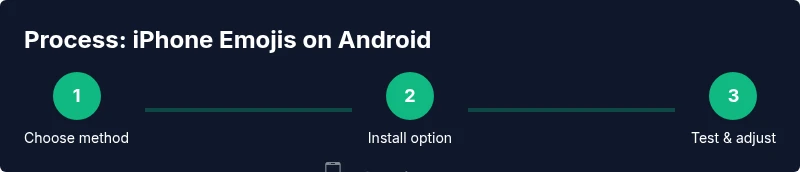
- 1
Choose your approach
Decide whether you will use an iOS-like emoji keyboard, an emoji font pack, or in-app skins. This initial choice guides the rest of the steps and helps you avoid risky system modifications.
Tip: Prioritize safety and privacy; pick non-root options first. - 2
Install the chosen option
Download the keyboard or font pack from a trusted source. Avoid unknown apps and read reviews to verify reliability and security.
Tip: Only install from reputable sources and check app permissions before continuing. - 3
Enable and configure the option
If you selected a keyboard, enable it in Settings > System > Languages & input > Virtual keyboard. If you chose a font pack, follow the app-specific instructions to apply the skin within supported apps.
Tip: Grant only necessary permissions required for the feature. - 4
Set as default (where applicable)
Set the new keyboard as the default input method or apply the font within the app(s) you use most. Some devices may require extra steps to enable non-system fonts.
Tip: Test after enabling to confirm the change is active across apps. - 5
Test across a few apps
Send emoji in messaging apps like WhatsApp, Telegram, and SMS to compare appearance. Note any discrepancies in color, shading, or glyph shapes.
Tip: Keep a log of which apps look closest to iOS-style skin. - 6
Review safety and performance
Evaluate battery impact, app permissions, and overall stability. If you notice issues, revert changes and try a different approach.
Tip: If privacy concerns arise, disable or uninstall the alternative and revert to stock.
FAQ
Can Android devices run Apples Color Emoji font system-wide?
No. Apples Color Emoji font is licensed for Apple devices only and isnt available for Android. You can achieve a similar look with iOS-style emoji skins in keyboards or app fonts, but the exact glyphs wont be Apples glyphs across the system.
Apples emoji font isnt available on Android; you can approximate through keyboards or app fonts.
Whats the safest way to get iPhone-like emoji without rooting?
Use a reputable keyboard that offers iOS-like emoji skins or experiment with app-level emoji fonts. These methods dont require root and minimize risk to your devices security.
Safe options include iOS-like skins in reputable keyboards.
Will emoji look exactly the same across Android and iPhone?
No. Emoji appearance varies by platform and app. Even with iOS-like skins, colors, shading, and glyph shapes can differ between Android, iPhone, and various messaging apps.
They wont look exactly the same across platforms.
Are there privacy concerns with third-party emoji keyboards?
Yes. Some keyboards collect input data for personalization. Choose well-known apps, review permissions, and prefer solutions with strong privacy policies.
Be mindful of permissions and data collection when using third-party keyboards.
Whats the best approach for most users?
Start with an iOS-like skin in a trusted keyboard. If you re curious about deeper changes, test emoji font packs carefully and avoid system-wide font changes unless you understand the risks.
Begin with a safe keyboard option, then explore further if you comfortable.
Watch Video
Quick Summary
- Apple emoji fonts are licensed and not distributed for Android
- iOS-like emoji skins offer a safe, non-root path to a familiar look
- System-wide font changes risk device stability and privacy concerns
- Results vary by app and OS version; expect differences
- Start with a trusted keyboard approach before exploring font packs