Does iPhone Have a Blue Light Filter? A Practical Guide
Explore whether iPhone includes a built-in blue-light filter, how Night Shift and True Tone work, how to customize them, and practical tips to reduce eye strain and improve sleep quality.


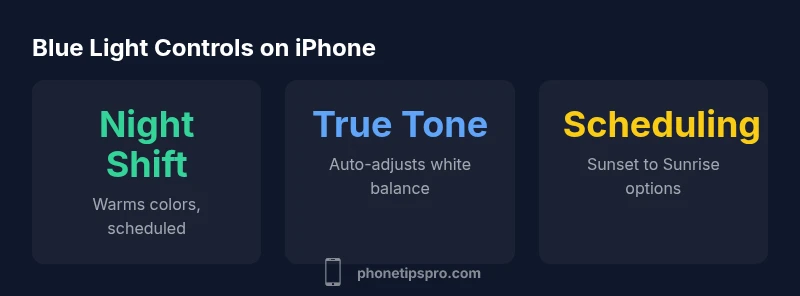
Yes. iPhones include built-in blue-light reduction features like Night Shift and True Tone that adjust the screen color toward warmer tones to reduce blue-light exposure, especially in the evening. Night Shift can be scheduled, while True Tone adapts automatically to ambient lighting. No extra hardware is required, and you can customize warmth levels.
Does iphone have a blue light filter? Understanding the basics
does iphone have a blue light filter? The short answer is yes—iPhone includes built-in tools that soften blue light by adjusting color temperature. These features don’t remove blue light completely, but they can reduce exposure and glare, which may help eye comfort and sleep. Apple’s two main tools are Night Shift, which shifts display colors to warmer tones on a schedule, and True Tone, which auto-adjusts color to match ambient lighting. By understanding how these controls work, you can tailor your iPhone experience to fit your daily routines and lighting conditions.
Night Shift: the core blue-light reduction tool
Night Shift is designed to shift the color balance of your display toward warmer tones during the hours you choose. The goal is to reduce blue light exposure that can affect sleep timing and eye comfort after sunset. In practice, you enable Night Shift in Settings > Display & Brightness > Night Shift, and you can either schedule it (for example, from sunset to sunrise) or turn it on manually. You can also tweak the warmth level with a Color Temperature slider: warmer settings reduce blue light more, while less warm settings preserve color accuracy. Real-world use often means turning Night Shift on 60–90 minutes before bedtime and leaving it on for the rest of the evening if you are sensitive to screens at night. Remember, Night Shift operates independently of focus modes and does not require any extra apps.
True Tone: adaptive color in varied lighting
True Tone is a dynamic color system that analyzes ambient light through multiple sensors and adjusts the white point of the display to keep colors looking natural. While its primary purpose is color accuracy and comfort during the day, it intersects with blue-light exposure by avoiding harsh shifts in color when you move from a bright room to a dim one. True Tone runs automatically and continuously, so you don’t need to remember to switch it on. If you rely on color-critical tasks—photo editing or design work—you might temporarily disable True Tone to ensure consistent colors, then re-enable it when you’re done. In daily use, True Tone complements Night Shift rather than replacing it.
Scheduling and automation: getting the most from Night Shift
For most users, a scheduled routine is the easiest way to ensure consistent blue-light reduction. Night Shift can be set to turn on automatically at sunset, at a fixed time, or according to a custom schedule. To set this up, go to Settings > Display & Brightness > Night Shift > Schedule and choose your preferred option. You can also adjust the On/Off toggle and Warmth slider on the same screen. Some users pair Night Shift with Focus modes—for example, a Sleep Focus in the evening—so the device stays warmer as you wind down, even if you’re using apps that would normally keep your screen bright. These automations help reduce eye strain without requiring manual intervention every night.
Warmth settings, color accuracy, and eye comfort
The warmth level is the most immediate lever for reducing blue light. A warmer display (amber/orange) is gentler on the eyes near bedtime, while a cooler display preserves more natural color during the day. However, excessive warmth can bias color-critical tasks, so it’s common to strike a balance: moderate warmth for daytime reading, and a warmer tone in the late evening. For people who do color-sensitive work, turning Night Shift off during work sessions and turning it back on afterward is a practical approach. If you notice eye strain persists despite adjustments, consider additional measures such as increasing ambient lighting, reducing screen brightness, or taking regular breaks.
Common myths and limitations of iPhone blue-light controls
There are several misconceptions about blue-light reduction on iPhone. First, Night Shift and True Tone do not block all blue light; they simply shift color temperature and brightness to make screens appear warmer. Second, these features are not substitutes for blue-light-blocking glasses for people who are highly sensitive or have specific medical conditions. Third, while these tools can help with eye comfort and sleep, they are not a stand-alone sleep therapy, so good sleep hygiene remains important. Finally, these settings may interact with other features (like True Tone and high-contrast accessibility options) in ways that affect perceived color balance; experiment to find what feels most comfortable for you.
Practical setup guide: quick steps to enable on iPhone
Follow these steps to enable blue-light reduction quickly:
- Open Settings and tap Display & Brightness.
- Tap Night Shift and set Schedule to Sunset to Sunrise (or a custom window) and adjust the Color Temperature to your preferred warmth.
- If you rely on true color, review True Tone in Settings > Display & Brightness and ensure it’s enabled; consider turning it off temporarily for color-critical tasks.
- Use the Control Center shortcut to toggle Night Shift on/off when needed.
- Combine with Focus modes for automatic adjustments in different contexts (work, relax, bedtime). With these steps, you’ll have a comfortable, eye-friendly viewing experience with minimal effort.
Real-world usage tips and common scenarios
In daily life, these built-in controls are usually sufficient to make evenings more comfortable. If you read a lot before bed, a warm Night Shift setting combined with dim ambient lighting reduces eye fatigue and may help your sleep cycle. For long photo-editing sessions or color-sensitive design work, you might turn Night Shift off to preserve color accuracy and use True Tone judiciously. Remember that every person’s sensitivity to blue light varies, and the most effective strategy includes good sleep habits, screen breaks, and proper lighting in your environment. If you want even more relief, you can consider hardware solutions such as anti-glare screen protectors or dedicated blue-light filter glasses for late-night use.
Comparison of iPhone color-shift features
| Feature | What it does | Best use-case |
|---|---|---|
| Night Shift | Warms the display by shifting color temperature toward red/orange hues; can be scheduled | Evenings or night-time reading |
| True Tone | Auto-adjusts white balance based on ambient light; maintains natural color perception | All-day use; when you move between rooms |
| Manual override | Temporarily disables automatic adjustments; preserves current warmth | During color-sensitive tasks or photos |
| Limitations | Does not block all blue light; not medical-grade filtering | Sleep hygiene and eye comfort enhancements |
FAQ
What is the difference between Night Shift and True Tone?
Night Shift warms the display colors on a schedule to reduce blue light exposure, while True Tone auto-adjusts white balance to match ambient lighting. They can be used together for comfort across environments, but Night Shift is the primary tool for reducing blue light.
Night Shift warms your screen; True Tone adjusts color to your room. They work together but have different goals.
Can I schedule blue-light reduction?
Yes. Night Shift can be set to turn on automatically at sunset, at a fixed time, or on a custom schedule. You can also adjust the warmth level to your preference.
You can schedule Night Shift to turn on at specific times, or use a sunset-to-sunrise setting.
Does True Tone affect color accuracy for photos or apps?
True Tone aims to keep colors natural by adapting to ambient light, which can slightly shift perceived colors. For color-critical work, you may temporarily disable True Tone and re-enable it afterward.
True Tone adjusts colors to match your lighting, which can affect color-critical tasks.
Are there downsides to blue-light features?
Some people find warmth less comfortable or notice a slight change in brightness. These features have minimal impact on battery life and should be balanced with your lighting and tasks.
The main downsides are comfort and color balance during specific tasks; adjust as needed.
Do third-party apps offer better blue-light filters?
Most apps don’t provide a system-wide blue-light filter; built-in options cover most needs. Some apps offer in-app themes, but a system-wide approach is typically sufficient.
Most third-party options aren’t necessary since iPhone has built-in controls.
Will blue-light filtering improve sleep for everyone?
Results vary by person. Warmer displays near bedtime can help some users fall asleep more easily, especially when paired with overall sleep hygiene practices.
For some, warmer screens help sleep; others may not notice a change.
“"Blue-light controls on iPhone offer practical, user-friendly ways to reduce eye strain, especially after sunset. Used correctly, they can support better sleep without sacrificing essential colors."”
Quick Summary
- Enable Night Shift in the evenings for calmer viewing
- Use True Tone to maintain comfortable colors across lighting
- Adjust warmth levels to balance eye comfort and accuracy
- Schedule automation for consistent nightly protection
- Blue-light controls are helpful but not a substitute for sleep hygiene