How to Find iPhone: Locate, Lock, and Protect Your Device
Discover how to locate and protect your iPhone quickly using Find My. Sign in with your Apple ID, view the device on a map, play a sound, enable Lost Mode, and erase remotely if needed.


Find iPhone quickly by using Apple's Find My network. Sign in with your Apple ID, open Find My on iPhone or iPad, and view the device on a map. From there you can play a sound, mark it as Lost, or remotely lock and erase if needed. This step-by-step guide covers every scenario.
What Problem Does Find My iPhone Solve?
Finding a misplaced iPhone can be stressful. The Find My iPhone feature gives you a remote toolkit to locate, secure, and potentially recover your device. It uses the network of Apple devices and your iPhone's own location services to show a near-real-time location on a map. Besides locating, you can trigger an audible alert to help you hear it, place the phone in Lost Mode to display a contact message, and remotely lock or erase data if needed. The ability to view location history and share location with trusted friends adds extra safety for families. In practice, this tool reduces risk of data exposure and increases recovery chances when a phone is misplaced at home, work, or while traveling. Remember: the earlier you act, the higher the chances of recovery.
Prerequisites: Ensure Find My iPhone Is Enabled
Before you need it, verify Find My iPhone is enabled. On the lost device, go to Settings > [your name] > Find My > Find My iPhone and ensure it is turned on. Also ensure Location Services are active so the device can share its location. You should be signed into iCloud with the correct Apple ID. For best results, enable Send Last Location so Apple saves the device's approximate location when battery is low. If you are planning to use this feature proactively, make sure your trusted devices are connected and your family sharing setup is correct. Having a recent backup frees you from data loss if you must erase. Keep your Apple ID secure.
How Location Data Works in Find My
Find My uses a combination of GPS, nearby Apple devices acting as relay points, and Bluetooth to estimate location. When your iPhone is nearby other Apple devices with internet, it can report its location even if it's not directly connected to Wi-Fi. The location shown on the map is approximate and can improve with more devices reporting in. If the phone is powered off, the map may show the last known location. For privacy, you control who can see your location and when it’s shared. The system is designed to minimize leaks while maximizing recoverability.
Using Find My on iPhone: A Walkthrough
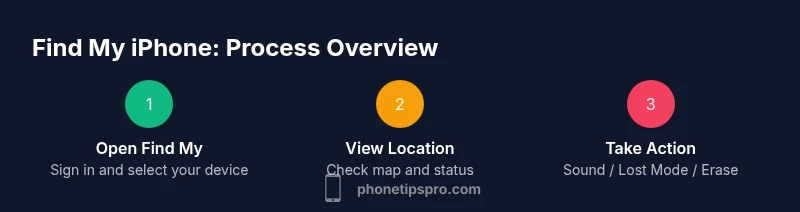
Open the Find My app on your iPhone or iPad. Sign in if prompted with your Apple ID. Tap Devices to see a list, then select your lost device. The map shows the current or last known location. From here you can play a sound, enable Lost Mode, or erase remotely. Lost Mode locks the device and displays a message with a contact method. If the device is offline, use Notify When Found to receive an alert when it comes online.
Locating Your iPhone via iCloud.com
If you don't have the app, you can access Find My via iCloud.com. Sign in with the same Apple ID, click Find iPhone, and select your device from the All Devices list. The site presents the location on a map, plus options to play sound, Lost Mode, or erase. The interface mirrors the app, but you may need to refresh the page or sign out if you can't see the device. This is useful when you only have a computer handy.
Security Actions: Lost Mode, Lock, and Erase
Lost Mode prevents access by locking the screen, shows a custom message with a contact number, and tracks location. Use Erase iPhone only if you're sure recovery isn't possible. Remotely locking or erasing should be coordinated with authorities if necessary. If you find the device, disable Lost Mode to regain control and review recent activity. These options help protect sensitive data when the device is misplaced.
Scenarios: Found, Offline, or Stolen
If the device is online, you can locate and mark Lost or erase. If it's offline, you'll see last known location and can enable Notify When Found. In case of theft, contact law enforcement and your carrier to suspend service; do not attempt personal confrontation. If the device returns online later, Find My will update the location and status automatically.
Common Issues and Troubleshooting Tips
If you don't see your device, check that Find My is enabled on the device and that you're signed into the correct Apple ID. Ensure Location Services are on. If location seems inaccurate, move to a different area, wait a few minutes, and refresh the map. If you can't access the account, reset your password via Apple's account page. Finally, review location-sharing privacy settings to control who can see your status.
Tools & Materials
- Apple ID credentials(Make sure you know the Apple ID used on the lost iPhone and its password.)
- Device with Find My enabled(The lost iPhone must have Find My iPhone enabled and Location Services active.)
- Trusted device with internet(An iPhone, iPad, or computer with internet access to sign in and locate.)
- Reliable internet access(Wi-Fi or cellular data on your locating device.)
- Recent backup(Optional but recommended to prevent data loss if you erase.)
Steps
Estimated time: 10-15 minutes
- 1
Open Find My
On a trusted device, open the Find My app and sign in with your Apple ID. This establishes the connection to your missing iPhone and begins the tracking session.
Tip: If you can’t sign in, use account recovery through Apple’s support pages. - 2
Select the missing iPhone
From the Devices list, choose the iPhone you are trying to locate. The map will begin to display the device’s current or last known location.
Tip: If you don’t see the device, ensure it’s signed into iCloud with the same Apple ID. - 3
Play a sound
Tap Play Sound to help locate the phone if it’s nearby. The device will emit a loud tone even if silenced.
Tip: Use this when you suspect the phone is in a specific room or area. - 4
Enable Lost Mode
Enable Lost Mode to lock the device remotely and display a message and contact method on the lock screen.
Tip: Include a callback number so return is possible. - 5
Lock or erase remotely
If recovery seems unlikely, choose Lock to secure the device’s contents or Erase iPhone to delete personal data.
Tip: Only erase as a last resort; once erased, location data is gone unless the device is recovered. - 6
Enable Notify When Found
Turn on Notify When Found to get an alert when the device comes back online.
Tip: This is especially helpful if the device is offline for long periods. - 7
Coordinate with authorities
If the device is stolen, contact local law enforcement and your carrier to suspend service and avoid unsafe situations.
Tip: Do not attempt to recover the device personally if danger is suspected.
FAQ
What should I do if Find My iPhone shows offline?
If the device is offline, you’ll see the last known location and can enable Notify When Found to alert you when it comes online. You can still enable Lost Mode to lock the device once it reconnects.
If offline, rely on the last known location and set Notify When Found so you get an alert when the device reconnects.
Can Find My iPhone locate a stolen device after it’s powered off?
Find My can’t report live location if the device is off, but it will display the last known location. When the device is powered on again, location updates resume if Find My remains enabled.
If powered off, location updates pause until it’s back online.
I can’t sign in to my Apple ID. What should I do?
Use Apple’s account recovery options to reset your password. If you’re locked out, contact Apple Support for guidance on regaining access.
If you can’t sign in, use Apple’s recovery options to reset your password.
Will Find My work without internet access?
Find My requires internet access to update location. If the device is offline, you’ll see the last known location and be notified once it reconnects.
It needs internet to update locations, so you may only see last known data until it goes online.
Is it safe to track location with Find My?
Yes. Location data is controlled by you, and you decide when you share it. Use Lost Mode and two-factor authentication for extra security.
Your location data is private and controlled by you.
When should I erase my iPhone remotely?
Erase remotely only if recovery is unlikely and sensitive data is at risk. This action is irreversible and may hinder later recovery attempts.
Erase should be a last resort when data safety is at risk.
Watch Video
Quick Summary
- Enable Find My iPhone now to prepare for loss
- Sign in with Apple ID to locate devices quickly
- Use Lost Mode to secure data and display contact info
- Erase only as a last resort to protect data and integrity