Apple iPhone Find My: Locate, Lock, and Erase with Confidence
Learn to use Find My on your Apple iPhone to locate, lock, or erase a lost device. This step-by-step guide covers enabling Find My, using iCloud, and keeping your data secure.


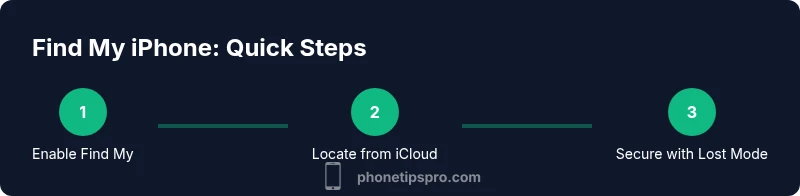
According to Phone Tips Pro, using apple iphone find my lets you locate, lock, or erase a misplaced iPhone quickly. This quick guide shows the core steps to enable Find My, sign in with your Apple ID, and use iCloud to protect your data. It’s practical, safe, and designed for real-life emergencies.
What Find My is and key capabilities
The Find My service is a core Apple feature that helps you locate, lock, play a sound on, or erase a missing iPhone. It works across devices—iPhone, iPad, Mac, and via iCloud.com—so you can act from wherever you are. The apple iphone find my functionality combines GPS data, nearby device signals, and the Find My network to show a location even if the device is not actively connected to the internet. In practice, you can see the device on a map, play a sound to help you locate it, enable Lost Mode to lock it with a message, or wipe data remotely if necessary. For many users, Find My is the quickest route to safety and data protection during a loss. According to Phone Tips Pro, this capability is a foundational safety net and should be part of your standard iPhone security habits, especially if you carry sensitive information on your device.
Prerequisites and privacy considerations
Before you rely on Find My, there are several prerequisites and privacy considerations to understand. First, Find My must be enabled on the iPhone you want to protect. Second, your Apple ID should be signed in to iCloud on the device, and two-factor authentication is strongly recommended to prevent unauthorized access. It’s also important to be aware of Activation Lock, which keeps your data secure even if someone tries to wipe the device without your credentials. While Find My can reveal location data, you control when and with whom your location is shared. If you’re using a shared or family device, make sure you review permissions and understand that location sharing can be turned off by the device owner. Phone Tips Pro analysis shows that balancing privacy with practical security is key to maximizing the benefits of Find My.
How to turn on Find My on iPhone
To turn on Find My, open Settings and tap your name at the top, then select Find My. Ensure Find My iPhone is turned on, and consider enabling Find My network (Bluetooth) to help locate your device even when offline. You should also enable Send Last Location so Apple stores the device’s last known location when the battery is low. These steps ensure you can locate the device quickly, even if it’s offline or in a low-signal area. Remember to review your contact options in case you need to reach you.
Locating your iPhone from another device
You don’t need to own the lost iPhone to locate it. Use Find My on another iPhone, iPad, Mac, or via iCloud.com. Sign in with your Apple ID, choose the missing device from the list, and view its current location on the map. From here you can play a sound to help you locate it, enable Lost Mode to lock the screen and display a custom message, or erase the device remotely if you believe it’s irretrievably lost. If the map shows an approximate location, move to a better signal area and refresh to get a more accurate view.
Actions you can take when your iPhone is lost
When you spot your device, the first option is to play a sound to help you locate it if it’s nearby. If the device is truly missing or stolen, enable Lost Mode to lock the device, display a contact number, and track its location. If you’re certain the data is at risk, consider erasing the device remotely. Be mindful that erasing will remove all data and may disable Activation Lock, so only perform this if recovery seems unlikely. After taking these actions, monitor the location updates and consider reporting the loss to local authorities if appropriate.
Offline devices and Find My network
Find My network uses nearby Apple devices to locate a missing device even when it’s offline or not connected to cellular data. This crowd-sourced approach can provide a location update when another device comes within range of the lost iPhone. However, results depend on nearby devices and network conditions, so the last known location or a best-guess on the map may be the most reliable data you have. Keeping Bluetooth and Location Services enabled improves the chances of a successful locate, but review privacy settings accordingly.
Privacy, security, and data protection tips
Prioritize security by using a strong Apple ID password and enabling two-factor authentication. Review Activation Lock settings; do not share your Apple ID credentials with others. Use Lost Mode to display a contact method so helpers can reach you while keeping other data secure. Regularly review devices linked to your Apple ID and remove any you no longer own. This approach maintains control over your data while still letting Find My assist you in emergencies. Phone Tips Pro’s guidance emphasizes proactive security alongside practical locate-and-secure steps.
Troubleshooting and common issues
If you don’t see your device on Find My, verify that Find My iPhone is enabled on the device, ensure you’re signing in with the correct Apple ID, and check that location services are active. If the device hasn’t reported a location in a while, try refreshing the map or using the Last Known Location. For offline devices, remember the Find My network may only reveal a rough location until the device reconnects. If you continue to experience problems, test Find My on another Apple device or via iCloud.com to isolate the issue.
Tools & Materials
- iPhone with Find My enabled(Settings > [Your Name] > Find My > Find My iPhone should be toggled on.)
- Apple ID and password(Used to sign in to iCloud/Find My on all devices.)
- Another device or computer(Access Find My via the Find My app or iCloud.com.)
- Reliable internet connection(Wi-Fi or cellular data for up-to-date location updates.)
- Two-factor authentication(Strongly recommended for added security.)
Steps
Estimated time: 40-60 minutes
- 1
Open Find My on iPhone
Unlock your device and locate the Find My app (or use Settings to access Find My). This step establishes the starting point for locating, locking, or erasing the device.
Tip: If you don’t see Find My, update iOS or reinstall the app to ensure compatibility. - 2
Verify prerequisites
Confirm Find My iPhone is enabled and you’re signed in with the correct Apple ID. This ensures your attempts will access the right device and data.
Tip: Turn on Send Last Location so Apple saves the device’s final location before power loss. - 3
Choose the device to locate
From the list, pick the missing iPhone. If you have multiple devices, select the exact one you’re trying to recover.
Tip: On shared devices, ensure you’re selecting the intended iPhone to avoid confusion. - 4
View location on the map
Check the device’s current location or last known location on the map. Use zoom and pan controls to refine the view.
Tip: If the location seems off, refresh the page or re-open the app after a moment. - 5
Play a sound or mark as Lost
Tap Play Sound to locate the iPhone if nearby, or Lost Mode to lock the screen with a message and contact info.
Tip: Include a simple contact method in Lost Mode so helpers can return the device safely. - 6
Secure or erase if needed
If you fear data exposure, use Lost Mode, then consider remotely erasing the device. Remember that erasing clears data and may require re-activation.
Tip: Only erase as a last resort or if recovery seems unlikely. - 7
Monitor updates and respond
Continue checking location updates and respond to any new information. If the device is recovered, remove Lost Mode and verify data integrity.
Tip: If the device is stolen, notify local authorities and provide the location details you’ve gathered. - 8
Review security after recovery
After recovery or if you erase, review your Apple ID security settings, update passwords, and re-enable protective measures.
Tip: Regularly audit linked devices and enable two-factor authentication.
FAQ
What happens when you erase your iPhone remotely?
Erasing removes all data on the device and resets it. Activation Lock remains until you sign in again with your Apple ID, which helps prevent unauthorized use. After erasing, you can still locate the device if it’s powered on and connected, but data on the device will be gone.
Erasing deletes data and resets the device, with Activation Lock protecting it until you sign back in.
Can Find My locate a device that is turned off?
Find My can show the last known location and may detect the device again once it’s powered on and connected. Offline location updates depend on nearby Apple devices via Find My network.
It can show the last location and update when the device turns back on.
Is Find My available for Family Sharing?
Yes. Family Sharing allows coordinated use of Find My for family devices, with appropriate permissions and consent settings managed by the organizer.
Family Sharing supports Find My for family member devices with permissions.
What if I can’t access Find My on my iPhone?
Try signing in via iCloud.com on a computer, verify your Apple ID, and ensure location services are enabled. If problems persist, test Find My on another Apple device to isolate the issue.
Sign in on iCloud.com or another device to troubleshoot.
Does using Find My drain the battery quickly?
Using Find My for location updates may consume some battery, especially if location services are active in the background. Turning off Find My when you’re done can help save power.
Location updates can use some battery life; turn off when not needed.
How do I disable Find My iPhone?
Go to Settings > [Your Name] > Find My and toggle off Find My iPhone. You’ll need your Apple ID password to confirm this action.
Disable Find My in Settings and confirm with your Apple ID password.
Watch Video
Quick Summary
- Know how Find My helps locate and secure devices
- Enable Find My and two-factor authentication
- Use Lost Mode or remote erase carefully
- Offline locations rely on Find My network
- Regularly audit linked devices and privacy settings