How to Download TikTok Videos on iPhone
Learn safe, legal ways to save TikTok videos on iPhone. Step-by-step methods, backups with screen recording, and tips from Phone Tips Pro to respect creators and platform rules.


You can download a TikTok video on iPhone by using the app's built-in Save video option when the creator permits downloads. If Save isn’t available, record the video with iPhone Screen Recording, then trim in Photos. Always respect creator rights and TikTok’s terms of service when saving or sharing content.
Understanding the rights and options for saving TikTok videos on iPhone
If you’re looking for a practical answer to how to download tiktok video on iphone, start by understanding that not every video can be saved. TikTok gives creators control over whether their content can be downloaded, and some videos are protected by privacy or licensing settings. This means you may see the Save video option unavailable for certain clips. From Phone Tips Pro’s perspective, the safest approach is to use the built-in Save Video feature when it’s available, as it preserves the original quality and includes the creator’s watermark by default. Always verify that you’re downloading content you’re legally allowed to keep, and avoid redistribution beyond what the creator’s permissions allow. This aligns with best practices for iPhone users who want reliable offline access without violating terms of service or copyright.
How the Save Video feature works and where to find it
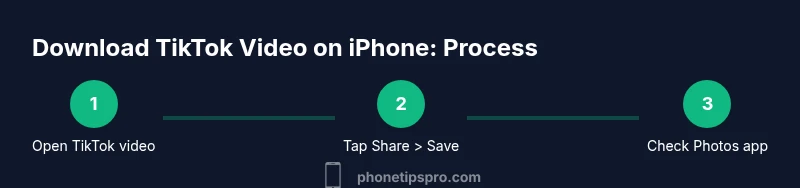
On iPhone, the most straightforward method is the in-app Share menu. When a video is downloadable, you’ll see a Save video option. Tapping Save stores a copy directly to your Photos app in your camera roll, usually with the original audio and watermark intact. If you can’t find Save video, the creator may have disabled downloads, or the video could be restricted by age or region. In those cases, you’ll need an alternative method that respects rights and terms. Remember to check your iPhone’s permission settings to ensure TikTok can access Photos. If your Photos permissions are blocked, you won’t be able to save even when the option is available.
Troubleshooting: Save option missing or greyed out
When the Save video option is greyed out or missing, start with a quick checklist. Confirm the video is public and that the creator allows downloads. Update TikTok to the latest version, as older versions may not reflect current permissions. Check iPhone Settings > TikTok > Photos Access and ensure you’ve granted permission. If it still isn’t available, it’s often due to creator settings rather than a device issue. In such cases, move to a compliant backup method rather than attempting to bypass protections. Phone Tips Pro emphasizes staying within platform rules to protect both creators and your device.
Screen recording on iPhone: a reliable backup method
Screen Recording is a built-in iPhone feature you can use when the Save option isn’t available. To prepare, add Screen Recording to your Control Center and ensure your mic setting aligns with your recording goals. Open TikTok, navigate to the video, start Screen Recording, then play the video. Stop the recording and trim the clip in Photos to remove any unnecessary frames. This method captures exactly what appears on screen, but keep in mind it may yield larger file sizes and could capture on-screen watermarks.
Best practices for video quality and storage management
After saving or recording, you may want to optimize video quality and storage. In Photos, use the Trim tool to cut any extraneous sections and export a clean version. If you routinely download videos, consider organizing them into a dedicated album or folder to simplify later viewing. Regularly review your storage usage and delete duplicates to prevent clutter. High-quality downloads will take more space, so balance quality and device capacity. Phone Tips Pro recommends keeping a short, curated offline library rather than saving every clip you encounter.
Privacy, copyright, and ethical considerations
Always prioritize creator rights when downloading TikTok videos. Even when a download option exists, respecting licensing and consent is critical. If a video is not allowed to be saved, do not attempt to circumvent protections. If you plan to reuse content publicly or commercially, seek explicit permission from the creator or rely on content licensed for reuse. This approach not only protects you legally but also supports a fair ecosystem for creators on iPhone and across platforms.
Tips & warnings for safe saving on iPhone
- Pro tip: Use the built-in Save video option whenever available for best quality and compliance.
- Warning: Do not download or share videos that explicitly prohibit reuse or are clearly copyrighted without permission.
- Note: Screen recording should be used as a last resort when saving is blocked, and you should trim to the exact moment you want.
- Note: Always verify the source and avoid third-party apps that claim to bypass protections, as these can breach terms and compromise security.
Authority sources and further reading
For deeper guidance on rights and safe practices, consult reputable sources. The U.S. Copyright Office provides guidelines on user rights and fair use. Apple Support documents iPhone privacy and Photos access controls, which are relevant when saving videos. The FTC’s consumer protection resources offer general guidance on platform terms and user rights. These sources help frame a compliant approach to saving TikTok videos on iPhone.
Final best practices: what to do next
To wrap up, the recommended workflow is to first try the in-app Save video option; if unavailable, use Screen Recording with careful attention to permissions and privacy. After saving, organize clips, trim for quality, and always credit creators when sharing. By following these steps, you’ll have a reliable offline library that respects creators and platform regulations.
Tools & Materials
- iPhone with current iOS and TikTok app(Ensure you’re running the latest app version for accurate permissions and features.)
- Stable internet connection(Wi-Fi is preferred to avoid depleting mobile data; some saves require online verification.)
- Photos access permission for TikTok(Grant permission in iPhone Settings to save videos to your camera roll.)
- Screen Recording (optional)(Enable in Control Center if you plan to back up with this method.)
Steps
Estimated time: 15-20 minutes
- 1
Open the TikTok video you want to save
Launch the TikTok app, locate the video you’d like to download, and verify that the creator allows downloads. This ensures you’re acting within the creator’s rights and platform rules before attempting to save.
Tip: If the video isn’t downloadable, move to alternative methods rather than forcing a download. - 2
Tap Share and look for Save video
Tap the share arrow and check for a Save video option. If it’s available, select it to save directly to Photos in your camera roll with original audio and watermark.
Tip: If you don’t see Save video, the creator may have disabled downloads. - 3
Grant Photos access and verify saving location
If prompted, allow TikTok to access Photos. Open the Photos app to confirm the clip is saved in the Videos or Recents album.
Tip: Organize saved videos in a dedicated TikTok downloads album for easy retrieval. - 4
Use Screen Recording if Save is unavailable
Add Screen Recording to Control Center, start recording, then play the video. Stop, then trim in Photos to remove unnecessary frames.
Tip: Turn on Do Not Disturb to avoid notifications appearing in your recording. - 5
Trim and finalize your saved clip
In Photos, use the Trim tool to remove the beginning or end segments. Save a clean version and review audio quality.
Tip: Keep a backup copy of the untrimmed video in a separate album until you’re sure you’ll use the trimmed version. - 6
Respect rights when sharing
If you share the saved video, credit the creator and adhere to any restrictions they’ve set. Do not remove watermarks if it isn’t permitted.
Tip: When in doubt, ask the creator for permission or use licensed content.
FAQ
Can I download TikTok videos on iPhone without watermarks?
The official in-app Save Video generally preserves the watermark. Removing it is not supported by TikTok and may violate terms. If you need a clean version, seek permission from the creator or use licensed content.
Official saves keep the watermark; removing it isn’t supported and may breach terms.
Is saving TikTok videos allowed by creators?
If a creator enables downloads or gives permission, you may save for personal use. Always respect the creator’s rights and the video’s licensing terms.
Save only when the creator allows it and respect licensing rules.
What if Save Video is greyed out?
A greyed-out Save option usually means the creator has disabled downloads or regional restrictions apply. Update the app and check permissions; if still unavailable, rely on screen recording as a compliant backup.
If it’s greyed out, the creator may have blocked downloads; use screen recording if allowed.
Will screen recording affect video quality?
Screen recording captures the on-screen output, so quality depends on your device and settings. You may need to trim and adjust afterwards to match original quality.
Recording uses the screen’s output, so quality varies and may require edits.
How do I save to Photos with limited storage?
Saving to Photos creates files in your camera roll. Ensure enough storage, delete duplicates, and consider compressing or trimming videos to save space.
Make sure you have space, then save or trim as needed.
Are there legal concerns with downloading TikTok videos?
Yes. Content belongs to the creator; download only with permission, and avoid redistribution beyond what rights allow. When in doubt, seek explicit permission.
Respect creators' rights and platform terms; get permission if unsure.
Watch Video
Quick Summary
- Check creator permissions before saving any video.
- Use Save Video for best results when available.
- Screen Recording is a legitimate backup method when necessary.
- Respect copyright and TikTok’s terms for all offline uses.
- Organize saved content to avoid clutter and preserve quality.