How to Safely Download YouTube Videos on iPhone
Learn legal, official methods to save YouTube videos on your iPhone for offline viewing. This guide covers YouTube Premium offline downloads, safety tips, and alternatives that respect creators' rights and device storage.


Learn how to legally access YouTube videos on your iPhone for offline viewing. This guide explains official options, like YouTube Premium offline downloads, plus safe alternatives for creators' rights. Follow the steps to download within the YouTube app, manage storage, and avoid risky third-party tools. This answer format is designed for quick skimming.
What you can legally download on iPhone from YouTube
If you’re exploring how to download iPhone video download youtube content for offline viewing, it’s important to understand what is legally allowed. The YouTube app on iPhone offers an official offline feature through YouTube Premium for subscribers, plus some videos that are provided as downloads by creators themselves via their channels or licensing. This guide clarifies what you can download, how to access it, and how to do so without violating rights. According to Phone Tips Pro, the simplest path to offline access is through YouTube's built-in offline feature, which respects creators' rights while giving your device a portable library. The main idea is to focus on videos you’re allowed to access offline and to use the official channels for storage. This is the safest and most reliable approach, especially for long-term use. In practice, you’ll typically browse, pick a video with a download button, and save it for later viewing inside the YouTube app. This ensures that captions, quality settings, and the creator’s rights are preserved.
Why downloading is restricted by terms
Downloading videos from YouTube is governed by the platform’s Terms of Service and copyright rules. While some videos offer offline access within the app, others may be restricted by the uploader or licensing agreements. Using third‑party tools to bypass protections can violate the terms and pose security risks. To stay compliant, rely on YouTube’s official offline options, respect licensing terms, and avoid tools that promise universal downloads or file transfers outside the app. Phone Tips Pro emphasizes that adherence to these rules protects creators and your device from malware or privacy concerns, especially on iOS where app permissions are closely managed.
Official route: YouTube Premium offline downloads
YouTube Premium provides a sanctioned way to save videos for offline viewing on your iPhone. After subscribing, look for a download button beneath a video or in the video options menu. Choose a quality level, then the video will appear in your Library > Downloads. Offline content remains accessible through the YouTube app as long as your subscription is active and the content is licensed for offline viewing. This route keeps captions, playback speed, and other accessibility features intact, while ensuring creators are properly compensated for offline access. Phone Tips Pro recommends prioritizing official paths to protect both copyright and user security.
How to download videos for offline viewing in YouTube app
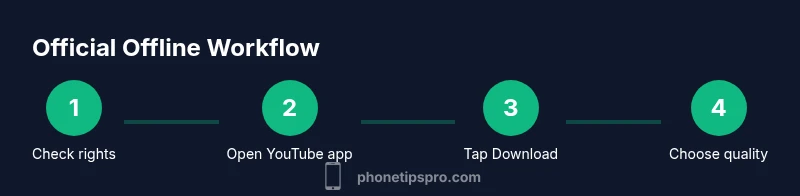
Open the YouTube app on your iPhone, sign in, and locate a video you want to save. Tap the Download button (often shown as a downward arrow) and select your preferred quality. The app will download the video to your Library > Downloads. You can monitor progress in the Downloads tab. If the video isn’t eligible for offline viewing, the option will not appear. For best results, ensure a stable Wi‑Fi connection during the download and verify that you have enough storage space before starting. This process keeps the video playable offline only within the YouTube app, preserving the creator’s rights and the content’s integrity. Consider using high‑quality options for longer videos to improve viewing experience without wasting space.
Managing storage and quality settings
When downloads expire or are removed
Downloads on iPhone are tied to your YouTube account and licensing rights. If you cancel your YouTube Premium subscription or if the content license changes, offline videos may no longer be available. Regularly review your Downloads list to remove videos you no longer need and free up space. You can also adjust the download quality to balance file size and viewing clarity. Pro tip: enable “Only download over Wi‑Fi” in your YouTube settings to avoid sudden data usage. This helps you control storage and data usage while maintaining convenient offline access.
Safe alternatives to download videos legally
If you don’t want to rely on subscription services, you can still enjoy offline viewing through alternative, legitimate channels. Some creators allow direct downloads or provide downloadable video files on their own sites or platforms. You can also save content you own or have rights to via licensing agreements, using official distribution channels. Always verify the rights before downloading, and avoid third‑party apps or websites that claim to bypass protections. This approach minimizes security risks and supports content creators. Phone Tips Pro notes that staying within legal channels is the best long‑term strategy for reliable offline access.
Common mistakes and scams
Many sites and apps promote “download YouTube videos for iPhone” solutions that violate YouTube’s terms or distribute malware. Avoid these, as they can compromise your device and lead to penalties from YouTube. Stick to official features, verify app permissions, and never share login credentials with unreliable tools. If something seems too easy or free for all videos, it’s likely unsafe. Remember to back up your device before experimenting with new software, especially when it claims to bypass protections. Phone Tips Pro cautions that the safest path is to use official downloads and rights-cleared content only.
Accessibility and quality settings for offline videos
When watching offline, you can still enable captions, adjust playback speed, and use accessibility features. If a video lacks captions, try a higher‑quality version or a similarly licensed video with subtitles. Ensure your iPhone’s accessibility settings are configured to your needs, enabling features like VoiceOver or larger text where helpful. Properly managed offline videos improve the overall experience, especially when travelling or in areas with limited connectivity.
Tools & Materials
- iPhone with iOS up to date(Ensure you have iOS 15+ for best compatibility with the YouTube app)
- YouTube app or Safari browser(Use the official app for downloads or streaming in a browser as needed)
- YouTube Premium subscription(Official offline access is typically available with Premium; some rights-cleared videos may download without it in certain regions)
- Stable Wi‑Fi connection(Large videos require reliable Wi‑Fi to avoid cellular data throttling)
- Sufficient storage space(Download size varies by video length and quality; clear space before saving)
Steps
Estimated time: Total time: 15-25 minutes per video
- 1
Assess legal options
Review whether the video can be downloaded legally and confirm you have the rights or a YouTube Premium subscription. This ensures you’re compliant with copyright rules and YouTube’s terms. If you’re unsure, seek guidance from official sources or the video owner. Include a quick check in your plan so you don’t waste time on protected content.
Tip: Always verify rights before downloading to avoid copyright violations. - 2
Open YouTube app and find a video
Launch the YouTube app on your iPhone and locate the video you want to save for offline viewing. Not every video will have a download option; this depends on licensing and uploader settings. If you don’t see the download button, move on to videos that are available for offline access.
Tip: Use a video you own or have permission to download. - 3
Tap Download and choose quality
Tap the Download icon beneath the video or in the options menu. Pick your preferred quality setting to balance storage use with viewing clarity. Higher quality takes more space but offers better picture, especially on larger iPhone screens.
Tip: Choosing 720p or 1080p keeps a decent balance for most devices. - 4
Monitor progress and complete download
Go to Library > Downloads to monitor progress and ensure the file completes. Avoid interrupting the download; if it stalls, pause and retry on a stronger connection or switch to Wi‑Fi.
Tip: Allow background downloads to finish even if you switch apps. - 5
Play offline content and manage storage
After download, play the video offline to confirm it works. Regularly review your Downloads list and remove videos you no longer need to free space for new content.
Tip: Delete unused videos to maintain optimal storage. - 6
Adjust offline settings and preferences
In YouTube settings, enable options like ‘Only download over Wi‑Fi’ and set preferred video quality. This helps optimize data usage and storage over time.
Tip: Enable Wi‑Fi only downloads to protect data limits. - 7
Handle expirations and rights changes
Remember that offline access is tied to licensing and your subscription. If rights change or you cancel Premium, some downloads may no longer be accessible.
Tip: Keep track of subscription status to avoid surprises.
FAQ
Is it legal to download YouTube videos on iPhone?
Officially, downloads are allowed through YouTube Premium for offline viewing or for videos that the creator licenses for offline use. Third‑party tools to download all videos may violate terms and pose security risks.
Official downloads are allowed with YouTube Premium or rights-cleared videos.
Do I need YouTube Premium to download videos?
In most cases, yes. YouTube Premium provides built-in offline viewing. Some rights-cleared content may download without Premium in certain regions, but Premium is the reliable path for many videos.
You usually need YouTube Premium for offline viewing, depending on regional rights.
Can I transfer downloaded videos to another device?
Offline videos downloaded via YouTube stay within the YouTube app on the device where you downloaded them. They cannot be transferred as standalone files to a different device.
Downloads stay in the YouTube app on the device you used to download them.
What happens if I cancel YouTube Premium?
If you cancel Premium, access to previously downloaded videos may be removed from offline viewing. You can still access content via streaming if you have an internet connection.
Cancellations can end offline access to downloaded videos.
Are there safe alternatives besides YouTube Premium?
Official rights-cleared downloads from content owners or creator-approved platforms are the safe alternatives. Avoid third‑party sites that promise universal YouTube downloads.
Only use official or rights-cleared options for offline viewing.
Why don’t all videos have a download option?
Videos may lack a download button if the uploader restricted offline viewing or if licensing forbids offline copies. In such cases, use videos that do offer offline access.
Not all videos are available offline due to rights and uploader settings.
Watch Video
Quick Summary
- Download legally using YouTube Premium or rights-cleared content
- Offline videos stay accessible within the YouTube app
- Manage storage to avoid space issues
- Avoid unsafe third‑party tools that bypass protections