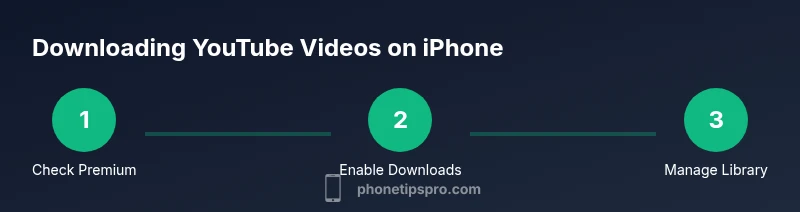
How to Download YouTube Videos on iPhone: Safe Guide
Learn how to download YouTube videos on iPhone legally using YouTube Premium. This step-by-step guide covers prerequisites, the offline download process, management tips, and safe alternatives for offline viewing.


With YouTube Premium, you can legally download videos for offline viewing on your iPhone. This quick guide covers prerequisites, how to enable offline downloads, choose video quality, and manage your downloaded library. It also explains content limits, regional availability, and safe alternatives when offline options aren’t available.
How to download youtube video on iphone: A practical, official route
According to Phone Tips Pro, the most reliable path for offline viewing on an iPhone starts with YouTube Premium. This approach aligns with the platform’s terms of service and keeps your content within the YouTube app. In this section we outline why this route is preferred, what you can download, and the general expectations around quality, storage, and regional availability. By the end, you’ll know exactly what you need to begin and how to manage your offline library effectively.
The goal here is not to bypass restrictions but to use a supported method so you can enjoy videos without a constant internet connection. This is especially helpful during travel, in places with poor connectivity, or when you want to save mobile data. You’ll also learn how to keep downloads updated and how to remove videos to reclaim space if needed.
Prerequisites you must have before starting
YouTube Premium subscription is essential for official offline downloads on iPhone. Ensure your iPhone runs iOS that supports the latest YouTube app, and install/update the YouTube app from the App Store. A stable internet connection is needed to initially download content, and you should have enough storage space available for the videos you plan to keep offline. Finally, sign in with the Google account linked to your Premium plan so downloads sync to your device.
Without Premium, you won’t access the official offline feature, and attempting to use third-party tools may violate YouTube’s terms and expose your device to risks. Plan your downloads around your typical data plan and travel schedule to maximize the benefit of offline viewing.
Step-by-step: official offline download process
- Open the YouTube app and sign in with your premium account. This confirms your eligibility for offline downloads and lets you access the Downloads section. Why: verification is required to enable offline storage. Tip: make sure you’re on Wi-Fi for the initial download to save mobile data.
- Find a video you want to save. Not all content is available for download due to creator restrictions or licensing. Why: offline availability varies by video. Tip: look for a Download button beneath the player or in the video’s details.
- Tap the Download button below the video. This starts the download to your device. Why: the button is the official signal for offline storage. Tip: choose the highest quality you can afford in terms of storage and data usage.
- Pick a video quality. Higher quality uses more space but looks better offline. Why: quality setting directly impacts file size and battery use. Tip: if you’re often offline, select a balance between quality and storage.
- Monitor the progress in Library > Downloads. Once each item completes, you can access it without an internet connection. Why: the Downloads section is your primary hub for offline content. Tip: ensure the video remains available by keeping the app installed and signed in.
- Access downloaded videos later by opening Library > Downloads in the YouTube app. Why: offline videos live in this area for easy access. Tip: if a download is removed, you can re-download when you’re online again with the same Premium account.
- Manage your downloads to conserve space. You can delete individual videos or clear all offline content when storage is tight. Why: maintaining free space prevents download failures in the future. Tip: periodically review saved items and remove those you’ve watched already.
Managing offline downloads and library organization
The YouTube app stores offline videos in a dedicated section, which you can access anytime. You can sort downloads by date or video title and remove items you no longer need to free space. If a video becomes unavailable due to licensing changes, you’ll typically see an alert and the option to re-download if the content becomes available again. Regularly syncing with the server ensures offline permissions stay current. Pro tip: keep your YouTube app updated to avoid compatibility issues with newer offline features.
Content availability and regional considerations
Not every video is eligible for offline download. Availability can depend on creator permissions, licensing, and geographic restrictions. If a video isn’t downloadable, you’ll see a notification rather than a download option. This limitation can vary by country and over time as rights and policies change. If you travel or move to a different region, offline access may be affected until permissions are updated. Pro tip: always check the video details before planning a long offline session.
Safety, privacy, and policy reminders
Downloading content through official means respects creators’ rights and YouTube’s terms of service. Avoid third-party apps or sites that promise grab-and-save functionality; they often violate terms and may expose you to malware. Keep your account secure, sign in only on trusted devices, and review app permissions. Remember that offline availability depends on your Premium status and the video’s licensing.
Troubleshooting common issues when downloading
If downloads fail, first verify your YouTube Premium status and sign-in. Ensure enough storage is available and that the video is eligible for offline access. Check your network connection during the initial download, and try re-downloading after reloading the app. If a video remains unavailable, it may be blocked in your region or by the content owner. Contact YouTube support if issues persist.
Data usage and battery considerations for offline viewing
Offline downloads still consume storage and can impact battery life when you watch content for long periods. While offline, playback uses local data rather than streaming bandwidth, which saves cellular data. However, higher quality downloads increase file size and energy use during playback, so balance quality with battery life and storage. Planning downloads in advance during Wi-Fi sessions helps preserve energy and data.
Alternatives and best practices for offline viewing
Officially, offline viewing is best accessed via YouTube Premium. There are no sanctioned free methods to permanently download content outside the app, which guards against copyright violations and malware. If you rely on offline viewing frequently, consider batching downloads during hotel stays or when connected to reliable Wi-Fi networks. Maintain a clean download library to avoid clutter and ensure quick access to your favorites.
Storage management for offline videos on iPhone
Downloads occupy local storage, so periodically review your offline library and remove videos you’ve already watched. Freeing space helps ensure new downloads succeed and reduces the chance of device storage limits interrupting playback. A practical habit is to set a monthly reminder to prune old content and back up clips you want to keep on a separate drive if needed.
Final tips and next steps
Keep your iPhone updated, stay within the YouTube app ecosystem, and always verify video eligibility before downloading. If you travel often, plan offline sessions around known Wi-Fi opportunities to minimize data use. For creators and viewers alike, respecting licensing ensures content remains available for everyone. Check Phone Tips Pro for updates on changes to download policies and best practices.
Tools & Materials
- iPhone with iOS compatible with YouTube app(Ensure you have the latest iOS and the YouTube app installed.)
- Active YouTube Premium subscription(Official offline feature requires Premium.)
- Stable Wi-Fi connection for initial downloads(Best to download large videos over Wi-Fi to save data.)
- Sufficient device storage(Check available space before downloading multiple videos.)
- Apple ID signed in to iCloud if you want backup(Optional for backup of app data.)
Steps
Estimated time: 5-12 minutes
- 1
Verify prerequisites
Open YouTube, sign in with your Premium account, and check that your iPhone has enough storage. This ensures you can download without interruptions. If you’re missing Premium, subscribe first from the YouTube app or website.
Tip: Confirm you’re signed into the Google account linked to Premium to avoid permission errors. - 2
Find eligible content
Search for videos you want offline. Look for the blue Download button beneath the video player or in the video options. Not all videos will show this option due to licensing or creator settings.
Tip: Premium enables offline downloads, but availability varies by video and region. - 3
Choose download quality
Tap Download and pick your preferred quality. Higher quality improves viewing, but uses more storage space. If you’re on limited storage, select a medium quality.
Tip: Lower quality saves space and battery life during playback. - 4
Initiate the download
Confirm the download and allow it to begin. Monitor progress in Library > Downloads. Avoid starting large downloads on flaky networks to prevent interruptions.
Tip: Connecting to Wi-Fi during the download helps minimize data usage. - 5
Access offline videos
Open Library > Downloads to view saved videos. Downloads stay available offline as long as you remain signed in and the video remains eligible.
Tip: If a video becomes unavailable, YouTube may remove the download automatically. - 6
Manage storage
Periodically review downloaded content and delete videos you’ve finished watching to free space for new downloads.
Tip: Create a routine to prune unused videos monthly.
FAQ
Is downloading YouTube videos on iPhone free?
No, offline downloads on iPhone require a YouTube Premium subscription. Free YouTube does not support official offline downloading.
Offline downloads require YouTube Premium; free accounts don’t have official download capability.
Can I download any video with YouTube Premium?
Most videos are downloadable, but some content may be blocked by creators or licensing agreements. If the download button isn’t shown, the video isn’t eligible offline.
Most videos can be downloaded, but some may be blocked by rights holders.
Where do downloaded videos appear on iPhone?
Downloaded videos appear in the YouTube app under Library > Downloads, ready for offline viewing when you have connectivity issues.
Check Library > Downloads in the YouTube app to access offline videos.
Do downloads expire?
Offline videos can require periodic online verification to remain accessible; video availability can change with licensing.
You may need to reconnect online occasionally to keep downloads active.
Can I download to an external storage or SD card?
Downloads are stored within the iPhone’s internal storage managed by the YouTube app; external storage options aren’t supported for YouTube offline videos.
Offline videos stay in the iPhone’s storage, not on external drives.
Watch Video
Quick Summary
- Use YouTube Premium for official offline downloads
- Not all videos are downloadable due to licensing
- Manage storage by pruning watched offline videos
- Offline availability varies by region and content
- Always download via the official YouTube app to stay compliant