How to Make Emojis on iPhone: A Practical Guide
Learn how to make emojis on iPhone, including Memojis and the built-in emoji keyboard, with a clear, step-by-step guide from Phone Tips Pro. Get practical tips and troubleshooting to personalize your emoji experience across Messages and apps.


Phone Tips Pro guides you through how to make emojis on iPhone using Memojis and the built-in keyboard. You’ll need an iPhone with iOS 13+ and an Apple ID to customize and sync. By following these steps, you’ll create Memojis and use emoji shortcuts across Messages and apps today too.
What counts as emojis on iPhone and why it matters
Emojis on iPhone are more than cute pictures: they are tools for tone, nuance, and clarity in text conversations. On iOS, you have two primary routes to emoji expression: the universal emoji set that appears across all apps, and Memojis—personalized avatars that can mirror your facial expressions and be sent as stickers or animated responses. Understanding this distinction helps you pick the right option for the moment. Memojis offer bite-sized avatars that feel like you, while the emoji keyboard is best for quick universal symbols. Phone Tips Pro emphasizes that choosing the right path can speed up conversations and reduce miscommunication, especially when you want a specific emotion or brand voice in chats. Regardless of the route, the goal is to convey intent clearly, not to overwhelm with complexity. If you’re new, start with the emoji keyboard for speed and try Memojis when you want a more personal touch in messages.
Two main paths: Memojis vs. keyboard emojis
There are two main roads to emoji expression on iPhone. The first is the universal emoji keyboard, which is fast, widely supported, and ideal for quick reactions or captions. The second path is Memojis, personalized avatars that animate to your facial expressions and can be sent as stickers or short videos. Memojis add personality and can be used across Messages and compatible apps that support sticker packs. Phone Tips Pro notes that most users start with keyboard emojis for speed and graduate to Memojis when they want a unique voice or brand expression in conversations. The more you use both, the more fluent your emoji communication becomes across different contexts.
Memojis: personalized avatars and how to access
Memojis rely on Apple’s TrueDepth camera system found on iPhone X and newer models. With iOS 13 and later, you gain access to the Memoji editor, where you can craft an avatar that resembles you or a character you enjoy. Memojis can be used as animated responses or as a sticker pack you can insert into messages. They also sync with iCloud if you enable it, allowing access across devices. In practice, Memojis let you convey mood and intent with a consistent avatar, while standard emojis cover broader expressions. Phone Tips Pro analysis shows Memojis have become a popular way to personalize messages without sacrificing clarity.
Creating a new Memoji: step-by-step overview
Creating a Memoji involves opening the Memoji editor, choosing skin tone, facial features, and accessories, and then saving your avatar for use in Messages. The editor provides a wide range of customization options, from hairstyles to eyewear and headwear. Once saved, your Memoji appears in the sticker packs and can be sent as animated responses. This section provides a high-level overview of the necessary steps and helps you plan which features matter most for your likeness and expression.
Customizing Memoji features: hairstyles, accessories, etc.
Customization options cover skin tone, hair color and style, eyebrows, eye color, lashes, freckles, and even glasses or hats. You can tailor facial hair, makeup, and eyeliner to align with your personal or brand voice. The granular controls allow you to create several Memojis for different moods or roles. Consider creating a few distinct Memojis—for family chats, work conversations, and playful posts—to keep your communication fresh and on-brand. Phone Tips Pro highlights that consistent visuals boost recognition and memory in conversations.
Using Memojis in Messages and apps
After creating Memojis, you can insert them directly into Messages as live animations or as stickers. Memojis and their stickers also appear in compatible third-party apps that support sticker packs, expanding their usefulness beyond Messages. Sharing Memojis is a simple tap away, and you can reuse your avatars across conversations without recreating them. To maximize impact, pair Memoji usage with regular emoji keyboard reactions for quick replies, ensuring you’re expressive even when you don’t have time to craft a long message.
Keyboard emoji tips: search, favorites, recents
The iPhone emoji keyboard is a versatile tool for rapid communication. Tap the smiley icon to open it, then browse categories or use the search field to locate specific symbols quickly. Use the Recents tab to re-insert frequently used emoji, and consider pinning commonly used emojis to your favorites when available. Keyboard shortcuts and skin-tone options help you mix standard emojis with more personalized tone. Keeping a small set of frequently used emoji handy speeds up replies and keeps your messages readable while you’re multitasking.
Troubleshooting: compatibility, updates, limitations
Not all iPhone models support Memojis. TrueDepth cameras are required for full Memoji functionality, so older devices may rely on the standard emoji keyboard only. If Memojis aren’t appearing, ensure your iPhone is on iOS 13 or later and that you’ve enabled iCloud backups for Memojis (if you want cross-device access). Some apps may restrict sticker usage or display emoji differently, which can affect how Memojis look in context. Regular software updates ensure you have the latest features and improvements.
Practical examples: real-world usage scenarios
In everyday chats, Memojis work well for conveying emotions during team conversations or family messages. Use Memojis as headers for onboarding messages or to add personality to birthday wishes. The emoji keyboard excels in quick reactions, location-independent updates, and cross-app messaging where a Memoji might be overkill. By using both tools strategically, you’ll communicate more clearly while keeping interactions efficient.
Privacy and data considerations with Memojis
Memojis that you create are stored on-device and can be synced to iCloud if you opt in. This means your avatar data is tied to your Apple ID and is subject to Apple’s privacy controls. If privacy is a concern, review iCloud settings and consider local storage without iCloud syncing for Memojis. As with any digital avatar, be mindful of where you share your Memoji likeness to maintain control over your personal representation.
Best practices and quick tips
Pair Memojis with standard emoji for maximum impact. Create a few templates to cover common moods (happy, thoughtful, excited) and switch between them as needed. Regular updates to iOS often bring new customization options, so check for updates periodically. Finally, practice using Memojis in different apps to understand how they render in conversations and ensure your expression stays consistent across contexts.
Tools & Materials
- iPhone with iOS 13+ (TrueDepth camera)(Needed for Memoji creation and live facial tracking.)
- Apple ID for iCloud sync(Optional if you don’t want Memojis synced across devices.)
- Messages app access(Used to create and send Memojis and stickers.)
- Internet connection (Wi‑Fi or cellular)(Helpful for iCloud sync and updates.)
- Optional: a few photos for inspiration(Not required, but can help you decide features.)
Steps
Estimated time: 15-25 minutes
- 1
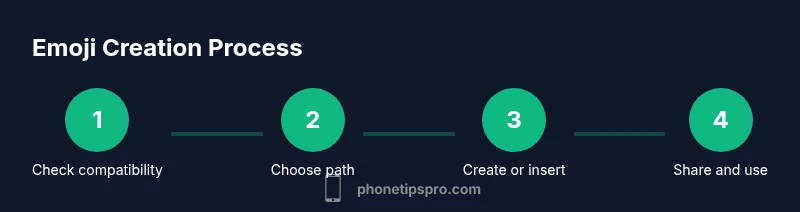
Check compatibility and update iOS
Confirm your iPhone supports Memojis (TrueDepth camera) and that you’re on iOS 13 or later. Go to Settings > General > Software Update to install the latest version if needed. This ensures you have access to the full Memoji editor and sticker sets.
Tip: If you can’t update, you can still use the standard emoji keyboard for expressive messaging. - 2
Open Messages and access Memoji options
Launch the Messages app, start a new chat or open an existing one, and tap the Animoji/Memoji icon to open the Memoji menu. If you don’t see Memojis, ensure your device supports TrueDepth and your OS is current.
Tip: If you don’t see the icon, try updating iMessage or restarting the phone. - 3
Create a new Memoji
In the Memoji editor, tap + to create a new Memoji. Follow prompts to choose skin tone, facial features, and movement options. Save your avatar when you’re satisfied with the look.
Tip: Start with a simple baseline and add accessories gradually for clarity. - 4
Customize Memojis features
Explore hairstyles, eyewear, hats, and makeup. Adjust facial hair and skin textures to resemble your preferred look. Save multiple Memojis for different moods or roles.
Tip: A few distinct Memojis are easier to remember in busy chats. - 5
Use Memojis in Messages
Insert Memojis as live animations or stickers in Messages. You can also send individual Memoji stickers in supported apps. Practice attaching Memojis to reactions and replies to save time.
Tip: Drag and drop Memojis into the chat for faster sharing. - 6
Switch to the emoji keyboard for universal symbols
Tap the globe or emoji button to switch to the standard emoji keyboard. Browse categories or use the search field to find specific symbols quickly.
Tip: Use descriptive search terms like “party” or “thumbs up” to speed up finding the right emoji.
FAQ
What is a Memoji and how is it different from standard emoji?
A Memoji is a personalized avatar that mirrors your facial expressions, created in iOS. Standard emoji are universal glyphs used across all apps. Memojis add a personal touch, while emoji provide quick, broad expressions.
Memojis are your own cartoon avatar that reacts to you, while standard emoji are universal symbols used by everyone.
Can I create Memojis on any iPhone?
Memojis require a TrueDepth camera and iOS 13 or later. Some older iPhone models do not support full Memoji features. If you don’t have compatibility, use the standard emoji keyboard.
You need a newer iPhone with Face ID to create Memojis.
Do Memojis sync across apps and devices?
Memojis can sync via iCloud if enabled, allowing access across devices. They also appear as stickers in Messages and supported apps. Check iCloud settings if you want cross-device availability.
Yes, Memojis can sync with iCloud if you’ve enabled it.
How do I share Memoji stickers?
In Messages, select the Memoji sticker pack to insert into chats. You can send multiple Memojis as animated stickers in supported apps. Practice attaching Memojis like you would other stickers for faster replies.
Open Messages, choose a Memoji sticker, and send it just like a normal sticker.
Are there privacy concerns with Memojis?
Memojis are stored on-device and can sync with iCloud if enabled. Review your iCloud settings and be mindful of where you share your likeness.
Your Memojis are essentially data on your device; share them carefully.
Watch Video
Quick Summary
- Create Memojis for personalized expression
- Use the emoji keyboard for fast reactions
- Memojis rely on TrueDepth and iOS version; check compatibility
- Mix Memojis and standard emojis for balanced communication