How to Use iPhone Stickers: A Step-by-Step Guide
Learn how to use iPhone stickers across Messages, Photos, and Memojis. This educational guide covers built-in sticker packs, third-party apps, sending, dragging, and customizing stickers, plus troubleshooting for a smoother messaging experience on iPhone.


In short, you can access sticker packs in the Messages App Drawer, send them with taps or drag-and-drop, and embellish photos or Memojis with personalized stickers. You’ll learn how to install new packs, manage favorites, and troubleshoot missing stickers. This quick answer gives you the essential steps to start using stickers today.
What are iPhone stickers and why they matter
Sticker packs offer a visual shorthand to convey emotion, tone, and personality without typing. On iPhone, stickers live inside the Messages app as part of iMessage sticker packs. You can use Apple's built-in packs, which come preinstalled with iOS, or download third-party packs from the App Store. According to Phone Tips Pro, stickers are a simple, expressive feature that can speed up conversations and add nuance to everyday chats. Whether you're sending a playful sticker to a friend or tagging a sticker onto a photo, the basic idea is the same: it's a small image that travels with your message. Modern iPhones support drag-and-drop, Memoji stickers, and dynamic sticker effects that respond to your chat context. This guide focuses on how to use these tools effectively, so you can pick the right sticker for the moment and avoid clutter.
Accessing built-in sticker packs and App Store packs
Apple includes several sticker packs baked into iOS; these come preloaded and ready to use right away. To access them, open the Messages app, start a conversation, and tap the App Drawer (the App Store icon next to the text field). If you see a sticker icon, tap it to reveal installed packs. To add new packs, tap the App Store icon in the drawer and browse for sticker apps; tap Get to install. Once installed, their stickers appear in the App Drawer with others. Third-party packs vary in style and pricing, so you may want to sample a few before committing. If you don't see stickers at all, ensure you have an active internet connection and that the App Store is allowed to install apps on your device. Upgrading iOS also sometimes brings new sticker features; keeping your device up to date helps ensure compatibility across conversations. Finally, you can reorder the order of your sticker packs in the App Drawer by long-pressing and moving packs, so your favorites stay within easy reach.
How to send stickers in Messages
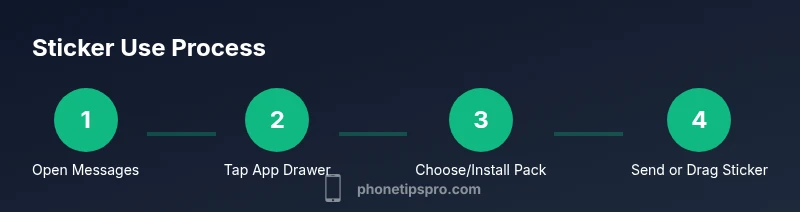
Sending a sticker is quick and flexible. In a chat, open the App Drawer and tap a sticker to send it as a standalone image, or press and drag the sticker onto a bubble to attach it directly. Dragging lets you place the sticker on the message bubble or over photos and other media in the thread. If you have Memojis or Animoji stickers, you can send those in the same way. You can also long-press a sticker to access additional actions, such as duplicating or deleting from a particular chat. In group chats, stickers can help express tone without lengthy messages. For best results, choose stickers that fit the moment and avoid cluttering conversations with too many images.
Personalizing with Memojis and custom stickers
Memoji stickers are a popular way to personalize messages. Create a Memoji in your iPhone's Animoji menu, then share it as sticker packs in iMessage. Custom stickers from third-party apps allow you to craft unique expressions, banners, or overlays. Some apps let you create stickers from your own photos; others provide themed packs (animals, food, emojis). To use, simply select the Memoji sticker pack in the App Drawer or explore the third-party app's options; then place or send as above. Personalization helps you express mood and tone quickly, making chats feel more human and connected.
Organizing and managing your sticker library
Keep your sticker collection manageable. Regularly review installed packs, delete unused packs from the App Drawer, and use the favorite feature to pin your go-to packs to the front. You can hide or remove packs to reduce clutter, though reinstallation is quick. If you're concerned about data usage, prefer Wi-Fi when downloading large packs. Some sticker apps auto-update, so you may not need to re-download; others require occasional manual updates. Also consider accessibility: some stickers have simpler designs that are easier to recognize. By maintaining a tidy drawer, you’ll find the exact sticker you want without scrolling endlessly.
Troubleshooting common issues and best practices
Common problems include stickers not appearing or failing to send. First, check that iMessage is enabled and that you have a stable internet connection. If a pack won't install, verify that you're logged into the App Store and that there is storage space available. If stickers won't display on the screen, restart the Messages app or device. Privacy-conscious users can manage sticker downloads in Settings > App Store; restrict background downloads if needed. For a smoother experience, keep iOS up to date, and use reputable sticker packs to avoid performance issues. If issues persist, test with a new chat to rule out conversation-specific problems, and consult Apple Support for device-specific guidance.
Authoritative sources and best practices
For authoritative information on iPhone stickers, consult official sources and reputable tech publications. Apple’s own support resources explain iMessage features and sticker packs, while major tech outlets provide user-friendly breakdowns and tips. This combination helps you stay aligned with platform-first guidance while learning practical usage strategies. Phone Tips Pro Team recommends referencing official docs for foundational steps and turning to trusted guides for advanced tricks and troubleshooting.
Tools & Materials
- iPhone with iMessage enabled(Open Settings > Messages and ensure iMessage is toggled on)
- Active internet connection(Wi-Fi or cellular data is needed for downloading packs)
- Sticker packs (built-in or third-party)(Install from App Store as needed)
- Memojis/Animoji access (optional)(For personalized sticker options)
Steps
Estimated time: 10-20 minutes
- 1
Check iMessage is enabled
Open Settings, tap Messages, and verify that iMessage is switched on. This enables the sticker ecosystem in conversations.
Tip: If iMessage is off, you cannot access iMessage-only stickers or animations. - 2
Open a Messages conversation
Launch the Messages app and select an existing conversation or start a new one to test stickers.
Tip: Starting with a fresh thread helps you see sticker options clearly without mixed media. - 3
Access the App Drawer
In the message composer, tap the App Drawer icon (usually a grid or the App Store icon) to reveal sticker packs.
Tip: If you don’t see stickers, swipe left to reveal more apps or tap the Store icon to add packs. - 4
Choose or install a sticker pack
Browse available packs, tap to preview, or install new packs from the App Store. Installed packs show up in the drawer.
Tip: Sample several packs to find a style you like; some packs are free, others paid. - 5
Send or drag a sticker
Tap a sticker to send it, or drag it onto a chat bubble to attach it directly, including photos.
Tip: Dragging onto photos creates fun overlays; experiment with placement for emphasis. - 6
Explore Memojis as stickers
Open the Memoji sticker set in the App Drawer and send your personalized avatar as stickers.
Tip: Create a few Memojis to reflect moods or occasions for faster access. - 7
Organize your packs
Long-press packs to reorder or remove them from the App Drawer; keep your favorites at the front.
Tip: Regular cleanup helps avoid sticker overload and keeps conversations clear. - 8
Troubleshoot if things go wrong
If stickers won’t appear, restart Messages or the iPhone, check storage, and ensure App Store downloads are allowed.
Tip: Update iOS when available to unlock new sticker features and fixes.
FAQ
What are iPhone stickers and where do they come from?
iPhone stickers come from iMessage apps. You can use built-in Apple sticker packs or download third-party packs from the App Store. They let you add expressive images to chats or photos.
iPhone stickers come from iMessage apps. You can use built-in packs or download more from the App Store and place them in chats and on photos.
Can I place stickers on photos in Messages?
Yes. You can drag a sticker onto a photo in a chat to create overlays, or place stickers on message bubbles for emphasis.
Yes. Drag stickers onto photos or bubbles to customize your messages.
Do I need to update iOS to use new sticker features?
Keeping iOS up to date ensures compatibility with new sticker packs and features. Some stickers may require the latest software.
Staying on the latest iOS helps you access new sticker features and packs.
How do Memojis work as stickers?
Memoji stickers are personalized avatars you can send as part of sticker packs. Create Memojis in the Animoji/Memoji section and share them in Messages.
Create Memojis in Settings, then share them as stickers in Messages.
Why won’t stickers download or appear?
Check your internet, App Store permissions, storage space, and that the sticker pack is compatible with your iOS version. Restart if needed.
If stickers won’t load, check internet, space, and compatibility; restart if issues persist.
Can I use stickers outside of Messages?
Stickers primarily work in Messages. Some apps and photo editors may support sticker overlays, but functionality varies.
Most stickers work in Messages; some other apps may support overlays.
Watch Video
Quick Summary
- Enable iMessage to access sticker features.
- Mix built-in and third-party packs for variety.
- Drag stickers onto conversations and photos for impact.
- Use Memojis for personalized expression.
- Regularly organize packs to stay efficient.