How to Remove Apple Watch from iPhone: A Practical Unpair Guide
Learn how to safely remove Apple Watch from iPhone by unpairing, backing up data, and turning off Activation Lock. This practical guide covers steps, tips, and troubleshooting for a smooth handoff and future re-pairing.


You will learn how to remove Apple Watch from iPhone by unpairing the devices in the Watch app or Settings, which also disables Activation Lock and preserves iPhone data via backup. Ensure both devices are updated and you have your Apple ID credentials ready.
Understanding how the Apple Watch connects to iPhone
The Apple Watch and iPhone work as a paired system, sharing data, settings, and apps. When you pair a Watch with an iPhone, Activation Lock is enabled to protect the device if it’s lost or stolen. Removing this link safely requires unpairing through the Watch app on iPhone or through Watch settings. The process creates a final backup of the Watch on the iPhone, which preserves your health metrics, recent activity, and app data. If you’re planning to sell, trade in, or give away the Watch, unpairing correctly also ensures the new owner can pair a fresh watch without hindrance. The core idea behind removing Apple Watch from iPhone is to separate the devices while keeping essential data intact on the iPhone, and to clear the watch’s data and credentials from the watch itself. For best results, ensure you’re using the same Apple ID on both devices and that you know your iCloud credentials. This is a common task, and understanding the steps helps avoid data loss or activation issues. In this guide we will cover the safest approach and alternative options if unpairing isn’t possible.
Why you might want to remove the Apple Watch from iPhone
There are several scenarios where removing the Watch from the iPhone makes sense. You might be upgrading to a new Apple Watch, handing the current device to a family member, selling it, or simply fixing a pairing issue that prevents re-pairing. Unpairing is generally the safest option because it creates a backup on the iPhone, disassociates the watch from the Apple ID, and disables Activation Lock on the watch. When you remove the connection, your iPhone continues to hold data from the health app, Activity data, calendars, and notifications that were synced from the Watch. If you rely on health metrics or workout history, you’ll still have access to that information after unpairing, because the backup keeps a snapshot of Watch data on the iPhone. If you plan to re-pair later, you can start fresh with the new watch, re-sync data, and regain access to your health and activity records.
Preparations before unpairing
Before you begin removing Apple Watch from iPhone, take a few important preparatory steps. First, back up your iPhone (and optionally the Watch) so you don’t lose recent health data, workouts, or app settings. Ensure both devices are on a known-good charge level to avoid interruptions, and confirm you know your Apple ID password in case Activation Lock needs to be disabled. If you use Find My, you may want to turn it off and sign out of iCloud on the Watch itself, depending on your plan. Confirm that your iPhone has a stable Wi-Fi or cellular connection so the unpairing process can complete quickly. Finally, locate the charger for the Apple Watch in case you need to complete a full charge before starting, especially if the device is currently low on battery. This preventive preparation helps the unpairing flow go smoothly without mid-process errors.
Unpairing vs erasing: what happens to data and apps
Unpairing the Apple Watch from iPhone creates a final backup on the iPhone, then removes the watch’s data from the watch itself and dissociates the devices. Activation Lock is disabled as part of unpairing, allowing a new owner to pair a different iPhone or watch. Apps and music stored on the watch are removed from the device, but the iPhone retains the health data, workout history, and notifications that were synced from the Watch. If you choose to erase all content and settings from the Watch instead of unpairing, you’ll lose the watch data and have to setup the watch from scratch, which is useful only if the device is non-functional or you’re selling it for parts. Generally, unpairing is the recommended method because it preserves your iPhone data and ensures a clean state for the watch to pair with another iPhone in the future.
Common issues and troubleshooting
Some users encounter errors when attempting to unpair, such as the Watch app freezing, the iPhone claiming it cannot reach the watch, or Activation Lock prompts appearing after unpair. Common fixes include restarting both devices, ensuring both are updated to the latest OS, and trying the unpair process again. If the watch won’t unpair via the Watch app, you can attempt to unpair directly from the watch by going to Settings > General > Reset > Reset all Content and Settings, but note this erases all watch data. If Activation Lock persists, verify you are signed into the correct Apple ID and that Find My iPhone is disabled. In stubborn cases, contact Apple Support for assistance. Remember, you should not force-reset devices unless you have exhausted standard unpairing methods because this can lead to data loss on the Watch.
Aftercare: re-pairing or handing off the watch
After you’ve successfully unpaired, you may decide to re-pair your Watch with the same iPhone later or pair it with a different iPhone. If re-pairing, you can restore the Watch from the backup created during unpairing, which helps you retain most settings and health data. If you’re handing off the watch to someone else, ensure Activation Lock is disabled and that you’ve signed out of iCloud on the watch and on the iPhone. Prepare a clean owner experience by performing a final reset on the iPhone if needed, and provide any necessary documentation about the Watch’s warranty or care instructions. Re-pairing is straightforward: turn on the Watch, place it near the iPhone, and follow the on-screen instructions. The experience should be smooth if both devices are updated and within proximity.
Summary of best practices for unpairing
- Back up before unpairing to preserve health and activity data.
- Use the Watch app on iPhone to unpair for the safest route.
- Have your Apple ID password handy to disable Activation Lock.
- If unpairing fails, restart devices and attempt again before erasing the Watch.
- After unpairing, decide whether to re-pair later or hand off to another user, and re-check Activation Lock settings.
Tools & Materials
- iPhone with the latest iOS(Ensure your iPhone is running a recent version for best compatibility.)
- Apple Watch to be unpaired(Keep on wrist or nearby during the process.)
- Apple ID and password(Needed to disable Activation Lock.)
- Watch charger(Useful if the watch needs charging during steps.)
- Backup method (iCloud or computer)(Helps preserve health data and settings on the iPhone.)
- Stable internet connection(Wi-Fi or cellular to complete backups and unpairing.)
Steps
Estimated time: Estimated total time: 15-25 minutes
- 1
Open the Watch app on iPhone
Launch the Watch app on your iPhone and ensure you are signed in with the same Apple ID used on the Watch. This app is the control center for unpairing and other Watch settings. You should see your paired Watch listed on the My Watch tab.
Tip: Keep the iPhone close to the Watch to avoid connectivity issues during unpairing. - 2
Tap My Watch to view paired devices
In My Watch, select the watch that is currently paired with your iPhone. This opens the detailed settings for that specific Watch, including the unpair option.
Tip: Verify you have the correct watch selected if you own multiple Apple Watches. - 3
Tap the info button next to the watch
Tap the small 'i' (info) button beside the watch name to access the unpair option. This is typically located at the top-right corner of the screen.
Tip: If you don’t see the info button, restart the Watch app and try again. - 4
Choose Unpair Apple Watch
Select Unpair Apple Watch from the menu. The device will start the unpairing process, which includes creating a backup on the iPhone and removing watch data from the watch.
Tip: A backup will be created automatically, so make sure there is enough storage on the iPhone. - 5
Enter Apple ID password to disable Activation Lock
If prompted, enter your Apple ID password to turn off Activation Lock. This step is crucial to allow a new user to pair the watch later.
Tip: If you forget the password, use the Apple ID account page to reset it before retrying. - 6
Confirm unpair and wait for completion
Confirm the unpair action and wait for the devices to finish the process. The iPhone will finalize the backup and remove the watch data. This can take several minutes depending on data size.
Tip: Do not interrupt the devices during the unpairing progress. - 7
If unpair fails, consider erasing as a last resort
If unpairing fails, you can erase all content and settings from the Watch via Settings > General > Reset > Erase All Content and Settings. This is a last resort and will remove all data from the Watch.
Tip: Erasing should only be used when unpairing is impossible or non-functional. - 8
Decide on re-pairing or handing off
After unpairing, you can re-pair the Watch with the same iPhone later or pair it with another iPhone. If re-pairing, you can restore from the backup created during unpairing.
Tip: If handing off, ensure Activation Lock is disabled and sign out of iCloud on the Watch.
FAQ
How do I unpair my Apple Watch from iPhone?
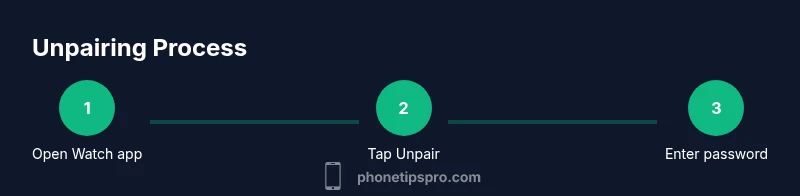
Open the Watch app on iPhone, tap My Watch, select the paired watch, then choose Unpair Apple Watch. You’ll be prompted to enter your Apple ID password to disable Activation Lock.
Open the Watch app, select your watch, and unpair. You’ll need your Apple ID password to disable Activation Lock.
Will unpairing erase data from my iPhone?
Unpairing creates a backup on the iPhone and preserves iPhone data. The watch data is removed from the watch itself, and Activation Lock is disabled.
Unpairing backs up to your iPhone and keeps iPhone data; watch data is removed from the watch.
What happens to Activation Lock after unpairing?
Activation Lock is disabled during the unpairing process, allowing a new user to pair the watch with another iPhone.
Activation Lock is turned off when you unpair.
What if I forgot my Apple ID password?
Use Apple's account page to reset your password. Once reset, retry the unpair process with the new password.
Reset your Apple ID password on Apple’s site, then try unpairing again.
How long does unpairing take?
Unpairing usually completes within several minutes, depending on data size and network speed.
It usually takes a few minutes.
I still see Activation Lock after unpairing—what now?
Double-check you signed out of iCloud and that Find My is disabled on both devices. If issues persist, contact Apple Support.
If Activation Lock sticks around, sign out of iCloud and contact support if needed.
Watch Video
Quick Summary
- Unpair safely via the Watch app to protect data.
- Back up before unpairing to preserve health data.
- Activation Lock is disabled automatically during unpairing.
- If unpairing fails, avoid erasing unless necessary and seek support.