How to Remove Private Number on iPhone
Learn how to remove private number on iPhone by enabling Show My Caller ID, using carrier options, or per-call codes. This educational guide covers steps, troubleshooting, and privacy considerations for reliable caller ID visibility.


With this guide you’ll reveal your caller ID on outgoing calls, effectively removing the Private label. Start by turning on Show My Caller ID in Settings > Phone if the option is available; if not, contact your carrier to enable it or learn about per-call options. Availability varies by region and carrier.
Understanding Private Numbers on iPhone
When you place a call, the recipient may see 'Private' instead of your number. This behavior occurs when Show My Caller ID is disabled or when your carrier blocks or masks your number. If you're curious about how to remove private number on iphone, you’re aiming to reveal your caller ID to outgoing calls. In this guide, we cover how to enable this setting on iPhone, what to do if the option isn’t available, and how per-call blocking works across carriers. By the end, you’ll have practical steps you can try today.
According to Phone Tips Pro, carrier support and regional availability heavily influence whether this feature is accessible. If you find the option missing, it’s often a carrier-side restriction rather than a device limitation. The goal is clarity and control: you should be able to present your number when you want, while respecting your privacy preferences when needed.
Quick ways to show your Caller ID
Your iPhone offers a straightforward, built-in approach to revealing your number to people you call, provided your carrier supports the feature. The main method is Show My Caller ID located under Settings > Phone. If the setting is unavailable in your region, contact your wireless carrier to enable it or learn about per-call options that let you decide on a call-by-call basis. Additionally, some users manage private numbers on a per-call basis by dialing specific codes before the number. Although carrier behavior varies, the typical expectation is that turning this feature on will display your number to most receivers, provided no other masking occurs at the carrier level.
How to enable Show My Caller ID in iPhone Settings
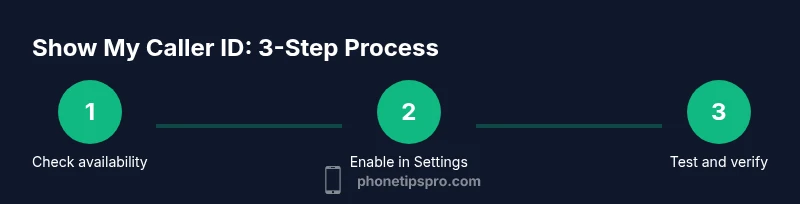
To enable the feature, you’ll need to access a few core menus: open the Settings app, tap Phone, and then look for Show My Caller ID. If you see the toggle, switch it to ON. In some cases, the option may be labeled differently or hidden behind a carrier profile; if so, you’ll need to contact your carrier for confirmation. After enabling, perform a quick test by calling a trusted contact and asking them to confirm that your number is visible. If the option isn’t present, the feature may be restricted by your carrier or region. In that case, proceed to the next sections for alternatives and per-call options.
Per-call blocking options and carrier settings
Even when Show My Caller ID is enabled, you might still control privacy on a per-call basis via carrier features. Per-call blocking typically uses dialing codes entered before the phone number you’re calling, but availability and syntax vary by network. Commonly, codes like *67 block your number for a single call, and codes like *82 or a disable code reverse that block for the next call. Always verify with your carrier for exact codes and any fees or limitations. If you are using a VoIP app or a non-standard SIM, the app’s own settings may also influence what number is shown, so check those as well.
Troubleshooting: when Show My Caller ID is unavailable
If the option is missing or grayed out, start by confirming your iPhone is updated to the latest iOS version and that your carrier profile is current. Some carriers disable the feature entirely, which means you’ll need their help to enable it. Reboot the iPhone, reset network settings if necessary, and re-check Settings > Phone for the option after the reboot. If it still isn’t visible, contact your carrier’s support or visit their online portal to confirm whether the service is supported in your plan or region. In some cases, you may need to switch to a different SIM or eSIM profile to access the feature.
Privacy considerations and alternatives
Revealing your caller ID is a privacy choice. While many people prefer to display their number for business or personal reasons, there are contexts where masking remains beneficial. Evaluate your communication needs, including when calling strangers or joining conference calls. If you must maintain privacy in certain situations, per-call blocking provides a practical middle ground. Always balance ease of identification with privacy, and keep in mind that some callers may still see Private due to the recipient’s own settings or carrier constraints. Phone Tips Pro recommends testing changes with a trusted contact after any modification to ensure the desired behavior is achieved.
Tools & Materials
- iPhone with current iOS version(Ensure you have the latest iOS for the option availability.)
- Active cellular plan(Carrier must support Show My Caller ID.)
- Carrier contact information(Needed if the option isn’t visible in Settings.)
- Stable internet connection or Wi‑Fi(Useful for checking carrier portals or updates.)
Steps
Estimated time: 5-15 minutes
- 1
Open Settings
Unlock your iPhone and open the Settings app to access system options. You’ll find core controls for phone services here, not in the Messages or FaceTime menus. This step sets the stage for verifying whether Show My Caller ID is available on your device.
Tip: If Settings isn’t responsive, restart your iPhone before proceeding. - 2
Tap Phone
Within Settings, locate and tap the Phone option. It controls calls, messages, and related features. This is where the Show My Caller ID setting commonly resides if your carrier supports it.
Tip: If you don’t see Phone, ensure you’re on iOS with recent updates or check for carrier-specific apps. - 3
Select Show My Caller ID
Look for Show My Caller ID in the Phone settings. If you find it, toggle ON to reveal your number for outgoing calls. If the label isn’t present, skip to the carrier steps below.
Tip: On some devices, the option may be labeled 'Show Caller ID' or covered by a carrier profile. - 4
Toggle ON
Slide the switch to enable Show My Caller ID. Leave it ON to see your number when calling. If prompted for a confirmation, accept it to apply the change.
Tip: If the toggle is grayed out, contact your carrier to enable the feature on your plan. - 5
Test with a trusted contact
Dial a known number or ask a trusted friend to verify that your number is visible. If the recipient still sees Private, you may be facing carrier restrictions or regional limitations.
Tip: Test on both cellular and Wi‑Fi calling if available to rule out network-specific behavior. - 6
If not available, contact your carrier
When the option isn’t shown, reach out to your wireless provider for enablement or to confirm eligibility. Carriers sometimes require a plan update or an app-based setting to lift the restriction.
Tip: Take note of your account details and plan type to speed up the support process. - 7
Consider per-call blocking codes
If you must control privacy on a per-call basis, learn the correct dialing codes with your carrier. Codes often precede the number you’re calling. Availability and syntax vary, so verify with the provider.
Tip: Keep a quick reference handy for common codes used by your carrier to avoid guesswork. - 8
Update and re-check
Install any carrier profile updates and iOS updates, then re-check the Show My Caller ID option. Some changes require a device restart or network refresh to take effect.
Tip: If issues persist after updates, re-run test steps with different contacts and on multiple networks.
FAQ
Why is Show My Caller ID missing on my iPhone?
Missing options are usually due to carrier restrictions or regional availability rather than a device fault. Update iOS, check carrier settings, and contact your provider if the option remains unavailable.
If you don’t see Show My Caller ID, it’s often a carrier or regional limitation. Update your iPhone and contact your carrier for confirmation.
Does enabling Show My Caller ID affect all calls?
When enabled, most outgoing calls reveal your number to recipients who honor the feature. Some apps or VoIP services may override or mask your number, so verify with trusted contacts.
In most cases, yes, it shows your number, but some apps might mask it, so test with different contacts.
Can I still block my number per call if Show My Caller ID is on?
Yes. Per-call blocking is usually controlled by dialing codes or app settings. Check with your carrier for exact codes and limitations before relying on this method.
You can still block per call using dialing codes, but you’ll want to confirm the exact codes with your carrier.
What should I do if I’m traveling internationally?
International roaming may change how Show My Caller ID works. Check with the local carrier, update settings if needed, and perform a test call to confirm visibility.
Roaming can affect this feature. Check with your overseas carrier and test a call to verify your number appears.
Are there any codes to hide or unhide my number?
Some carriers support codes like *67 to hide and *82 to unhide for individual calls. Availability varies, so verify the exact codes with your provider.
There are codes used by some carriers to hide or reveal your number per call, but they vary—check with your carrier for the right ones.
Watch Video
Quick Summary
- Show My Caller ID reveals your number to most recipients when available.
- Carrier availability and regional rules significantly influence outcomes.
- Per-call blocking offers flexibility if permanent changes aren’t possible.
- Test after each change to confirm the display behavior.